> This is part 1 of 2 of the full documentation (pages 1–100 of 170).
> The content is paginated: fetch every part to see all of it.
> Next part: https://help.getmobly.com/llms-full.txt/1
> Page index: https://help.getmobly.com/llms.txt
# Welcome
Guides, live training, and direct access to your Customer Success team.
For self-serve articles, how-tos, and troubleshooting, see the [Help Center](https://help.getmobly.com/help-center).
## Live training
Join a live walkthrough of the Mobly Hub or the mobile app. Pick a session that works for you and register.
Mobly Hub Walkthrough (1 hour)
* [Tue, Sep 8 · 4:00 PM EST](https://getmobly.wistia.com/live/events/ls0m2ej7sa)
* [Mon, Sep 14 · 9:30 AM EST](https://getmobly.wistia.com/live/events/98hagfakqz)
* [Tue, Sep 15 · 4:00 PM EST](https://getmobly.wistia.com/live/events/09bamh9zxc)
* [Mon, Sep 21 · 9:30 AM EST](https://getmobly.wistia.com/live/events/xh1ey0b2by)
* [Tue, Sep 22 · 4:00 PM EST](https://getmobly.wistia.com/live/events/gbqv18q9o1)
* [Mon, Sep 28 · 9:30 AM EST](https://getmobly.wistia.com/live/events/8uhzntvpcs)
* [Tue, Sep 29 · 4:00 PM EST](https://getmobly.wistia.com/live/events/on4em9o5er)
* [Mon, Oct 5 · 9:30 AM EST](https://getmobly.wistia.com/live/events/wl432g1e5b)
* [Tues, Oct 6 · 4:00 PM EST](https://getmobly.wistia.com/live/events/4cdtirxqqf)
* [Tues, Oct 13 · 4:00 PM EST](https://getmobly.wistia.com/live/events/mztn83um5p)
* [Mon, Oct 19 · 9:30 AM EST](https://getmobly.wistia.com/live/events/j9p29mt4qb)
* [Tues, Oct 20 · 4:00 PM EST](https://getmobly.wistia.com/live/events/et78xbk4kr)
* [Mon, Oct 26 · 9:30 AM EST](https://getmobly.wistia.com/live/events/3as46id31b)
* [Tues, Oct 27 · 4:00 PM EST](https://getmobly.wistia.com/live/events/8np5s81a4v)
* [Mon, Nov 2 · 9:30 AM EST](https://getmobly.wistia.com/live/events/ynufhtx2bd)
* [Tues, Nov 3 · 4:00 PM EST](https://getmobly.wistia.com/live/events/9xp2ijmg6v)
* [Mon, Nov 9 · 9:30 AM EST](https://getmobly.wistia.com/live/events/lzrjn19ohi)
* [Tues, Nov 10 · 4:00 PM EST](https://getmobly.wistia.com/live/events/ivr8av68pc)
* [Mon, Nov 16 · 9:30 AM EST](https://getmobly.wistia.com/live/events/pzcttvyv7b)
* [Tues, Nov 17 · 4:00 PM EST](https://getmobly.wistia.com/live/events/wyvxzwb8wr)
* [Mon, Nov 23 · 9:30 AM EST](https://getmobly.wistia.com/live/events/smjj0extd3)
* [Tues, Nov 24 · 4:00 PM EST](https://getmobly.wistia.com/live/events/ahggbltcmm)
* [Mon, Nov 30 · 9:30 AM EST](https://getmobly.wistia.com/live/events/6cv4zcllgb)
* [Tues, Dec 1 · 4:00 PM EST](https://getmobly.wistia.com/live/events/p1e3x5bdtu)
* [Mon, Dec 7 · 9:30 AM EST](https://getmobly.wistia.com/live/events/ez0dybp7l7)
* [Tues, Dec 8 · 4:00 PM EST](https://getmobly.wistia.com/live/events/jdnjfhe8ck)
* [Mon, Dec 14 · 9:30 AM EST](https://getmobly.wistia.com/live/events/vzsw7937ox)
* [Tues, Dec 15 · 4:00 PM EST](https://getmobly.wistia.com/live/events/621jdahutt)
* [Mon, Dec 21 · 9:30 AM EST](https://getmobly.wistia.com/live/events/05pxorjvoh)
* [Tues, Dec 22 · 4:00 PM EST](https://getmobly.wistia.com/live/events/z5005ue5up)
* [Mon, Dec 28 · 9:30 AM EST](https://getmobly.wistia.com/live/events/ti7nocfqbf)
* [Tues, Dec 29 · 4:00 PM EST](https://getmobly.wistia.com/live/events/8t0zxekvta)
Mobly Mobile App Training (45 minutes)
* [Wed, Sep 9 · 9:30 AM EST](https://getmobly.wistia.com/live/events/rp44i4rdyr)
* [Thu, Sep 10 · 4:00 PM EST](https://getmobly.wistia.com/live/events/jdwuri1g0n)
* [Wed, Sep 16 · 9:30 AM EST](https://getmobly.wistia.com/live/events/oxdhv8loz2)
* [Thu, Sep 17 · 4:00 PM EST](https://getmobly.wistia.com/live/events/g4lif89bo6)
* [Wed, Sep 23 · 9:30 AM EST](https://getmobly.wistia.com/live/events/e1587jcg7d)
* [Thu, Sep 24 · 4:00 PM EST](https://getmobly.wistia.com/live/events/dmguagw12n)
* [Wed, Sep 30 · 9:30 AM EST](https://getmobly.wistia.com/live/events/02ak5v0rcf)
* [Thu, Oct 1 · 4:00 PM EST](https://getmobly.wistia.com/live/events/r5im5kwdr0)
* [Wed, Oct 7 · 9:30 AM EST](https://getmobly.wistia.com/live/events/fl0hfq5r7g)
* [Thu, Oct 8 · 4:00 PM EST](https://getmobly.wistia.com/live/events/lfj0robqi9)
* [Wed, Oct 14 · 9:30 AM EST](https://getmobly.wistia.com/live/events/f5kwf9jbvl)
* [Thu, Oct 15 · 4:00 PM EST](https://getmobly.wistia.com/live/events/hne0jm2m21)
* [Wed, Oct 21 · 9:30 AM EST](https://getmobly.wistia.com/live/events/g0frws8il6)
* [Thu, Oct 22 · 4:00 PM EST](https://getmobly.wistia.com/live/events/m3msufcuwc)
* [Wed, Oct 28 · 9:30 AM EST](https://getmobly.wistia.com/live/events/6gmvry33u8)
* [Thu, Oct 29 · 4:00 PM EST](https://getmobly.wistia.com/live/events/w7u3f8ouxn)
* [Wed, Nov 4 · 9:30 AM EST](https://getmobly.wistia.com/live/events/qb6g08tvya)
* [Thu, Nov 5 · 4:00 PM EST](https://getmobly.wistia.com/live/events/msh2fwiiey)
* [Thu, Nov 12 · 4:00 PM EST](https://getmobly.wistia.com/live/events/1wlp1xoek5)
* [Wed, Nov 18 · 9:30 AM EST](https://getmobly.wistia.com/live/events/4frv8ecia2)
* [Thu, Nov 19 · 4:00 PM EST](https://getmobly.wistia.com/live/events/zq9p26p0v4)
* [Wed, Nov 25 · 9:30 AM EST](https://getmobly.wistia.com/live/events/517u22ih9y)
* [Wed, Dec 2 · 9:30 AM EST](https://getmobly.wistia.com/live/events/d8dihq14p0)
* [Thu, Dec 3 · 4:00 PM EST](https://getmobly.wistia.com/live/events/h6cdtsu73w)
* [Wed, Dec 9 · 9:30 AM EST](https://getmobly.wistia.com/live/events/5ks6efgkq2)
* [Thu, Dec 10 · 4:00 PM EST](https://getmobly.wistia.com/live/events/ee06gpvwiq)
* [Wed, Dec 16 · 9:30 AM EST](https://getmobly.wistia.com/live/events/5n77c3fzsq)
* [Thu, Dec 17 · 4:00 PM EST](https://getmobly.wistia.com/live/events/m258606y44)
* [Wed, Dec 23 · 9:30 AM EST](https://getmobly.wistia.com/live/events/xqf2z30u6r)
* [Wed, Dec 30 · 9:30 AM EST](https://getmobly.wistia.com/live/events/32j0aytm4k)
## Talk to your Customer Success Manager
Book 1:1 time with your CSM for setup help, roadmap questions, or account reviews
### Vanessa Gabor Karri
[Schedule time with Vanessa](https://scheduler.default.com/23079/member/6ca7883a-ff31-463b-a631-1d5967509ac8)
### Teddy Cook
[Schedule time with Teddy](https://scheduler.default.com/17075/member/f7daa7ef-694b-4cc0-aef2-aed8dc94339f)
### Anthony Munoz
[Schedule time with Anthony](https://scheduler.default.com/25286/member/a0ccf422-635b-49c1-b72a-16e5ddfd50b7)
***
## What's new in Mobly?
See the [Changelog](https://mobly.gitbook.io/mobly-docs/changelog) for a week-by-week feed of features, improvements, and fixes.
# Mobly Documentation
Developer-facing documentation for integrating with Mobly programmatically.
## What's here
* [**REST API v0**](/documentation/rest-api/rest-api-v0) — full reference for the Mobly REST API. Authentication via API key, JSON-based, versioned. Covers events, leads, activities, activations, tag groups, and industry events.
## Getting an API key
API keys are issued by Mobly's customer support team. Reach out to your CSM or to request one for your organization.
## Looking for something else?
* **End-user help articles** (how to set up CRM integrations, manage events, run Pulse sequences, etc.) live in the [Help Center](https://help.getmobly.com).
* **Product changelog** with what's new lives in the [Changelog](https://help.getmobly.com/changelog).
# REST API v0
This document describes the **Mobly REST API (version v0)**.
All endpoints are:
* **JSON-based**
* **Authenticated via API Key**
* **Versioned under `/v0`**
***
## Base URL
All requests should be made relative to the following base URL:
## Authentication
All requests must include a valid API key. You can request an API key by contacting customer support.
### API Key Header
Send your API key using the `x-api-key` header:
```http
x-api-key: YOUR_API_KEY_HERE
```
### Example Request
```http
GET /api/v0/events?limit=20&offset=0 HTTP/1.1
Host: core-api.mobly.com
Accept: application/json
x-api-key: abcd123
```
### Authentication Errors
| Condition | Status | Description |
| --------------- | ------ | -------------------------------------- |
| Missing API key | 401 | `Unauthorized` – API key not provided. |
| Invalid API key | 403 | `Forbidden` – API key header invalid. |
Error responses follow this structure:
```json
{
"status": 403,
"error": "Forbidden"
}
```
***
## Response Format
All successful endpoints return results in a consistent wrapper format.
### Single-Resource Endpoints
```jsonc
{
"status": 200,
"results": {
/* single resource object */
},
}
```
* `status`: HTTP status code.
* `results`: Single object for the specific resource (e.g. `event`, `lead`).
### Array-Resource Endpoints (Paginated)
```jsonc
{
"status": 200,
"pagination": {
"limit": 20,
"offset": 0,
},
"results": {
"": [
/* array of resource objects */
],
"total": 123,
},
}
```
* `status`: HTTP status code.
* `pagination.limit`: number of items returned in this page.
* `pagination.offset`: zero-based *page* index.
* `results.`: an array for the specific resource (e.g. `events`, `leads`).
* `results.total`: total number of records matching the query for the organization.
If a resource cannot be found, a `404` is returned:
```json
{
"status": 404,
"error": "Not Found"
}
```
***
## Pagination Parameters
List endpoints support the following query parameters:
| Name | Type | Default | Max | Description |
| ------ | ------ | ------- | --- | ---------------------------------------------- |
| limit | number | `20` | 50 | Page size. Values greater than 50 are clamped. |
| offset | number | `0` | — | Zero-based page index (`0` = first page). |
Example:
```http
GET /api/v0/leads?limit=25&offset=2
```
Returns up to 25 leads, for the **third** page of results.
***
## Rate Limiting
Mobly API requests are rate-limited to ensure fair usage and to protect system performance. Rate limits apply **per API key** using a token bucket model with two key properties:
* **Burst Capacity (`maxTokens`)** – the maximum number of requests that can be made at once
* **Refill Rate (`refillRate`)** – how many requests are added back to the bucket over time
Each incoming request consumes **1 token**. If no tokens are available, the API returns **HTTP 429 – Too Many Requests**.
Clients can track their usage in real time using the rate-limit headers returned on every response.
### How the Token Bucket Works
Every API key has:
* `maxTokens` – maximum number of allowed burst requests
* `refillRate` – tokens added per second
* `tokensRemaining` – current number of tokens in the bucket
* `retryAt` – timestamp when the next token will be available if the bucket is empty
**Example:**
Given the default usage rates:
maxTokens = 20 refillRate = 1 token/second
Then:
* You can make **up to 20 requests instantly** (burst)
* You can sustain **1 request per second** indefinitely
* If you exceed the limit, you must wait until a token becomes available
### Rate Limit Headers
The following headers are included on **all successful responses** and **all 429 responses**:
| Header | Description |
| ------------------------- | ----------------------------------------------------------- |
| **X-RateLimit-Limit** | The maximum burst capacity (`maxTokens`) for the API key. |
| **X-RateLimit-Remaining** | How many tokens remain *after* this request\*. |
| **X-RateLimit-Reset** | Unix timestamp (seconds) when the bucket will fully refill. |
| **Retry-After** | *(Only on 429)* Number of seconds to wait before retrying. |
***
## Endpoint Summary
All available endpoints in **v0**:
* `GET /events`
* `GET /events/:eventId`
* `POST /events`
* `PUT /events/:eventId`
* `DELETE /events/:eventId`
* `GET /events/:eventId/leads`
* `PUT /events/:eventId/leads`
* `DELETE /events/:eventId/leads/:leadId`
* `GET /events/:eventId/users`
* `GET /leads`
* `GET /leads/:leadId`
* `POST /leads`
* `PATCH /leads/:leadId`
* `DELETE /leads/:leadId`
* `GET /leadActivityEvents`
* `GET /leadActivityEvents/:leadActivityEventId`
* `GET /activations`
* `GET /activations/:activationId`
* `GET /tagGroups`
* `GET /tagGroups/:tagGroupId`
* `GET /industryEvents`
* `GET /industryEvents/bookmarks`
* `GET /industryEvents/:industryEventId`
* `POST /industryEvents`
* `PUT /industryEvents/:industryEventId`
* `POST /industryEvents/:industryEventId/bookmark`
* `DELETE /industryEvents/:industryEventId/bookmark`
***
## Events
### GET `/events`
List events for the authenticated organization.
**Query Parameters**
* `limit` – page size (default 20, maximum 50)
* `offset` – zero-based page index (default 0)
**Response**
```jsonc
{
"status": 200,
"pagination": { "limit": 10, "offset": 1 },
"results": {
"events": [
{
"id": 123,
"name": "Mobly Live Demo",
"type": "CONFERENCE",
"registrationEnabled": true,
"createdByEmail": "zach@getmobly.com",
"createdAt": "2025-11-17T19:23:45.000Z",
"startDate": "2025-11-20",
"endDate": "2025-11-21",
"location": {
"streetAddress": "123 Main St",
"city": "Salt Lake City",
"state": "UT",
"zip": "84101",
"country": "US",
"latitude": "40.7608",
"longitude": "-111.8910",
"timeZone": "America/Denver",
},
"tagGroups": [
"262dc028-1426-498a-943c-e0c1dbd664c1",
"171de7g4-2675-4d27-8297-5403a96b493d",
],
},
],
"total": 11,
},
}
```
#### `EventV0Response`
```ts
type EventV0Response = {
id: number;
name: string;
type: EventType;
registrationEnabled: boolean;
createdByEmail: string;
createdAt: string;
startDate: string | null;
endDate: string | null;
location: {
streetAddress: string | null;
city: string | null;
state: string | null;
zip: string | null;
country: string | null;
latitude: string | null;
longitude: string | null;
timeZone: string | null;
} | null;
tagGroups: string[];
};
```
> **Note:** `EventType` is a string enum (e.g. `CONFERENCE`, `TRADE_SHOW`, `EVENT`, `SIDECAR`, `DINNER_MEAL`, `HAPPY_HOUR`, `OTHER`).
> **Note:** `startDate` & `endDate` are formatted as an ISO 8601 date, e.g. "2025-11-21"
***
### GET `/events/:eventId`
Fetch a single event by ID.
**Path Parameters**
| Name | Type | Description |
| ------- | ------ | ----------- |
| eventId | number | Event ID |
**Example**
```http
GET /api/v0/events/123
```
**Response**
```jsonc
{
"status": 200,
"results": {
/* EventV0Response */
},
}
```
***
### POST `/events`
Create an event for the authenticated organization.
**Body Payload**
```ts
type EventCreateV0Input = {
eventName: string;
eventType: EventType;
startDate: string; // ISO 8601 date, e.g. "2025-11-20"
endDate: string; // ISO 8601 date, e.g. "2025-11-21"
createdByEmail: string;
registrationEnabled?: boolean;
};
```
**Response**
```jsonc
{
"status": 200,
"results": {
/* EventV0Response */
},
}
```
***
### PUT `/events/:eventId`
Update an event for the authenticated organization.
> **Important:** This endpoint updates the full event record.
**Path Parameters**
| Name | Type | Description |
| ------- | ------ | ----------- |
| eventId | number | Event ID |
**Body Payload**
```ts
type EventUpdateV0Input = {
eventName: string;
eventType: EventType;
startDate: string; // ISO 8601 date, e.g. "2025-11-20"
endDate: string; // ISO 8601 date, e.g. "2025-11-21"
registrationEnabled?: boolean;
};
```
**Response**
```jsonc
{
"status": 200,
"results": {
/* EventV0Response */
},
}
```
***
### DELETE `/events/:eventId`
Delete an event for the authenticated organization.
**Path Parameters**
| Name | Type | Description |
| ------- | ------ | ----------- |
| eventId | number | Event ID |
**Response**
```jsonc
{
"status": 200,
"results": {},
}
```
***
### GET `/events/:eventId/leads`
Retrieve the leads associated with a specific event, including their registration and check-in status.
**Path Parameters**
| Name | Type | Description |
| ------- | ------ | ----------- |
| eventId | number | Event ID |
**Query Parameters**
* `limit` – page size (default 20, maximum 50)
* `offset` – zero-based page index (default 0)
**Response**
```jsonc
{
"status": 200,
"pagination": { "limit": 20, "offset": 0 },
"results": {
"eventLeads": [
{
"leadId": "8588613f-669b-4cfe-8aa2-37561a775103",
"registered": true,
"checkedIn": false,
},
],
"total": 1,
},
}
```
#### `EventLeadV0Response`
```ts
type EventLeadV0Response = {
leadId: string;
registered: boolean;
checkedIn: boolean;
};
```
***
### PUT `/events/:eventId/leads`
Associate existing leads with an event and optionally update their `registered` and `checkedIn` status.
* If a lead is **not yet associated** with the event, a new association is created.
* If the lead **is already associated**, the existing `registered` and `checkedIn` values are **updated**.
If `registered` or `checkedIn` are omitted, they default to `false`.
Note: This endpoint does not remove existing associations. To remove a lead from an event, use:
DELETE /events/:eventId/leads/:leadId
**Path Parameters**
| Name | Type | Description |
| ------- | ------ | ----------- |
| eventId | number | Event ID |
**Body Payload**
```ts
type EventAddLeadsV0Input = {
eventLeads: {
leadId: string;
registered?: boolean;
checkedIn?: boolean;
}[];
};
```
**Response**
```jsonc
{
"status": 200,
"results": {
"eventLeads": [
/* EventLeadV0Response */
],
},
}
```
***
### DELETE `/events/:eventId/leads/:leadId`
Delete a lead's association with an event for the authenticated organization.
**Path Parameters**
| Name | Type | Description |
| ------- | ------ | ----------- |
| eventId | number | Event ID |
| leadId | string | Lead ID |
**Response**
```jsonc
{
"status": 200,
"results": {},
}
```
***
### GET `/events/:eventId/users`
Retrieve the users assigned to a specific event for the authenticated organization.
**Path Parameters**
| Name | Type | Description |
| ------- | ------ | ----------- |
| eventId | number | Event ID |
**Query Parameters**
* `limit` – page size (default 20, maximum 50)
* `offset` – zero-based page index (default 0)
**Response**
```jsonc
{
"status": 200,
"pagination": { "limit": 20, "offset": 0 },
"results": {
"users": [
{
"id": 42,
"email": "jane.doe@example.com",
"firstName": "Jane",
"lastName": "Doe",
},
],
"total": 1,
},
}
```
#### `UserV0Response`
```ts
type UserV0Response = {
id: number;
email: string | null;
firstName: string | null;
lastName: string | null;
};
```
***
## Leads
### GET `/leads`
List leads for the authenticated organization.
**Query Parameters**
* `limit` – page size (default 20, maximum 50)
* `offset` – zero-based page index (default 0)
**Response**
```jsonc
{
"status": 200,
"pagination": { "limit": 10, "offset": 1 },
"results": {
"leads": [
{
"id": "8588613f-669b-4cfe-8aa2-37561a775103",
"createdAt": "2025-11-17T19:23:45.000Z",
"isEnriched": true,
"firstName": "Zach",
"lastName": "Barney",
"email": "zach@getmobly.com",
"personalEmails": "zach.barney@gmail.com",
"professionalEmails": "zach@getmobly.com; zbarney@getmobly.com",
"description": "CEO at Mobly",
"linkedin": "https://www.linkedin.com/in/zachbarney/",
"facebook": null,
"twitter": null,
"jobTitle": "CEO",
"address": "123 Main St, Salt Lake City, UT",
"phoneNumbers": {
"leadProvided": [],
"moblyProvided": [
{
"number": "+1-555-555-0001",
"type": "MOBILE",
"preferred": true,
},
],
},
"company": {
"name": "Mobly",
"industry": "Software",
"linkedin": "https://www.linkedin.com/company/getmobly",
"streetAddress": "123 Main St",
"city": "Salt Lake City",
"state": "UT",
"zip": "84101",
"country": "US",
},
"numberOfScans": 3,
"lastScannedBy": "kristian@getmobly.com",
"activations": [
{
"activationId": "ca6df5fd-1abf-49af-bc72-0eeb45fce2b1",
"checkedIn": true,
"registered": true,
},
],
"tags": [
{
"tagOptionId": "46426cc1-2ecc-49dc-aaab-cbb8e0a1bccf",
"value": "VIP",
},
],
"leadActivityEvents": ["077fe3bf-31ff-45d4-8a35-0313bd5e4cf2"],
},
],
"total": 11,
},
}
```
#### `LeadV0Response`
```ts
type LeadV0Response = {
id: string;
createdAt: string;
isEnriched: boolean;
firstName: string | null;
lastName: string | null;
email: string | null;
personalEmails: string | null;
professionalEmails: string | null;
description: string | null;
linkedin: string | null;
facebook: string | null;
twitter: string | null;
jobTitle: string | null;
address: string | null;
phoneNumbers: {
leadProvided: {
number: string;
type: PhoneNumberTypeEnum;
preferred: boolean;
}[];
moblyProvided: {
number: string;
type: PhoneNumberTypeEnum;
preferred: boolean;
}[];
};
company: {
name: string | null;
industry: string | null;
linkedin: string | null;
streetAddress: string | null;
city: string | null;
state: string | null;
zip: string | null;
country: string | null;
};
numberOfScans: number;
lastScannedBy: string | null;
activations: {
activationId: string;
checkedIn: boolean;
registered: boolean;
}[];
tags: {
tagOptionId: string;
value: string;
}[];
leadActivityEvents: string[];
remoteIds: {
id: string;
integrationType: IntegrationType;
}[];
};
```
> **Note:** `IntegrationType` is a string enum (e.g. `MARKETO`, `HUB_SPOT`, `ZOHO`, `SALES_FORCE`, `PIPE_DRIVE`, `ELOQUA`, `PARDOT`, `WEBHOOK`).
> **Note:** `PhoneNumberTypeEnum` is a string enum (e.g. `MOBILE`, `LANDLINE`, `DIRECT`, `OFFICE`, `HQ`, `UNKNOWN`).
> **Note:** `leadProvided` includes numbers users from your organization have entered whereas `moblyProvided` includes numbers provided by Mobly's data enrichment.
> **Note:** `personalEmails` and `professionalEmails` are strings of one or more email addresses, typically semicolon-separated (`;`), e.g. `"a@example.com;b@example.com"`. They are `null` when no addresses are available. Unlike the `email` field, these addresses are not verified.
> **Important:** The `;` separator is **not 100% guaranteed**. Depending on the upstream data source, the separator may include surrounding whitespace (e.g. `"a@example.com; b@example.com"`) or be absent entirely (a single address). When parsing these fields, split on `;`, trim each entry, and drop empties rather than assuming a strict `;`-only delimiter — and handle the single-address case where no separator is present. We know this is awkward; a structured, normalized representation is planned for a future API version.
***
### GET `/leads/:leadId`
Fetch a single lead by ID.
**Path Parameters**
| Name | Type | Description |
| ------ | ------ | ----------- |
| leadId | string | Lead ID |
**Example**
```http
GET /api/v0/leads/8588613f-669b-4cfe-8aa2-37561a775103
```
**Response**
```jsonc
{
"status": 200,
"results": {
/* LeadV0Response */
},
}
```
***
### POST `/leads`
Create a lead for the authenticated organization.
**Body Payload**
```ts
type LeadCreateV0Input = {
createdByEmail: string;
firstName: string;
lastName: string;
companyName: string;
email?: string;
phoneNumbers?: {
number: string;
preferred: boolean;
type: PhoneNumberTypeEnum;
}[];
};
```
**Response**
```jsonc
{
"status": 200,
"results": {
/* LeadV0Response */
},
}
```
### PATCH `/leads/:leadId`
Partially update a lead and its associated persona record.
Only the fields included in the request body are modified. All omitted fields remain unchanged.
This endpoint is designed for incomplete or incremental updates to lead data. Sending all persona fields in the body effectively performs a full update of the lead record.
#### PATCH Semantics
* If a field is **omitted**, it is left unchanged.
* If a field is explicitly set to **`null`**, the corresponding value is cleared (set to `NULL`).
For `phoneNumbers`:
* If `phoneNumbers` is **omitted**, existing phone numbers remain unchanged.
* If `phoneNumbers` is **`null`** or an **empty array `[]`**, all existing phone numbers are removed.
* If `phoneNumbers` is a **non-empty array**, it fully replaces all existing phone numbers.
> `phoneNumbers` is not merged. Always send the complete list of phone numbers you want to retain or omit the field.
For `remoteId`:
* If `remoteId` is **omitted**, existing remote ID's remain unchanged.
* If `remoteId` is included and `id` is set to **`null`**, the remote ID for the provided `integrationType` is cleared.
* If `remoteId` is included and `id` has a value, the remote ID for the provided `integrationType` is created or updated.
**Path Parameters**
| Name | Type | Description |
| ------ | ------ | ----------- |
| leadId | string | Lead ID |
**Body Payload**
```ts
type LeadPatchV0Input = {
firstName?: string | null;
lastName?: string | null;
email?: string | null;
address?: string | null;
linkedin?: string | null;
facebook?: string | null;
twitter?: string | null;
profilePicture?: string | null;
description?: string | null;
jobTitle?: string | null;
phoneNumbers?: {
number: string;
preferred: boolean;
type: PhoneNumberTypeEnum;
}[];
remoteId?: { id: string | null; integrationType: IntegrationType };
};
```
**Response**
```jsonc
{
"status": 200,
"results": {
/* LeadV0Response */
},
}
```
***
### DELETE `/leads/:leadId`
Delete a lead for the authenticated organization.
**Path Parameters**
| Name | Type | Description |
| ------ | ------ | ----------- |
| leadId | string | Lead ID |
**Response**
```jsonc
{
"status": 200,
"results": {},
}
```
***
## Lead Activity Events
### GET `/leadActivityEvents`
List lead activity events for the authenticated organization.
**Query Parameters**
* `limit` – page size (default 20, maximum 50)
* `offset` – zero-based page index (default 0)
* `leadId` – Optional filter to only return results associated with a specific lead
* `eventType` – Optional filter to only return results of a specific type
**Response**
```jsonc
{
"status": 200,
"pagination": { "limit": 10, "offset": 1 },
"results": {
"leadActivityEvents": [
{
"id": "077fe3bf-31ff-45d4-8a35-0313bd5e4cf2",
"createdAt": "2025-11-17T14:57:07.838Z",
"createdBy": "kristian@getmobly.com",
"eventType": "CALENDAR",
"eventNotes": "Booked follow up call",
"associatedLead": "8588613f-669b-4cfe-8aa2-37561a775103",
"associatedCampaign": null,
"associatedEvent": null,
"associatedActivation": null,
"associatedTagOption": null,
},
],
"total": 11,
},
}
```
#### `LeadActivityEventV0Response`
```ts
type LeadActivityEventV0Response = {
id: string;
createdAt: string;
createdBy: string | null;
eventType: LeadActivityEventType;
eventNotes: string | null;
associatedLead: string;
associatedCampaign: string | null;
associatedEvent: number | null;
associatedActivation: string | null;
associatedTagOption: string | null;
};
```
> **Note:** `LeadActivityEventType` is a string enum (e.g. `NOTE`, `FACEBOOK`, `LINKEDIN`, `TWITTER`, `CALENDAR`, `PHONE`, `EMAIL`, `SMS`, `CAMPAIGN_ASSOCIATION`, `CSV_UPLOAD`, `MOBLY_API`, `EMAIL_CONTENT`, `SMS_CONTENT`, `OTHER_CONTENT`).
***
### GET `/leadActivityEvents/:leadActivityEventId`
Fetch a single lead activity event by ID.
**Path Parameters**
| Name | Type | Description |
| ------------------- | ------ | ---------------------- |
| leadActivityEventId | string | Lead activity event ID |
**Example**
```http
GET /api/v0/leadActivityEvents/077fe3bf-31ff-45d4-8a35-0313bd5e4cf2
```
**Response**
```jsonc
{
"status": 200,
"results": {
/* LeadActivityEventV0Response */
},
}
```
***
## Activations
### GET `/activations`
List activations for the organization.
**Query Parameters**
* `limit` – page size (default 20, maximum 50)
* `offset` – zero-based page index (default 0)
**Response**
```jsonc
{
"status": 200,
"pagination": { "limit": 10, "offset": 1 },
"results": {
"activations": [
{
"id": "ca6df5fd-1abf-49af-bc72-0eeb45fce2b1",
"eventId": 123,
"name": "Morning Session",
"createdAt": "2025-11-17T19:23:45.000Z",
"type": "BREAKFAST",
"startDate": "2025-11-20",
"endDate": "2025-11-20",
"startTime": "09:00:00",
"endTime": "12:00:00",
"createdBy": "kristian@getmobly.com",
"location": {
"streetAddress": "123 Main St",
"city": "Salt Lake City",
"state": "UT",
"zip": "84101",
"country": "US",
"latitude": "40.7608",
"longitude": "-111.8910",
"timeZone": "America/Denver",
},
"users": ["kristian@example.com", "kris@getmobly.com"],
"numberOfScans": 57,
},
],
"total": 11,
},
}
```
#### `ActivationV0Response`
```ts
type ActivationV0Response = {
id: string;
eventId: number;
name: string;
createdAt: string;
type: ActivationType;
startDate: string;
endDate: string;
startTime: string;
endTime: string;
createdBy: string | null;
location: {
streetAddress: string | null;
city: string | null;
state: string | null;
zip: string | null;
country: string | null;
latitude: string | null;
longitude: string | null;
timeZone: string | null;
} | null;
users: string[];
numberOfScans: number;
};
```
> **Note:** `ActivationType` is a string enum (e.g. `CONFERENCE`, `TRADE_SHOW`, `EVENT`, `SIDECAR`, `DINNER_MEAL`, `HAPPY_HOUR`, `BREAKFAST`, `LUNCH`, `COFFEE_CHAT`, `RECEPTION`, `SPEAKING_SESSION`, `PANEL_DISCUSSION`, `WORKSHOP`, `DEMO`, `SPORTS_GAME`, `PARTY`, `BOOTH`, `GIVEAWAY`, `NETWORKING_MIXER`, `ONSITE_OFFICE_VISIT`, `OTHER`).
***
### GET `/activations/:activationId`
Fetch a single activation by ID.
**Path Parameters**
| Name | Type | Description |
| ------------ | ------ | -------------- |
| activationId | string | Activation ID. |
**Example**
```http
GET /api/v0/activations/ca6df5fd-1abf-49af-bc72-0eeb45fce2b1
```
**Response**
```jsonc
{
"status": 200,
"results": {
/* ActivationV0Response */
},
}
```
***
## Tag Groups
### GET `/tagGroups`
List tag groups defined for the organization, including their tag options.
**Query Parameters**
* `limit` – page size (default 20, maximum 50)
* `offset` – zero-based page index (default 0)
**Response**
```jsonc
{
"status": 200,
"pagination": { "limit": 10, "offset": 1 },
"results": {
"tagGroups": [
{
"id": "262dc028-1426-498a-943c-e0c1dbd664c1",
"name": "Lead Status",
"status": "PUBLISHED",
"allowsMultipleSelection": false,
"displayOrder": 1,
"usageInstructions": "Select the current status of the lead.",
"required": true,
"allEvents": true,
"tagOptions": [
{
"id": "46426cc1-2ecc-49dc-aaab-cbb8e0a1bccf",
"displayOrder": 1,
"value": "VIP",
},
{
"id": "c5d8f163-ee0d-424b-af59-4224f4d8456a",
"displayOrder": 2,
"value": "Engaged",
},
],
},
],
"total": 11,
},
}
```
#### `TagGroupV0Response`
```ts
type TagGroupV0Response = {
id: string;
name: string;
status: TagGroupStatus;
allowsMultipleSelection: boolean;
displayOrder: number;
usageInstructions: string | null;
required: boolean;
allEvents: boolean;
tagOptions: {
id: string;
displayOrder: number;
value: string;
}[];
};
```
> **Note:** `TagGroupStatus` is a string enum (e.g. `ARCHIVED`, `DRAFT`, `PUBLISHED`).
***
### GET `/tagGroups/:tagGroupId`
Fetch a single tag group by ID.
**Path Parameters**
| Name | Type | Description |
| ---------- | ------ | ------------- |
| tagGroupId | string | Tag group ID. |
**Example**
```http
GET /api/v0/tagGroups/262dc028-1426-498a-943c-e0c1dbd664c1
```
**Response**
```jsonc
{
"status": 200,
"results": {
/* TagGroupV0Response */
},
}
```
***
## Industry Events
Industry events represent trade shows, conferences, and other industry events tracked globally (not scoped to a single organization). Organizations can bookmark industry events to track interest.
### GET `/industryEvents`
List industry events. Supports filtering by URL or searching by keyword.
**Query Parameters**
* `limit` – page size (default 20, maximum 50)
* `offset` – zero-based page index (default 0)
* `eventUrl` – optional; returns only the industry event matching this exact URL
* `q` – optional; full-text search across name, venueCity, venueState, venueCountry, description, keywords, industries, and personas
> **Note:** If `eventUrl` is provided, `q` is ignored. If neither is provided, all industry events are returned (paginated).
**Response**
```jsonc
{
"status": 200,
"pagination": { "limit": 20, "offset": 0 },
"results": {
"industryEvents": [
{
"id": "a1b2c3d4-e5f6-7890-abcd-ef1234567890",
"createdAt": "2026-01-15T10:00:00.000Z",
"updatedAt": "2026-01-20T14:30:00.000Z",
"name": "Dreamforce 2026",
"startDate": "2026-09-15T00:00:00.000Z",
"endDate": "2026-09-18T00:00:00.000Z",
"sourceType": "MANUAL",
"sourceId": null,
"eventType": "CONFERENCE",
"venueCity": "San Francisco",
"venueState": "CA",
"venueCountry": "United States",
"venueName": "Moscone Center",
"venueFullAddress": "747 Howard St, San Francisco, CA 94103",
"venueCoordinates": "37.7849,-122.4005",
"numberOfAttendees": 40000,
"numberOfExhibitors": 500,
"attendeeCost": "$1,299 - $2,199",
"boothCost": "$50,000+",
"exhibitorIndustries": ["CRM", "Cloud Computing", "AI"],
"attendeePersonas": ["Sales leaders", "IT decision makers"],
"keywords": ["salesforce", "CRM", "cloud", "AI"],
"website": "https://dreamforce.com",
"description": "Salesforce's annual flagship conference...",
"eventUrl": "https://www.salesforce.com/dreamforce/",
},
],
"total": 1,
},
}
```
#### `IndustryEventV0Response`
```ts
type IndustryEventV0Response = {
id: string;
createdAt: string;
updatedAt: string;
name: string;
startDate: string | null;
endDate: string | null;
sourceType: string | null;
sourceId: string | null;
eventType: string | null;
venueCity: string | null;
venueState: string | null;
venueCountry: string | null;
venueName: string | null;
venueFullAddress: string | null;
venueCoordinates: string | null;
numberOfAttendees: number | null;
numberOfExhibitors: number | null;
attendeeCost: string | null;
boothCost: string | null;
exhibitorIndustries: string[] | null;
attendeePersonas: string[] | null;
keywords: string[] | null;
website: string | null;
description: string | null;
eventUrl: string | null;
isBookmarked?: boolean; // only present on single-resource endpoint
};
```
***
### GET `/industryEvents/bookmarks`
List industry events bookmarked by the authenticated organization.
**Response**
```jsonc
{
"status": 200,
"results": {
"industryEvents": [
/* IndustryEventV0Response */
],
},
}
```
***
### GET `/industryEvents/:industryEventId`
Fetch a single industry event by ID. Includes `isBookmarked` indicating whether the authenticated organization has bookmarked this event.
**Path Parameters**
| Name | Type | Description |
| --------------- | ------ | ----------------- |
| industryEventId | string | Industry event ID |
**Response**
```jsonc
{
"status": 200,
"results": {
"industryEvent": {
/* IndustryEventV0Response with isBookmarked */
},
},
}
```
***
### POST `/industryEvents`
Create an industry event. Includes automatic deduplication:
1. If an industry event with the same `eventUrl` already exists, the existing record is returned (`created: false`).
2. If no URL match but the `name` and `startDate` match an existing record, the new event is still created but `potentialDuplicates` are returned for the caller to review.
**Body Payload**
```ts
type IndustryEventCreateV0Input = {
name: string;
startDate?: string | null; // ISO 8601 date-time
endDate?: string | null; // ISO 8601 date-time
sourceType?: string | null;
sourceId?: string | null;
eventType?: string | null;
venueCity?: string | null;
venueState?: string | null;
venueCountry?: string | null;
venueName?: string | null;
venueFullAddress?: string | null;
venueCoordinates?: string | null;
numberOfAttendees?: number | null;
numberOfExhibitors?: number | null;
attendeeCost?: string | null;
boothCost?: string | null;
exhibitorIndustries?: string[] | null;
attendeePersonas?: string[] | null;
keywords?: string[] | null;
website?: string | null;
description?: string | null;
eventUrl?: string | null;
};
```
**Response**
```jsonc
{
"status": 200,
"results": {
"industryEvent": {
/* IndustryEventV0Response */
},
"created": true,
"potentialDuplicates": [
/* IndustryEventV0Response[] — events with matching name + startDate */
],
},
}
```
***
### PUT `/industryEvents/:industryEventId`
Partially update an industry event. Only the fields included in the request body are modified.
**Path Parameters**
| Name | Type | Description |
| --------------- | ------ | ----------------- |
| industryEventId | string | Industry event ID |
**Body Payload**
```ts
type IndustryEventUpdateV0Input = {
name?: string;
startDate?: string | null;
endDate?: string | null;
sourceType?: string | null;
sourceId?: string | null;
eventType?: string | null;
venueCity?: string | null;
venueState?: string | null;
venueCountry?: string | null;
venueName?: string | null;
venueFullAddress?: string | null;
venueCoordinates?: string | null;
numberOfAttendees?: number | null;
numberOfExhibitors?: number | null;
attendeeCost?: string | null;
boothCost?: string | null;
exhibitorIndustries?: string[] | null;
attendeePersonas?: string[] | null;
keywords?: string[] | null;
website?: string | null;
description?: string | null;
eventUrl?: string | null;
};
```
**Response**
```jsonc
{
"status": 200,
"results": {
"industryEvent": {
/* IndustryEventV0Response */
},
},
}
```
***
### POST `/industryEvents/:industryEventId/bookmark`
Bookmark an industry event for the authenticated organization.
**Path Parameters**
| Name | Type | Description |
| --------------- | ------ | ----------------- |
| industryEventId | string | Industry event ID |
**Response**
```jsonc
{
"status": 200,
"results": { "success": true },
}
```
***
### DELETE `/industryEvents/:industryEventId/bookmark`
Remove an industry event from the authenticated organization's bookmarks.
**Path Parameters**
| Name | Type | Description |
| --------------- | ------ | ----------------- |
| industryEventId | string | Industry event ID |
**Response**
```jsonc
{
"status": 200,
"results": { "success": true },
}
```
***
## Error Examples
### 400 Bad Request
```jsonc
{
"status": 400,
"error": "Bad Request",
}
```
```jsonc
{
"status": 400,
"error": "Missing or invalid '{field}'",
}
```
### 401 Unauthorized
```jsonc
{
"status": 401,
"error": "Unauthorized",
}
```
### 403 Forbidden
```jsonc
{
"status": 403,
"error": "Forbidden",
}
```
### 404 Not Found
```jsonc
{
"status": 404,
"error": "Not Found",
}
```
### 429 Too Many Requests
The response includes:
* `Retry-After` — how many seconds the client should wait
* `X-RateLimit-Reset` — when the bucket will refill
**Guidelines:**
* **Do not retry immediately**
* **Respect the `Retry-After` header\`**
* **Use exponential backoff** for repeated failures
```jsonc
{
"status": 429,
"error": "Too Many Requests",
}
```
### 500 Internal Server Error
```jsonc
{
"status": 500,
"error": "Internal Server Error",
}
```
# Mobly MCP Server
The Mobly MCP server lets an external AI application work with your Mobly data through the **Model Context Protocol** — searching leads, reading event context, and creating events on your behalf.
It is a different surface from the [REST API](/documentation/rest-api/rest-api-v0), with a different credential. If you are building a conventional integration, use the REST API. Use MCP when you want an AI assistant (Claude, or any MCP-capable client) to answer questions about your events and act on them.
{% hint style="warning" %}
**The MCP server is in beta.** It's enabled for select organizations today, and the tool set is still growing based on what early teams actually ask it to do.
**Want access?** Ask your CSM to add your organization to the beta. There's no waitlist mechanic — it's a conversation.
If a tool returns something odd, or there's something you expected to be able to ask and can't, that feedback goes through your CSM straight into what gets built next. Beta feedback is the point right now.
{% endhint %}
***
## Before you start
Two things have to be true:
* **AI connections are enabled for your organization.** An administrator turns this on under **Plan & Billing → AI Connections**. While it is off, keys cannot be minted and existing keys are refused.
* **You are an administrator.** Only administrators can mint a key for this surface, and a key stops working if its owner loses that role.
***
## Endpoint
```
POST https://core-api.getmobly.com/mcp
```
Streamable HTTP, stateless. `GET` and `DELETE` are not supported.
***
## Authentication
Use a **personal** Mobly API key, minted from your own account page.
```http
x-api-key: YOUR_PERSONAL_KEY
```
If your MCP client cannot set an arbitrary header, a bearer token is accepted instead:
```http
Authorization: Bearer YOUR_PERSONAL_KEY
```
{% hint style="warning" %}
**This is not the same key as the REST API.** The REST API takes an organization key. MCP takes a personal key, and an organization key presented here is refused.
The reason is attribution: tool calls can create data, and an organization key names an organization but nobody inside it. A personal key means an event created through your AI client is owned by you, exactly as if you had created it in the Hub.
{% endhint %}
### A key is only as alive as its owner
Your keys stop working if you are deactivated or removed, if you lose administrator access, or if your organization is disabled. This is checked on every request, so offboarding someone revokes their AI access immediately without anyone hunting down keys.
It also works in reverse. Restoring a person's access brings their existing keys back; nothing needs re-minting.
***
## What the AI can do
Twenty tools, grouped by what they touch.
### Reading
| Tool | What it does |
| ----------------------------- | ------------------------------------------------------------------------- |
| `search_leads` | Find and count leads using any combination of filters |
| `get_lead` | Everything about one lead — company, event history, qualifier answers |
| `search_events` | Find your events and get their ids |
| `get_event_context` | Dates, venue, team and activity for one event |
| `get_qualifier_breakdown` | How leads answered qualifier questions, aggregated |
| `get_rep_performance` | Rank reps by capture volume and qualifier completeness |
| `get_organization_context` | Grounding facts about your organization |
| `search_users` | Find people on your Mobly team |
| `search_labels` | Find your labels |
| `search_locations` | Resolve a venue name into a location id |
| `search_salesforce_campaigns` | Find campaigns in your connected Salesforce by name, to get a campaign id |
### Writing
| Tool | What it does |
| ---------------------------- | ------------------------------------------------------------------------------ |
| `create_event` | Create a new event |
| `create_activation` | Add an activation — a booth, dinner, session — to an event, and staff it |
| `create_location` | Add a venue Mobly does not have yet |
| `link_event_to_crm` | Point an event at the Salesforce campaign or Marketo program its leads sync to |
| `add_leads_to_event` | Associate existing leads with an event |
| `assign_users_to_event` | Put team members on an event so they can work it |
| `assign_users_to_activation` | Put team members on one of an event's activations |
| `assign_event_staff` | Staff an event by CRM user id or email rather than Mobly user id |
| `add_labels_to_event` | Attach existing labels to an event for reporting and CRM sync |
Each tool tells your client whether it only reads or can change data, so a well-behaved host can prompt you before a write. Treat that as a convenience rather than a control — **the real boundary is your API key and your organization's settings.**
***
## Linking an event to Salesforce or Marketo
`link_event_to_crm` sets the **same link as the Sync Event bar** in the Hub: it points a Mobly event at the Salesforce campaign or Marketo program its captured leads should sync into. The usual flow is that your own Salesforce or Marketo tooling creates the campaign or program, then this points Mobly at it.
An event has **one link per CRM**. Linking again replaces the previous link, and the result tells you what it replaced. Repeating an identical link changes nothing and says so.
### Salesforce
* `remoteId` is the **campaign id** — 15 or 18 characters, starting `701`. `search_salesforce_campaigns` will find it by name, or take it from your own Salesforce tools.
* `memberStatus` is **optional, and usually leave it out.** Without it, each lead gets whatever status your organization maps its registration state to — registered, checked in, scanned — which is the Hub's behavior. Supplying one overrides that mapping and gives every lead from the event the same status.
* If your organization has no registration mapping and you don't supply a status, the call is refused rather than guessing.
* Mobly validates both the campaign and the status against Salesforce, and a bad status comes back with the valid ones listed.
### Marketo
* `remoteId` is the **program's number** (such as `6030`) or the program's URL.
* `memberStatus` is **required**, and must be a status from that program's channel, such as `Registered`.
* **Mobly cannot query Marketo**, so neither the program nor the status can be validated before the link is made. The result carries a `statusNote` when it needs you to confirm the values against Marketo yourself.
{% hint style="info" %}
Marketo is marketing automation rather than a CRM, but it shares this tool. The parameter is still called `integration`, and it accepts `salesforce` or `marketo`.
{% endhint %}
***
## What the AI cannot reach
Every tool is scoped to the organization of the key's owner, and that scope cannot be supplied, overridden or widened by anything the AI sends. A request for data belonging to another organization and a request for data that does not exist fail identically, so a refusal never confirms whether something exists.
The AI model's own credentials are not involved on this surface and never reach Mobly.
***
## Rate limiting
A token bucket on your key: **20 request burst, refilling at one per second.** MCP traffic is counted separately from REST API traffic, so a busy integration will not throttle your AI client or the other way around.
Exceeding it returns a rate-limit error. Back off and retry.
***
## Protocol revisions
The server speaks both the current revision (`2026-07-28`) and the earlier ones (`2025-03-26` through `2025-11-25`) on the same endpoint, and picks per request. You do not need to configure anything — connect with whatever revision your client supports.
No session is created. `Mcp-Session-Id` is ignored if you send it, and streams are not resumable.
***
## Turning it off
Two levers, both immediate:
* **One connection:** delete that API key from the account page it was minted on.
* **All connections at once:** an administrator switches off **Plan & Billing → AI Connections**. Existing keys are kept but refused while it is off, so switching it back on restores every connection.
***
## Troubleshooting
| What you see | Usually means |
| ----------------------------------------- | ------------------------------------------------------------------------------------------ |
| Every request rejected, valid-looking key | You are using an organization REST key. Mint a personal key instead |
| `403` naming who can re-enable | AI connections are switched off for your organization |
| Worked yesterday, refused today | The key owner lost administrator access, was deactivated, or the organization was disabled |
| Rate-limit errors under light use | Several clients sharing one key — mint one per client |
| `GET` returns `405` | Expected. This endpoint is `POST` only |
***
## Related
* [REST API v0](/documentation/rest-api/rest-api-v0) — the conventional integration surface, with an organization key
# Mobly APIs
Endpoint reference for the Mobly REST API. JSON-based, authenticated via API key.
The Mobly REST API gives you programmatic access to events, leads, activities, activations, qualifier groups, and industry events. All endpoints are JSON-based and authenticated via an API key available with your account.
**Base URL:** `https://core-api.getmobly.com/api/v0`
**Getting an API key:** contact your Mobly CSM.
For the full narrative walkthrough — auth setup, response format, pagination, rate limiting, and error codes — see the **Documentation** tab. The endpoint-by-endpoint reference is below.
# Mobly REST API
## List events
> List events for the authenticated organization.
```json
{"openapi":"3.0.3","info":{"title":"Mobly REST API","version":"v0"},"servers":[{"url":"https://core-api.getmobly.com/api/v0"}],"security":[{"ApiKeyAuth":[]}],"components":{"securitySchemes":{"ApiKeyAuth":{"type":"apiKey","in":"header","name":"x-api-key"}},"schemas":{"EventListResponse":{"type":"object","properties":{"status":{"type":"integer"},"pagination":{"$ref":"#/components/schemas/Pagination"},"results":{"type":"object","properties":{"events":{"type":"array","items":{"$ref":"#/components/schemas/Event"}},"total":{"type":"integer"}}}},"required":["status","pagination","results"]},"Pagination":{"type":"object","properties":{"limit":{"type":"integer","format":"int32"},"offset":{"type":"integer","format":"int32"}},"required":["limit","offset"]},"Event":{"type":"object","properties":{"id":{"type":"integer","format":"int64"},"name":{"type":"string"},"type":{"$ref":"#/components/schemas/EventType"},"registrationEnabled":{"type":"boolean"},"createdAt":{"type":"string","format":"date-time"},"startDate":{"type":"string","format":"date","nullable":true},"endDate":{"type":"string","format":"date","nullable":true},"location":{"allOf":[{"$ref":"#/components/schemas/Location"}],"nullable":true},"tagGroups":{"type":"array","items":{"type":"string","format":"uuid"}}},"required":["id","name","type","registrationEnabled","createdAt","tagGroups"]},"EventType":{"type":"string","description":"Event type classification.","enum":["CONFERENCE","TRADE_SHOW","EVENT","SIDECAR","DINNER_MEAL","HAPPY_HOUR","OTHER"]},"Location":{"type":"object","properties":{"streetAddress":{"type":"string","nullable":true},"city":{"type":"string","nullable":true},"state":{"type":"string","nullable":true},"zip":{"type":"string","nullable":true},"country":{"type":"string","nullable":true},"latitude":{"type":"string","nullable":true},"longitude":{"type":"string","nullable":true},"timeZone":{"type":"string","nullable":true}}},"ErrorResponse":{"type":"object","properties":{"status":{"type":"integer"},"error":{"type":"string"}},"required":["status","error"]}}},"paths":{"/events":{"get":{"summary":"List events","description":"List events for the authenticated organization.","parameters":[{"in":"query","name":"limit","schema":{"type":"integer","default":20,"maximum":50}},{"in":"query","name":"offset","schema":{"type":"integer","default":0}}],"responses":{"200":{"description":"Events list.","content":{"application/json":{"schema":{"$ref":"#/components/schemas/EventListResponse"}}}},"400":{"description":"Bad request","content":{"application/json":{"schema":{"$ref":"#/components/schemas/ErrorResponse"}}}},"401":{"description":"Unauthorized","content":{"application/json":{"schema":{"$ref":"#/components/schemas/ErrorResponse"}}}},"403":{"description":"Forbidden","content":{"application/json":{"schema":{"$ref":"#/components/schemas/ErrorResponse"}}}},"429":{"description":"Too Many Requests","content":{"application/json":{"schema":{"$ref":"#/components/schemas/ErrorResponse"}}}},"500":{"description":"Internal server error","content":{"application/json":{"schema":{"$ref":"#/components/schemas/ErrorResponse"}}}}}}}}}
```
## Create event
> Create an event for the authenticated organization.
```json
{"openapi":"3.0.3","info":{"title":"Mobly REST API","version":"v0"},"servers":[{"url":"https://core-api.getmobly.com/api/v0"}],"security":[{"ApiKeyAuth":[]}],"components":{"securitySchemes":{"ApiKeyAuth":{"type":"apiKey","in":"header","name":"x-api-key"}},"schemas":{"EventCreateV0Input":{"type":"object","properties":{"eventName":{"type":"string"},"eventType":{"$ref":"#/components/schemas/EventType"},"startDate":{"type":"string","format":"date"},"endDate":{"type":"string","format":"date"},"createdByEmail":{"type":"string","format":"email"},"registrationEnabled":{"type":"boolean"}},"required":["eventName","eventType","startDate","endDate","createdByEmail"]},"EventType":{"type":"string","description":"Event type classification.","enum":["CONFERENCE","TRADE_SHOW","EVENT","SIDECAR","DINNER_MEAL","HAPPY_HOUR","OTHER"]},"EventSingleResponse":{"type":"object","properties":{"status":{"type":"integer"},"results":{"$ref":"#/components/schemas/Event"}},"required":["status","results"]},"Event":{"type":"object","properties":{"id":{"type":"integer","format":"int64"},"name":{"type":"string"},"type":{"$ref":"#/components/schemas/EventType"},"registrationEnabled":{"type":"boolean"},"createdAt":{"type":"string","format":"date-time"},"startDate":{"type":"string","format":"date","nullable":true},"endDate":{"type":"string","format":"date","nullable":true},"location":{"allOf":[{"$ref":"#/components/schemas/Location"}],"nullable":true},"tagGroups":{"type":"array","items":{"type":"string","format":"uuid"}}},"required":["id","name","type","registrationEnabled","createdAt","tagGroups"]},"Location":{"type":"object","properties":{"streetAddress":{"type":"string","nullable":true},"city":{"type":"string","nullable":true},"state":{"type":"string","nullable":true},"zip":{"type":"string","nullable":true},"country":{"type":"string","nullable":true},"latitude":{"type":"string","nullable":true},"longitude":{"type":"string","nullable":true},"timeZone":{"type":"string","nullable":true}}},"ErrorResponse":{"type":"object","properties":{"status":{"type":"integer"},"error":{"type":"string"}},"required":["status","error"]}}},"paths":{"/events":{"post":{"summary":"Create event","description":"Create an event for the authenticated organization.","requestBody":{"required":true,"content":{"application/json":{"schema":{"$ref":"#/components/schemas/EventCreateV0Input"}}}},"responses":{"200":{"description":"Created event.","content":{"application/json":{"schema":{"$ref":"#/components/schemas/EventSingleResponse"}}}},"400":{"description":"Bad request","content":{"application/json":{"schema":{"$ref":"#/components/schemas/ErrorResponse"}}}},"401":{"description":"Unauthorized","content":{"application/json":{"schema":{"$ref":"#/components/schemas/ErrorResponse"}}}}}}}}}
```
## Get event
> Fetch a single event by ID.
```json
{"openapi":"3.0.3","info":{"title":"Mobly REST API","version":"v0"},"servers":[{"url":"https://core-api.getmobly.com/api/v0"}],"security":[{"ApiKeyAuth":[]}],"components":{"securitySchemes":{"ApiKeyAuth":{"type":"apiKey","in":"header","name":"x-api-key"}},"schemas":{"EventSingleResponse":{"type":"object","properties":{"status":{"type":"integer"},"results":{"$ref":"#/components/schemas/Event"}},"required":["status","results"]},"Event":{"type":"object","properties":{"id":{"type":"integer","format":"int64"},"name":{"type":"string"},"type":{"$ref":"#/components/schemas/EventType"},"registrationEnabled":{"type":"boolean"},"createdAt":{"type":"string","format":"date-time"},"startDate":{"type":"string","format":"date","nullable":true},"endDate":{"type":"string","format":"date","nullable":true},"location":{"allOf":[{"$ref":"#/components/schemas/Location"}],"nullable":true},"tagGroups":{"type":"array","items":{"type":"string","format":"uuid"}}},"required":["id","name","type","registrationEnabled","createdAt","tagGroups"]},"EventType":{"type":"string","description":"Event type classification.","enum":["CONFERENCE","TRADE_SHOW","EVENT","SIDECAR","DINNER_MEAL","HAPPY_HOUR","OTHER"]},"Location":{"type":"object","properties":{"streetAddress":{"type":"string","nullable":true},"city":{"type":"string","nullable":true},"state":{"type":"string","nullable":true},"zip":{"type":"string","nullable":true},"country":{"type":"string","nullable":true},"latitude":{"type":"string","nullable":true},"longitude":{"type":"string","nullable":true},"timeZone":{"type":"string","nullable":true}}},"ErrorResponse":{"type":"object","properties":{"status":{"type":"integer"},"error":{"type":"string"}},"required":["status","error"]}}},"paths":{"/events/{eventId}":{"get":{"summary":"Get event","description":"Fetch a single event by ID.","parameters":[{"in":"path","name":"eventId","schema":{"type":"integer"},"required":true,"description":"Event ID"}],"responses":{"200":{"description":"Event.","content":{"application/json":{"schema":{"$ref":"#/components/schemas/EventSingleResponse"}}}},"404":{"description":"Event not found","content":{"application/json":{"schema":{"$ref":"#/components/schemas/ErrorResponse"}}}}}}}}}
```
## Update event
> Update the full event record for the authenticated organization.
```json
{"openapi":"3.0.3","info":{"title":"Mobly REST API","version":"v0"},"servers":[{"url":"https://core-api.getmobly.com/api/v0"}],"security":[{"ApiKeyAuth":[]}],"components":{"securitySchemes":{"ApiKeyAuth":{"type":"apiKey","in":"header","name":"x-api-key"}},"schemas":{"EventUpdateV0Input":{"type":"object","properties":{"eventName":{"type":"string"},"eventType":{"$ref":"#/components/schemas/EventType"},"startDate":{"type":"string","format":"date"},"endDate":{"type":"string","format":"date"},"registrationEnabled":{"type":"boolean"}},"required":["eventName","eventType","startDate","endDate"]},"EventType":{"type":"string","description":"Event type classification.","enum":["CONFERENCE","TRADE_SHOW","EVENT","SIDECAR","DINNER_MEAL","HAPPY_HOUR","OTHER"]},"EventSingleResponse":{"type":"object","properties":{"status":{"type":"integer"},"results":{"$ref":"#/components/schemas/Event"}},"required":["status","results"]},"Event":{"type":"object","properties":{"id":{"type":"integer","format":"int64"},"name":{"type":"string"},"type":{"$ref":"#/components/schemas/EventType"},"registrationEnabled":{"type":"boolean"},"createdAt":{"type":"string","format":"date-time"},"startDate":{"type":"string","format":"date","nullable":true},"endDate":{"type":"string","format":"date","nullable":true},"location":{"allOf":[{"$ref":"#/components/schemas/Location"}],"nullable":true},"tagGroups":{"type":"array","items":{"type":"string","format":"uuid"}}},"required":["id","name","type","registrationEnabled","createdAt","tagGroups"]},"Location":{"type":"object","properties":{"streetAddress":{"type":"string","nullable":true},"city":{"type":"string","nullable":true},"state":{"type":"string","nullable":true},"zip":{"type":"string","nullable":true},"country":{"type":"string","nullable":true},"latitude":{"type":"string","nullable":true},"longitude":{"type":"string","nullable":true},"timeZone":{"type":"string","nullable":true}}},"ErrorResponse":{"type":"object","properties":{"status":{"type":"integer"},"error":{"type":"string"}},"required":["status","error"]}}},"paths":{"/events/{eventId}":{"put":{"summary":"Update event","description":"Update the full event record for the authenticated organization.","parameters":[{"in":"path","name":"eventId","schema":{"type":"integer"},"required":true,"description":"Event ID"}],"requestBody":{"required":true,"content":{"application/json":{"schema":{"$ref":"#/components/schemas/EventUpdateV0Input"}}}},"responses":{"200":{"description":"Updated event.","content":{"application/json":{"schema":{"$ref":"#/components/schemas/EventSingleResponse"}}}},"404":{"description":"Event not found","content":{"application/json":{"schema":{"$ref":"#/components/schemas/ErrorResponse"}}}}}}}}}
```
## Delete event
> Delete an event for the authenticated organization.
```json
{"openapi":"3.0.3","info":{"title":"Mobly REST API","version":"v0"},"servers":[{"url":"https://core-api.getmobly.com/api/v0"}],"security":[{"ApiKeyAuth":[]}],"components":{"securitySchemes":{"ApiKeyAuth":{"type":"apiKey","in":"header","name":"x-api-key"}},"schemas":{"ErrorResponse":{"type":"object","properties":{"status":{"type":"integer"},"error":{"type":"string"}},"required":["status","error"]}}},"paths":{"/events/{eventId}":{"delete":{"summary":"Delete event","description":"Delete an event for the authenticated organization.","parameters":[{"in":"path","name":"eventId","schema":{"type":"integer"},"required":true,"description":"Event ID"}],"responses":{"200":{"description":"Event deleted.","content":{"application/json":{"schema":{"type":"object","properties":{"status":{"type":"integer"},"results":{"type":"object"}},"required":["status","results"]}}}},"404":{"description":"Event not found","content":{"application/json":{"schema":{"$ref":"#/components/schemas/ErrorResponse"}}}}}}}}}
```
## List event leads
> Retrieve the leads associated with a specific event, including registration and check-in status.
```json
{"openapi":"3.0.3","info":{"title":"Mobly REST API","version":"v0"},"servers":[{"url":"https://core-api.getmobly.com/api/v0"}],"security":[{"ApiKeyAuth":[]}],"components":{"securitySchemes":{"ApiKeyAuth":{"type":"apiKey","in":"header","name":"x-api-key"}},"schemas":{"EventLeadsListResponse":{"type":"object","properties":{"status":{"type":"integer"},"pagination":{"$ref":"#/components/schemas/Pagination"},"results":{"type":"object","properties":{"eventLeads":{"type":"array","items":{"$ref":"#/components/schemas/EventLeadV0Response"}},"total":{"type":"integer"}}}},"required":["status","pagination","results"]},"Pagination":{"type":"object","properties":{"limit":{"type":"integer","format":"int32"},"offset":{"type":"integer","format":"int32"}},"required":["limit","offset"]},"EventLeadV0Response":{"type":"object","properties":{"leadId":{"type":"string","format":"uuid"},"registered":{"type":"boolean"},"checkedIn":{"type":"boolean"}},"required":["leadId","registered","checkedIn"]}}},"paths":{"/events/{eventId}/leads":{"get":{"summary":"List event leads","description":"Retrieve the leads associated with a specific event, including registration and check-in status.","parameters":[{"in":"path","name":"eventId","schema":{"type":"integer"},"required":true,"description":"Event ID"},{"in":"query","name":"limit","schema":{"type":"integer","default":20,"maximum":50}},{"in":"query","name":"offset","schema":{"type":"integer","default":0}}],"responses":{"200":{"description":"Event leads list.","content":{"application/json":{"schema":{"$ref":"#/components/schemas/EventLeadsListResponse"}}}}}}}}}
```
## Add or update event leads
> Associate existing leads with an event and optionally update their \`registered\` and \`checkedIn\` status.\
> \
> \- Creates association if missing.\
> \- Updates flags if association exists.
```json
{"openapi":"3.0.3","info":{"title":"Mobly REST API","version":"v0"},"servers":[{"url":"https://core-api.getmobly.com/api/v0"}],"security":[{"ApiKeyAuth":[]}],"components":{"securitySchemes":{"ApiKeyAuth":{"type":"apiKey","in":"header","name":"x-api-key"}},"schemas":{"EventAddLeadsV0Input":{"type":"object","properties":{"eventLeads":{"type":"array","items":{"type":"object","properties":{"leadId":{"type":"string","format":"uuid"},"registered":{"type":"boolean"},"checkedIn":{"type":"boolean"}},"required":["leadId"]}}},"required":["eventLeads"]},"EventLeadsUpdateResponse":{"type":"object","properties":{"status":{"type":"integer"},"results":{"type":"object","properties":{"eventLeads":{"type":"array","items":{"$ref":"#/components/schemas/EventLeadV0Response"}}}}},"required":["status","results"]},"EventLeadV0Response":{"type":"object","properties":{"leadId":{"type":"string","format":"uuid"},"registered":{"type":"boolean"},"checkedIn":{"type":"boolean"}},"required":["leadId","registered","checkedIn"]}}},"paths":{"/events/{eventId}/leads":{"put":{"summary":"Add or update event leads","description":"Associate existing leads with an event and optionally update their `registered` and `checkedIn` status.\n\n- Creates association if missing.\n- Updates flags if association exists.\n","parameters":[{"in":"path","name":"eventId","schema":{"type":"integer"},"required":true,"description":"Event ID"}],"requestBody":{"required":true,"content":{"application/json":{"schema":{"$ref":"#/components/schemas/EventAddLeadsV0Input"}}}},"responses":{"200":{"description":"Updated event lead associations.","content":{"application/json":{"schema":{"$ref":"#/components/schemas/EventLeadsUpdateResponse"}}}}}}}}}
```
## Remove lead from event
> Delete a lead's association with an event for the authenticated organization.
```json
{"openapi":"3.0.3","info":{"title":"Mobly REST API","version":"v0"},"servers":[{"url":"https://core-api.getmobly.com/api/v0"}],"security":[{"ApiKeyAuth":[]}],"components":{"securitySchemes":{"ApiKeyAuth":{"type":"apiKey","in":"header","name":"x-api-key"}}},"paths":{"/events/{eventId}/leads/{leadId}":{"delete":{"summary":"Remove lead from event","description":"Delete a lead's association with an event for the authenticated organization.","parameters":[{"in":"path","name":"eventId","schema":{"type":"integer"},"required":true,"description":"Event ID"},{"in":"path","name":"leadId","schema":{"type":"string"},"required":true,"description":"Lead ID"}],"responses":{"200":{"description":"Association removed.","content":{"application/json":{"schema":{"type":"object","properties":{"status":{"type":"integer"},"results":{"type":"object"}},"required":["status","results"]}}}}}}}}}
```
## List event users
> Retrieve the users assigned to a specific event for the authenticated organization.
```json
{"openapi":"3.0.3","info":{"title":"Mobly REST API","version":"v0"},"servers":[{"url":"https://core-api.getmobly.com/api/v0"}],"security":[{"ApiKeyAuth":[]}],"components":{"securitySchemes":{"ApiKeyAuth":{"type":"apiKey","in":"header","name":"x-api-key"}},"schemas":{"EventUsersListResponse":{"type":"object","properties":{"status":{"type":"integer"},"pagination":{"$ref":"#/components/schemas/Pagination"},"results":{"type":"object","properties":{"users":{"type":"array","items":{"$ref":"#/components/schemas/UserV0Response"}},"total":{"type":"integer"}}}},"required":["status","pagination","results"]},"Pagination":{"type":"object","properties":{"limit":{"type":"integer","format":"int32"},"offset":{"type":"integer","format":"int32"}},"required":["limit","offset"]},"UserV0Response":{"type":"object","properties":{"id":{"type":"integer"},"email":{"type":"string","nullable":true},"firstName":{"type":"string","nullable":true},"lastName":{"type":"string","nullable":true}},"required":["id","email","firstName","lastName"]}}},"paths":{"/events/{eventId}/users":{"get":{"summary":"List event users","description":"Retrieve the users assigned to a specific event for the authenticated organization.","parameters":[{"in":"path","name":"eventId","schema":{"type":"integer"},"required":true,"description":"Event ID"},{"in":"query","name":"limit","schema":{"type":"integer","default":20,"maximum":50}},{"in":"query","name":"offset","schema":{"type":"integer","default":0}}],"responses":{"200":{"description":"Event users list.","content":{"application/json":{"schema":{"$ref":"#/components/schemas/EventUsersListResponse"}}}}}}}}}
```
## List leads
> List leads for the authenticated organization.
```json
{"openapi":"3.0.3","info":{"title":"Mobly REST API","version":"v0"},"servers":[{"url":"https://core-api.getmobly.com/api/v0"}],"security":[{"ApiKeyAuth":[]}],"components":{"securitySchemes":{"ApiKeyAuth":{"type":"apiKey","in":"header","name":"x-api-key"}},"schemas":{"LeadsListResponse":{"type":"object","properties":{"status":{"type":"integer"},"pagination":{"$ref":"#/components/schemas/Pagination"},"results":{"type":"object","properties":{"leads":{"type":"array","items":{"$ref":"#/components/schemas/LeadV0Response"}},"total":{"type":"integer"}}}},"required":["status","pagination","results"]},"Pagination":{"type":"object","properties":{"limit":{"type":"integer","format":"int32"},"offset":{"type":"integer","format":"int32"}},"required":["limit","offset"]},"LeadV0Response":{"type":"object","properties":{"id":{"type":"string","format":"uuid"},"createdAt":{"type":"string","format":"date-time"},"isEnriched":{"type":"boolean"},"firstName":{"type":"string","nullable":true},"lastName":{"type":"string","nullable":true},"email":{"type":"string","format":"email","nullable":true},"description":{"type":"string","nullable":true},"linkedin":{"type":"string","nullable":true},"facebook":{"type":"string","nullable":true},"twitter":{"type":"string","nullable":true},"jobTitle":{"type":"string","nullable":true},"address":{"type":"string","nullable":true},"phoneNumbers":{"$ref":"#/components/schemas/LeadPhoneNumbers"},"company":{"$ref":"#/components/schemas/LeadCompany"},"numberOfScans":{"type":"integer"},"lastScannedBy":{"type":"string","format":"email","nullable":true},"activations":{"type":"array","items":{"$ref":"#/components/schemas/LeadActivationSummary"}},"tags":{"type":"array","items":{"$ref":"#/components/schemas/LeadTag"}},"leadActivityEvents":{"type":"array","items":{"type":"string","format":"uuid"}},"remoteIds":{"type":"array","description":"Remote IDs for this lead in external integrations.","items":{"type":"object","properties":{"id":{"type":"string"},"integrationType":{"$ref":"#/components/schemas/IntegrationType"}},"required":["id","integrationType"]}}},"required":["id","createdAt","isEnriched","phoneNumbers","company","numberOfScans","activations","tags","leadActivityEvents","remoteIds"]},"LeadPhoneNumbers":{"type":"object","properties":{"leadProvided":{"type":"array","items":{"$ref":"#/components/schemas/PhoneNumber"}},"moblyProvided":{"type":"array","items":{"$ref":"#/components/schemas/PhoneNumber"}}},"required":["leadProvided","moblyProvided"]},"PhoneNumber":{"type":"object","properties":{"number":{"type":"string"},"type":{"$ref":"#/components/schemas/PhoneNumberTypeEnum"},"preferred":{"type":"boolean"}},"required":["number","type","preferred"]},"PhoneNumberTypeEnum":{"type":"string","description":"Phone number type.","enum":["MOBILE","LANDLINE","DIRECT","OFFICE","HQ","UNKNOWN"]},"LeadCompany":{"type":"object","properties":{"name":{"type":"string","nullable":true},"industry":{"type":"string","nullable":true},"linkedin":{"type":"string","nullable":true},"streetAddress":{"type":"string","nullable":true},"city":{"type":"string","nullable":true},"state":{"type":"string","nullable":true},"zip":{"type":"string","nullable":true},"country":{"type":"string","nullable":true}}},"LeadActivationSummary":{"type":"object","properties":{"activationId":{"type":"string","format":"uuid"},"checkedIn":{"type":"boolean"},"registered":{"type":"boolean"}},"required":["activationId","checkedIn","registered"]},"LeadTag":{"type":"object","properties":{"tagOptionId":{"type":"string","format":"uuid"},"value":{"type":"string"}},"required":["tagOptionId","value"]}}},"paths":{"/leads":{"get":{"summary":"List leads","description":"List leads for the authenticated organization.","parameters":[{"in":"query","name":"limit","schema":{"type":"integer","default":20,"maximum":50}},{"in":"query","name":"offset","schema":{"type":"integer","default":0}}],"responses":{"200":{"description":"Leads list.","content":{"application/json":{"schema":{"$ref":"#/components/schemas/LeadsListResponse"}}}}}}}}}
```
## Create lead
> Create a lead for the authenticated organization.
```json
{"openapi":"3.0.3","info":{"title":"Mobly REST API","version":"v0"},"servers":[{"url":"https://core-api.getmobly.com/api/v0"}],"security":[{"ApiKeyAuth":[]}],"components":{"securitySchemes":{"ApiKeyAuth":{"type":"apiKey","in":"header","name":"x-api-key"}},"schemas":{"LeadCreateV0Input":{"type":"object","properties":{"createdByEmail":{"type":"string","format":"email"},"firstName":{"type":"string"},"lastName":{"type":"string"},"companyName":{"type":"string"},"email":{"type":"string","format":"email"},"phoneNumbers":{"type":"array","items":{"$ref":"#/components/schemas/PhoneNumber"}}},"required":["createdByEmail","firstName","lastName","companyName"]},"PhoneNumber":{"type":"object","properties":{"number":{"type":"string"},"type":{"$ref":"#/components/schemas/PhoneNumberTypeEnum"},"preferred":{"type":"boolean"}},"required":["number","type","preferred"]},"PhoneNumberTypeEnum":{"type":"string","description":"Phone number type.","enum":["MOBILE","LANDLINE","DIRECT","OFFICE","HQ","UNKNOWN"]},"LeadSingleResponse":{"type":"object","properties":{"status":{"type":"integer"},"results":{"$ref":"#/components/schemas/LeadV0Response"}},"required":["status","results"]},"LeadV0Response":{"type":"object","properties":{"id":{"type":"string","format":"uuid"},"createdAt":{"type":"string","format":"date-time"},"isEnriched":{"type":"boolean"},"firstName":{"type":"string","nullable":true},"lastName":{"type":"string","nullable":true},"email":{"type":"string","format":"email","nullable":true},"description":{"type":"string","nullable":true},"linkedin":{"type":"string","nullable":true},"facebook":{"type":"string","nullable":true},"twitter":{"type":"string","nullable":true},"jobTitle":{"type":"string","nullable":true},"address":{"type":"string","nullable":true},"phoneNumbers":{"$ref":"#/components/schemas/LeadPhoneNumbers"},"company":{"$ref":"#/components/schemas/LeadCompany"},"numberOfScans":{"type":"integer"},"lastScannedBy":{"type":"string","format":"email","nullable":true},"activations":{"type":"array","items":{"$ref":"#/components/schemas/LeadActivationSummary"}},"tags":{"type":"array","items":{"$ref":"#/components/schemas/LeadTag"}},"leadActivityEvents":{"type":"array","items":{"type":"string","format":"uuid"}},"remoteIds":{"type":"array","description":"Remote IDs for this lead in external integrations.","items":{"type":"object","properties":{"id":{"type":"string"},"integrationType":{"$ref":"#/components/schemas/IntegrationType"}},"required":["id","integrationType"]}}},"required":["id","createdAt","isEnriched","phoneNumbers","company","numberOfScans","activations","tags","leadActivityEvents","remoteIds"]},"LeadPhoneNumbers":{"type":"object","properties":{"leadProvided":{"type":"array","items":{"$ref":"#/components/schemas/PhoneNumber"}},"moblyProvided":{"type":"array","items":{"$ref":"#/components/schemas/PhoneNumber"}}},"required":["leadProvided","moblyProvided"]},"LeadCompany":{"type":"object","properties":{"name":{"type":"string","nullable":true},"industry":{"type":"string","nullable":true},"linkedin":{"type":"string","nullable":true},"streetAddress":{"type":"string","nullable":true},"city":{"type":"string","nullable":true},"state":{"type":"string","nullable":true},"zip":{"type":"string","nullable":true},"country":{"type":"string","nullable":true}}},"LeadActivationSummary":{"type":"object","properties":{"activationId":{"type":"string","format":"uuid"},"checkedIn":{"type":"boolean"},"registered":{"type":"boolean"}},"required":["activationId","checkedIn","registered"]},"LeadTag":{"type":"object","properties":{"tagOptionId":{"type":"string","format":"uuid"},"value":{"type":"string"}},"required":["tagOptionId","value"]}}},"paths":{"/leads":{"post":{"summary":"Create lead","description":"Create a lead for the authenticated organization.","requestBody":{"required":true,"content":{"application/json":{"schema":{"$ref":"#/components/schemas/LeadCreateV0Input"}}}},"responses":{"200":{"description":"Created lead.","content":{"application/json":{"schema":{"$ref":"#/components/schemas/LeadSingleResponse"}}}}}}}}}
```
## Get lead
> Fetch a single lead by ID.
```json
{"openapi":"3.0.3","info":{"title":"Mobly REST API","version":"v0"},"servers":[{"url":"https://core-api.getmobly.com/api/v0"}],"security":[{"ApiKeyAuth":[]}],"components":{"securitySchemes":{"ApiKeyAuth":{"type":"apiKey","in":"header","name":"x-api-key"}},"schemas":{"LeadSingleResponse":{"type":"object","properties":{"status":{"type":"integer"},"results":{"$ref":"#/components/schemas/LeadV0Response"}},"required":["status","results"]},"LeadV0Response":{"type":"object","properties":{"id":{"type":"string","format":"uuid"},"createdAt":{"type":"string","format":"date-time"},"isEnriched":{"type":"boolean"},"firstName":{"type":"string","nullable":true},"lastName":{"type":"string","nullable":true},"email":{"type":"string","format":"email","nullable":true},"description":{"type":"string","nullable":true},"linkedin":{"type":"string","nullable":true},"facebook":{"type":"string","nullable":true},"twitter":{"type":"string","nullable":true},"jobTitle":{"type":"string","nullable":true},"address":{"type":"string","nullable":true},"phoneNumbers":{"$ref":"#/components/schemas/LeadPhoneNumbers"},"company":{"$ref":"#/components/schemas/LeadCompany"},"numberOfScans":{"type":"integer"},"lastScannedBy":{"type":"string","format":"email","nullable":true},"activations":{"type":"array","items":{"$ref":"#/components/schemas/LeadActivationSummary"}},"tags":{"type":"array","items":{"$ref":"#/components/schemas/LeadTag"}},"leadActivityEvents":{"type":"array","items":{"type":"string","format":"uuid"}},"remoteIds":{"type":"array","description":"Remote IDs for this lead in external integrations.","items":{"type":"object","properties":{"id":{"type":"string"},"integrationType":{"$ref":"#/components/schemas/IntegrationType"}},"required":["id","integrationType"]}}},"required":["id","createdAt","isEnriched","phoneNumbers","company","numberOfScans","activations","tags","leadActivityEvents","remoteIds"]},"LeadPhoneNumbers":{"type":"object","properties":{"leadProvided":{"type":"array","items":{"$ref":"#/components/schemas/PhoneNumber"}},"moblyProvided":{"type":"array","items":{"$ref":"#/components/schemas/PhoneNumber"}}},"required":["leadProvided","moblyProvided"]},"PhoneNumber":{"type":"object","properties":{"number":{"type":"string"},"type":{"$ref":"#/components/schemas/PhoneNumberTypeEnum"},"preferred":{"type":"boolean"}},"required":["number","type","preferred"]},"PhoneNumberTypeEnum":{"type":"string","description":"Phone number type.","enum":["MOBILE","LANDLINE","DIRECT","OFFICE","HQ","UNKNOWN"]},"LeadCompany":{"type":"object","properties":{"name":{"type":"string","nullable":true},"industry":{"type":"string","nullable":true},"linkedin":{"type":"string","nullable":true},"streetAddress":{"type":"string","nullable":true},"city":{"type":"string","nullable":true},"state":{"type":"string","nullable":true},"zip":{"type":"string","nullable":true},"country":{"type":"string","nullable":true}}},"LeadActivationSummary":{"type":"object","properties":{"activationId":{"type":"string","format":"uuid"},"checkedIn":{"type":"boolean"},"registered":{"type":"boolean"}},"required":["activationId","checkedIn","registered"]},"LeadTag":{"type":"object","properties":{"tagOptionId":{"type":"string","format":"uuid"},"value":{"type":"string"}},"required":["tagOptionId","value"]},"ErrorResponse":{"type":"object","properties":{"status":{"type":"integer"},"error":{"type":"string"}},"required":["status","error"]}}},"paths":{"/leads/{leadId}":{"get":{"summary":"Get lead","description":"Fetch a single lead by ID.","parameters":[{"in":"path","name":"leadId","schema":{"type":"string"},"required":true,"description":"Lead ID"}],"responses":{"200":{"description":"Lead.","content":{"application/json":{"schema":{"$ref":"#/components/schemas/LeadSingleResponse"}}}},"404":{"description":"Lead not found","content":{"application/json":{"schema":{"$ref":"#/components/schemas/ErrorResponse"}}}}}}}}}
```
## Delete lead
> Delete a lead for the authenticated organization.
```json
{"openapi":"3.0.3","info":{"title":"Mobly REST API","version":"v0"},"servers":[{"url":"https://core-api.getmobly.com/api/v0"}],"security":[{"ApiKeyAuth":[]}],"components":{"securitySchemes":{"ApiKeyAuth":{"type":"apiKey","in":"header","name":"x-api-key"}}},"paths":{"/leads/{leadId}":{"delete":{"summary":"Delete lead","description":"Delete a lead for the authenticated organization.","parameters":[{"in":"path","name":"leadId","schema":{"type":"string"},"required":true,"description":"Lead ID"}],"responses":{"200":{"description":"Lead deleted.","content":{"application/json":{"schema":{"type":"object","properties":{"status":{"type":"integer"},"results":{"type":"object"}},"required":["status","results"]}}}}}}}}}
```
## Patch lead
> Partially update a lead and its associated persona record.
```json
{"openapi":"3.0.3","info":{"title":"Mobly REST API","version":"v0"},"servers":[{"url":"https://core-api.getmobly.com/api/v0"}],"security":[{"ApiKeyAuth":[]}],"components":{"securitySchemes":{"ApiKeyAuth":{"type":"apiKey","in":"header","name":"x-api-key"}},"schemas":{"LeadPatchV0Input":{"type":"object","properties":{"firstName":{"type":"string","nullable":true},"lastName":{"type":"string","nullable":true},"email":{"type":"string","format":"email","nullable":true},"address":{"type":"string","nullable":true},"linkedin":{"type":"string","nullable":true},"facebook":{"type":"string","nullable":true},"twitter":{"type":"string","nullable":true},"profilePicture":{"type":"string","nullable":true},"description":{"type":"string","nullable":true},"jobTitle":{"type":"string","nullable":true},"phoneNumbers":{"type":"array","nullable":true,"items":{"$ref":"#/components/schemas/PhoneNumber"}},"remoteId":{"type":"object","description":"Remote ID to set/clear for a specific integration. If omitted, existing remote IDs remain unchanged.","properties":{"id":{"type":"string","nullable":true,"description":"Remote ID value. Set to null to clear."},"integrationType":{"$ref":"#/components/schemas/IntegrationType"}},"required":["id","integrationType"]}}},"PhoneNumber":{"type":"object","properties":{"number":{"type":"string"},"type":{"$ref":"#/components/schemas/PhoneNumberTypeEnum"},"preferred":{"type":"boolean"}},"required":["number","type","preferred"]},"PhoneNumberTypeEnum":{"type":"string","description":"Phone number type.","enum":["MOBILE","LANDLINE","DIRECT","OFFICE","HQ","UNKNOWN"]},"LeadSingleResponse":{"type":"object","properties":{"status":{"type":"integer"},"results":{"$ref":"#/components/schemas/LeadV0Response"}},"required":["status","results"]},"LeadV0Response":{"type":"object","properties":{"id":{"type":"string","format":"uuid"},"createdAt":{"type":"string","format":"date-time"},"isEnriched":{"type":"boolean"},"firstName":{"type":"string","nullable":true},"lastName":{"type":"string","nullable":true},"email":{"type":"string","format":"email","nullable":true},"description":{"type":"string","nullable":true},"linkedin":{"type":"string","nullable":true},"facebook":{"type":"string","nullable":true},"twitter":{"type":"string","nullable":true},"jobTitle":{"type":"string","nullable":true},"address":{"type":"string","nullable":true},"phoneNumbers":{"$ref":"#/components/schemas/LeadPhoneNumbers"},"company":{"$ref":"#/components/schemas/LeadCompany"},"numberOfScans":{"type":"integer"},"lastScannedBy":{"type":"string","format":"email","nullable":true},"activations":{"type":"array","items":{"$ref":"#/components/schemas/LeadActivationSummary"}},"tags":{"type":"array","items":{"$ref":"#/components/schemas/LeadTag"}},"leadActivityEvents":{"type":"array","items":{"type":"string","format":"uuid"}},"remoteIds":{"type":"array","description":"Remote IDs for this lead in external integrations.","items":{"type":"object","properties":{"id":{"type":"string"},"integrationType":{"$ref":"#/components/schemas/IntegrationType"}},"required":["id","integrationType"]}}},"required":["id","createdAt","isEnriched","phoneNumbers","company","numberOfScans","activations","tags","leadActivityEvents","remoteIds"]},"LeadPhoneNumbers":{"type":"object","properties":{"leadProvided":{"type":"array","items":{"$ref":"#/components/schemas/PhoneNumber"}},"moblyProvided":{"type":"array","items":{"$ref":"#/components/schemas/PhoneNumber"}}},"required":["leadProvided","moblyProvided"]},"LeadCompany":{"type":"object","properties":{"name":{"type":"string","nullable":true},"industry":{"type":"string","nullable":true},"linkedin":{"type":"string","nullable":true},"streetAddress":{"type":"string","nullable":true},"city":{"type":"string","nullable":true},"state":{"type":"string","nullable":true},"zip":{"type":"string","nullable":true},"country":{"type":"string","nullable":true}}},"LeadActivationSummary":{"type":"object","properties":{"activationId":{"type":"string","format":"uuid"},"checkedIn":{"type":"boolean"},"registered":{"type":"boolean"}},"required":["activationId","checkedIn","registered"]},"LeadTag":{"type":"object","properties":{"tagOptionId":{"type":"string","format":"uuid"},"value":{"type":"string"}},"required":["tagOptionId","value"]}}},"paths":{"/leads/{leadId}":{"patch":{"summary":"Patch lead","description":"Partially update a lead and its associated persona record.","parameters":[{"in":"path","name":"leadId","schema":{"type":"string"},"required":true,"description":"Lead ID"}],"requestBody":{"required":true,"content":{"application/json":{"schema":{"$ref":"#/components/schemas/LeadPatchV0Input"}}}},"responses":{"200":{"description":"Updated lead.","content":{"application/json":{"schema":{"$ref":"#/components/schemas/LeadSingleResponse"}}}}}}}}}
```
## List lead activity events
> List lead activity events for the authenticated organization.
```json
{"openapi":"3.0.3","info":{"title":"Mobly REST API","version":"v0"},"servers":[{"url":"https://core-api.getmobly.com/api/v0"}],"security":[{"ApiKeyAuth":[]}],"components":{"securitySchemes":{"ApiKeyAuth":{"type":"apiKey","in":"header","name":"x-api-key"}},"schemas":{"LeadActivityEventType":{"type":"string","description":"Lead activity event type.","enum":["NOTE","FACEBOOK","LINKEDIN","TWITTER","CALENDAR","PHONE","EMAIL","SMS","CAMPAIGN_ASSOCIATION","CSV_UPLOAD","MOBLY_API","EMAIL_CONTENT","SMS_CONTENT","OTHER_CONTENT"]},"LeadActivityEventsListResponse":{"type":"object","properties":{"status":{"type":"integer"},"pagination":{"$ref":"#/components/schemas/Pagination"},"results":{"type":"object","properties":{"leadActivityEvents":{"type":"array","items":{"$ref":"#/components/schemas/LeadActivityEventV0Response"}},"total":{"type":"integer"}}}},"required":["status","pagination","results"]},"Pagination":{"type":"object","properties":{"limit":{"type":"integer","format":"int32"},"offset":{"type":"integer","format":"int32"}},"required":["limit","offset"]},"LeadActivityEventV0Response":{"type":"object","properties":{"id":{"type":"string","format":"uuid"},"createdAt":{"type":"string","format":"date-time"},"createdBy":{"type":"string","format":"email","nullable":true},"eventType":{"$ref":"#/components/schemas/LeadActivityEventType"},"eventNotes":{"type":"string","nullable":true},"associatedLead":{"type":"string","format":"uuid"},"associatedCampaign":{"type":"string","format":"uuid","nullable":true},"associatedEvent":{"type":"integer","format":"int64","nullable":true},"associatedActivation":{"type":"string","format":"uuid","nullable":true},"associatedTagOption":{"type":"string","format":"uuid","nullable":true}},"required":["id","createdAt","eventType","associatedLead"]}}},"paths":{"/leadActivityEvents":{"get":{"summary":"List lead activity events","description":"List lead activity events for the authenticated organization.","parameters":[{"in":"query","name":"limit","schema":{"type":"integer","default":20,"maximum":50}},{"in":"query","name":"offset","schema":{"type":"integer","default":0}},{"in":"query","name":"leadId","schema":{"type":"string","description":"Filter by associated lead ID"}},{"in":"query","name":"eventType","schema":{"$ref":"#/components/schemas/LeadActivityEventType"}}],"responses":{"200":{"description":"Lead activity events list.","content":{"application/json":{"schema":{"$ref":"#/components/schemas/LeadActivityEventsListResponse"}}}}}}}}}
```
## Get lead activity event
> Fetch a single lead activity event by ID.
```json
{"openapi":"3.0.3","info":{"title":"Mobly REST API","version":"v0"},"servers":[{"url":"https://core-api.getmobly.com/api/v0"}],"security":[{"ApiKeyAuth":[]}],"components":{"securitySchemes":{"ApiKeyAuth":{"type":"apiKey","in":"header","name":"x-api-key"}},"schemas":{"LeadActivityEventSingleResponse":{"type":"object","properties":{"status":{"type":"integer"},"results":{"$ref":"#/components/schemas/LeadActivityEventV0Response"}},"required":["status","results"]},"LeadActivityEventV0Response":{"type":"object","properties":{"id":{"type":"string","format":"uuid"},"createdAt":{"type":"string","format":"date-time"},"createdBy":{"type":"string","format":"email","nullable":true},"eventType":{"$ref":"#/components/schemas/LeadActivityEventType"},"eventNotes":{"type":"string","nullable":true},"associatedLead":{"type":"string","format":"uuid"},"associatedCampaign":{"type":"string","format":"uuid","nullable":true},"associatedEvent":{"type":"integer","format":"int64","nullable":true},"associatedActivation":{"type":"string","format":"uuid","nullable":true},"associatedTagOption":{"type":"string","format":"uuid","nullable":true}},"required":["id","createdAt","eventType","associatedLead"]},"LeadActivityEventType":{"type":"string","description":"Lead activity event type.","enum":["NOTE","FACEBOOK","LINKEDIN","TWITTER","CALENDAR","PHONE","EMAIL","SMS","CAMPAIGN_ASSOCIATION","CSV_UPLOAD","MOBLY_API","EMAIL_CONTENT","SMS_CONTENT","OTHER_CONTENT"]},"ErrorResponse":{"type":"object","properties":{"status":{"type":"integer"},"error":{"type":"string"}},"required":["status","error"]}}},"paths":{"/leadActivityEvents/{leadActivityEventId}":{"get":{"summary":"Get lead activity event","description":"Fetch a single lead activity event by ID.","parameters":[{"in":"path","name":"leadActivityEventId","schema":{"type":"string"},"required":true,"description":"Lead activity event ID"}],"responses":{"200":{"description":"Lead activity event.","content":{"application/json":{"schema":{"$ref":"#/components/schemas/LeadActivityEventSingleResponse"}}}},"404":{"description":"Not found","content":{"application/json":{"schema":{"$ref":"#/components/schemas/ErrorResponse"}}}}}}}}}
```
## List activations
> List activations for the organization.
```json
{"openapi":"3.0.3","info":{"title":"Mobly REST API","version":"v0"},"servers":[{"url":"https://core-api.getmobly.com/api/v0"}],"security":[{"ApiKeyAuth":[]}],"components":{"securitySchemes":{"ApiKeyAuth":{"type":"apiKey","in":"header","name":"x-api-key"}},"schemas":{"ActivationsListResponse":{"type":"object","properties":{"status":{"type":"integer"},"pagination":{"$ref":"#/components/schemas/Pagination"},"results":{"type":"object","properties":{"activations":{"type":"array","items":{"$ref":"#/components/schemas/ActivationV0Response"}},"total":{"type":"integer"}}}},"required":["status","pagination","results"]},"Pagination":{"type":"object","properties":{"limit":{"type":"integer","format":"int32"},"offset":{"type":"integer","format":"int32"}},"required":["limit","offset"]},"ActivationV0Response":{"type":"object","properties":{"id":{"type":"string","format":"uuid"},"eventId":{"type":"integer","format":"int64"},"name":{"type":"string"},"createdAt":{"type":"string","format":"date-time"},"type":{"$ref":"#/components/schemas/ActivationType"},"startDate":{"type":"string","format":"date"},"endDate":{"type":"string","format":"date"},"startTime":{"type":"string"},"endTime":{"type":"string"},"createdBy":{"type":"string","format":"email","nullable":true},"location":{"allOf":[{"$ref":"#/components/schemas/Location"}],"nullable":true},"users":{"type":"array","items":{"type":"string","format":"email"}},"numberOfScans":{"type":"integer"}},"required":["id","eventId","name","createdAt","type","startDate","endDate","startTime","endTime","users","numberOfScans"]},"ActivationType":{"type":"string","description":"Activation type.","enum":["CONFERENCE","TRADE_SHOW","EVENT","SIDECAR","DINNER_MEAL","HAPPY_HOUR","BREAKFAST","LUNCH","COFFEE_CHAT","RECEPTION","SPEAKING_SESSION","PANEL_DISCUSSION","WORKSHOP","DEMO","SPORTS_GAME","PARTY","BOOTH","GIVEAWAY","NETWORKING_MIXER","ONSITE_OFFICE_VISIT","OTHER"]},"Location":{"type":"object","properties":{"streetAddress":{"type":"string","nullable":true},"city":{"type":"string","nullable":true},"state":{"type":"string","nullable":true},"zip":{"type":"string","nullable":true},"country":{"type":"string","nullable":true},"latitude":{"type":"string","nullable":true},"longitude":{"type":"string","nullable":true},"timeZone":{"type":"string","nullable":true}}}}},"paths":{"/activations":{"get":{"summary":"List activations","description":"List activations for the organization.","parameters":[{"in":"query","name":"limit","schema":{"type":"integer","default":20,"maximum":50}},{"in":"query","name":"offset","schema":{"type":"integer","default":0}}],"responses":{"200":{"description":"Activations list.","content":{"application/json":{"schema":{"$ref":"#/components/schemas/ActivationsListResponse"}}}}}}}}}
```
## Get activation
> Fetch a single activation by ID.
```json
{"openapi":"3.0.3","info":{"title":"Mobly REST API","version":"v0"},"servers":[{"url":"https://core-api.getmobly.com/api/v0"}],"security":[{"ApiKeyAuth":[]}],"components":{"securitySchemes":{"ApiKeyAuth":{"type":"apiKey","in":"header","name":"x-api-key"}},"schemas":{"ActivationSingleResponse":{"type":"object","properties":{"status":{"type":"integer"},"results":{"$ref":"#/components/schemas/ActivationV0Response"}},"required":["status","results"]},"ActivationV0Response":{"type":"object","properties":{"id":{"type":"string","format":"uuid"},"eventId":{"type":"integer","format":"int64"},"name":{"type":"string"},"createdAt":{"type":"string","format":"date-time"},"type":{"$ref":"#/components/schemas/ActivationType"},"startDate":{"type":"string","format":"date"},"endDate":{"type":"string","format":"date"},"startTime":{"type":"string"},"endTime":{"type":"string"},"createdBy":{"type":"string","format":"email","nullable":true},"location":{"allOf":[{"$ref":"#/components/schemas/Location"}],"nullable":true},"users":{"type":"array","items":{"type":"string","format":"email"}},"numberOfScans":{"type":"integer"}},"required":["id","eventId","name","createdAt","type","startDate","endDate","startTime","endTime","users","numberOfScans"]},"ActivationType":{"type":"string","description":"Activation type.","enum":["CONFERENCE","TRADE_SHOW","EVENT","SIDECAR","DINNER_MEAL","HAPPY_HOUR","BREAKFAST","LUNCH","COFFEE_CHAT","RECEPTION","SPEAKING_SESSION","PANEL_DISCUSSION","WORKSHOP","DEMO","SPORTS_GAME","PARTY","BOOTH","GIVEAWAY","NETWORKING_MIXER","ONSITE_OFFICE_VISIT","OTHER"]},"Location":{"type":"object","properties":{"streetAddress":{"type":"string","nullable":true},"city":{"type":"string","nullable":true},"state":{"type":"string","nullable":true},"zip":{"type":"string","nullable":true},"country":{"type":"string","nullable":true},"latitude":{"type":"string","nullable":true},"longitude":{"type":"string","nullable":true},"timeZone":{"type":"string","nullable":true}}},"ErrorResponse":{"type":"object","properties":{"status":{"type":"integer"},"error":{"type":"string"}},"required":["status","error"]}}},"paths":{"/activations/{activationId}":{"get":{"summary":"Get activation","description":"Fetch a single activation by ID.","parameters":[{"in":"path","name":"activationId","schema":{"type":"string"},"required":true,"description":"Activation ID"}],"responses":{"200":{"description":"Activation.","content":{"application/json":{"schema":{"$ref":"#/components/schemas/ActivationSingleResponse"}}}},"404":{"description":"Not found","content":{"application/json":{"schema":{"$ref":"#/components/schemas/ErrorResponse"}}}}}}}}}
```
## List tag groups
> List tag groups defined for the organization, including tag options.
```json
{"openapi":"3.0.3","info":{"title":"Mobly REST API","version":"v0"},"servers":[{"url":"https://core-api.getmobly.com/api/v0"}],"security":[{"ApiKeyAuth":[]}],"components":{"securitySchemes":{"ApiKeyAuth":{"type":"apiKey","in":"header","name":"x-api-key"}},"schemas":{"TagGroupsListResponse":{"type":"object","properties":{"status":{"type":"integer"},"pagination":{"$ref":"#/components/schemas/Pagination"},"results":{"type":"object","properties":{"tagGroups":{"type":"array","items":{"$ref":"#/components/schemas/TagGroupV0Response"}},"total":{"type":"integer"}}}},"required":["status","pagination","results"]},"Pagination":{"type":"object","properties":{"limit":{"type":"integer","format":"int32"},"offset":{"type":"integer","format":"int32"}},"required":["limit","offset"]},"TagGroupV0Response":{"type":"object","properties":{"id":{"type":"string","format":"uuid"},"name":{"type":"string"},"status":{"$ref":"#/components/schemas/TagGroupStatus"},"allowsMultipleSelection":{"type":"boolean"},"displayOrder":{"type":"integer"},"usageInstructions":{"type":"string","nullable":true},"required":{"type":"boolean"},"allEvents":{"type":"boolean"},"tagOptions":{"type":"array","items":{"$ref":"#/components/schemas/TagOption"}}},"required":["id","name","status","allowsMultipleSelection","displayOrder","required","allEvents","tagOptions"]},"TagGroupStatus":{"type":"string","description":"Tag group publication status.","enum":["ARCHIVED","DRAFT","PUBLISHED"]},"TagOption":{"type":"object","properties":{"id":{"type":"string","format":"uuid"},"displayOrder":{"type":"integer"},"value":{"type":"string"}},"required":["id","displayOrder","value"]}}},"paths":{"/tagGroups":{"get":{"summary":"List tag groups","description":"List tag groups defined for the organization, including tag options.","parameters":[{"in":"query","name":"limit","schema":{"type":"integer","default":20,"maximum":50}},{"in":"query","name":"offset","schema":{"type":"integer","default":0}}],"responses":{"200":{"description":"Tag groups list.","content":{"application/json":{"schema":{"$ref":"#/components/schemas/TagGroupsListResponse"}}}}}}}}}
```
## Get tag group
> Fetch a single tag group by ID.
```json
{"openapi":"3.0.3","info":{"title":"Mobly REST API","version":"v0"},"servers":[{"url":"https://core-api.getmobly.com/api/v0"}],"security":[{"ApiKeyAuth":[]}],"components":{"securitySchemes":{"ApiKeyAuth":{"type":"apiKey","in":"header","name":"x-api-key"}},"schemas":{"TagGroupSingleResponse":{"type":"object","properties":{"status":{"type":"integer"},"results":{"$ref":"#/components/schemas/TagGroupV0Response"}},"required":["status","results"]},"TagGroupV0Response":{"type":"object","properties":{"id":{"type":"string","format":"uuid"},"name":{"type":"string"},"status":{"$ref":"#/components/schemas/TagGroupStatus"},"allowsMultipleSelection":{"type":"boolean"},"displayOrder":{"type":"integer"},"usageInstructions":{"type":"string","nullable":true},"required":{"type":"boolean"},"allEvents":{"type":"boolean"},"tagOptions":{"type":"array","items":{"$ref":"#/components/schemas/TagOption"}}},"required":["id","name","status","allowsMultipleSelection","displayOrder","required","allEvents","tagOptions"]},"TagGroupStatus":{"type":"string","description":"Tag group publication status.","enum":["ARCHIVED","DRAFT","PUBLISHED"]},"TagOption":{"type":"object","properties":{"id":{"type":"string","format":"uuid"},"displayOrder":{"type":"integer"},"value":{"type":"string"}},"required":["id","displayOrder","value"]},"ErrorResponse":{"type":"object","properties":{"status":{"type":"integer"},"error":{"type":"string"}},"required":["status","error"]}}},"paths":{"/tagGroups/{tagGroupId}":{"get":{"summary":"Get tag group","description":"Fetch a single tag group by ID.","parameters":[{"in":"path","name":"tagGroupId","schema":{"type":"string"},"required":true,"description":"Tag group ID"}],"responses":{"200":{"description":"Tag group.","content":{"application/json":{"schema":{"$ref":"#/components/schemas/TagGroupSingleResponse"}}}},"404":{"description":"Not found","content":{"application/json":{"schema":{"$ref":"#/components/schemas/ErrorResponse"}}}}}}}}}
```
## List industry events
> List industry events. Supports filtering by URL or full-text search.\
> \
> \- \`eventUrl\` — return only the event matching this exact URL\
> \- \`q\` — full-text search across name, venueCity, venueState, venueCountry, description, keywords, industries, personas\
> \
> If \`eventUrl\` is provided, \`q\` is ignored. If neither is provided, all industry events are returned (paginated).
```json
{"openapi":"3.0.3","info":{"title":"Mobly REST API","version":"v0"},"servers":[{"url":"https://core-api.getmobly.com/api/v0"}],"security":[{"ApiKeyAuth":[]}],"components":{"securitySchemes":{"ApiKeyAuth":{"type":"apiKey","in":"header","name":"x-api-key"}},"schemas":{"IndustryEventListResponse":{"type":"object","properties":{"status":{"type":"integer"},"pagination":{"$ref":"#/components/schemas/Pagination"},"results":{"type":"object","properties":{"industryEvents":{"type":"array","items":{"$ref":"#/components/schemas/IndustryEvent"}},"total":{"type":"integer"}}}},"required":["status","pagination","results"]},"Pagination":{"type":"object","properties":{"limit":{"type":"integer","format":"int32"},"offset":{"type":"integer","format":"int32"}},"required":["limit","offset"]},"IndustryEvent":{"type":"object","properties":{"id":{"type":"string","format":"uuid"},"createdAt":{"type":"string","format":"date-time"},"updatedAt":{"type":"string","format":"date-time"},"name":{"type":"string"},"startDate":{"type":"string","format":"date-time","nullable":true},"endDate":{"type":"string","format":"date-time","nullable":true},"sourceType":{"type":"string","nullable":true},"sourceId":{"type":"string","nullable":true},"eventType":{"type":"string","nullable":true},"venueCity":{"type":"string","nullable":true},"venueState":{"type":"string","nullable":true},"venueCountry":{"type":"string","nullable":true},"venueName":{"type":"string","nullable":true},"venueFullAddress":{"type":"string","nullable":true},"venueCoordinates":{"type":"string","nullable":true},"numberOfAttendees":{"type":"integer","nullable":true},"numberOfExhibitors":{"type":"integer","nullable":true},"attendeeCost":{"type":"string","nullable":true},"boothCost":{"type":"string","nullable":true},"exhibitorIndustries":{"type":"array","nullable":true,"items":{"type":"string"}},"attendeePersonas":{"type":"array","nullable":true,"items":{"type":"string"}},"keywords":{"type":"array","nullable":true,"items":{"type":"string"}},"website":{"type":"string","nullable":true},"description":{"type":"string","nullable":true},"eventUrl":{"type":"string","nullable":true},"isBookmarked":{"type":"boolean","description":"Present only on single-resource endpoint."}},"required":["id","createdAt","updatedAt","name"]},"ErrorResponse":{"type":"object","properties":{"status":{"type":"integer"},"error":{"type":"string"}},"required":["status","error"]}}},"paths":{"/industryEvents":{"get":{"summary":"List industry events","description":"List industry events. Supports filtering by URL or full-text search.\n\n- `eventUrl` — return only the event matching this exact URL\n- `q` — full-text search across name, venueCity, venueState, venueCountry, description, keywords, industries, personas\n\nIf `eventUrl` is provided, `q` is ignored. If neither is provided, all industry events are returned (paginated).\n","parameters":[{"in":"query","name":"limit","schema":{"type":"integer","default":20,"maximum":50}},{"in":"query","name":"offset","schema":{"type":"integer","default":0}},{"in":"query","name":"eventUrl","schema":{"type":"string"},"description":"Filter by exact event URL"},{"in":"query","name":"q","schema":{"type":"string"},"description":"Full-text search query"}],"responses":{"200":{"description":"Industry events list.","content":{"application/json":{"schema":{"$ref":"#/components/schemas/IndustryEventListResponse"}}}},"401":{"description":"Unauthorized","content":{"application/json":{"schema":{"$ref":"#/components/schemas/ErrorResponse"}}}}}}}}}
```
## Create industry event
> Create an industry event with automatic deduplication:\
> \
> 1\. If an event with the same \`eventUrl\` already exists, the existing record is returned (\`created: false\`).\
> 2\. If no URL match but \`name\` and \`startDate\` match, the event is still created but \`potentialDuplicates\` are returned.
```json
{"openapi":"3.0.3","info":{"title":"Mobly REST API","version":"v0"},"servers":[{"url":"https://core-api.getmobly.com/api/v0"}],"security":[{"ApiKeyAuth":[]}],"components":{"securitySchemes":{"ApiKeyAuth":{"type":"apiKey","in":"header","name":"x-api-key"}},"schemas":{"IndustryEventCreateV0Input":{"type":"object","properties":{"name":{"type":"string"},"startDate":{"type":"string","format":"date-time","nullable":true},"endDate":{"type":"string","format":"date-time","nullable":true},"sourceType":{"type":"string","nullable":true},"sourceId":{"type":"string","nullable":true},"eventType":{"type":"string","nullable":true},"venueCity":{"type":"string","nullable":true},"venueState":{"type":"string","nullable":true},"venueCountry":{"type":"string","nullable":true},"venueName":{"type":"string","nullable":true},"venueFullAddress":{"type":"string","nullable":true},"venueCoordinates":{"type":"string","nullable":true},"numberOfAttendees":{"type":"integer","nullable":true},"numberOfExhibitors":{"type":"integer","nullable":true},"attendeeCost":{"type":"string","nullable":true},"boothCost":{"type":"string","nullable":true},"exhibitorIndustries":{"type":"array","nullable":true,"items":{"type":"string"}},"attendeePersonas":{"type":"array","nullable":true,"items":{"type":"string"}},"keywords":{"type":"array","nullable":true,"items":{"type":"string"}},"website":{"type":"string","nullable":true},"description":{"type":"string","nullable":true},"eventUrl":{"type":"string","nullable":true}},"required":["name"]},"IndustryEventCreateResponse":{"type":"object","properties":{"status":{"type":"integer"},"results":{"type":"object","properties":{"industryEvent":{"$ref":"#/components/schemas/IndustryEvent"},"created":{"type":"boolean","description":"Whether a new record was created (false if matched by eventUrl)."},"potentialDuplicates":{"type":"array","description":"Existing events with matching name + startDate.","items":{"$ref":"#/components/schemas/IndustryEvent"}}}}},"required":["status","results"]},"IndustryEvent":{"type":"object","properties":{"id":{"type":"string","format":"uuid"},"createdAt":{"type":"string","format":"date-time"},"updatedAt":{"type":"string","format":"date-time"},"name":{"type":"string"},"startDate":{"type":"string","format":"date-time","nullable":true},"endDate":{"type":"string","format":"date-time","nullable":true},"sourceType":{"type":"string","nullable":true},"sourceId":{"type":"string","nullable":true},"eventType":{"type":"string","nullable":true},"venueCity":{"type":"string","nullable":true},"venueState":{"type":"string","nullable":true},"venueCountry":{"type":"string","nullable":true},"venueName":{"type":"string","nullable":true},"venueFullAddress":{"type":"string","nullable":true},"venueCoordinates":{"type":"string","nullable":true},"numberOfAttendees":{"type":"integer","nullable":true},"numberOfExhibitors":{"type":"integer","nullable":true},"attendeeCost":{"type":"string","nullable":true},"boothCost":{"type":"string","nullable":true},"exhibitorIndustries":{"type":"array","nullable":true,"items":{"type":"string"}},"attendeePersonas":{"type":"array","nullable":true,"items":{"type":"string"}},"keywords":{"type":"array","nullable":true,"items":{"type":"string"}},"website":{"type":"string","nullable":true},"description":{"type":"string","nullable":true},"eventUrl":{"type":"string","nullable":true},"isBookmarked":{"type":"boolean","description":"Present only on single-resource endpoint."}},"required":["id","createdAt","updatedAt","name"]},"ErrorResponse":{"type":"object","properties":{"status":{"type":"integer"},"error":{"type":"string"}},"required":["status","error"]}}},"paths":{"/industryEvents":{"post":{"summary":"Create industry event","description":"Create an industry event with automatic deduplication:\n\n1. If an event with the same `eventUrl` already exists, the existing record is returned (`created: false`).\n2. If no URL match but `name` and `startDate` match, the event is still created but `potentialDuplicates` are returned.\n","requestBody":{"required":true,"content":{"application/json":{"schema":{"$ref":"#/components/schemas/IndustryEventCreateV0Input"}}}},"responses":{"200":{"description":"Created or existing industry event.","content":{"application/json":{"schema":{"$ref":"#/components/schemas/IndustryEventCreateResponse"}}}},"400":{"description":"Bad request","content":{"application/json":{"schema":{"$ref":"#/components/schemas/ErrorResponse"}}}}}}}}}
```
## List bookmarked industry events
> List industry events bookmarked by the authenticated organization.
```json
{"openapi":"3.0.3","info":{"title":"Mobly REST API","version":"v0"},"servers":[{"url":"https://core-api.getmobly.com/api/v0"}],"security":[{"ApiKeyAuth":[]}],"components":{"securitySchemes":{"ApiKeyAuth":{"type":"apiKey","in":"header","name":"x-api-key"}},"schemas":{"IndustryEvent":{"type":"object","properties":{"id":{"type":"string","format":"uuid"},"createdAt":{"type":"string","format":"date-time"},"updatedAt":{"type":"string","format":"date-time"},"name":{"type":"string"},"startDate":{"type":"string","format":"date-time","nullable":true},"endDate":{"type":"string","format":"date-time","nullable":true},"sourceType":{"type":"string","nullable":true},"sourceId":{"type":"string","nullable":true},"eventType":{"type":"string","nullable":true},"venueCity":{"type":"string","nullable":true},"venueState":{"type":"string","nullable":true},"venueCountry":{"type":"string","nullable":true},"venueName":{"type":"string","nullable":true},"venueFullAddress":{"type":"string","nullable":true},"venueCoordinates":{"type":"string","nullable":true},"numberOfAttendees":{"type":"integer","nullable":true},"numberOfExhibitors":{"type":"integer","nullable":true},"attendeeCost":{"type":"string","nullable":true},"boothCost":{"type":"string","nullable":true},"exhibitorIndustries":{"type":"array","nullable":true,"items":{"type":"string"}},"attendeePersonas":{"type":"array","nullable":true,"items":{"type":"string"}},"keywords":{"type":"array","nullable":true,"items":{"type":"string"}},"website":{"type":"string","nullable":true},"description":{"type":"string","nullable":true},"eventUrl":{"type":"string","nullable":true},"isBookmarked":{"type":"boolean","description":"Present only on single-resource endpoint."}},"required":["id","createdAt","updatedAt","name"]}}},"paths":{"/industryEvents/bookmarks":{"get":{"summary":"List bookmarked industry events","description":"List industry events bookmarked by the authenticated organization.","responses":{"200":{"description":"Bookmarked industry events.","content":{"application/json":{"schema":{"type":"object","properties":{"status":{"type":"integer"},"results":{"type":"object","properties":{"industryEvents":{"type":"array","items":{"$ref":"#/components/schemas/IndustryEvent"}}}}}}}}}}}}}}
```
## Get industry event
> Fetch a single industry event by ID. Includes \`isBookmarked\` for the authenticated organization.
```json
{"openapi":"3.0.3","info":{"title":"Mobly REST API","version":"v0"},"servers":[{"url":"https://core-api.getmobly.com/api/v0"}],"security":[{"ApiKeyAuth":[]}],"components":{"securitySchemes":{"ApiKeyAuth":{"type":"apiKey","in":"header","name":"x-api-key"}},"schemas":{"IndustryEventSingleResponse":{"type":"object","properties":{"status":{"type":"integer"},"results":{"type":"object","properties":{"industryEvent":{"$ref":"#/components/schemas/IndustryEvent"}}}},"required":["status","results"]},"IndustryEvent":{"type":"object","properties":{"id":{"type":"string","format":"uuid"},"createdAt":{"type":"string","format":"date-time"},"updatedAt":{"type":"string","format":"date-time"},"name":{"type":"string"},"startDate":{"type":"string","format":"date-time","nullable":true},"endDate":{"type":"string","format":"date-time","nullable":true},"sourceType":{"type":"string","nullable":true},"sourceId":{"type":"string","nullable":true},"eventType":{"type":"string","nullable":true},"venueCity":{"type":"string","nullable":true},"venueState":{"type":"string","nullable":true},"venueCountry":{"type":"string","nullable":true},"venueName":{"type":"string","nullable":true},"venueFullAddress":{"type":"string","nullable":true},"venueCoordinates":{"type":"string","nullable":true},"numberOfAttendees":{"type":"integer","nullable":true},"numberOfExhibitors":{"type":"integer","nullable":true},"attendeeCost":{"type":"string","nullable":true},"boothCost":{"type":"string","nullable":true},"exhibitorIndustries":{"type":"array","nullable":true,"items":{"type":"string"}},"attendeePersonas":{"type":"array","nullable":true,"items":{"type":"string"}},"keywords":{"type":"array","nullable":true,"items":{"type":"string"}},"website":{"type":"string","nullable":true},"description":{"type":"string","nullable":true},"eventUrl":{"type":"string","nullable":true},"isBookmarked":{"type":"boolean","description":"Present only on single-resource endpoint."}},"required":["id","createdAt","updatedAt","name"]},"ErrorResponse":{"type":"object","properties":{"status":{"type":"integer"},"error":{"type":"string"}},"required":["status","error"]}}},"paths":{"/industryEvents/{industryEventId}":{"get":{"summary":"Get industry event","description":"Fetch a single industry event by ID. Includes `isBookmarked` for the authenticated organization.","parameters":[{"in":"path","name":"industryEventId","schema":{"type":"string","format":"uuid"},"required":true,"description":"Industry event ID"}],"responses":{"200":{"description":"Industry event.","content":{"application/json":{"schema":{"$ref":"#/components/schemas/IndustryEventSingleResponse"}}}},"404":{"description":"Not found","content":{"application/json":{"schema":{"$ref":"#/components/schemas/ErrorResponse"}}}}}}}}}
```
## Update industry event
> Partially update an industry event. Only fields included in the body are modified.
```json
{"openapi":"3.0.3","info":{"title":"Mobly REST API","version":"v0"},"servers":[{"url":"https://core-api.getmobly.com/api/v0"}],"security":[{"ApiKeyAuth":[]}],"components":{"securitySchemes":{"ApiKeyAuth":{"type":"apiKey","in":"header","name":"x-api-key"}},"schemas":{"IndustryEventUpdateV0Input":{"type":"object","properties":{"name":{"type":"string"},"startDate":{"type":"string","format":"date-time","nullable":true},"endDate":{"type":"string","format":"date-time","nullable":true},"sourceType":{"type":"string","nullable":true},"sourceId":{"type":"string","nullable":true},"eventType":{"type":"string","nullable":true},"venueCity":{"type":"string","nullable":true},"venueState":{"type":"string","nullable":true},"venueCountry":{"type":"string","nullable":true},"venueName":{"type":"string","nullable":true},"venueFullAddress":{"type":"string","nullable":true},"venueCoordinates":{"type":"string","nullable":true},"numberOfAttendees":{"type":"integer","nullable":true},"numberOfExhibitors":{"type":"integer","nullable":true},"attendeeCost":{"type":"string","nullable":true},"boothCost":{"type":"string","nullable":true},"exhibitorIndustries":{"type":"array","nullable":true,"items":{"type":"string"}},"attendeePersonas":{"type":"array","nullable":true,"items":{"type":"string"}},"keywords":{"type":"array","nullable":true,"items":{"type":"string"}},"website":{"type":"string","nullable":true},"description":{"type":"string","nullable":true},"eventUrl":{"type":"string","nullable":true}}},"IndustryEventSingleResponse":{"type":"object","properties":{"status":{"type":"integer"},"results":{"type":"object","properties":{"industryEvent":{"$ref":"#/components/schemas/IndustryEvent"}}}},"required":["status","results"]},"IndustryEvent":{"type":"object","properties":{"id":{"type":"string","format":"uuid"},"createdAt":{"type":"string","format":"date-time"},"updatedAt":{"type":"string","format":"date-time"},"name":{"type":"string"},"startDate":{"type":"string","format":"date-time","nullable":true},"endDate":{"type":"string","format":"date-time","nullable":true},"sourceType":{"type":"string","nullable":true},"sourceId":{"type":"string","nullable":true},"eventType":{"type":"string","nullable":true},"venueCity":{"type":"string","nullable":true},"venueState":{"type":"string","nullable":true},"venueCountry":{"type":"string","nullable":true},"venueName":{"type":"string","nullable":true},"venueFullAddress":{"type":"string","nullable":true},"venueCoordinates":{"type":"string","nullable":true},"numberOfAttendees":{"type":"integer","nullable":true},"numberOfExhibitors":{"type":"integer","nullable":true},"attendeeCost":{"type":"string","nullable":true},"boothCost":{"type":"string","nullable":true},"exhibitorIndustries":{"type":"array","nullable":true,"items":{"type":"string"}},"attendeePersonas":{"type":"array","nullable":true,"items":{"type":"string"}},"keywords":{"type":"array","nullable":true,"items":{"type":"string"}},"website":{"type":"string","nullable":true},"description":{"type":"string","nullable":true},"eventUrl":{"type":"string","nullable":true},"isBookmarked":{"type":"boolean","description":"Present only on single-resource endpoint."}},"required":["id","createdAt","updatedAt","name"]},"ErrorResponse":{"type":"object","properties":{"status":{"type":"integer"},"error":{"type":"string"}},"required":["status","error"]}}},"paths":{"/industryEvents/{industryEventId}":{"put":{"summary":"Update industry event","description":"Partially update an industry event. Only fields included in the body are modified.","parameters":[{"in":"path","name":"industryEventId","schema":{"type":"string","format":"uuid"},"required":true,"description":"Industry event ID"}],"requestBody":{"required":true,"content":{"application/json":{"schema":{"$ref":"#/components/schemas/IndustryEventUpdateV0Input"}}}},"responses":{"200":{"description":"Updated industry event.","content":{"application/json":{"schema":{"$ref":"#/components/schemas/IndustryEventSingleResponse"}}}},"404":{"description":"Not found","content":{"application/json":{"schema":{"$ref":"#/components/schemas/ErrorResponse"}}}}}}}}}
```
## Bookmark industry event
> Add an industry event to the authenticated organization's bookmarks.
```json
{"openapi":"3.0.3","info":{"title":"Mobly REST API","version":"v0"},"servers":[{"url":"https://core-api.getmobly.com/api/v0"}],"security":[{"ApiKeyAuth":[]}],"components":{"securitySchemes":{"ApiKeyAuth":{"type":"apiKey","in":"header","name":"x-api-key"}},"schemas":{"ErrorResponse":{"type":"object","properties":{"status":{"type":"integer"},"error":{"type":"string"}},"required":["status","error"]}}},"paths":{"/industryEvents/{industryEventId}/bookmark":{"post":{"summary":"Bookmark industry event","description":"Add an industry event to the authenticated organization's bookmarks.","parameters":[{"in":"path","name":"industryEventId","schema":{"type":"string","format":"uuid"},"required":true,"description":"Industry event ID"}],"responses":{"200":{"description":"Bookmarked.","content":{"application/json":{"schema":{"type":"object","properties":{"status":{"type":"integer"},"results":{"type":"object","properties":{"success":{"type":"boolean"}}}}}}}},"404":{"description":"Not found","content":{"application/json":{"schema":{"$ref":"#/components/schemas/ErrorResponse"}}}}}}}}}
```
## Unbookmark industry event
> Remove an industry event from the authenticated organization's bookmarks.
```json
{"openapi":"3.0.3","info":{"title":"Mobly REST API","version":"v0"},"servers":[{"url":"https://core-api.getmobly.com/api/v0"}],"security":[{"ApiKeyAuth":[]}],"components":{"securitySchemes":{"ApiKeyAuth":{"type":"apiKey","in":"header","name":"x-api-key"}},"schemas":{"ErrorResponse":{"type":"object","properties":{"status":{"type":"integer"},"error":{"type":"string"}},"required":["status","error"]}}},"paths":{"/industryEvents/{industryEventId}/bookmark":{"delete":{"summary":"Unbookmark industry event","description":"Remove an industry event from the authenticated organization's bookmarks.","parameters":[{"in":"path","name":"industryEventId","schema":{"type":"string","format":"uuid"},"required":true,"description":"Industry event ID"}],"responses":{"200":{"description":"Unbookmarked.","content":{"application/json":{"schema":{"type":"object","properties":{"status":{"type":"integer"},"results":{"type":"object","properties":{"success":{"type":"boolean"}}}}}}}},"404":{"description":"Not found","content":{"application/json":{"schema":{"$ref":"#/components/schemas/ErrorResponse"}}}}}}}}}
```
# Models
## The Location object
```json
{"openapi":"3.0.3","info":{"title":"Mobly REST API","version":"v0"},"components":{"schemas":{"Location":{"type":"object","properties":{"streetAddress":{"type":"string","nullable":true},"city":{"type":"string","nullable":true},"state":{"type":"string","nullable":true},"zip":{"type":"string","nullable":true},"country":{"type":"string","nullable":true},"latitude":{"type":"string","nullable":true},"longitude":{"type":"string","nullable":true},"timeZone":{"type":"string","nullable":true}}}}}}
```
## The Pagination object
```json
{"openapi":"3.0.3","info":{"title":"Mobly REST API","version":"v0"},"components":{"schemas":{"Pagination":{"type":"object","properties":{"limit":{"type":"integer","format":"int32"},"offset":{"type":"integer","format":"int32"}},"required":["limit","offset"]}}}}
```
## The ErrorResponse object
```json
{"openapi":"3.0.3","info":{"title":"Mobly REST API","version":"v0"},"components":{"schemas":{"ErrorResponse":{"type":"object","properties":{"status":{"type":"integer"},"error":{"type":"string"}},"required":["status","error"]}}}}
```
## The EventType object
```json
{"openapi":"3.0.3","info":{"title":"Mobly REST API","version":"v0"},"components":{"schemas":{"EventType":{"type":"string","description":"Event type classification.","enum":["CONFERENCE","TRADE_SHOW","EVENT","SIDECAR","DINNER_MEAL","HAPPY_HOUR","OTHER"]}}}}
```
## The PhoneNumberTypeEnum object
```json
{"openapi":"3.0.3","info":{"title":"Mobly REST API","version":"v0"},"components":{"schemas":{"PhoneNumberTypeEnum":{"type":"string","description":"Phone number type.","enum":["MOBILE","LANDLINE","DIRECT","OFFICE","HQ","UNKNOWN"]}}}}
```
## The LeadActivityEventType object
```json
{"openapi":"3.0.3","info":{"title":"Mobly REST API","version":"v0"},"components":{"schemas":{"LeadActivityEventType":{"type":"string","description":"Lead activity event type.","enum":["NOTE","FACEBOOK","LINKEDIN","TWITTER","CALENDAR","PHONE","EMAIL","SMS","CAMPAIGN_ASSOCIATION","CSV_UPLOAD","MOBLY_API","EMAIL_CONTENT","SMS_CONTENT","OTHER_CONTENT"]}}}}
```
## The ActivationType object
```json
{"openapi":"3.0.3","info":{"title":"Mobly REST API","version":"v0"},"components":{"schemas":{"ActivationType":{"type":"string","description":"Activation type.","enum":["CONFERENCE","TRADE_SHOW","EVENT","SIDECAR","DINNER_MEAL","HAPPY_HOUR","BREAKFAST","LUNCH","COFFEE_CHAT","RECEPTION","SPEAKING_SESSION","PANEL_DISCUSSION","WORKSHOP","DEMO","SPORTS_GAME","PARTY","BOOTH","GIVEAWAY","NETWORKING_MIXER","ONSITE_OFFICE_VISIT","OTHER"]}}}}
```
## The TagGroupStatus object
```json
{"openapi":"3.0.3","info":{"title":"Mobly REST API","version":"v0"},"components":{"schemas":{"TagGroupStatus":{"type":"string","description":"Tag group publication status.","enum":["ARCHIVED","DRAFT","PUBLISHED"]}}}}
```
## The Event object
```json
{"openapi":"3.0.3","info":{"title":"Mobly REST API","version":"v0"},"components":{"schemas":{"Event":{"type":"object","properties":{"id":{"type":"integer","format":"int64"},"name":{"type":"string"},"type":{"$ref":"#/components/schemas/EventType"},"registrationEnabled":{"type":"boolean"},"createdAt":{"type":"string","format":"date-time"},"startDate":{"type":"string","format":"date","nullable":true},"endDate":{"type":"string","format":"date","nullable":true},"location":{"allOf":[{"$ref":"#/components/schemas/Location"}],"nullable":true},"tagGroups":{"type":"array","items":{"type":"string","format":"uuid"}}},"required":["id","name","type","registrationEnabled","createdAt","tagGroups"]},"EventType":{"type":"string","description":"Event type classification.","enum":["CONFERENCE","TRADE_SHOW","EVENT","SIDECAR","DINNER_MEAL","HAPPY_HOUR","OTHER"]},"Location":{"type":"object","properties":{"streetAddress":{"type":"string","nullable":true},"city":{"type":"string","nullable":true},"state":{"type":"string","nullable":true},"zip":{"type":"string","nullable":true},"country":{"type":"string","nullable":true},"latitude":{"type":"string","nullable":true},"longitude":{"type":"string","nullable":true},"timeZone":{"type":"string","nullable":true}}}}}}
```
## The EventCreateV0Input object
```json
{"openapi":"3.0.3","info":{"title":"Mobly REST API","version":"v0"},"components":{"schemas":{"EventCreateV0Input":{"type":"object","properties":{"eventName":{"type":"string"},"eventType":{"$ref":"#/components/schemas/EventType"},"startDate":{"type":"string","format":"date"},"endDate":{"type":"string","format":"date"},"createdByEmail":{"type":"string","format":"email"},"registrationEnabled":{"type":"boolean"}},"required":["eventName","eventType","startDate","endDate","createdByEmail"]},"EventType":{"type":"string","description":"Event type classification.","enum":["CONFERENCE","TRADE_SHOW","EVENT","SIDECAR","DINNER_MEAL","HAPPY_HOUR","OTHER"]}}}}
```
## The EventUpdateV0Input object
```json
{"openapi":"3.0.3","info":{"title":"Mobly REST API","version":"v0"},"components":{"schemas":{"EventUpdateV0Input":{"type":"object","properties":{"eventName":{"type":"string"},"eventType":{"$ref":"#/components/schemas/EventType"},"startDate":{"type":"string","format":"date"},"endDate":{"type":"string","format":"date"},"registrationEnabled":{"type":"boolean"}},"required":["eventName","eventType","startDate","endDate"]},"EventType":{"type":"string","description":"Event type classification.","enum":["CONFERENCE","TRADE_SHOW","EVENT","SIDECAR","DINNER_MEAL","HAPPY_HOUR","OTHER"]}}}}
```
## The EventLeadV0Response object
```json
{"openapi":"3.0.3","info":{"title":"Mobly REST API","version":"v0"},"components":{"schemas":{"EventLeadV0Response":{"type":"object","properties":{"leadId":{"type":"string","format":"uuid"},"registered":{"type":"boolean"},"checkedIn":{"type":"boolean"}},"required":["leadId","registered","checkedIn"]}}}}
```
## The UserV0Response object
```json
{"openapi":"3.0.3","info":{"title":"Mobly REST API","version":"v0"},"components":{"schemas":{"UserV0Response":{"type":"object","properties":{"id":{"type":"integer"},"email":{"type":"string","nullable":true},"firstName":{"type":"string","nullable":true},"lastName":{"type":"string","nullable":true}},"required":["id","email","firstName","lastName"]}}}}
```
## The EventAddLeadsV0Input object
```json
{"openapi":"3.0.3","info":{"title":"Mobly REST API","version":"v0"},"components":{"schemas":{"EventAddLeadsV0Input":{"type":"object","properties":{"eventLeads":{"type":"array","items":{"type":"object","properties":{"leadId":{"type":"string","format":"uuid"},"registered":{"type":"boolean"},"checkedIn":{"type":"boolean"}},"required":["leadId"]}}},"required":["eventLeads"]}}}}
```
## The PhoneNumber object
```json
{"openapi":"3.0.3","info":{"title":"Mobly REST API","version":"v0"},"components":{"schemas":{"PhoneNumber":{"type":"object","properties":{"number":{"type":"string"},"type":{"$ref":"#/components/schemas/PhoneNumberTypeEnum"},"preferred":{"type":"boolean"}},"required":["number","type","preferred"]},"PhoneNumberTypeEnum":{"type":"string","description":"Phone number type.","enum":["MOBILE","LANDLINE","DIRECT","OFFICE","HQ","UNKNOWN"]}}}}
```
## The LeadPhoneNumbers object
```json
{"openapi":"3.0.3","info":{"title":"Mobly REST API","version":"v0"},"components":{"schemas":{"LeadPhoneNumbers":{"type":"object","properties":{"leadProvided":{"type":"array","items":{"$ref":"#/components/schemas/PhoneNumber"}},"moblyProvided":{"type":"array","items":{"$ref":"#/components/schemas/PhoneNumber"}}},"required":["leadProvided","moblyProvided"]},"PhoneNumber":{"type":"object","properties":{"number":{"type":"string"},"type":{"$ref":"#/components/schemas/PhoneNumberTypeEnum"},"preferred":{"type":"boolean"}},"required":["number","type","preferred"]},"PhoneNumberTypeEnum":{"type":"string","description":"Phone number type.","enum":["MOBILE","LANDLINE","DIRECT","OFFICE","HQ","UNKNOWN"]}}}}
```
## The LeadCompany object
```json
{"openapi":"3.0.3","info":{"title":"Mobly REST API","version":"v0"},"components":{"schemas":{"LeadCompany":{"type":"object","properties":{"name":{"type":"string","nullable":true},"industry":{"type":"string","nullable":true},"linkedin":{"type":"string","nullable":true},"streetAddress":{"type":"string","nullable":true},"city":{"type":"string","nullable":true},"state":{"type":"string","nullable":true},"zip":{"type":"string","nullable":true},"country":{"type":"string","nullable":true}}}}}}
```
## The LeadActivationSummary object
```json
{"openapi":"3.0.3","info":{"title":"Mobly REST API","version":"v0"},"components":{"schemas":{"LeadActivationSummary":{"type":"object","properties":{"activationId":{"type":"string","format":"uuid"},"checkedIn":{"type":"boolean"},"registered":{"type":"boolean"}},"required":["activationId","checkedIn","registered"]}}}}
```
## The LeadTag object
```json
{"openapi":"3.0.3","info":{"title":"Mobly REST API","version":"v0"},"components":{"schemas":{"LeadTag":{"type":"object","properties":{"tagOptionId":{"type":"string","format":"uuid"},"value":{"type":"string"}},"required":["tagOptionId","value"]}}}}
```
## The LeadV0Response object
```json
{"openapi":"3.0.3","info":{"title":"Mobly REST API","version":"v0"},"components":{"schemas":{"LeadV0Response":{"type":"object","properties":{"id":{"type":"string","format":"uuid"},"createdAt":{"type":"string","format":"date-time"},"isEnriched":{"type":"boolean"},"firstName":{"type":"string","nullable":true},"lastName":{"type":"string","nullable":true},"email":{"type":"string","format":"email","nullable":true},"description":{"type":"string","nullable":true},"linkedin":{"type":"string","nullable":true},"facebook":{"type":"string","nullable":true},"twitter":{"type":"string","nullable":true},"jobTitle":{"type":"string","nullable":true},"address":{"type":"string","nullable":true},"phoneNumbers":{"$ref":"#/components/schemas/LeadPhoneNumbers"},"company":{"$ref":"#/components/schemas/LeadCompany"},"numberOfScans":{"type":"integer"},"lastScannedBy":{"type":"string","format":"email","nullable":true},"activations":{"type":"array","items":{"$ref":"#/components/schemas/LeadActivationSummary"}},"tags":{"type":"array","items":{"$ref":"#/components/schemas/LeadTag"}},"leadActivityEvents":{"type":"array","items":{"type":"string","format":"uuid"}},"remoteIds":{"type":"array","description":"Remote IDs for this lead in external integrations.","items":{"type":"object","properties":{"id":{"type":"string"},"integrationType":{"$ref":"#/components/schemas/IntegrationType"}},"required":["id","integrationType"]}}},"required":["id","createdAt","isEnriched","phoneNumbers","company","numberOfScans","activations","tags","leadActivityEvents","remoteIds"]},"LeadPhoneNumbers":{"type":"object","properties":{"leadProvided":{"type":"array","items":{"$ref":"#/components/schemas/PhoneNumber"}},"moblyProvided":{"type":"array","items":{"$ref":"#/components/schemas/PhoneNumber"}}},"required":["leadProvided","moblyProvided"]},"PhoneNumber":{"type":"object","properties":{"number":{"type":"string"},"type":{"$ref":"#/components/schemas/PhoneNumberTypeEnum"},"preferred":{"type":"boolean"}},"required":["number","type","preferred"]},"PhoneNumberTypeEnum":{"type":"string","description":"Phone number type.","enum":["MOBILE","LANDLINE","DIRECT","OFFICE","HQ","UNKNOWN"]},"LeadCompany":{"type":"object","properties":{"name":{"type":"string","nullable":true},"industry":{"type":"string","nullable":true},"linkedin":{"type":"string","nullable":true},"streetAddress":{"type":"string","nullable":true},"city":{"type":"string","nullable":true},"state":{"type":"string","nullable":true},"zip":{"type":"string","nullable":true},"country":{"type":"string","nullable":true}}},"LeadActivationSummary":{"type":"object","properties":{"activationId":{"type":"string","format":"uuid"},"checkedIn":{"type":"boolean"},"registered":{"type":"boolean"}},"required":["activationId","checkedIn","registered"]},"LeadTag":{"type":"object","properties":{"tagOptionId":{"type":"string","format":"uuid"},"value":{"type":"string"}},"required":["tagOptionId","value"]}}}}
```
## The LeadCreateV0Input object
```json
{"openapi":"3.0.3","info":{"title":"Mobly REST API","version":"v0"},"components":{"schemas":{"LeadCreateV0Input":{"type":"object","properties":{"createdByEmail":{"type":"string","format":"email"},"firstName":{"type":"string"},"lastName":{"type":"string"},"companyName":{"type":"string"},"email":{"type":"string","format":"email"},"phoneNumbers":{"type":"array","items":{"$ref":"#/components/schemas/PhoneNumber"}}},"required":["createdByEmail","firstName","lastName","companyName"]},"PhoneNumber":{"type":"object","properties":{"number":{"type":"string"},"type":{"$ref":"#/components/schemas/PhoneNumberTypeEnum"},"preferred":{"type":"boolean"}},"required":["number","type","preferred"]},"PhoneNumberTypeEnum":{"type":"string","description":"Phone number type.","enum":["MOBILE","LANDLINE","DIRECT","OFFICE","HQ","UNKNOWN"]}}}}
```
## The LeadPatchV0Input object
```json
{"openapi":"3.0.3","info":{"title":"Mobly REST API","version":"v0"},"components":{"schemas":{"LeadPatchV0Input":{"type":"object","properties":{"firstName":{"type":"string","nullable":true},"lastName":{"type":"string","nullable":true},"email":{"type":"string","format":"email","nullable":true},"address":{"type":"string","nullable":true},"linkedin":{"type":"string","nullable":true},"facebook":{"type":"string","nullable":true},"twitter":{"type":"string","nullable":true},"profilePicture":{"type":"string","nullable":true},"description":{"type":"string","nullable":true},"jobTitle":{"type":"string","nullable":true},"phoneNumbers":{"type":"array","nullable":true,"items":{"$ref":"#/components/schemas/PhoneNumber"}},"remoteId":{"type":"object","description":"Remote ID to set/clear for a specific integration. If omitted, existing remote IDs remain unchanged.","properties":{"id":{"type":"string","nullable":true,"description":"Remote ID value. Set to null to clear."},"integrationType":{"$ref":"#/components/schemas/IntegrationType"}},"required":["id","integrationType"]}}},"PhoneNumber":{"type":"object","properties":{"number":{"type":"string"},"type":{"$ref":"#/components/schemas/PhoneNumberTypeEnum"},"preferred":{"type":"boolean"}},"required":["number","type","preferred"]},"PhoneNumberTypeEnum":{"type":"string","description":"Phone number type.","enum":["MOBILE","LANDLINE","DIRECT","OFFICE","HQ","UNKNOWN"]}}}}
```
## The LeadActivityEventV0Response object
```json
{"openapi":"3.0.3","info":{"title":"Mobly REST API","version":"v0"},"components":{"schemas":{"LeadActivityEventV0Response":{"type":"object","properties":{"id":{"type":"string","format":"uuid"},"createdAt":{"type":"string","format":"date-time"},"createdBy":{"type":"string","format":"email","nullable":true},"eventType":{"$ref":"#/components/schemas/LeadActivityEventType"},"eventNotes":{"type":"string","nullable":true},"associatedLead":{"type":"string","format":"uuid"},"associatedCampaign":{"type":"string","format":"uuid","nullable":true},"associatedEvent":{"type":"integer","format":"int64","nullable":true},"associatedActivation":{"type":"string","format":"uuid","nullable":true},"associatedTagOption":{"type":"string","format":"uuid","nullable":true}},"required":["id","createdAt","eventType","associatedLead"]},"LeadActivityEventType":{"type":"string","description":"Lead activity event type.","enum":["NOTE","FACEBOOK","LINKEDIN","TWITTER","CALENDAR","PHONE","EMAIL","SMS","CAMPAIGN_ASSOCIATION","CSV_UPLOAD","MOBLY_API","EMAIL_CONTENT","SMS_CONTENT","OTHER_CONTENT"]}}}}
```
## The ActivationV0Response object
```json
{"openapi":"3.0.3","info":{"title":"Mobly REST API","version":"v0"},"components":{"schemas":{"ActivationV0Response":{"type":"object","properties":{"id":{"type":"string","format":"uuid"},"eventId":{"type":"integer","format":"int64"},"name":{"type":"string"},"createdAt":{"type":"string","format":"date-time"},"type":{"$ref":"#/components/schemas/ActivationType"},"startDate":{"type":"string","format":"date"},"endDate":{"type":"string","format":"date"},"startTime":{"type":"string"},"endTime":{"type":"string"},"createdBy":{"type":"string","format":"email","nullable":true},"location":{"allOf":[{"$ref":"#/components/schemas/Location"}],"nullable":true},"users":{"type":"array","items":{"type":"string","format":"email"}},"numberOfScans":{"type":"integer"}},"required":["id","eventId","name","createdAt","type","startDate","endDate","startTime","endTime","users","numberOfScans"]},"ActivationType":{"type":"string","description":"Activation type.","enum":["CONFERENCE","TRADE_SHOW","EVENT","SIDECAR","DINNER_MEAL","HAPPY_HOUR","BREAKFAST","LUNCH","COFFEE_CHAT","RECEPTION","SPEAKING_SESSION","PANEL_DISCUSSION","WORKSHOP","DEMO","SPORTS_GAME","PARTY","BOOTH","GIVEAWAY","NETWORKING_MIXER","ONSITE_OFFICE_VISIT","OTHER"]},"Location":{"type":"object","properties":{"streetAddress":{"type":"string","nullable":true},"city":{"type":"string","nullable":true},"state":{"type":"string","nullable":true},"zip":{"type":"string","nullable":true},"country":{"type":"string","nullable":true},"latitude":{"type":"string","nullable":true},"longitude":{"type":"string","nullable":true},"timeZone":{"type":"string","nullable":true}}}}}}
```
## The TagOption object
```json
{"openapi":"3.0.3","info":{"title":"Mobly REST API","version":"v0"},"components":{"schemas":{"TagOption":{"type":"object","properties":{"id":{"type":"string","format":"uuid"},"displayOrder":{"type":"integer"},"value":{"type":"string"}},"required":["id","displayOrder","value"]}}}}
```
## The TagGroupV0Response object
```json
{"openapi":"3.0.3","info":{"title":"Mobly REST API","version":"v0"},"components":{"schemas":{"TagGroupV0Response":{"type":"object","properties":{"id":{"type":"string","format":"uuid"},"name":{"type":"string"},"status":{"$ref":"#/components/schemas/TagGroupStatus"},"allowsMultipleSelection":{"type":"boolean"},"displayOrder":{"type":"integer"},"usageInstructions":{"type":"string","nullable":true},"required":{"type":"boolean"},"allEvents":{"type":"boolean"},"tagOptions":{"type":"array","items":{"$ref":"#/components/schemas/TagOption"}}},"required":["id","name","status","allowsMultipleSelection","displayOrder","required","allEvents","tagOptions"]},"TagGroupStatus":{"type":"string","description":"Tag group publication status.","enum":["ARCHIVED","DRAFT","PUBLISHED"]},"TagOption":{"type":"object","properties":{"id":{"type":"string","format":"uuid"},"displayOrder":{"type":"integer"},"value":{"type":"string"}},"required":["id","displayOrder","value"]}}}}
```
## The IndustryEvent object
```json
{"openapi":"3.0.3","info":{"title":"Mobly REST API","version":"v0"},"components":{"schemas":{"IndustryEvent":{"type":"object","properties":{"id":{"type":"string","format":"uuid"},"createdAt":{"type":"string","format":"date-time"},"updatedAt":{"type":"string","format":"date-time"},"name":{"type":"string"},"startDate":{"type":"string","format":"date-time","nullable":true},"endDate":{"type":"string","format":"date-time","nullable":true},"sourceType":{"type":"string","nullable":true},"sourceId":{"type":"string","nullable":true},"eventType":{"type":"string","nullable":true},"venueCity":{"type":"string","nullable":true},"venueState":{"type":"string","nullable":true},"venueCountry":{"type":"string","nullable":true},"venueName":{"type":"string","nullable":true},"venueFullAddress":{"type":"string","nullable":true},"venueCoordinates":{"type":"string","nullable":true},"numberOfAttendees":{"type":"integer","nullable":true},"numberOfExhibitors":{"type":"integer","nullable":true},"attendeeCost":{"type":"string","nullable":true},"boothCost":{"type":"string","nullable":true},"exhibitorIndustries":{"type":"array","nullable":true,"items":{"type":"string"}},"attendeePersonas":{"type":"array","nullable":true,"items":{"type":"string"}},"keywords":{"type":"array","nullable":true,"items":{"type":"string"}},"website":{"type":"string","nullable":true},"description":{"type":"string","nullable":true},"eventUrl":{"type":"string","nullable":true},"isBookmarked":{"type":"boolean","description":"Present only on single-resource endpoint."}},"required":["id","createdAt","updatedAt","name"]}}}}
```
## The IndustryEventCreateV0Input object
```json
{"openapi":"3.0.3","info":{"title":"Mobly REST API","version":"v0"},"components":{"schemas":{"IndustryEventCreateV0Input":{"type":"object","properties":{"name":{"type":"string"},"startDate":{"type":"string","format":"date-time","nullable":true},"endDate":{"type":"string","format":"date-time","nullable":true},"sourceType":{"type":"string","nullable":true},"sourceId":{"type":"string","nullable":true},"eventType":{"type":"string","nullable":true},"venueCity":{"type":"string","nullable":true},"venueState":{"type":"string","nullable":true},"venueCountry":{"type":"string","nullable":true},"venueName":{"type":"string","nullable":true},"venueFullAddress":{"type":"string","nullable":true},"venueCoordinates":{"type":"string","nullable":true},"numberOfAttendees":{"type":"integer","nullable":true},"numberOfExhibitors":{"type":"integer","nullable":true},"attendeeCost":{"type":"string","nullable":true},"boothCost":{"type":"string","nullable":true},"exhibitorIndustries":{"type":"array","nullable":true,"items":{"type":"string"}},"attendeePersonas":{"type":"array","nullable":true,"items":{"type":"string"}},"keywords":{"type":"array","nullable":true,"items":{"type":"string"}},"website":{"type":"string","nullable":true},"description":{"type":"string","nullable":true},"eventUrl":{"type":"string","nullable":true}},"required":["name"]}}}}
```
## The IndustryEventUpdateV0Input object
```json
{"openapi":"3.0.3","info":{"title":"Mobly REST API","version":"v0"},"components":{"schemas":{"IndustryEventUpdateV0Input":{"type":"object","properties":{"name":{"type":"string"},"startDate":{"type":"string","format":"date-time","nullable":true},"endDate":{"type":"string","format":"date-time","nullable":true},"sourceType":{"type":"string","nullable":true},"sourceId":{"type":"string","nullable":true},"eventType":{"type":"string","nullable":true},"venueCity":{"type":"string","nullable":true},"venueState":{"type":"string","nullable":true},"venueCountry":{"type":"string","nullable":true},"venueName":{"type":"string","nullable":true},"venueFullAddress":{"type":"string","nullable":true},"venueCoordinates":{"type":"string","nullable":true},"numberOfAttendees":{"type":"integer","nullable":true},"numberOfExhibitors":{"type":"integer","nullable":true},"attendeeCost":{"type":"string","nullable":true},"boothCost":{"type":"string","nullable":true},"exhibitorIndustries":{"type":"array","nullable":true,"items":{"type":"string"}},"attendeePersonas":{"type":"array","nullable":true,"items":{"type":"string"}},"keywords":{"type":"array","nullable":true,"items":{"type":"string"}},"website":{"type":"string","nullable":true},"description":{"type":"string","nullable":true},"eventUrl":{"type":"string","nullable":true}}}}}}
```
## The IndustryEventListResponse object
```json
{"openapi":"3.0.3","info":{"title":"Mobly REST API","version":"v0"},"components":{"schemas":{"IndustryEventListResponse":{"type":"object","properties":{"status":{"type":"integer"},"pagination":{"$ref":"#/components/schemas/Pagination"},"results":{"type":"object","properties":{"industryEvents":{"type":"array","items":{"$ref":"#/components/schemas/IndustryEvent"}},"total":{"type":"integer"}}}},"required":["status","pagination","results"]},"Pagination":{"type":"object","properties":{"limit":{"type":"integer","format":"int32"},"offset":{"type":"integer","format":"int32"}},"required":["limit","offset"]},"IndustryEvent":{"type":"object","properties":{"id":{"type":"string","format":"uuid"},"createdAt":{"type":"string","format":"date-time"},"updatedAt":{"type":"string","format":"date-time"},"name":{"type":"string"},"startDate":{"type":"string","format":"date-time","nullable":true},"endDate":{"type":"string","format":"date-time","nullable":true},"sourceType":{"type":"string","nullable":true},"sourceId":{"type":"string","nullable":true},"eventType":{"type":"string","nullable":true},"venueCity":{"type":"string","nullable":true},"venueState":{"type":"string","nullable":true},"venueCountry":{"type":"string","nullable":true},"venueName":{"type":"string","nullable":true},"venueFullAddress":{"type":"string","nullable":true},"venueCoordinates":{"type":"string","nullable":true},"numberOfAttendees":{"type":"integer","nullable":true},"numberOfExhibitors":{"type":"integer","nullable":true},"attendeeCost":{"type":"string","nullable":true},"boothCost":{"type":"string","nullable":true},"exhibitorIndustries":{"type":"array","nullable":true,"items":{"type":"string"}},"attendeePersonas":{"type":"array","nullable":true,"items":{"type":"string"}},"keywords":{"type":"array","nullable":true,"items":{"type":"string"}},"website":{"type":"string","nullable":true},"description":{"type":"string","nullable":true},"eventUrl":{"type":"string","nullable":true},"isBookmarked":{"type":"boolean","description":"Present only on single-resource endpoint."}},"required":["id","createdAt","updatedAt","name"]}}}}
```
## The IndustryEventSingleResponse object
```json
{"openapi":"3.0.3","info":{"title":"Mobly REST API","version":"v0"},"components":{"schemas":{"IndustryEventSingleResponse":{"type":"object","properties":{"status":{"type":"integer"},"results":{"type":"object","properties":{"industryEvent":{"$ref":"#/components/schemas/IndustryEvent"}}}},"required":["status","results"]},"IndustryEvent":{"type":"object","properties":{"id":{"type":"string","format":"uuid"},"createdAt":{"type":"string","format":"date-time"},"updatedAt":{"type":"string","format":"date-time"},"name":{"type":"string"},"startDate":{"type":"string","format":"date-time","nullable":true},"endDate":{"type":"string","format":"date-time","nullable":true},"sourceType":{"type":"string","nullable":true},"sourceId":{"type":"string","nullable":true},"eventType":{"type":"string","nullable":true},"venueCity":{"type":"string","nullable":true},"venueState":{"type":"string","nullable":true},"venueCountry":{"type":"string","nullable":true},"venueName":{"type":"string","nullable":true},"venueFullAddress":{"type":"string","nullable":true},"venueCoordinates":{"type":"string","nullable":true},"numberOfAttendees":{"type":"integer","nullable":true},"numberOfExhibitors":{"type":"integer","nullable":true},"attendeeCost":{"type":"string","nullable":true},"boothCost":{"type":"string","nullable":true},"exhibitorIndustries":{"type":"array","nullable":true,"items":{"type":"string"}},"attendeePersonas":{"type":"array","nullable":true,"items":{"type":"string"}},"keywords":{"type":"array","nullable":true,"items":{"type":"string"}},"website":{"type":"string","nullable":true},"description":{"type":"string","nullable":true},"eventUrl":{"type":"string","nullable":true},"isBookmarked":{"type":"boolean","description":"Present only on single-resource endpoint."}},"required":["id","createdAt","updatedAt","name"]}}}}
```
## The IndustryEventCreateResponse object
```json
{"openapi":"3.0.3","info":{"title":"Mobly REST API","version":"v0"},"components":{"schemas":{"IndustryEventCreateResponse":{"type":"object","properties":{"status":{"type":"integer"},"results":{"type":"object","properties":{"industryEvent":{"$ref":"#/components/schemas/IndustryEvent"},"created":{"type":"boolean","description":"Whether a new record was created (false if matched by eventUrl)."},"potentialDuplicates":{"type":"array","description":"Existing events with matching name + startDate.","items":{"$ref":"#/components/schemas/IndustryEvent"}}}}},"required":["status","results"]},"IndustryEvent":{"type":"object","properties":{"id":{"type":"string","format":"uuid"},"createdAt":{"type":"string","format":"date-time"},"updatedAt":{"type":"string","format":"date-time"},"name":{"type":"string"},"startDate":{"type":"string","format":"date-time","nullable":true},"endDate":{"type":"string","format":"date-time","nullable":true},"sourceType":{"type":"string","nullable":true},"sourceId":{"type":"string","nullable":true},"eventType":{"type":"string","nullable":true},"venueCity":{"type":"string","nullable":true},"venueState":{"type":"string","nullable":true},"venueCountry":{"type":"string","nullable":true},"venueName":{"type":"string","nullable":true},"venueFullAddress":{"type":"string","nullable":true},"venueCoordinates":{"type":"string","nullable":true},"numberOfAttendees":{"type":"integer","nullable":true},"numberOfExhibitors":{"type":"integer","nullable":true},"attendeeCost":{"type":"string","nullable":true},"boothCost":{"type":"string","nullable":true},"exhibitorIndustries":{"type":"array","nullable":true,"items":{"type":"string"}},"attendeePersonas":{"type":"array","nullable":true,"items":{"type":"string"}},"keywords":{"type":"array","nullable":true,"items":{"type":"string"}},"website":{"type":"string","nullable":true},"description":{"type":"string","nullable":true},"eventUrl":{"type":"string","nullable":true},"isBookmarked":{"type":"boolean","description":"Present only on single-resource endpoint."}},"required":["id","createdAt","updatedAt","name"]}}}}
```
## The EventListResponse object
```json
{"openapi":"3.0.3","info":{"title":"Mobly REST API","version":"v0"},"components":{"schemas":{"EventListResponse":{"type":"object","properties":{"status":{"type":"integer"},"pagination":{"$ref":"#/components/schemas/Pagination"},"results":{"type":"object","properties":{"events":{"type":"array","items":{"$ref":"#/components/schemas/Event"}},"total":{"type":"integer"}}}},"required":["status","pagination","results"]},"Pagination":{"type":"object","properties":{"limit":{"type":"integer","format":"int32"},"offset":{"type":"integer","format":"int32"}},"required":["limit","offset"]},"Event":{"type":"object","properties":{"id":{"type":"integer","format":"int64"},"name":{"type":"string"},"type":{"$ref":"#/components/schemas/EventType"},"registrationEnabled":{"type":"boolean"},"createdAt":{"type":"string","format":"date-time"},"startDate":{"type":"string","format":"date","nullable":true},"endDate":{"type":"string","format":"date","nullable":true},"location":{"allOf":[{"$ref":"#/components/schemas/Location"}],"nullable":true},"tagGroups":{"type":"array","items":{"type":"string","format":"uuid"}}},"required":["id","name","type","registrationEnabled","createdAt","tagGroups"]},"EventType":{"type":"string","description":"Event type classification.","enum":["CONFERENCE","TRADE_SHOW","EVENT","SIDECAR","DINNER_MEAL","HAPPY_HOUR","OTHER"]},"Location":{"type":"object","properties":{"streetAddress":{"type":"string","nullable":true},"city":{"type":"string","nullable":true},"state":{"type":"string","nullable":true},"zip":{"type":"string","nullable":true},"country":{"type":"string","nullable":true},"latitude":{"type":"string","nullable":true},"longitude":{"type":"string","nullable":true},"timeZone":{"type":"string","nullable":true}}}}}}
```
## The EventSingleResponse object
```json
{"openapi":"3.0.3","info":{"title":"Mobly REST API","version":"v0"},"components":{"schemas":{"EventSingleResponse":{"type":"object","properties":{"status":{"type":"integer"},"results":{"$ref":"#/components/schemas/Event"}},"required":["status","results"]},"Event":{"type":"object","properties":{"id":{"type":"integer","format":"int64"},"name":{"type":"string"},"type":{"$ref":"#/components/schemas/EventType"},"registrationEnabled":{"type":"boolean"},"createdAt":{"type":"string","format":"date-time"},"startDate":{"type":"string","format":"date","nullable":true},"endDate":{"type":"string","format":"date","nullable":true},"location":{"allOf":[{"$ref":"#/components/schemas/Location"}],"nullable":true},"tagGroups":{"type":"array","items":{"type":"string","format":"uuid"}}},"required":["id","name","type","registrationEnabled","createdAt","tagGroups"]},"EventType":{"type":"string","description":"Event type classification.","enum":["CONFERENCE","TRADE_SHOW","EVENT","SIDECAR","DINNER_MEAL","HAPPY_HOUR","OTHER"]},"Location":{"type":"object","properties":{"streetAddress":{"type":"string","nullable":true},"city":{"type":"string","nullable":true},"state":{"type":"string","nullable":true},"zip":{"type":"string","nullable":true},"country":{"type":"string","nullable":true},"latitude":{"type":"string","nullable":true},"longitude":{"type":"string","nullable":true},"timeZone":{"type":"string","nullable":true}}}}}}
```
## The EventLeadsListResponse object
```json
{"openapi":"3.0.3","info":{"title":"Mobly REST API","version":"v0"},"components":{"schemas":{"EventLeadsListResponse":{"type":"object","properties":{"status":{"type":"integer"},"pagination":{"$ref":"#/components/schemas/Pagination"},"results":{"type":"object","properties":{"eventLeads":{"type":"array","items":{"$ref":"#/components/schemas/EventLeadV0Response"}},"total":{"type":"integer"}}}},"required":["status","pagination","results"]},"Pagination":{"type":"object","properties":{"limit":{"type":"integer","format":"int32"},"offset":{"type":"integer","format":"int32"}},"required":["limit","offset"]},"EventLeadV0Response":{"type":"object","properties":{"leadId":{"type":"string","format":"uuid"},"registered":{"type":"boolean"},"checkedIn":{"type":"boolean"}},"required":["leadId","registered","checkedIn"]}}}}
```
## The EventUsersListResponse object
```json
{"openapi":"3.0.3","info":{"title":"Mobly REST API","version":"v0"},"components":{"schemas":{"EventUsersListResponse":{"type":"object","properties":{"status":{"type":"integer"},"pagination":{"$ref":"#/components/schemas/Pagination"},"results":{"type":"object","properties":{"users":{"type":"array","items":{"$ref":"#/components/schemas/UserV0Response"}},"total":{"type":"integer"}}}},"required":["status","pagination","results"]},"Pagination":{"type":"object","properties":{"limit":{"type":"integer","format":"int32"},"offset":{"type":"integer","format":"int32"}},"required":["limit","offset"]},"UserV0Response":{"type":"object","properties":{"id":{"type":"integer"},"email":{"type":"string","nullable":true},"firstName":{"type":"string","nullable":true},"lastName":{"type":"string","nullable":true}},"required":["id","email","firstName","lastName"]}}}}
```
## The EventLeadsUpdateResponse object
```json
{"openapi":"3.0.3","info":{"title":"Mobly REST API","version":"v0"},"components":{"schemas":{"EventLeadsUpdateResponse":{"type":"object","properties":{"status":{"type":"integer"},"results":{"type":"object","properties":{"eventLeads":{"type":"array","items":{"$ref":"#/components/schemas/EventLeadV0Response"}}}}},"required":["status","results"]},"EventLeadV0Response":{"type":"object","properties":{"leadId":{"type":"string","format":"uuid"},"registered":{"type":"boolean"},"checkedIn":{"type":"boolean"}},"required":["leadId","registered","checkedIn"]}}}}
```
## The LeadsListResponse object
```json
{"openapi":"3.0.3","info":{"title":"Mobly REST API","version":"v0"},"components":{"schemas":{"LeadsListResponse":{"type":"object","properties":{"status":{"type":"integer"},"pagination":{"$ref":"#/components/schemas/Pagination"},"results":{"type":"object","properties":{"leads":{"type":"array","items":{"$ref":"#/components/schemas/LeadV0Response"}},"total":{"type":"integer"}}}},"required":["status","pagination","results"]},"Pagination":{"type":"object","properties":{"limit":{"type":"integer","format":"int32"},"offset":{"type":"integer","format":"int32"}},"required":["limit","offset"]},"LeadV0Response":{"type":"object","properties":{"id":{"type":"string","format":"uuid"},"createdAt":{"type":"string","format":"date-time"},"isEnriched":{"type":"boolean"},"firstName":{"type":"string","nullable":true},"lastName":{"type":"string","nullable":true},"email":{"type":"string","format":"email","nullable":true},"description":{"type":"string","nullable":true},"linkedin":{"type":"string","nullable":true},"facebook":{"type":"string","nullable":true},"twitter":{"type":"string","nullable":true},"jobTitle":{"type":"string","nullable":true},"address":{"type":"string","nullable":true},"phoneNumbers":{"$ref":"#/components/schemas/LeadPhoneNumbers"},"company":{"$ref":"#/components/schemas/LeadCompany"},"numberOfScans":{"type":"integer"},"lastScannedBy":{"type":"string","format":"email","nullable":true},"activations":{"type":"array","items":{"$ref":"#/components/schemas/LeadActivationSummary"}},"tags":{"type":"array","items":{"$ref":"#/components/schemas/LeadTag"}},"leadActivityEvents":{"type":"array","items":{"type":"string","format":"uuid"}},"remoteIds":{"type":"array","description":"Remote IDs for this lead in external integrations.","items":{"type":"object","properties":{"id":{"type":"string"},"integrationType":{"$ref":"#/components/schemas/IntegrationType"}},"required":["id","integrationType"]}}},"required":["id","createdAt","isEnriched","phoneNumbers","company","numberOfScans","activations","tags","leadActivityEvents","remoteIds"]},"LeadPhoneNumbers":{"type":"object","properties":{"leadProvided":{"type":"array","items":{"$ref":"#/components/schemas/PhoneNumber"}},"moblyProvided":{"type":"array","items":{"$ref":"#/components/schemas/PhoneNumber"}}},"required":["leadProvided","moblyProvided"]},"PhoneNumber":{"type":"object","properties":{"number":{"type":"string"},"type":{"$ref":"#/components/schemas/PhoneNumberTypeEnum"},"preferred":{"type":"boolean"}},"required":["number","type","preferred"]},"PhoneNumberTypeEnum":{"type":"string","description":"Phone number type.","enum":["MOBILE","LANDLINE","DIRECT","OFFICE","HQ","UNKNOWN"]},"LeadCompany":{"type":"object","properties":{"name":{"type":"string","nullable":true},"industry":{"type":"string","nullable":true},"linkedin":{"type":"string","nullable":true},"streetAddress":{"type":"string","nullable":true},"city":{"type":"string","nullable":true},"state":{"type":"string","nullable":true},"zip":{"type":"string","nullable":true},"country":{"type":"string","nullable":true}}},"LeadActivationSummary":{"type":"object","properties":{"activationId":{"type":"string","format":"uuid"},"checkedIn":{"type":"boolean"},"registered":{"type":"boolean"}},"required":["activationId","checkedIn","registered"]},"LeadTag":{"type":"object","properties":{"tagOptionId":{"type":"string","format":"uuid"},"value":{"type":"string"}},"required":["tagOptionId","value"]}}}}
```
## The LeadSingleResponse object
```json
{"openapi":"3.0.3","info":{"title":"Mobly REST API","version":"v0"},"components":{"schemas":{"LeadSingleResponse":{"type":"object","properties":{"status":{"type":"integer"},"results":{"$ref":"#/components/schemas/LeadV0Response"}},"required":["status","results"]},"LeadV0Response":{"type":"object","properties":{"id":{"type":"string","format":"uuid"},"createdAt":{"type":"string","format":"date-time"},"isEnriched":{"type":"boolean"},"firstName":{"type":"string","nullable":true},"lastName":{"type":"string","nullable":true},"email":{"type":"string","format":"email","nullable":true},"description":{"type":"string","nullable":true},"linkedin":{"type":"string","nullable":true},"facebook":{"type":"string","nullable":true},"twitter":{"type":"string","nullable":true},"jobTitle":{"type":"string","nullable":true},"address":{"type":"string","nullable":true},"phoneNumbers":{"$ref":"#/components/schemas/LeadPhoneNumbers"},"company":{"$ref":"#/components/schemas/LeadCompany"},"numberOfScans":{"type":"integer"},"lastScannedBy":{"type":"string","format":"email","nullable":true},"activations":{"type":"array","items":{"$ref":"#/components/schemas/LeadActivationSummary"}},"tags":{"type":"array","items":{"$ref":"#/components/schemas/LeadTag"}},"leadActivityEvents":{"type":"array","items":{"type":"string","format":"uuid"}},"remoteIds":{"type":"array","description":"Remote IDs for this lead in external integrations.","items":{"type":"object","properties":{"id":{"type":"string"},"integrationType":{"$ref":"#/components/schemas/IntegrationType"}},"required":["id","integrationType"]}}},"required":["id","createdAt","isEnriched","phoneNumbers","company","numberOfScans","activations","tags","leadActivityEvents","remoteIds"]},"LeadPhoneNumbers":{"type":"object","properties":{"leadProvided":{"type":"array","items":{"$ref":"#/components/schemas/PhoneNumber"}},"moblyProvided":{"type":"array","items":{"$ref":"#/components/schemas/PhoneNumber"}}},"required":["leadProvided","moblyProvided"]},"PhoneNumber":{"type":"object","properties":{"number":{"type":"string"},"type":{"$ref":"#/components/schemas/PhoneNumberTypeEnum"},"preferred":{"type":"boolean"}},"required":["number","type","preferred"]},"PhoneNumberTypeEnum":{"type":"string","description":"Phone number type.","enum":["MOBILE","LANDLINE","DIRECT","OFFICE","HQ","UNKNOWN"]},"LeadCompany":{"type":"object","properties":{"name":{"type":"string","nullable":true},"industry":{"type":"string","nullable":true},"linkedin":{"type":"string","nullable":true},"streetAddress":{"type":"string","nullable":true},"city":{"type":"string","nullable":true},"state":{"type":"string","nullable":true},"zip":{"type":"string","nullable":true},"country":{"type":"string","nullable":true}}},"LeadActivationSummary":{"type":"object","properties":{"activationId":{"type":"string","format":"uuid"},"checkedIn":{"type":"boolean"},"registered":{"type":"boolean"}},"required":["activationId","checkedIn","registered"]},"LeadTag":{"type":"object","properties":{"tagOptionId":{"type":"string","format":"uuid"},"value":{"type":"string"}},"required":["tagOptionId","value"]}}}}
```
## The LeadActivityEventsListResponse object
```json
{"openapi":"3.0.3","info":{"title":"Mobly REST API","version":"v0"},"components":{"schemas":{"LeadActivityEventsListResponse":{"type":"object","properties":{"status":{"type":"integer"},"pagination":{"$ref":"#/components/schemas/Pagination"},"results":{"type":"object","properties":{"leadActivityEvents":{"type":"array","items":{"$ref":"#/components/schemas/LeadActivityEventV0Response"}},"total":{"type":"integer"}}}},"required":["status","pagination","results"]},"Pagination":{"type":"object","properties":{"limit":{"type":"integer","format":"int32"},"offset":{"type":"integer","format":"int32"}},"required":["limit","offset"]},"LeadActivityEventV0Response":{"type":"object","properties":{"id":{"type":"string","format":"uuid"},"createdAt":{"type":"string","format":"date-time"},"createdBy":{"type":"string","format":"email","nullable":true},"eventType":{"$ref":"#/components/schemas/LeadActivityEventType"},"eventNotes":{"type":"string","nullable":true},"associatedLead":{"type":"string","format":"uuid"},"associatedCampaign":{"type":"string","format":"uuid","nullable":true},"associatedEvent":{"type":"integer","format":"int64","nullable":true},"associatedActivation":{"type":"string","format":"uuid","nullable":true},"associatedTagOption":{"type":"string","format":"uuid","nullable":true}},"required":["id","createdAt","eventType","associatedLead"]},"LeadActivityEventType":{"type":"string","description":"Lead activity event type.","enum":["NOTE","FACEBOOK","LINKEDIN","TWITTER","CALENDAR","PHONE","EMAIL","SMS","CAMPAIGN_ASSOCIATION","CSV_UPLOAD","MOBLY_API","EMAIL_CONTENT","SMS_CONTENT","OTHER_CONTENT"]}}}}
```
## The LeadActivityEventSingleResponse object
```json
{"openapi":"3.0.3","info":{"title":"Mobly REST API","version":"v0"},"components":{"schemas":{"LeadActivityEventSingleResponse":{"type":"object","properties":{"status":{"type":"integer"},"results":{"$ref":"#/components/schemas/LeadActivityEventV0Response"}},"required":["status","results"]},"LeadActivityEventV0Response":{"type":"object","properties":{"id":{"type":"string","format":"uuid"},"createdAt":{"type":"string","format":"date-time"},"createdBy":{"type":"string","format":"email","nullable":true},"eventType":{"$ref":"#/components/schemas/LeadActivityEventType"},"eventNotes":{"type":"string","nullable":true},"associatedLead":{"type":"string","format":"uuid"},"associatedCampaign":{"type":"string","format":"uuid","nullable":true},"associatedEvent":{"type":"integer","format":"int64","nullable":true},"associatedActivation":{"type":"string","format":"uuid","nullable":true},"associatedTagOption":{"type":"string","format":"uuid","nullable":true}},"required":["id","createdAt","eventType","associatedLead"]},"LeadActivityEventType":{"type":"string","description":"Lead activity event type.","enum":["NOTE","FACEBOOK","LINKEDIN","TWITTER","CALENDAR","PHONE","EMAIL","SMS","CAMPAIGN_ASSOCIATION","CSV_UPLOAD","MOBLY_API","EMAIL_CONTENT","SMS_CONTENT","OTHER_CONTENT"]}}}}
```
## The ActivationsListResponse object
```json
{"openapi":"3.0.3","info":{"title":"Mobly REST API","version":"v0"},"components":{"schemas":{"ActivationsListResponse":{"type":"object","properties":{"status":{"type":"integer"},"pagination":{"$ref":"#/components/schemas/Pagination"},"results":{"type":"object","properties":{"activations":{"type":"array","items":{"$ref":"#/components/schemas/ActivationV0Response"}},"total":{"type":"integer"}}}},"required":["status","pagination","results"]},"Pagination":{"type":"object","properties":{"limit":{"type":"integer","format":"int32"},"offset":{"type":"integer","format":"int32"}},"required":["limit","offset"]},"ActivationV0Response":{"type":"object","properties":{"id":{"type":"string","format":"uuid"},"eventId":{"type":"integer","format":"int64"},"name":{"type":"string"},"createdAt":{"type":"string","format":"date-time"},"type":{"$ref":"#/components/schemas/ActivationType"},"startDate":{"type":"string","format":"date"},"endDate":{"type":"string","format":"date"},"startTime":{"type":"string"},"endTime":{"type":"string"},"createdBy":{"type":"string","format":"email","nullable":true},"location":{"allOf":[{"$ref":"#/components/schemas/Location"}],"nullable":true},"users":{"type":"array","items":{"type":"string","format":"email"}},"numberOfScans":{"type":"integer"}},"required":["id","eventId","name","createdAt","type","startDate","endDate","startTime","endTime","users","numberOfScans"]},"ActivationType":{"type":"string","description":"Activation type.","enum":["CONFERENCE","TRADE_SHOW","EVENT","SIDECAR","DINNER_MEAL","HAPPY_HOUR","BREAKFAST","LUNCH","COFFEE_CHAT","RECEPTION","SPEAKING_SESSION","PANEL_DISCUSSION","WORKSHOP","DEMO","SPORTS_GAME","PARTY","BOOTH","GIVEAWAY","NETWORKING_MIXER","ONSITE_OFFICE_VISIT","OTHER"]},"Location":{"type":"object","properties":{"streetAddress":{"type":"string","nullable":true},"city":{"type":"string","nullable":true},"state":{"type":"string","nullable":true},"zip":{"type":"string","nullable":true},"country":{"type":"string","nullable":true},"latitude":{"type":"string","nullable":true},"longitude":{"type":"string","nullable":true},"timeZone":{"type":"string","nullable":true}}}}}}
```
## The ActivationSingleResponse object
```json
{"openapi":"3.0.3","info":{"title":"Mobly REST API","version":"v0"},"components":{"schemas":{"ActivationSingleResponse":{"type":"object","properties":{"status":{"type":"integer"},"results":{"$ref":"#/components/schemas/ActivationV0Response"}},"required":["status","results"]},"ActivationV0Response":{"type":"object","properties":{"id":{"type":"string","format":"uuid"},"eventId":{"type":"integer","format":"int64"},"name":{"type":"string"},"createdAt":{"type":"string","format":"date-time"},"type":{"$ref":"#/components/schemas/ActivationType"},"startDate":{"type":"string","format":"date"},"endDate":{"type":"string","format":"date"},"startTime":{"type":"string"},"endTime":{"type":"string"},"createdBy":{"type":"string","format":"email","nullable":true},"location":{"allOf":[{"$ref":"#/components/schemas/Location"}],"nullable":true},"users":{"type":"array","items":{"type":"string","format":"email"}},"numberOfScans":{"type":"integer"}},"required":["id","eventId","name","createdAt","type","startDate","endDate","startTime","endTime","users","numberOfScans"]},"ActivationType":{"type":"string","description":"Activation type.","enum":["CONFERENCE","TRADE_SHOW","EVENT","SIDECAR","DINNER_MEAL","HAPPY_HOUR","BREAKFAST","LUNCH","COFFEE_CHAT","RECEPTION","SPEAKING_SESSION","PANEL_DISCUSSION","WORKSHOP","DEMO","SPORTS_GAME","PARTY","BOOTH","GIVEAWAY","NETWORKING_MIXER","ONSITE_OFFICE_VISIT","OTHER"]},"Location":{"type":"object","properties":{"streetAddress":{"type":"string","nullable":true},"city":{"type":"string","nullable":true},"state":{"type":"string","nullable":true},"zip":{"type":"string","nullable":true},"country":{"type":"string","nullable":true},"latitude":{"type":"string","nullable":true},"longitude":{"type":"string","nullable":true},"timeZone":{"type":"string","nullable":true}}}}}}
```
## The TagGroupsListResponse object
```json
{"openapi":"3.0.3","info":{"title":"Mobly REST API","version":"v0"},"components":{"schemas":{"TagGroupsListResponse":{"type":"object","properties":{"status":{"type":"integer"},"pagination":{"$ref":"#/components/schemas/Pagination"},"results":{"type":"object","properties":{"tagGroups":{"type":"array","items":{"$ref":"#/components/schemas/TagGroupV0Response"}},"total":{"type":"integer"}}}},"required":["status","pagination","results"]},"Pagination":{"type":"object","properties":{"limit":{"type":"integer","format":"int32"},"offset":{"type":"integer","format":"int32"}},"required":["limit","offset"]},"TagGroupV0Response":{"type":"object","properties":{"id":{"type":"string","format":"uuid"},"name":{"type":"string"},"status":{"$ref":"#/components/schemas/TagGroupStatus"},"allowsMultipleSelection":{"type":"boolean"},"displayOrder":{"type":"integer"},"usageInstructions":{"type":"string","nullable":true},"required":{"type":"boolean"},"allEvents":{"type":"boolean"},"tagOptions":{"type":"array","items":{"$ref":"#/components/schemas/TagOption"}}},"required":["id","name","status","allowsMultipleSelection","displayOrder","required","allEvents","tagOptions"]},"TagGroupStatus":{"type":"string","description":"Tag group publication status.","enum":["ARCHIVED","DRAFT","PUBLISHED"]},"TagOption":{"type":"object","properties":{"id":{"type":"string","format":"uuid"},"displayOrder":{"type":"integer"},"value":{"type":"string"}},"required":["id","displayOrder","value"]}}}}
```
## The TagGroupSingleResponse object
```json
{"openapi":"3.0.3","info":{"title":"Mobly REST API","version":"v0"},"components":{"schemas":{"TagGroupSingleResponse":{"type":"object","properties":{"status":{"type":"integer"},"results":{"$ref":"#/components/schemas/TagGroupV0Response"}},"required":["status","results"]},"TagGroupV0Response":{"type":"object","properties":{"id":{"type":"string","format":"uuid"},"name":{"type":"string"},"status":{"$ref":"#/components/schemas/TagGroupStatus"},"allowsMultipleSelection":{"type":"boolean"},"displayOrder":{"type":"integer"},"usageInstructions":{"type":"string","nullable":true},"required":{"type":"boolean"},"allEvents":{"type":"boolean"},"tagOptions":{"type":"array","items":{"$ref":"#/components/schemas/TagOption"}}},"required":["id","name","status","allowsMultipleSelection","displayOrder","required","allEvents","tagOptions"]},"TagGroupStatus":{"type":"string","description":"Tag group publication status.","enum":["ARCHIVED","DRAFT","PUBLISHED"]},"TagOption":{"type":"object","properties":{"id":{"type":"string","format":"uuid"},"displayOrder":{"type":"integer"},"value":{"type":"string"}},"required":["id","displayOrder","value"]}}}}
```
# Welcome to Mobly Help
Mobly's customer-facing help center.
Find guides, how-tos, and troubleshooting for the Mobly platform.
## Where to start
* **New to Mobly?** Begin with [Getting Started](/help-center/getting-started/getting-started).
* **Installing the mobile app?** See [Welcome to Mobly!](/help-center/getting-started/welcome-to-mobly) for the install + first-login quickstart.
* **Setting up an integration?** Jump to [Integrations](/help-center/integrations/integrations).
* **Leads not landing in your CRM?** See [Tracking missing leads](/help-center/the-hub/working-with-leads/tracking-missing-leads).
* **Where do Mobly activities show up in my CRM?** See [Finding Mobly activities in your CRM](/help-center/integrations/crm/finding-activities-in-your-crm).
## Looking for a specific product?
Mobly is made up of five connected products. New here? See [Mobly Products: a quick map](/help-center/getting-started/mobly-products-primer) for a quick orientation.
* [The Mobly App](/help-center/the-mobly-app/the-mobly-app) — the iOS/Android app for capturing leads (a.k.a. Capture)
* [The Hub](/help-center/the-hub/the-hub) — the web dashboard for managing leads, events, and exports
* [Scout](/help-center/scout/scout) — event discovery and ICP-matched recommendations
* [Pulse](/help-center/pulse/pulse) — sequences triggered by in-person interactions
* [Host](/help-center/host/host) — registration pages, check-in, and activations
## What's new in Mobly?
See the [Mobly Changelog](https://mobly.gitbook.io/mobly-docs/changelog) for a week-by-week feed of features, improvements, and fixes.
***
*Help center last updated 2026-05-26.*
# Getting started overview
You've got Mobly — now what? This section gets you from "first login" to "scanning leads at your event" in the right order.
## First time here?
* [Welcome to Mobly!](/help-center/getting-started/welcome-to-mobly) — quickstart that walks you through install, sign-in, and capturing your first lead end-to-end
* [How to sign in to your account](/help-center/getting-started/how-to-sign-in) — Hub, mobile app, and the sign-in methods your org might use
## Orienting yourself
* [Mobly Products: a quick map](/help-center/getting-started/mobly-products-primer) — Mobly's five product names and which ones are real Hub surfaces vs. workflows
## Trouble signing in?
See [Having login issues?](/help-center/account-and-team/having-login-issues) in the Account & Team section.
## Once you're set up
Most of what you'll do day-to-day lives in two places:
* [**The Mobly App**](/help-center/the-mobly-app/the-mobly-app) — the iOS/Android app you use at the booth
* [**The Hub**](/help-center/the-hub/the-hub) — the web app where you manage events, leads, dashboards, and integrations
# Welcome to Mobly!
This is the fastest path from "I just downloaded Mobly" to "I'm capturing leads at my event." Five minutes, end to end.
> Prefer a video walkthrough? [Watch our intro video](https://drive.google.com/file/d/1QnBmZp8ng3qobfKxEVQ62OrD75LSHi5L/view?usp=sharing).
## Step 1 — Install and sign in
Download the Mobly app from the [App Store](https://apps.apple.com/us/app/mobly/id6446095722) or [Google Play](https://play.google.com/store/apps/details?id=com.mobly.app\&hl=en\&gl=US\&pli=1). The right app has a **green background and a lowercase orange M** — not to be confused with the Brazilian furniture company of the same name.
Open the app and enter your work email. From there, your sign-in path depends on what your org has set up:
* **First time?** You'll be prompted to verify your email. Check your inbox for a message from `support@getmobly.com` and follow the steps to set a password.
* **Already have an account?** Enter your password, or tap **Send me a login link** for a one-time PIN.
* **Use SSO?** If your org has SAML/SSO configured (Okta, Azure AD, etc.), you'll be redirected through your identity provider.
* **Forgot your password?** Tap **Forgot password?** and follow the email instructions.
Trouble signing in? See [Having login issues?](/help-center/account-and-team/having-login-issues) or [How to sign in](/help-center/getting-started/how-to-sign-in).
## Step 2 — Pin your event
After signing in, you'll see the events you're assigned to. Find the event you're at, and tap the gray pin icon in the top right of the event tile. The pin turns orange — your scans will now be attributed to that event automatically.
If your admin set dates on the event and the event is happening now, Mobly will prompt you to pin it the first time you try to scan.
## Step 3 — Capture your first lead
Tap the orange **+** button at the bottom of the screen. Three ways to capture:
* **Scan** (most common) — take a picture of the badge or business card. Keep the side with the name + company in frame. The QR code doesn't matter; Mobly works from first name, last name, and company.
* **Manual** — type in the name and company yourself when there's no badge to scan.
* **Upload** — pick a photo from your camera roll instead of taking a new one.
See [How to capture a lead](/help-center/the-mobly-app/capture-and-enrichment/how-to-capture-a-lead) for full details on each method.
## Step 4 — Apply qualifiers and notes while it's fresh
The Lead Details page opens right after capture. Two habits to build before you forget the conversation:
* **Qualify the lead** — interest level, persona, follow-up priority, whatever your team's qualifiers are. See [How to add a qualifier to a lead](/help-center/the-mobly-app/working-with-a-lead/how-to-add-a-qualifier-to-a-lead).
* **Add a note or description** — capture context about the conversation. See [Notes vs Description](/help-center/the-mobly-app/working-with-a-lead/notes-vs-description-fields) for which one to use when.
## Step 5 — What happens next
Mobly's enrichment fills in the rest of the lead's data — company, job title, LinkedIn, and more — automatically in the background. You don't need to wait or do anything; the enriched fields populate as data comes in. See [How long does enrichment take?](/help-center/the-mobly-app/capture-and-enrichment/how-long-does-enrichment-take).
Once enriched, leads sync to your CRM if your org has an integration set up. You can see all your leads in the [Hub](/help-center/the-hub/the-hub) on a desktop browser at `hub.getmobly.com`.
## Where to go from here
* [How to capture a lead](/help-center/the-mobly-app/capture-and-enrichment/how-to-capture-a-lead) — the three capture methods in detail
* [Tracking missing leads](/help-center/the-hub/working-with-leads/tracking-missing-leads) — if your numbers don't match, this is the diagnostic
* [Mobly Products: a quick map](/help-center/getting-started/mobly-products-primer) — orientation to what Mobly's five products are
* [The Mobly App](/help-center/the-mobly-app/the-mobly-app) and [The Hub](/help-center/the-hub/the-hub) — the two surfaces you'll use day-to-day
Questions or stuck? Email .
# Mobly Products: a quick map
Mobly markets five products. Three are real top-level surfaces you'll see in the Hub left nav (or as a separate app); two are workflows that show up inside other surfaces. Here's the orientation.
## The five products
| Marketing name | What it is | Where to find it |
| -------------- | ----------------------------------------------------------------------------------------------------------------------------------------------------------------------------------------------------- | ------------------------------------------------------------------------------------------------- |
| **Capture** | The Mobly mobile app for iOS and Android, plus the enrichment + ICP scoring that runs on every captured lead. **Capture is a marketing label — the product UI calls it "the Mobly app."** | iOS/Android app + the [Mobly App docs](/help-center/the-mobly-app/the-mobly-app) |
| **Scout** | Event discovery in the Hub. Browse industry events, get AI-matched recommendations, bookmark events. | Hub left nav → Scout |
| **Pulse** | Automated email follow-up sequences triggered by a scan, qualifier value, or lead score. **Paid add-on.** | Hub left nav → Pulse (contact your CSM to enable) |
| **Host** | Activation hosting — registration pages, on-site check-in, per-activation lead lists. Opens in a separate app via SSO from Mobly. | Hub left nav → Host (when enabled by Mobly) |
| **Insights** | Per-event AI/ROI analysis: scan-to-pipeline mapping, attribution, summary metrics. **Paid add-on for new customers; existing customers get it free through the remainder of their current contract.** | Inside each event's details page in the Hub, on the **Insights** tab (contact your CSM to enable) |
## What this means in practice
Only three of the five — Scout, Pulse, and Host — are top-level Hub nav surfaces. The other two are workflows:
* **Capture** is the iOS/Android app + enrichment pipeline. There's no "Capture" tab in the Hub; this is a marketing name for the capture-and-enrich workflow.
* **Insights** lives inside an event's details page, not as a separate nav surface.
If you're orienting a teammate, the cleanest framing is: **the mobile app captures leads; the Hub manages everything afterward** — and inside the Hub, three top-nav surfaces (Scout, Pulse, Host) add specific capabilities on top of the core events + leads + integrations flow.
## What each product is good for
* **Capture** — fast badge scanning, even offline; qualify and note at the moment of conversation; enrichment fills in company/job title/LinkedIn automatically
* **Scout** — find events your ICP attends without doing manual research
* **Pulse** — follow up with every captured lead on a schedule, not just the hot ones, without manual lift
* **Host** — own the activation experience end-to-end when you're running the event yourself
* **Insights** — show your team and your boss what worked: which events drove pipeline, which qualifiers converted, which reps were most effective
## Related articles
* [The Mobly App](/help-center/the-mobly-app/the-mobly-app)
* [The Hub](/help-center/the-hub/the-hub)
* [Scout](/help-center/scout/scout)
* [Pulse](/help-center/pulse/pulse)
* [Host](/help-center/host/host)
# How to sign in to your account
Mobly has two surfaces — the **Hub** (a desktop web app) and the **mobile app**. They use the same account; sign in with the same email on both.
This article covers the happy path. If sign-in isn't working, see [Having login issues?](/help-center/account-and-team/having-login-issues).
## Which one should I use?
| You want to... | Use the |
| ------------------------------------------------------------ | ---------- |
| Capture leads at a booth or in person | Mobile app |
| Qualify a lead while you're still talking to them | Mobile app |
| Run reports, build dashboards, see your full lead list | Hub |
| Add or manage events, users, integrations | Hub |
| Pre-event prep — calendar links, qualifier config, sequences | Hub |
Most people use both: capture on mobile, manage everything else in the Hub.
## Sign-in methods your org might use
Mobly supports four sign-in methods. Your admin or CSM chooses which are enabled for your org:
* **Email + password** — the default
* **Magic link / PIN email** — enter your email, get a 6-digit PIN, sign in with the PIN (no password needed)
* **Google Sign-In** — one tap if your org allows it
* **SAML / SSO** — your company's identity provider (Okta, Azure AD, etc.)
If you don't know which methods your org has, ask your admin — but most of the time you can just try email + password first.
## Sign in to the Hub
1. Go to [hub.getmobly.com/login](https://hub.getmobly.com/login).
2. Enter the email associated with your Mobly account.
3. Sign in using whatever method your org has set up (typically: enter your password and click **Continue**).
4. You'll land on the dashboard (admins) or the My Leads view (sales reps).
## Sign in to the mobile app
1. Open the Mobly app on your phone.
2. Enter the same email you use for the Hub.
3. Sign in — either with your password, a one-time PIN sent to your inbox, or SSO if your org uses it.
Password resets work across both surfaces — if you reset on web, the new password also works in the app, and vice versa.
For full mobile-app setup (download, first-time verification, etc.), see [Welcome to Mobly!](/help-center/getting-started/welcome-to-mobly) — Step 1 covers install and first sign-in.
## Forgot your password?
1. Go to the login page (web or app).
2. Enter your email and tap **Forgot password?**.
3. Mobly emails you a 6-digit PIN code from `support@getmobly.com`.
4. Enter the PIN on the reset page and set a new password.
If the email doesn't arrive within a few minutes, check spam first. For more troubleshooting, see [Having login issues?](/help-center/account-and-team/having-login-issues).
## Related articles
* [Having login issues?](/help-center/account-and-team/having-login-issues) — full troubleshooting guide
* [Welcome to Mobly!](/help-center/getting-started/welcome-to-mobly) — quickstart covering install, first login, and first captured lead
# The Mobly App overview
{% embed url="" %}
The Mobly mobile app (iOS and Android) is for capturing leads at events — in person, at the booth, on the show floor. It's optimized for one job: getting accurate lead data into Mobly fast, even on bad event WiFi.
> Articles marked  have a video walkthrough embedded at the top. Skim the text or watch — your call.
## Where to start
The articles below all have video walkthroughs. Watch them in order for a guided onboarding, or jump to whichever one matches what you're trying to do.
* [**How to capture a lead**](/help-center/the-mobly-app/capture-and-enrichment/how-to-capture-a-lead)  — the three capture methods (Scan, Manual, Upload)
* [**Working with a lead**](/help-center/the-mobly-app/working-with-a-lead)  — the Lead Detail page walkthrough top to bottom
* [**Sharing your business card (My Card)**](/help-center/the-mobly-app/team-and-personal-tools/sharing-your-business-card)  — your digital business card for networking
* [**How to share content from the app**](/help-center/the-mobly-app/engaging-with-leads/how-to-share-content-from-the-app)  — send a one-pager or case study to a lead on the spot
* [**Managing activations within an event**](/help-center/the-hub/activations/managing-activations)  — sub-events, sessions, and capture funnels (Hub-side admin task)
* [**How to check in leads**](/help-center/host/how-to-check-in-leads)  — registrant check-in flow (Hub-side admin task)
## How the app works
Across the top of every screen, an **event banner** shows which event you're currently working in. Tap it to switch events.
Five tabs across the bottom:
* **Home** — your dashboard. Scan stats, engagement count, leaderboard rank, recent leads.
* **Leads** — every lead you've captured. Filter to My Leads, Needs Info, or Favorites.
* **Scan** — the center tab. Tap here to capture a new lead.
* **Board** — the leaderboard.
* **Tasks** — booth schedules, follow-up to-dos, meeting reminders.

Beyond capture, the app handles on-device OCR (works offline), AI account context post-scan, conversation recording with transcription, qualifiers and notes, favoriting, and bad-data flagging. Each lives in its own article — see the left nav.
Org admins on select orgs get a second experience — the [marketer view](/help-center/the-mobly-app/team-and-personal-tools/marketer-view) — pitched at monitoring the event rather than capturing at it. The rep flow above still applies; the marketer view runs in parallel with its own tabs.
***
After capture, lead management continues in [The Hub](/help-center/the-hub/the-hub), the web app. What you capture on your phone shows up there within minutes.
# Capture & enrichment
Everything that happens from the moment you tap **Scan** to the moment the lead is fully fleshed out in your CRM. The mobile app pulls names and contact info off the card with on-device OCR, then enrichment adds company, title, LinkedIn, and the rest behind the scenes.
> Articles marked  have a video walkthrough embedded at the top.
## Articles
* [How to capture a lead](/help-center/the-mobly-app/capture-and-enrichment/how-to-capture-a-lead)  — the three capture methods (Scan, Manual, Upload)
* [Scan modes — Qualify and Quick Capture](/help-center/the-mobly-app/capture-and-enrichment/scan-modes) — open each lead after scanning, or stay in the camera and work a queue
* [Reading the account summary](/help-center/the-mobly-app/capture-and-enrichment/reading-the-account-summary) — the AI-generated company read at the top of the lead page
* [How does Mobly's OCR work?](/help-center/the-mobly-app/capture-and-enrichment/how-does-ocr-work) — what OCR pulls off the card, online vs offline
* [Enrichment and lead statuses](/help-center/the-mobly-app/capture-and-enrichment/enrichment-and-lead-statuses) — the labels you see on a lead while it's being processed
* [How long does enrichment take?](/help-center/the-mobly-app/capture-and-enrichment/how-long-does-enrichment-take) — typical timing and what happens behind the scenes
* [Do offline scans survive an app update?](/help-center/the-mobly-app/capture-and-enrichment/do-offline-scans-survive-an-update) — yes, and here's how the offline queue works
* [Flagging incorrect lead data](/help-center/the-mobly-app/capture-and-enrichment/flagging-incorrect-lead-data) — what to do when enrichment gets a field wrong
***
Related:
* For what to do once the lead is captured, see [Working with a lead](/help-center/the-mobly-app/working-with-a-lead)
* For where enriched data lands in your CRM, see [Field mapping](/help-center/integrations/crm/field-mapping)
# How to capture a lead
{% embed url="" %}
The Mobly app gives you three ways to capture a lead at an event: **Scan**, **Manual**, and **Upload**. You only need to capture First Name, Last Name, and Company — Mobly's enrichment fills in the rest.
> Mobly's enrichment can't pull data from the QR code on an event badge. You don't need that code in the picture; you do need the printed name and company.
>
> A **LinkedIn profile QR code** is different — Mobly does read those. See [Scanning a LinkedIn QR code](#scanning-a-linkedin-qr-code) below.
## Pick the event you're working in
The **active event** shows as a banner at the top of every screen. The app picks the right event for you automatically — when an event's start date arrives, the app switches to it, and stays there through the event window.
If you want to work in a different event, **tap the banner** to manually switch. Your manual choice sticks across app restarts; it only changes back automatically when a newer event's start date overtakes the one you picked.
## Scan a badge or business card
1. Tap **Scan** in the bottom tab bar.
2. Take a picture of the badge or business card. Make sure first name, last name, and company are clearly visible.
This is the most common path and works offline. See [How does Mobly's OCR work?](/help-center/the-mobly-app/capture-and-enrichment/how-does-ocr-work) for what the scan extracts on the spot vs. what fills in later.
Scanning has two modes — **Qualify**, which opens each lead so you can add context, and **Quick Capture**, which stays in the camera for working a queue. Long-press the scan button to switch. See [Scan modes](/help-center/the-mobly-app/capture-and-enrichment/scan-modes).
## Scanning a LinkedIn QR code
If someone pulls up their LinkedIn profile QR code, scan it the same way you'd scan a badge. Mobly reads the code, attaches their LinkedIn profile to the lead, and uses it as an identity anchor for enrichment — which usually means a better match than a name and company alone.
You'll see a **LINKEDIN FOUND** chip over the frame when Mobly picks one up.
A LinkedIn QR on its own gives Mobly the profile but no printed name or company. If that's all the shot contains you'll be prompted to add the details, so when you can, get the badge or card in the same frame.
## Enter a lead manually
1. Tap **Scan**, then switch the capture method to **Manual**.
2. Type the first name, last name, and company name.
3. Tap **Add Lead**.
Use Manual when there's no badge or card to scan — verbal intros, written-down details, or unhelpfully short badges that only show first names.
## Upload from your camera roll
1. Tap **Scan**, then switch the capture method to **Upload**.
2. Pick a photo from your camera roll. Make sure the image is clear and shows first name, last name, and company.
Use Upload when you took a photo earlier in the day and want to log the lead now.
## After capture
In **Qualify** mode — the default — the lead detail page opens once a lead is captured. (In **Quick Capture** it doesn't; you stay in the camera. See [Scan modes](/help-center/the-mobly-app/capture-and-enrichment/scan-modes).) You'll see the **Account Summary** at the top — a quick AI-generated read on the lead's company based on your CRM data (or a public-fit assessment if there's no CRM record yet). See [Reading the account summary](/help-center/the-mobly-app/capture-and-enrichment/reading-the-account-summary).
Two habits worth building while the conversation is still fresh:
* **Apply qualifiers** — see [How to add a qualifier to a lead](/help-center/the-mobly-app/working-with-a-lead/how-to-add-a-qualifier-to-a-lead).
* **Capture what was said** — type a quick note, set a description, or tap Record to capture the conversation audio. See [Notes vs Description vs Recordings](/help-center/the-mobly-app/working-with-a-lead/notes-vs-description-fields) and [Recording a conversation](/help-center/the-mobly-app/working-with-a-lead/recording-a-conversation).
## Related articles
* [Reading the account summary](/help-center/the-mobly-app/capture-and-enrichment/reading-the-account-summary)
* [How does Mobly's OCR work?](/help-center/the-mobly-app/capture-and-enrichment/how-does-ocr-work)
* [How long does enrichment take?](/help-center/the-mobly-app/capture-and-enrichment/how-long-does-enrichment-take)
* [Scan modes — Qualify and Quick Capture](/help-center/the-mobly-app/capture-and-enrichment/scan-modes)
* [Do offline scans survive an app update?](/help-center/the-mobly-app/capture-and-enrichment/do-offline-scans-survive-an-update)
# Scan modes — Qualify and Quick Capture
The Mobly app has two scan modes. They capture the same lead data; the difference is what happens in the second after you take the picture.
| Mode | What it does | Use it when |
| --------------------- | ------------------------------------------------------------------------ | --------------------------------------------------------------------------- |
| **Qualify** (default) | Opens each lead right after scanning so you can add qualifiers and notes | You're having real conversations and want context captured while it's fresh |
| **Quick Capture** | Stays in the camera and keeps scanning. Leads save in the background | You're working a queue — a busy booth, a session door, a badge line |
## Switching modes
Two ways, both on the capture screen:
* **Long-press the scan button.**
* **Tap the mode chip** in the add-lead header.
Either opens the **Scan mode** sheet. Pick a mode and it applies immediately.
Your choice is remembered **per event, per rep**. Switch to Quick Capture at a busy expo and you'll still be in Qualify at your next event unless you change it there too — and your teammates' modes are their own.
## What Quick Capture looks like
The camera never leaves the screen. The hint under the frame reads **Snap and keep going**, and the scan button carries a **QUICK** badge so you can tell at a glance which mode you're in.
After each shot a status flashes over the frame, then clears itself so you can take the next one:
| Status | Meaning |
| -------------------- | ------------------------------------------------------------------------------- |
| **Capturing…** | Working on it |
| **Captured!** | Lead saved |
| **Already captured** | Mobly recognized this person from an earlier scan and didn't create a duplicate |
| **No text found** | The photo had nothing readable |
| **QR code only** | Mobly found a code but no printed name or company |
| **Couldn't capture** | Something went wrong — try the shot again |
A running count of **leads captured this session** sits on screen so you can see the queue adding up without leaving the camera.
### When a shot doesn't read
**No text found** and **QR code only** stop and show you the photo rather than silently dropping it. You'll get a **No text detected** prompt with **Continue Anyway** — take that if you know who it is and want the lead created so you can fill in details later, or dismiss it and reshoot.
This is the one place Quick Capture pauses. Everything else keeps the camera live.
## Choosing between them
Quick Capture trades context for speed. The lead is created and enriched exactly the same way, but nobody is adding a qualifier or a note at the moment of the conversation — so a scan from a busy booth arrives with a name, a company, and whatever enrichment finds.
Some ways teams split it:
* **Quick for the rush, Qualify for the rest.** Switch to Quick when a line forms and switch back when it clears. The mode is two taps away.
* **Quick at the door, Qualify at the table.** A rep scanning people into a session doesn't need qualifiers; the rep doing demos does.
* **Quick plus a CSV backfill.** Capture fast on the floor, then add qualifier answers in bulk afterward. See [How to upload a CSV of leads](/help-center/the-hub/working-with-leads/how-to-upload-csv-for-enrichment) — a CSV can apply qualifier answers to leads that already exist.
{% hint style="warning" %}
**Required qualifiers don't gate Quick Capture.** In Qualify mode, a lead with an unfilled **Require** qualifier stops you from leaving the lead or starting the next scan until you answer it. Quick Capture never opens the lead, so that prompt never fires and the lead saves without the answer.
That's by design — the mode exists to keep the camera up — but it means a required qualifier isn't actually guaranteed on Quick Capture leads. If your reporting depends on one, keep those reps in Qualify mode or plan to backfill. See [Configuring qualifiers](/help-center/the-hub/working-with-leads/configuring-qualifiers).
{% endhint %}
## Common questions
**Do Quick Capture leads enrich normally?** Yes. Same enrichment, same CRM sync, same statuses. Nothing about the downstream path changes.
**Does it work offline?** Yes, the same as a normal scan. Leads save locally and sync when you're back on a connection. See [Do offline scans survive an app update?](/help-center/the-mobly-app/capture-and-enrichment/do-offline-scans-survive-an-update).
**What if I scan the same person twice?** Mobly recognizes them and shows **Already captured** instead of creating a duplicate.
**Can an admin turn this on or off for the team?** Not today. Both modes are available to every rep on every event, and each rep picks their own.
## Related articles
* [How to capture a lead](/help-center/the-mobly-app/capture-and-enrichment/how-to-capture-a-lead) — the three capture methods: Scan, Manual, Upload
* [How does Mobly's OCR work?](/help-center/the-mobly-app/capture-and-enrichment/how-does-ocr-work) — what a scan reads on the spot vs. what fills in later
* [How to add a qualifier to a lead](/help-center/the-mobly-app/working-with-a-lead/how-to-add-a-qualifier-to-a-lead) — the Qualify-mode flow
* [Do offline scans survive an app update?](/help-center/the-mobly-app/capture-and-enrichment/do-offline-scans-survive-an-update)
# Reading the account summary
Right after you scan a lead, the Mobly app pulls context about the lead's company and shows it as an **Account Summary** on the lead record. The summary is meant to give you a 5-second read on who this lead is before you start the conversation.
> **Available only with Salesforce or HubSpot integrations.** Account Summary generates from your CRM's company record — it currently works only for orgs connected to Salesforce or HubSpot. Other CRM integrations sync leads normally but don't produce Account Summaries.
## What's in the summary
A short, AI-written paragraph covering what Mobly knows about the lead's company. Typical things it surfaces:
* Whether they're a current customer, open opportunity, or new contact
* Company size (employee count) and revenue range
* Industry
* Open renewals, deals, or other in-flight motion in your CRM
* Other context that helps you decide how to approach the conversation
Each summary shows which CRM it came from — Salesforce or HubSpot.


## Where the data comes from
Mobly generates the summary from your connected CRM's record of the lead's company — the company's contact history, deals, revenue signals, industry tags, and whatever else is on the CRM account. Mobly's AI reads that record and produces the summary you see on the lead.
The Account Summary is a mobile-app view. It doesn't appear in the Hub.
## When you won't see a summary
The Account Summary section is absent — no card, no placeholder, no loading spinner — whenever Mobly can't generate one. The common reasons:
* **The lead has no company on it.** If the scan or manual entry didn't capture a company, there's nothing to look up. **Fix:** edit the lead and add the company name; the summary generates on the next sync.
* **The company isn't in your connected CRM yet.** Mobly needs a match between the lead's company and a CRM company record. Cold prospects who aren't in your CRM won't have a summary. **Fix:** wait for CRM sync to link the company, or add the company to your CRM.
* **The CRM record is too thin.** If the CRM company record exists but doesn't have enough substance to summarize (no industry, no employee count, no notes, no deal history), Mobly's AI returns nothing rather than fabricating context. **Fix:** enrich the CRM record — add industry, size, description, or whatever your CRM populates — and the summary regenerates on the next sync.
* **The company name doesn't match a CRM company.** If the lead was captured with a name that doesn't line up with a CRM account (typo, abbreviation, subsidiary, etc.), the lookup fails. **Fix:** edit the lead's company to match your CRM's version of the name.
* **A sync stalled.** Occasionally the summary batch doesn't complete on the mobile app's sync. **Fix:** pull down to refresh on the lead list.
> **Heads up — no loading state.** There's no "Enrichment in progress…" spinner or "No summary available" placeholder. The section is either populated or absent. If you're expecting a summary and don't see one, run through the checklist above rather than waiting.
If none of these apply and you still expect a summary that isn't showing up, ping your Mobly admin or CSM — the CRM integration may not be syncing companies for your org.
## When the summary is most useful
* **Walking up to a scanned lead** — read the summary in the seconds before you say hello
* **Deciding which leads to prioritize** at a busy booth — the summary makes it obvious who's an open opportunity vs. a cold prospect
* **Briefing a colleague** taking over a conversation — share the lead and they get the same context
## What it doesn't replace
The Account Summary is a starting point, not a substitute for your own context. If your CRM has detailed notes, opportunity history, or prior interactions, those are still the source of truth — the summary points at them rather than replacing them.
## Related articles
* [How to capture a lead](/help-center/the-mobly-app/capture-and-enrichment/how-to-capture-a-lead)
* [How to engage leads from the app](/help-center/the-mobly-app/engaging-with-leads/how-to-engage-leads-from-the-app)
# How does Mobly's OCR work?
OCR (Optical Character Recognition) is the first step when you scan a badge or business card. It runs on your phone, reads the text off the card, and pulls the basics into the lead record — even when you're offline.
## What OCR extracts
From the photo on your phone, OCR pulls:
* First Name
* Last Name
* Email
* Phone number
These four fields are what Mobly needs to create a usable lead. Everything else (company, job title, LinkedIn, etc.) comes from enrichment after OCR finishes.
## Online vs offline
OCR works the same either way — it runs locally on your device. The difference is what happens immediately after:
* **Online:** the lead enters enrichment right away, and you'll see company name, job title, and other fields appear within a few minutes. See [How long does enrichment take?](/help-center/the-mobly-app/capture-and-enrichment/how-long-does-enrichment-take).
* **Offline:** the lead is saved on the device with just the OCR'd fields. Enrichment kicks off the next time the app is online and syncs. See [Do offline scans survive an app update?](/help-center/the-mobly-app/capture-and-enrichment/do-offline-scans-survive-an-update) — short answer: yes.
## How it works end to end
1. You scan a business card or badge with the Mobly app.
2. OCR reads the card and pulls out names, email, and phone.
3. If OCR doesn't detect any text (blurry photo, weird angle, badge with no printed text), the app prompts you to retake or proceed anyway. Even a partial read can still work — the enrichment step often fills in what OCR missed.
4. The lead is saved on your phone. If you're online, it gets uploaded to Mobly and enrichment begins.
5. Enrichment runs the lead through 20+ data partners — and through a human analyst when automated partners can't make a confident match — to add company, job title, LinkedIn, and other fields.
The whole point of this split is that OCR doesn't need to be perfect. A clear scan with a name is enough — enrichment does the heavy lifting.
## Tips for cleaner scans
* Frame the card so the name and company are clearly in the shot.
* Avoid heavy glare on glossy badges — tilt the badge slightly if there's a reflection.
* You don't need the QR code in the picture. Mobly does not rely on the QR code to enrich the lead.
* If OCR misses a field, you can edit the lead manually right after scanning.
## Related articles
* [How to capture a lead](/help-center/the-mobly-app/capture-and-enrichment/how-to-capture-a-lead)
* [How long does enrichment take?](/help-center/the-mobly-app/capture-and-enrichment/how-long-does-enrichment-take)
* [Do offline scans survive an app update?](/help-center/the-mobly-app/capture-and-enrichment/do-offline-scans-survive-an-update)
# Enrichment and lead statuses
When you scan or add a lead, Mobly does two things behind the scenes: **captures** the raw info off the badge or card, then **enriches** it — pulling extra data about the person and company from our data sources. The mobile app shows a label on each lead so you always know where your lead is in the process. Once enrichment finishes, the label disappears and the lead is ready to work.
## Capturing…
The lead is being uploaded from your phone to Mobly. Usually a few seconds. If you scanned a badge or business card, **OCR** (optical character recognition) also runs during this step, pulling name, email, and phone off the image.
For more on OCR — what it extracts, how offline scanning works, tips for cleaner scans — see [How does Mobly's OCR work?](/help-center/the-mobly-app/capture-and-enrichment/how-does-ocr-work).
## Enriching…
The lead is on the server and automated enrichment is running — looking up the company, title, LinkedIn, industry, and so on. You'll usually see this label for a few minutes as fields fill in.
## Still working…
Enrichment is still running. Data accuracy is a big deal for Mobly, and verifying some fields can take extra time — nothing to do on your end; the automated pipeline keeps going.
## In manual queue…
This field didn't populate from our data providers, so a person is working to fill it in. The rest of the lead is still workable — the label just tells you one piece of info is still coming.
## Working the lead while enrichment runs
You don't have to wait for enrichment to finish to work the lead. Notes, qualifiers, favoriting, and engagement actions (email, calendar, share content) all work while a status label is showing. The label just tells you the enrichment pipeline hasn't caught up yet.
## About the Hub
These status labels are a mobile-app view today. The Hub shows leads as either enriched or not-yet-enriched, without the more detailed lifecycle labels. If a lead looks enriched in the Hub but the mobile app still shows a working label, it's the two views measuring different things — not a sync bug.
## Related articles
* [How does Mobly's OCR work?](/help-center/the-mobly-app/capture-and-enrichment/how-does-ocr-work)
* [How long does enrichment take?](/help-center/the-mobly-app/capture-and-enrichment/how-long-does-enrichment-take)
* [Reading the account summary](/help-center/the-mobly-app/capture-and-enrichment/reading-the-account-summary)
* [Flagging incorrect lead data](/help-center/the-mobly-app/capture-and-enrichment/flagging-incorrect-lead-data)
# How long does enrichment take?
You just scanned a lead and the company, job title, or email isn't showing yet. That's enrichment in progress — here's what to expect.
## The short answer
**Typically minutes.** Most leads finish enriching within a few minutes of being scanned. Some take longer (up to an hour or so) when the lead is hard to match or routed through manual review.
You don't need to do anything — enrichment runs in the background, and the lead's details update on their own as data comes in.
## What enrichment is doing
When you capture a lead, two things happen:
1. **On your phone, right away (OCR):** Mobly reads the badge or business card and pulls out First Name, Last Name, Email, and Phone. This works even offline. See [How does Mobly's OCR work?](/help-center/the-mobly-app/capture-and-enrichment/how-does-ocr-work) for what gets captured at scan time.
2. **In the background (enrichment):** Mobly looks the lead up across 20+ data partners to fill in company, job title, LinkedIn, and other 20+ fields. Hard-to-match leads can route through a human analyst for manual review.
The second step is what takes the variable time. The lead exists in Mobly the moment you scan — enrichment just adds more to it.
## How to tell where a lead is
Open the lead in the mobile app or the Hub. You'll see one of three states:
* **Queued for enrichment** — the lead has been captured and is waiting in line. You'll see the name and company you typed in, but the enriched fields are blank.
* **Enrichment in progress** — partners are looking up the lead. Some fields may already be filled.
* **Enriched** — all the partners have responded. The lead has whatever data Mobly could find.
## How the mobile app stays in sync
The app doesn't show a live progress bar — it pulls updated lead data on a schedule:
* **When you open the app** — Mobly syncs to pull anything new since the last open.
* **Every 15 minutes in the background** — when the app is running but not in focus.
* **Manual sync** — pull-to-refresh on the lead list, or check the sync screen for status.
So if you scanned a lead 30 seconds ago and the enriched data isn't there yet, give the app a moment and try refreshing.
## When enrichment is taking longer than expected
If a lead has been "Queued" for more than an hour, something's stuck. Most of the time it resolves on its own with another sync cycle. If a specific lead is still missing enrichment after several hours:
1. Check the lead in the Hub (not just the mobile app) — sometimes data is there but the mobile app hasn't refreshed yet.
2. See [Tracking missing leads — where the gaps come from](/help-center/the-hub/working-with-leads/tracking-missing-leads) for the full diagnostic flow. Enrichment is check #1 in that article.
3. If it's a one-off you need urgently, ping your CSM with the Lead ID and they can trace it.
## Why some leads enrich faster than others
Some leads will land fully-enriched within seconds. Others take a while. The variables:
* **How common the email domain is** — a major employer with lots of public data resolves fast. A small or obscure company can take a few partner lookups before a match is found.
* **Whether the badge had enough on it** — a clear card with first name, last name, and company gives partners plenty to match against. A barely-legible photo with just a first name can fall back to manual review.
* **Whether human review is needed** — leads our automated partners can't confidently match are routed to a Mobly data analyst for a manual look. That adds time but improves accuracy.
The trade-off is deliberate: enrichment optimizes for accuracy over speed, because bad data in your CRM is worse than slightly-delayed data.
## Related articles
* [How to capture a lead](/help-center/the-mobly-app/capture-and-enrichment/how-to-capture-a-lead)
* [How does Mobly's OCR work?](/help-center/the-mobly-app/capture-and-enrichment/how-does-ocr-work)
* [Tracking missing leads](/help-center/the-hub/working-with-leads/tracking-missing-leads)
# Do offline scans survive an app update?
Yes. Leads you scan offline are stored on your device and survive both app updates and phone restarts.
This article covers what happens to a lead between "scanned at the booth, no signal" and "synced to the Hub."
## Where offline scans live
When you capture a lead without an internet connection, Mobly:
1. **Runs OCR locally** on the photo — extracts First Name, Last Name, Email, and Phone right on the device. See [How does Mobly's OCR work?](/help-center/the-mobly-app/capture-and-enrichment/how-does-ocr-work).
2. **Saves the lead in local storage on the phone.** This is durable storage — it survives app backgrounding, app restarts, phone restarts, and app updates.
3. **Queues a sync** for the next time the device gets back online.
The lead is yours from the moment of the scan. It doesn't depend on a server to exist.
## What survives, what doesn't
| Thing | Survives app update? | Survives phone restart? |
| ---------------------------------- | ------------------------------ | ----------------------- |
| Captured leads (offline) | Yes | Yes |
| Lead photos | Yes | Yes |
| Qualifier values applied offline | Yes | Yes |
| Notes / descriptions added offline | Yes | Yes |
| Enriched fields not yet pulled | N/A — those fill in after sync | N/A |
The one thing that doesn't survive: **uninstalling the app.** If you delete the Mobly app entirely (not just update it), local data goes with it. Sync before uninstalling.
## What happens when you come back online
The next time the app has signal and is opened (or runs its 15-minute background sync), pending offline scans are uploaded to Mobly's servers and enter the enrichment pipeline. See [How long does enrichment take?](/help-center/the-mobly-app/capture-and-enrichment/how-long-does-enrichment-take) for what happens next.
You can also force a sync at any time once you have signal — pull-to-refresh on the lead list, or use the sync screen to push everything through.
## Practical advice for venues with bad signal
* Don't worry about syncing during the event. Scan continuously, let the app store everything locally, and sync when you're back at the hotel or anywhere with stable WiFi.
* Don't uninstall the app between events.
* It's fine to update the app between events — your captured leads will still be there.
## Related articles
* [How to capture a lead](/help-center/the-mobly-app/capture-and-enrichment/how-to-capture-a-lead)
* [How does Mobly's OCR work?](/help-center/the-mobly-app/capture-and-enrichment/how-does-ocr-work)
* [How long does enrichment take?](/help-center/the-mobly-app/capture-and-enrichment/how-long-does-enrichment-take)
# Flagging incorrect lead data
Event badge data isn't always right. Names are misspelled, emails are out of date, titles are stale. When you spot bad data on a lead, you can flag it directly from the app — Mobly takes another pass at enrichment to get the correct information.
## Where to find it
Open the lead's detail screen. Scroll to the bottom. Tap **Flag Incorrect Data · Send to Mobly**.

## What you can flag
The form lets you select one or more of seven error types:
* Wrong **name**
* Wrong **email**
* Wrong **phone**
* Wrong **company**
* Wrong **title**
* **Duplicate** lead (this person is already in your records)
* **Other** — a free-text field for things that don't fit the categories
Pick everything that applies and tap submit.
## What happens after you flag
Mobly's enrichment pipeline takes a second pass at the lead, sourcing from premium identity sources to find the correct data. The corrected fields update on the lead record automatically when the re-enrichment finishes.
> **Heads up:** re-enrichment takes a few minutes, sometimes longer for harder-to-match leads. See [How long does enrichment take?](/help-center/the-mobly-app/capture-and-enrichment/how-long-does-enrichment-take) for the timing.
## Why bother flagging
Every flag you submit improves identity resolution across Mobly. The flag isn't just for your one lead — it feeds into Mobly's enrichment quality, so the same bad signal is less likely to slip through for the next customer.
## When NOT to flag
* **Typos you can fix directly** — if you can see the right value (e.g., the badge clearly says one thing and Mobly read it as another), edit the field in-app rather than flagging
* **Data that's correct but stale** — if the lead changed jobs and the title is from the old role, flag it (re-enrichment will pick up the new title); but if you have the new title from the conversation, just type it in
* **A lead you're sure isn't in your CRM** — that's a CRM-side issue, not a Mobly data issue
## Related articles
* [How does Mobly's OCR work?](/help-center/the-mobly-app/capture-and-enrichment/how-does-ocr-work)
* [How long does enrichment take?](/help-center/the-mobly-app/capture-and-enrichment/how-long-does-enrichment-take)
* [How to capture a lead](/help-center/the-mobly-app/capture-and-enrichment/how-to-capture-a-lead)
# Working with a lead
{% embed url="" %}
The **Lead Detail page** is the screen you land on right after capturing a lead — and the screen you come back to every time you tap into a lead from the Leads tab. It's where the conversation you just had turns into structured data your team can actually use after the event.
This article walks through the page top to bottom and points at the deep-dive articles for each piece. If you're new to Mobly, do this once and the rest becomes muscle memory.
## What's on the page
The Lead Detail page has three vertical zones:
* **Top — Account Summary.** A quick AI-generated read on the lead's company. Pulls from your CRM if there's a match; falls back to a public-fit assessment if there isn't.
* **Middle — Context capture.** Where you record what just happened: qualifiers, notes, description, recordings.
* **Bottom — Engagement actions.** Where you start the follow-up: book a meeting, share content, send an email.
Most of what's on the page is read at a glance. The work is in the middle zone — the few seconds right after the scan where the conversation is still fresh in your head.
## The happy-path flow
The rhythm I'd recommend, in order, the moment a lead opens:
### 1. Read the Account Summary
The summary at the top tells you who you just met before the conversation goes any further. If the lead's company is already in your CRM, you'll see context about the existing relationship (active deals, last touch, opportunity size). If they're new, you'll see a public-fit assessment (industry, size, signals).
This is the bit that changes how you talk to them. A 2-second read before the next sentence out of your mouth.
See [Reading the account summary](/help-center/the-mobly-app/capture-and-enrichment/reading-the-account-summary).
### 2. Apply qualifiers
Before the conversation ends — while you still remember whether they said "we're piloting next quarter" or "we're just looking" — tap the qualifiers that match. Lead type, follow-up intent, product interest, whatever your team has set up.
Each qualifier is a one-tap classification. Don't overthink it; the goal is structured signal for the team's follow-up, not perfect categorization.
See [How to add a qualifier to a lead](/help-center/the-mobly-app/working-with-a-lead/how-to-add-a-qualifier-to-a-lead).
### 3. Capture what was said
You've got three options, and they're not interchangeable:
* **Notes** — quick time-stamped jottings. Use for "asked about Salesforce sync specifically" or "needs CFO sign-off." Per-rep in the app; flows to your CRM as activity records.
* **Description** — a single shared blurb every rep on the lead sees. Use for stable context: "CMO, defers to RevOps lead Dave." Editing replaces what was there before.
* **Recording** — tap to record the audio. Use when the conversation was longer or more detailed than you want to type. Mobly transcribes onto the lead.
See [Notes vs Description vs Recordings](/help-center/the-mobly-app/working-with-a-lead/notes-vs-description-fields) for the full distinction, and [Recording a conversation](/help-center/the-mobly-app/working-with-a-lead/recording-a-conversation) for the recorder mechanics.
### 4. Favorite if they're a priority
If this is one of your hot prospects — the conversations you most want to follow up on — tap the **star icon** to favorite. The lead surfaces under your **Favorited Leads** tab back in the Leads section, separate from the noise of every scan.
Favorites are personal — only you see your stars; they don't sync to other reps' Mobly views.
See [How to favorite a lead](/help-center/the-mobly-app/working-with-a-lead/how-to-favorite-a-lead).
### 5. Flag bad data if you see it
If the enrichment looks wrong — wrong company, wrong title, wrong email — tap the flag and Mobly re-enriches. Saves you from manually editing every wrong field and tells the system to retry.
See [Flagging incorrect lead data](/help-center/the-mobly-app/capture-and-enrichment/flagging-incorrect-lead-data).
### 6. Engage further if the moment calls for it
You're still in front of the lead. If they're warm enough to keep going right now:
* **Book a meeting** on the spot — see [How to book meetings](/help-center/the-mobly-app/engaging-with-leads/how-to-book-meetings)
* **Send them content** — a one-pager, case study, product sheet. See [How to share content from the app](/help-center/the-mobly-app/engaging-with-leads/how-to-share-content-from-the-app)
* **Send a quick email or text** — see [How to engage leads from the app](/help-center/the-mobly-app/engaging-with-leads/how-to-engage-leads-from-the-app)
These convert the meet-and-greet into a next step before the lead walks away.
## Tabs on the page
The Lead Detail page itself has tabs across the top:
* **Info** — the lead's contact info, qualifiers, description, and basic profile
* **Activities** — everything that's happened to this lead — scans, notes, sequence sends, your follow-ups
* **Events** — every event this lead has been associated with (useful for repeat attendees)
* **Files** — content you've shared with this lead
You'll spend most of your time on Info. Activities is the right tab when you're checking "did I already follow up?" or "what did my teammate say about this person last time?"
## When you come back to a lead later
Most of what's above describes a fresh capture. When you reopen a lead later — at the end of the event, or weeks afterward — the Lead Detail page is also where you:
* Review the activity history before re-engaging
* Update notes after a phone call
* Change qualifiers if your read has shifted ("warm" → "hot")
* Trigger follow-up actions (book that demo, share the next asset)
The page is your one-stop view of every interaction with that person.
## Related articles
* [How to capture a lead](/help-center/the-mobly-app/capture-and-enrichment/how-to-capture-a-lead) — the step before this one
* [Reading the account summary](/help-center/the-mobly-app/capture-and-enrichment/reading-the-account-summary)
* [How to add a qualifier to a lead](/help-center/the-mobly-app/working-with-a-lead/how-to-add-a-qualifier-to-a-lead)
* [Notes vs Description vs Recordings](/help-center/the-mobly-app/working-with-a-lead/notes-vs-description-fields)
* [Recording a conversation](/help-center/the-mobly-app/working-with-a-lead/recording-a-conversation)
* [How to favorite a lead](/help-center/the-mobly-app/working-with-a-lead/how-to-favorite-a-lead)
* [Flagging incorrect lead data](/help-center/the-mobly-app/capture-and-enrichment/flagging-incorrect-lead-data)
* [How to engage leads from the app](/help-center/the-mobly-app/engaging-with-leads/how-to-engage-leads-from-the-app)
* [How to book meetings](/help-center/the-mobly-app/engaging-with-leads/how-to-book-meetings)
* [How to share content from the app](/help-center/the-mobly-app/engaging-with-leads/how-to-share-content-from-the-app)
# Recording a conversation
The Conversation Recorder lets you capture audio of a conversation with a lead and have Mobly transcribe it onto the lead's record automatically. It's an alternative to typing notes mid-conversation — you talk, Mobly listens, the transcript lands on the lead.
## Before you record
> **Tell the person you're recording.** Recording someone without their knowledge or consent is illegal in many places and a bad idea everywhere. The standard practice is to mention it at the start of the conversation: *"I'd like to record this so I can capture the details — is that okay?"* If they say no, take notes the old-fashioned way instead.
## How to record
1. Open the lead record on the mobile app.
2. Tap **Record** in the lead action row. A live audio waveform appears, confirming Mobly is capturing.
3. Have your conversation.
4. Tap **Stop** when you're done.


Mobly processes the audio, transcribes it, and attaches the transcript to the lead's record.
## When recording is most useful
* **Long technical conversations** where typing would slow you down
* **Multi-rep handoff** — record the booth conversation; the AE picking up later can read the full transcript
* **Demos and discovery calls** where you want every detail captured
## When notes are still better
* **Quick scans** with a handshake and a 30-second exchange — typing a one-line note is faster than recording
* **Sensitive conversations** where the lead would prefer not to be recorded
* **Loud or chaotic venues** where the audio quality won't be good enough to transcribe cleanly
## After the recording
The transcript becomes part of the lead's record.
**Transcripts push to your CRM.** When the lead syncs to your connected CRM, the transcript is written as an **Activity** on the lead — visible alongside the lead's other CRM activities. This is on for all CRMs that support activity logging (HubSpot, Salesforce, Zoho). See [Finding Mobly activities in your CRM](/help-center/integrations/crm/finding-activities-in-your-crm) for the per-CRM breakdown.
For one-line notes you'd rather type than dictate, use the Notes field — see [Notes vs Description vs Recordings](/help-center/the-mobly-app/working-with-a-lead/notes-vs-description-fields).
## Related articles
* [How to capture a lead](/help-center/the-mobly-app/capture-and-enrichment/how-to-capture-a-lead)
* [Notes vs Description vs Recordings](/help-center/the-mobly-app/working-with-a-lead/notes-vs-description-fields)
* [How to engage leads from the app](/help-center/the-mobly-app/engaging-with-leads/how-to-engage-leads-from-the-app)
# Notes vs Description vs Recordings
Mobly gives you three ways to capture context about a lead: **Description**, **Notes**, and **Recordings**. They look similar from a distance but behave differently — and they map to different things in your CRM. Use them with intention and your post-event handoff to sales gets cleaner.
## At a glance
| | Description | Notes | Recordings |
| ------------------------- | -------------------------------------------------------- | ------------------------------------------------------ | ----------------------------------------------------------------------------- |
| **How many per lead** | One | Many | Many |
| **Capture method** | Type | Type | Tap to record; auto-transcribed |
| **Editing** | Overwrites the previous value | Each note is a separate entry | Recording is fixed; transcript is read-only after capture |
| **Visibility in the app** | Shared — every rep on the lead sees the same Description | Per-rep — you see only your own notes in the Mobly app | Per-rep — you see only your own recordings in the app |
| **Order shown** | Single field | Chronological on the engagement tab | Chronological on the engagement tab, alongside notes |
| **Best for** | Static context about the lead | Quick time-stamped notes | Longer or detailed conversations you don't want to type |
| **Maps in Salesforce to** | The Lead's Description field | Tasks on the Lead | Activity on the Lead — the transcript writes to the CRM as an activity record |
> **Heads up on visibility:** "Per-rep" means *in the Mobly app* — other reps don't see your notes or recordings in their app. But Notes and Recording transcripts both sync to your CRM as activity records, so people with CRM access can see them there. Write and record with the assumption your team and your CRM users will read the result.
## Description — one fixed blurb per lead, shared with the team
Each lead has exactly one Description. **Every rep on the lead sees the same Description in the app** — it's the team's shared shorthand on this person. Editing it replaces whatever was there before. Use it for context that stays true about the lead regardless of when you spoke to them.
Good examples:
* "CMO, but doesn't have buying power — defers to RevOps lead Dave"
* "Hot — wants to do a pilot in Q3, has budget allocated"
* "Repeat visitor, third event in a row"
What Description is **not** good for: a running log of interactions. The next person who edits it will overwrite what's there.
## Notes — a running log of moments, per-rep in the app
A lead can have many Notes. They show in chronological order on the engagement tab. **You see only your own notes in the Mobly app** — other reps don't see what you wrote, and you don't see theirs. The CRM is the place where everyone's notes come together: each Note syncs to your CRM as a separate activity record, so anyone with CRM access sees the full picture.
Use Notes when you want to capture a specific moment from your own interaction with the lead.
Good examples:
* "Caught him after the keynote — interested in the workflow demo"
* "Booth follow-up, asked about Salesforce integration specifics"
* "Phone call 2pm — sent over the pricing one-pager"
### What to know about Notes
* **Notes are tied to the lead, not to an event.** If the same lead shows up at two of your events, their notes from both events show in the same chronological list.
* **Mobly captures the date when a Note is added.** Per-note timestamps aren't surfaced front-and-center in the UI; if you need the moment captured in the note text, write it in.
* **Each Note syncs to your CRM as its own activity record** (a Task in Salesforce). Your reps see them in the CRM activity feed for the lead.
## Recordings — capture the conversation in full
When the conversation is too detailed (or too fast-moving) to type, use the **Conversation Recorder.** Tap Record on the lead, talk through what you need to capture, tap Stop, and Mobly transcribes the audio onto the lead automatically.
See [Recording a conversation](/help-center/the-mobly-app/working-with-a-lead/recording-a-conversation) for the full how-to, including the consent reminder (always tell the person you're recording).
## Which one to use when
* "What's the context on this person?" → **Description**
* "What did we just talk about? — short" → **Note**
* "What did we just talk about? — long, technical, multi-rep handoff" → **Recording**
* "Replace the standing summary with a better one" → **Description**
If you're not sure between Note and Recording: short and quick → Note. Long and you'd lose detail typing → Recording.
## Related articles
* [Recording a conversation](/help-center/the-mobly-app/working-with-a-lead/recording-a-conversation)
* [How to add a qualifier to a lead](/help-center/the-mobly-app/working-with-a-lead/how-to-add-a-qualifier-to-a-lead)
* [How to capture a lead](/help-center/the-mobly-app/capture-and-enrichment/how-to-capture-a-lead)
# How to add a qualifier to a lead
Qualifiers are how your team classifies a lead — interest level, product line, persona, budget, follow-up intent, quick notes, whatever your org has set up. They turn a name on a list into a categorized lead your team can route, score, and report on. Coupled with a CRM integration, they're what kicks off the right follow-up campaign for the right lead.
This article covers applying qualifier values on a lead. To set up which qualifiers exist and what type they are, see [Configuring qualifiers](/help-center/the-hub/working-with-leads/configuring-qualifiers) in Lead Settings.
## In the mobile app
The best place to qualify a lead is on the spot — while the conversation is still fresh.
After you scan a badge or tap a lead in the Leads list, you'll see your org's qualifiers on the Lead Details page. How you interact with each one depends on its **type**.
### Picklist qualifiers
Fixed set of options. If there are five or fewer options, they show as a row of chips — tap to select, tap again to deselect. If there are more than five, they show as a dropdown with checkboxes.
Picklists can be configured for **single-select** (one option per lead) or **multi-select** (pick as many as apply).
### Open Text qualifiers
A text box for a free-form response. Type what fits — the character count shows how much room you have left.
### Numeric qualifiers
A number field with **–** and **+** buttons to step up or down. If the qualifier has a unit label (like `$` or `people`), it renders inline next to the number. Numeric qualifiers are integer-only and honor any min/max bounds the admin set.
### Boolean qualifiers
A two-choice picker. Default labels are True / False, but if the qualifier is mapped to a CRM Yes/No field, the labels adjust to Yes / No automatically.
### Note Activity qualifiers
A pill labeled **Add Activity**. Tap it to open a full-screen note editor. Type the note, save, and it appears in the lead's activity feed with the current event or activation and a timestamp. Note Activity qualifiers can be added multiple times to the same lead — each one becomes its own timestamped entry.
## Required and Important
You'll see two badges on qualifiers depending on how the admin configured them:
* **Required** (red badge) — you can't save the lead until you've filled this qualifier in
* **Important** (orange badge) — you'll get a prompt reminding you to fill it in, but you can skip
Everything else is optional.
Changes save automatically — there's no separate save button for individual qualifiers.
## In the Hub
The Hub is the right place to apply or fix qualifiers in bulk after the event — for cleaning up leads that came in without context, or correcting a value you applied in a hurry.
1. Click the lead from the Leads page to open the details view.
2. Click the edit icon on the **Qualifiers** section.
3. Use the fields to pick, type, or set the values. Different qualifier types have different controls (same shapes as on mobile — pickers, text boxes, number steppers, toggles).
4. Click **Save**.
To apply the same qualifier value across many leads at once, see [How to use qualifiers to manage leads](/help-center/the-hub/working-with-leads/how-to-use-qualifiers-to-manage-leads).
## When a qualifier value is missing
If a Picklist qualifier's options changed after a lead was captured, an old value may show as missing or grayed out. Re-pick from the current options to update the lead — the old value won't show in new reports.
## Related articles
* [Configuring qualifiers](/help-center/the-hub/working-with-leads/configuring-qualifiers) — set up which qualifiers appear on the Lead Details page
* [Conditional qualifiers (follow-ups)](/help-center/the-hub/working-with-leads/conditional-qualifiers) — why a qualifier appears only after you answer another one
* [How to use qualifiers to manage leads](/help-center/the-hub/working-with-leads/how-to-use-qualifiers-to-manage-leads) — using qualifiers to drive automation
* [How to capture a lead](/help-center/the-mobly-app/capture-and-enrichment/how-to-capture-a-lead)
# How to favorite a lead
Favoriting marks a lead with a star so you can find them quickly later. It's the right tool for "this person is important — don't lose them in the list."
## Favorite a lead
1. Find the lead in any list view, or open their Lead Details page.
2. Tap the **star icon** next to the lead's name or in the header of the Lead Details page.
## View your favorited leads
1. Go to the **Leads** page.
2. Tap the **Favorites** pill button at the top. The orange circle on the button shows how many leads you've favorited.
3. The list filters to favorited leads only.

## Remove a lead from favorites
Tap the **star icon** again next to the lead's name or in the header of the Lead Details page. The star unfills and the lead drops out of the Favorites view.
## When to use Favorites vs Qualifiers
Favorites are a personal, lightweight signal — a way for you to flag leads worth coming back to. They aren't part of your qualifier taxonomy and don't sync to your CRM as a field.
For anything you want to filter, report on, or trigger CRM workflows from, use qualifiers instead. See [How to add a qualifier to a lead](/help-center/the-mobly-app/working-with-a-lead/how-to-add-a-qualifier-to-a-lead).
# Team & personal tools
The parts of the app that aren't directly about a single lead — your team leaderboard, your task list, and the digital business card you share with the people you meet.
> Articles marked  have a video walkthrough embedded at the top.
## Articles
* [The event leaderboard](/help-center/the-mobly-app/team-and-personal-tools/the-event-leaderboard) — see how your team is stacking up by scan count
* [Managing tasks](/help-center/the-mobly-app/team-and-personal-tools/managing-tasks) — booth schedules, follow-up to-dos, and meeting reminders
* [Sharing your business card (My Card)](/help-center/the-mobly-app/team-and-personal-tools/sharing-your-business-card)  — your digital business card for networking
***
Related:
* For the lead-side workflow, see [Working with a lead](/help-center/the-mobly-app/working-with-a-lead)
* For event-level leaderboards and reports, see [Dashboards and reports](/help-center/the-hub/dashboards-and-reports)
# The event leaderboard
The **Leaderboard** ranks reps by scan count so your team can see how they're stacking up. Useful for booth motivation and the daily standup.
## Where to find it
Tap **Board** in the bottom tab bar.

## The three views
Switch between three time filters at the top:
* **Today** — scans from today, across all your events. Good for daily sprints.
* **This Event** — scans from the event you're currently working. Good for booth motivation.
* **All Time** — cumulative across every event you've worked in Mobly.
## What you see above the rankings
A summary banner shows total event scans and how many reps are actively scanning, so the team sees the full picture, not just individual rank.
## How fresh is the data
The board updates as scans come in.
## Related articles
* [How to capture a lead](/help-center/the-mobly-app/capture-and-enrichment/how-to-capture-a-lead)
* [The Mobly App overview](/help-center/the-mobly-app/the-mobly-app)
# Managing tasks
The mobile app has a built-in **Tasks** tab for booth schedules, follow-up reminders, and meeting assignments. The goal: keep team coordination inside Mobly instead of bouncing to a separate to-do app.
## Where to find it
Tap **Tasks** in the bottom tab bar.


## The four task types
Every task is one of four types, each tailored to a common booth/event workflow:
| Type | Use when... |
| ----------- | --------------------------------------------------------------------------------------------------------- |
| **Task** | A general to-do that doesn't fit the other categories — "Print more flyers," "Confirm dinner reservation" |
| **Meeting** | A specific meeting on the calendar — with a person, time, and place |
| **Booth** | Booth duty rotations — who's covering the booth at what time |
| **Note** | A reminder or a piece of context that doesn't need an action — "Demo flow change for this event" |
Each type collects different fields so you're not filling in irrelevant boxes.
## Assigning tasks
You can:
* **Assign to yourself** for personal to-dos
* **Assign to a teammate** — they see it in their own Tasks tab on their device
* **Set a priority** — Low, Medium, or High
## The calendar strip
Across the top of the Tasks tab, a horizontal calendar strip shows the full event run. Tap any day to see what's scheduled for that day and who's responsible.
## A few use cases that work well
* **Booth duty rotations** — set up Booth tasks for each shift; each rep sees their slot in their tab
* **"Demo this lead at 3pm" reminders** — a Meeting task with the lead linked
* **Post-event follow-up to-dos** — bulk-create Tasks for the team the morning after the event
* **Capturing session notes** — a Note task while the session is fresh
## Related articles
* [The Mobly App overview](/help-center/the-mobly-app/the-mobly-app)
* [How to assign users to an event](/help-center/the-hub/managing-events/how-to-assign-users-to-an-event)
# Sharing your business card (My Card)
{% embed url="" %}
**My Card** is your digital business card inside Mobly. When someone walks up to your booth and asks for your card, you can share your contact details with them in a few seconds — no paper, no fumbling for a stack you left at the hotel.
## What's on your card
Your name, title, company, and contact info — the same fields you'd find on a printed business card. The card pulls from your Mobly profile, so updating your profile updates the card. See [How to change profile information](/help-center/account-and-team/how-to-change-profile-information).
## How to share it
Tap the **My Card** button on the home screen. The card opens with options to share via:
* **QR code** — let them scan your card from their phone's camera
* **Link** — drop a link in a text, an email, or anywhere you can paste
## When to use My Card
* **Someone walks up without a badge** — you can't scan them, but they can scan you
* **End of a conversation** when you'd traditionally hand over a business card
* **Networking events** without a structured scan flow
## Keeping your card up to date
Your card is a live view of your profile. Updates happen in the profile editor (the same place you set your name, photo, and calendar links). See [How to change profile information](/help-center/account-and-team/how-to-change-profile-information) for the full list of fields.
## Related articles
* [How to change profile information](/help-center/account-and-team/how-to-change-profile-information)
* [How to capture a lead](/help-center/the-mobly-app/capture-and-enrichment/how-to-capture-a-lead)
# The marketer view on mobile
The mobile app has a second experience alongside the standard rep view — the **marketer view** — pitched at whoever owns the event's outcomes rather than whoever is at the booth capturing leads. It's a monitoring surface: how the event is tracking against its goal, which reps are producing, what qualifier answers are landing, and what tasks are open.
{% hint style="warning" %}
**The marketer view is in beta.** Available on select orgs today as part of the Attribution feature set, and the cards + drill-downs are still evolving based on customer feedback. If you don't see the marketer view when you sign in, contact your CSM about enabling it — and if a metric feels off or you want a specific view added, that feedback loops through your CSM directly into the roadmap.
{% endhint %}
## Who sees it
The marketer view is a persona, not a role — the app decides which experience to show based on who you are:
* **Org admins** default into the marketer view when the feature is on for your org.
* **Super admins** (Mobly staff looking at another org) land in the rep app and switch deliberately.
* **Client users** never see the marketer view.
If you're an admin on a marketer-enabled org, the app opens straight into the marketer tabs on sign-in. A first-run walkthrough introduces the view the first time you land, so even if you've only used the rep app before, you'll get oriented.
### Switching between the two views
You're not locked into whichever one you land in. Open your **profile menu** and tap **Switch to Rep View** or **Switch to Marketer View** to move between them; the app remembers where you left off.
The switch only appears if you have access to both — admins on a marketer-enabled org. Client users don't see it, because they only ever have the rep app.
## What's on Home
Home is a four-card dashboard. Each card is a live read on the event you're currently working in — pulled from the same data the Hub's Post-Event tab uses, just paced for a marketer checking the app between meetings.
### Goal progress
How the event is tracking against its goal — specifically, **unique leads captured at the event via mobile device**. That's the on-floor number: each unique person a rep captured with the mobile app counts once, regardless of how many times they were scanned. CSV uploads, registration imports, and API uploads are intentionally excluded — this card is a read on booth performance, not total lead volume from every source.
Two more reads sit alongside the count:
* **Enrichment standing** — how many of those on-floor captures Mobly has enriched
* **CRM standing** — how many have synced cleanly to your CRM
Three lenses on the same funnel — captured, enriched, synced — so you can see where things are stuck without opening the Hub.
### Top three reps
The three highest-producing reps at this event by capture count. Tap a rep to open their **rep detail**, which includes:
* An **hourly chart** of their captures across the event
* Their **recent leads** (with drill-in to lead detail)
* Their **enrichment and CRM numbers** — same funnel view scoped to that rep's captures
Useful for spotting who to check on mid-event (a normally-strong rep with a slow morning) and for the post-event debrief.
### Event qualifiers
A rollup of how leads answered the event's qualifiers — the same distribution view you'd see in the Hub's Post-Event Qualifiers panel, sized for phone.
### Open tasks
The event's open tasks, with a preview of the top few. Task completion is reversible from here — tap to complete, tap again to un-complete. Completed tasks stay visible in the preview so the tap has visible effect rather than tasks disappearing on you.
## Shared with the rep app
Leads, Tasks, and Team screens are shared between the two views — they behave the same regardless of which persona you're on. That means if you're an admin who also wants to scan a lead in person, you can switch to the rep app and back without learning a second set of interactions.
## Note
The Team card falls back to a device-local reading if the server can't be reached (offline, spotty conference WiFi), showing a live count from what's already on the phone. Cached remote readings carry an "as of" timestamp; local-only counts don't, since there's no fetch time to report.
## Related articles
* [Reading the Post-Event tab](/help-center/the-hub/managing-events/reading-the-post-event-tab) — the Hub-side companion to the marketer view; deeper attribution analytics after the event
* [Working with Accounts](/help-center/the-hub/accounts/working-with-accounts) — the Accounts feature the marketer view's numbers are ultimately grounded in
* [How to capture a lead](/help-center/the-mobly-app/capture-and-enrichment/how-to-capture-a-lead) — the rep-app flow the marketer view is complementing
# Engaging with leads
You scanned the lead, you qualified them, you noted what was said — now what? This section covers the engagement actions that turn a captured lead into the next step: a meeting on the calendar, a piece of content in their inbox, a quick text follow-up.
> Articles marked  have a video walkthrough embedded at the top.
## Articles
* [How to engage leads from the app](/help-center/the-mobly-app/engaging-with-leads/how-to-engage-leads-from-the-app) — the menu of in-app engagement actions
* [How to book meetings](/help-center/the-mobly-app/engaging-with-leads/how-to-book-meetings) — book a Calendly, Chili Piper, or native calendar meeting on the spot
* [How to share content from the app](/help-center/the-mobly-app/engaging-with-leads/how-to-share-content-from-the-app)  — send a one-pager or case study to a lead during the conversation
***
Related:
* For automated follow-up that fires hours or days later, see [Pulse](/help-center/pulse/pulse)
* For the lead-side workflow, see [Working with a lead](/help-center/the-mobly-app/working-with-a-lead)
* For where engagement activities land in your CRM, see [Finding Mobly activities in your CRM](/help-center/integrations/crm/finding-activities-in-your-crm)
# How to engage leads from the app
The Lead Details page in the mobile app has a row of engagement buttons — one tap, the right phone app opens with the lead's info already filled in.
This article covers the manual, one-off engagement actions. For automated multi-step follow-up, see [Pulse Sequences](/help-center/pulse/pulse).
## What you can do from the engagement row
* **Book a meeting** — opens your linked calendar (Calendly, Chili Piper, or your phone's native calendar). See [How to book meetings](/help-center/the-mobly-app/engaging-with-leads/how-to-book-meetings).
* **Email** — opens your phone's email app with the lead's email pre-filled.
* **Call** — opens your phone's dialer with the lead's number.
* **Text** — opens SMS with the lead's number.
* **Connect on socials** — LinkedIn, X (formerly Twitter), and Facebook. Tap the three vertical dots to find them.
* **Send Content** — share files from your team's Content library straight to the lead. See [How to share content from the app](/help-center/the-mobly-app/engaging-with-leads/how-to-share-content-from-the-app).

## Activity logging
When you finish the action and come back to Mobly, you're prompted to log what happened. Write a quick note about the interaction so your team has context for follow-up.

These logged activities go to the lead's activity history in Mobly and sync to your CRM's activity log — **for CRMs that support activity logging.** That's HubSpot, Salesforce, and Zoho today. See the [CRM comparison](/help-center/integrations/crm/comparison#activity-logging) for the full matrix.
## Manual engagement vs Pulse sequences
These engagement buttons are for **right now** — you're with the lead or just left them. For **scheduled, multi-step follow-up** that goes out hours or days later, use a [Pulse sequence](/help-center/pulse/setting-up-a-pulse-sequence). The two work well together: send a Pulse sequence to handle the structured follow-up, and use the engagement buttons whenever you want to reach a specific lead directly.
## Related articles
* [How to book meetings](/help-center/the-mobly-app/engaging-with-leads/how-to-book-meetings)
* [How to share content from the app](/help-center/the-mobly-app/engaging-with-leads/how-to-share-content-from-the-app)
* [Pulse Sequences](/help-center/pulse/pulse)
* [CRM comparison — activity logging](/help-center/integrations/crm/comparison#activity-logging)
# How to book meetings
The mobile app lets you book a meeting with a lead while you're still standing in front of them. Tap the calendar icon on the Lead Details page, pick a calendar, and the meeting opens in your scheduling tool of choice with the lead's info pre-filled.
You need to configure the calendars first — see below.
## Calendars you can hook up
Mobly works with any calendar that has a public booking link:
* Calendly
* Chili Piper
* Your phone's native calendar
* Other booking tools that produce a shareable link
The lead's name and email pass through to Calendly and Chili Piper automatically. For phone-native calendars, you'll fill in lead details on the calendar app yourself.
## Set up your personal calendar links
You can configure your own calendar links from the mobile app or the Hub.
### From the mobile app
1. Tap your own profile picture, then tap **Edit Profile**. Scroll down to the calendar section.
2. Tap **Add Calendar**, name the calendar, and paste the public booking link. Tap **Add**.
### From the Hub (admin only)
The Mobly admin can add calendar links for any user from the Hub.
1. Go to the **Users** tab and click the user.
2. Click the **Calendars** tab.
3. Enter a name and public-facing link for the calendar.
4. Click **Save**.
## Event-specific calendars
Admins can also attach calendars to a specific event — useful when you want everyone working a booth to share a single scheduling link (a demo-room calendar, an AE's calendar, etc.).
1. Navigate to **Events** in the Hub.
2. Click into the event.
3. Select the **Calendars** tab.
4. Add a calendar with a name and public-facing link.
5. Click **Save**.
The calendar appears in the mobile app for any user assigned to that event — making it easy to book a demo on the spot without coordinating which AE's calendar to use. For more on event calendar admin, see [How to use event-specific calendars](/help-center/the-hub/managing-events/how-to-use-event-specific-calendars).
## Book a meeting
1. Scan the lead or find an existing lead in the mobile app.
2. Tap the calendar icon. The configured calendars appear at the bottom of the screen.
3. Tap the calendar where you want to book. The calendar opens — either on your device's calendar app or in a browser, depending on what you chose. For Calendly and Chili Piper, the lead's name and email carry through. Pick a time and your invite is ready.
## Related articles
* [How to engage leads from the app](/help-center/the-mobly-app/engaging-with-leads/how-to-engage-leads-from-the-app)
* [How to use event-specific calendars](/help-center/the-hub/managing-events/how-to-use-event-specific-calendars) — admin-side setup
# How to share content from the app
{% embed url="" %}
Send a product sheet, a case study, or a one-pager to a lead while you're still talking to them. Mobly's Send Content flow uses your phone's email or SMS app to send the file, and logs the activity automatically.
> Files come from your team's Content library. Admins manage that library in the Hub — see [Managing event content](/help-center/the-hub/managing-events/managing-event-content).
## Send content to a lead
1. Scan a lead or open an existing lead's details. Tap **Send Content** below the other engagement buttons.
2. Choose how to send: **Email**, **SMS**, or **Other**.
* If Mobly doesn't have the lead's contact info yet (enrichment hasn't finished), you'll be prompted to enter it. The info you enter is saved to the lead.
* **Other** uses your phone's native sharing menu — AirDrop, Slack, save to local files, Notes, etc.
3. Pick the file(s) you want to send.
4. **For Email:** the lead's email address is copied to your clipboard automatically. When your email app opens, paste it as the recipient. **For SMS:** the lead's phone number is copied the same way.
5. Send from your phone's email or SMS app and come back to Mobly. You'll be prompted to log the activity. Keep **Include content in activity log** toggled on so the specific files shared are tracked.
Shared content also appears in the lead's **Activity Log**.
## What syncs to your CRM
When you log the activity, Mobly logs the send to the lead's activity history. This syncs to your CRM's activity log for CRMs that support activity logging — HubSpot, Salesforce, and Zoho. See the [CRM comparison](/help-center/integrations/crm/comparison#activity-logging) for the full matrix.
## Send content vs Pulse sequences
Send Content is for **right now** — you've got the lead in front of you and you want them to walk away with something specific. For automated email follow-up that goes out hours or days later, use [Pulse sequences](/help-center/pulse/setting-up-a-pulse-sequence).
## Related articles
* [Managing event content](/help-center/the-hub/managing-events/managing-event-content) — admin-side library
* [How to engage leads from the app](/help-center/the-mobly-app/engaging-with-leads/how-to-engage-leads-from-the-app)
# The Hub overview
Mobly's web app. The Hub is where your team manages leads after capture, runs and reviews events, and reads the data you've collected. It's a different surface from the [Mobly App](/help-center/the-mobly-app/the-mobly-app) (the iOS/Android capture app reps use at events).
The Hub has three areas:
## [Working with leads](/help-center/the-hub/working-with-leads)
Updating leads, applying qualifiers, viewing activity history, finding leads that need more info, uploading and exporting CSVs, moving leads between events.
## [Managing events](/help-center/the-hub/managing-events)
Adding events, prepping for upcoming events, configuring qualifiers per event, assigning users, tracking activations, checking in leads, reviewing per-event ROI.
## [Dashboards and reports](/help-center/the-hub/dashboards-and-reports)
The org-wide dashboard, custom reports, exporting dashboard views.
***
Other areas of the Hub have their own help sections:
* [**Integrations**](/help-center/integrations/integrations) — connect CRM, Marketing Automation, and Communication tools
* [**Scout**](/help-center/scout/scout) — event discovery
* [**Pulse**](/help-center/pulse/pulse) — sequences and engagement
* [**Host**](/help-center/host/host) — registration and on-site check-in
* [**Labels**](/help-center/labels/labels) — Mobly Labels feature
* [**Notifications**](/help-center/notifications/notifications) — alert configuration
* [**Account & Team**](/help-center/account-and-team/account-and-team) — users and org settings
# Intro to the Mobly Hub
The Hub is Mobly's web app — where your team manages leads after capture, runs and reviews events, and reads the data you've collected. It's a separate surface from the [Mobly App](/help-center/the-mobly-app/the-mobly-app) (the iOS/Android app reps use during events to capture leads).
## What you can do in the Hub
The Hub covers three pillars:
* [**Working with leads**](/help-center/the-hub/working-with-leads) — view and edit captured leads, apply qualifiers, see activity history, find leads needing info, upload and export CSVs, move leads between events.
* [**Managing events**](/help-center/the-hub/managing-events) — create events, prep your team, configure activations, check in leads, review per-event ROI.
* [**Dashboards and reports**](/help-center/the-hub/dashboards-and-reports) — org-wide dashboard, custom reports, CSV exports.
The Hub also surfaces several other Mobly products with their own help sections — see "Where things live" below.
## Two user experiences
The Hub looks different depending on your role:
* **Admin view** — the full left nav with everything: Dashboard, Events, Leads, Lead Settings, Users, Integrations, Pulse, etc. Most articles in this section assume the admin view.
* **My Leads (sales-rep view)** — a simpler, more focused experience. Reps see only their own captured leads in three curated tabs: "Leads Missing Qualifiers or Description," "Favorited Leads," and "Your Recent Scans." Built for fast cleanup-and-follow-up, not configuration. See [My Leads](/help-center/the-hub/working-with-leads/my-leads-sales-rep-view).
## Where things live
The Hub UI has a lot of surfaces. Some live in this section, others have their own:
| Hub area | Where to find help |
| ----------------------------------- | --------------------------------------------------------------------- |
| Lead management | [Working with leads](/help-center/the-hub/working-with-leads) |
| Events (creation, ROI, activations) | [Managing events](/help-center/the-hub/managing-events) |
| Dashboard + custom reports | [Dashboards and reports](/help-center/the-hub/dashboards-and-reports) |
| CRM, Marketing Automation, Slack | [Integrations](/help-center/integrations/integrations) |
| Event discovery (Scout) | [Scout](/help-center/scout/scout) |
| Sequences (Pulse) | [Pulse](/help-center/pulse/pulse) |
| Registration + check-in (Host) | [Host](/help-center/host/host) |
| Mobly Labels | [Labels](/help-center/labels/labels) |
| Slack notifications config | [Notifications](/help-center/notifications/notifications) |
| Users, login, profile | [Account & Team](/help-center/account-and-team/account-and-team) |
If you can't find what you're looking for, start with the area that matches the left-nav item you clicked.
# Accounts
Your editable, canonical customer records — one per real business — with your CRM's data pulled in for reference.
* [Working with Accounts](/help-center/the-hub/accounts/working-with-accounts) — what an Account is, the Accounts tab, resolving duplicates, the detail page, and linking to your CRM
# Working with Accounts
An **Account** is your customer-editable, canonical record for a business — the version *you* curate. Behind it, Mobly keeps one or more **Company** records built from what your team captured and what enrichment found. An Account can link to a single Company, or several — which is normal when the same business appears across different events, capture methods, or data sources.
Think of the split this way:
* **Company** — the Mobly-facing record. Mobly automatically builds and updates Companies from scans, business cards, uploads, and enrichment.
* **Account** — your record. You create it, edit it, link it to your CRM, and treat it as the source of truth for how the business is represented in Mobly.
{% hint style="info" %}
**Accounts is available on select orgs today.** If you don't see **Accounts** in your left nav, contact your CSM about enabling it.
{% endhint %}
## The two-tab view: Accounts + Unlinked companies
The Accounts page has two tabs:
* **Accounts** — every Account you've created, with columns for Name, Industry, Integrations (which CRMs are linked), and Owner. Filter, search, and sort like any other Mobly table.
* **Unlinked companies (N)** — Companies that Mobly has built but that don't have an Account yet. Turn them into Accounts here — one at a time or in bulk.
At the top of the Accounts tab, if Mobly detects duplicate unlinked companies (same normalized name or LinkedIn URL), a banner appears with a **Review duplicates** button.
## Creating Accounts from unlinked companies
Three paths, in order of how much control you want:
* **One at a time.** On the Unlinked companies tab, use the per-row menu to **Create account** (turns just that company into an Account) or **Link to account** (attaches it to an existing Account).
* **Select and create.** Check multiple rows, click **Create account (N)** in the header. Mobly opens a review dialog where you can adjust which companies to include and reconcile conflicting field values (Name, Industry, LinkedIn, Address, City, State, Zip, Country) before merging.
* **Auto-create accounts.** Bulk-turns *every* unlinked company (with a name) into an Account, merging duplicate groups where it can.
{% hint style="warning" %}
**Auto-create accounts is aggressive.** Every unlinked Company with a name becomes an Account in one click, so if you have hundreds of Companies you'll end up with hundreds of Accounts. Great for a fresh setup; slower and more deliberate is better when you want to curate what an Account represents.
{% endhint %}
## Reviewing duplicates
When Mobly detects Companies that likely refer to the same business, they show up in the duplicate audit — reachable from the **Review duplicates** banner on the Accounts tab.
Detection uses either:
* **Normalized name** — lowercased, with "Inc", "LLC", "Ltd", "Corp", "Co", "GmbH", "Company" stripped and punctuation removed. "Acme Corp." and "Acme Corporation" match.
* **Normalized LinkedIn URL** — same company page, different URL formatting.
For each duplicate group, uncheck any Company that doesn't belong. If field values disagree between the candidates (one says "Software", the other says "SaaS"), pick which value to keep — or type your own. Click **Merge N into one account** to create an Account, or **Skip** to leave the group for later.
## The Account detail page
Click any Account row to open its detail page. Two tabs: **Overview** and **Leads**.
### Overview tab
* **Account information** — the editable core. Click **Edit** to open a drawer where you can update Name, Industry, LinkedIn, Address, City, State, Postal Code, and Country. This is the "canonical" version — regardless of what any single scanned Company said, this is what Mobly considers the real answer.
* **Map to your CRM** — if the Account isn't already linked to a CRM, buttons appear for each CRM you've connected (HubSpot, Salesforce, Zoho). Click one and Mobly walks you through picking the matching CRM record.
* **Company details from your CRM** (labeled "Firmographics" in-product) — once mapped, Mobly pulls in the CRM's version of the company: name, domain, website, phone, industry, employee count, address, lifecycle stage. Read-only reference — no matter what you change in Mobly, your CRM record is not updated.
* **Deals** — every deal on the CRM Account, with Open / Lost / Won stat cards summarizing total value and count, plus a full table with stage, amount, close date, owner, type, and status.
* **AI summary** — an auto-generated narrative summarizing what's important about this Account based on the CRM data, plus a "Key facts" list and a "Contacts" chip row. Regenerates automatically when the CRM data changes.
* **Owner** — the CRM owner assigned to this Account. If Mobly can match the CRM owner to a user in your Mobly workspace, you'll see a "Mobly user" badge.
* **Linked companies** — the list of raw Company records rolled up into this Account. **Unlink** removes a Company from the Account (it goes back to Unlinked companies). If Mobly spots a Company with a matching name key that isn't linked yet, it appears under **Suggested links** with a one-click **Link** button.
### Leads tab
Every lead attributed to this Account — meaning any lead whose captured Company is linked to the Account. Standard leads-table filters and columns.
{% hint style="info" %}
**Accounts don't push to your CRM.** Editing an Account name or industry in Mobly doesn't update your CRM's record for that company. Accounts are your Mobly-side, editable copy — the CRM stays canonical for what your CRM cares about. If you want to update a name or industry over there, do it in your CRM directly.
{% endhint %}
## Linking a CRM record — Map account
The Map wizard lets you connect a Mobly Account to a specific CRM record.
* Supported CRMs: **HubSpot**, **Salesforce**, **Zoho**.
* Works for both **primary** and **secondary** CRM connections — see [Connecting a secondary CRM integration](/help-center/integrations/crm/connecting#connecting-a-secondary-crm-integration) if your team uses more than one CRM. An Account can hold both a primary-CRM record and a secondary-CRM record side-by-side.
* The wizard shows CRM candidates matching on name or domain. Pick the right one and confirm.
* Once mapped, Mobly pulls in the CRM's Company details, Deals, and Owner. Data refreshes on-demand when you open the detail page (any record older than a few minutes gets re-pulled in the background).
## Unmapping
You can remove a CRM link from an Account. The button lives in the CRM panel header on the detail page.
{% hint style="info" %}
**Unmap only affects Mobly — your CRM data is not touched.** Unmapping clears the link between this Mobly Account and your CRM record, plus Mobly's local cache of that CRM data (the company details shown in the panel, the deals cache, the Mobly-generated AI summary, and any lead-to-CRM mappings Mobly had held). **Your CRM record itself, its deals, and everything else in the CRM stay exactly where they are** — Mobly does not have write access to delete anything on the CRM side.
{% endhint %}
If a match was wrong, unmap and then re-map to the correct record. When you re-map (to the same or a different CRM record), Mobly fetches a fresh copy of the CRM data.
## Account vs. Company — how to think about it
Two records for the same business, playing different roles:
* **Company** — the Mobly-facing record. Automatically built and updated from scans, business cards, uploads, and enrichment. A single business can have one Company or several linked to the same Account, depending on how Mobly captured and stitched the data together.
* **Account** — your record. You create it, curate it, and link it to your CRM. It's the source of truth for how the business is represented in Mobly.
When you want to update how a business appears in Mobly — fix the name, add a LinkedIn URL, correct the industry — edit the Account. The linked Companies stay attached; the Account is what your team treats as canonical.
## Best practices
* **Start with a duplicate-review pass.** Before running Auto-create, click through the Review duplicates flow so obvious dupes merge into single Accounts instead of becoming separate ones.
* **Map to your CRM early.** The CRM data enriches the Account with deal context, firmographics, and owner info — most of the value shows up after mapping.
* **Edit on the Account, not the Company.** Companies are the Mobly-facing record; the Account is your curated version, so put your edits there.
* **Don't unmap unless you're sure.** Re-mapping is fine; unmapping deletes CRM data attached to the Account.
## Related articles
* [How data flows from Mobly to your CRM](/help-center/integrations/crm/how-data-flows)
* [Finding Mobly activities in your CRM](/help-center/integrations/crm/finding-activities-in-your-crm)
* [Comparing the CRM integrations](/help-center/integrations/crm/comparison)
# Working with leads
Day-to-day lead management in the Hub: updating lead info, applying qualifiers, viewing activity history, finding leads that need more info, moving leads between events, bulk imports and exports.
> Articles marked  have a video walkthrough embedded at the top.
## Articles
* [How to update leads in the Hub](/help-center/the-hub/working-with-leads/how-to-update-leads-in-the-hub) 
* [How to use qualifiers to manage leads](/help-center/the-hub/working-with-leads/how-to-use-qualifiers-to-manage-leads)
* [Configuring qualifiers](/help-center/the-hub/working-with-leads/configuring-qualifiers)
* [Conditional qualifiers (follow-ups)](/help-center/the-hub/working-with-leads/conditional-qualifiers)
* [Configuring lead scoring](/help-center/the-hub/working-with-leads/configuring-lead-scoring)
* [How to view activity history of a lead](/help-center/the-hub/working-with-leads/how-to-view-lead-activity-history)
* [How to find leads that need more info](/help-center/the-hub/working-with-leads/how-to-find-leads-needing-info)
* [Tracking missing leads — where the gaps come from](/help-center/the-hub/working-with-leads/tracking-missing-leads)
* [How to move leads to the right event](/help-center/the-hub/working-with-leads/how-to-move-leads-to-the-right-event)
* [How to upload a CSV for enrichment](/help-center/the-hub/working-with-leads/how-to-upload-csv-for-enrichment)
* [How to export leads](/help-center/the-hub/working-with-leads/how-to-export-leads)
* [My Leads — the sales-rep view of the Hub](/help-center/the-hub/working-with-leads/my-leads-sales-rep-view)
***
Related:
* For capturing leads at events (mobile app), see [The Mobly App](/help-center/the-mobly-app/the-mobly-app)
* For syncing leads to your CRM, see [Integrations](/help-center/integrations/integrations)
* For reports across leads, see [Dashboards and reports](/help-center/the-hub/dashboards-and-reports)
# How to update leads in the Hub
{% embed url="" %}
After a tradeshow or networking event, the leads you captured are only useful if they have the qualifying detail your team needs to follow up. It's not always possible to add notes on the show floor — the Hub is where you fill that in later from a desktop.
## Accessing your leads
Sales reps with a **Client** role can sign in to the Hub from a desktop browser to update and follow up on leads, in addition to working in the mobile app.
The **My Leads** page groups your leads into three lists:
* **Leads missing qualifiers or description** — leads from the past 7 days that don't have a description or at least one qualifier. The lead drops off this list once you add the missing info, or automatically after 7 days.
* **Leads favorited by you** — leads you've starred in the app or Hub. Use this for the high-priority follow-ups you want to keep on your radar.
* **Your recent scans** — every lead you've captured, newest first.
## Opening a lead
Click any lead to open its detail page, where you can review contact info, event history, scan images, and the full activity timeline.
For more on the detail page itself, see [Working with a lead](/help-center/the-mobly-app/working-with-a-lead).
## Editing contact information
1. Click the lead to open the detail page.
2. Click the **edit icon** in the top right.
3. Update phone, email, or other fields.
Edits sync to your CRM through the standard field mapping — see [Field mapping](/help-center/integrations/crm/field-mapping) for how Mobly fields land in CRM properties.
## Adding qualifiers and descriptions
For leads missing context:
1. Open the lead detail page.
2. Click the **edit icon** on the Qualifiers box and pick the relevant options.
3. Use the pencil icon in the top right to edit the description.
For a deeper walkthrough of qualifiers (what they are, how to apply them in bulk, how they affect scoring), see [How to use qualifiers to manage leads](/help-center/the-hub/working-with-leads/how-to-use-qualifiers-to-manage-leads).
***
Keeping leads updated means cleaner follow-ups, more accurate attribution in your CRM, and better reporting downstream.
# How to use qualifiers to manage leads
Qualifiers let reps capture structured data about leads at events with a single tap — lead type, follow-up intent, budget, quick notes, anything you want recorded fast. Once a qualifier value is applied, it flows into your CRM and Marketing Automation tool as a mapped field (or, for Note Activity qualifiers, as an activity log entry), where it drives segmentation, routing, and automation downstream.
This article is about **using** qualifiers during capture and downstream. For setting up which qualifiers exist, see [Configuring qualifiers](/help-center/the-hub/working-with-leads/configuring-qualifiers). For mapping qualifier values to specific CRM/MA fields, see the per-integration Qualifiers articles.
## The capture flow
After a rep scans a badge or adds a lead manually in the Mobly app, they're shown the qualifiers your org has configured so they can classify the lead right there on the floor. The values they pick get synced to your CRM as mapped fields on the lead/contact object — your team can then segment, automate, and report off them.
Qualifiers marked **Required** block save until the rep picks a value. Qualifiers marked **Important** prompt the rep before close but can be skipped. Everything else is optional.
## Designing your qualifier set
Different qualifier types fit different questions. Say you're an HR software company at a trade show. The questions your reps want to ask a prospect might map to types like this:
* **What HR software are you currently using?** → Picklist (Workday / UKG Pro / BambooHR / Ceridian Dayforce / Zenefits / Other)
* **How large is your HR team?** → Numeric with a unit label like `people` — supports downstream filtering by team size
* **What are the biggest HR pain points?** → Picklist with multi-select on (Payroll / Compliance / Recruitment / Performance Management)
* **Are they currently in an active RFP?** → Boolean
* **Anything memorable from the conversation?** → Note Activity — the rep types a short note that lands in the lead's activity feed with the event and timestamp attached
Work with your CSM to map each qualifier to the right CRM field. Picklist values map to CRM picklists, Numeric maps to number fields, Boolean maps to checkbox / Yes-No fields, Open Text maps to text fields, and Note Activity writes to the CRM as an activity or Note rather than a field.
## How each type shows up downstream
* **Picklist, Boolean, Numeric, Open Text** — become fields on the lead's CRM record. Available for CRM filtering, list building, workflow triggers, reporting.
* **Note Activity** — becomes a timestamped activity on the lead's activity feed (and, if your CRM supports activity logging, on the CRM record too). Includes which event or activation the note was captured at.
The distinction matters when you're planning CRM automation — Note Activity data isn't a filterable field, it's a searchable log entry.
## Using qualifier values to trigger automation
On the CRM side, you can use flows to automate any marketing and segmentation processes based on those Mobly qualifier fields.
Some examples from our customers:
* When a lead is added with **Hot** as their lead score, assign to a specific AE and create a follow-up task.
* When a lead is added with **Payroll** as their product of interest, send the payroll product email personalized with their name.
* When a lead is added with **West** as their territory, add to the West queue.
* When a lead's team size (Numeric qualifier) is over **500**, route to an enterprise SDR.
* When a lead has **Yes** on the "Send whiskey?" Boolean qualifier, trigger a Sendoso workflow.
## Related articles
* [Configuring qualifiers](/help-center/the-hub/working-with-leads/configuring-qualifiers) — how to set up which qualifiers exist
* [Conditional qualifiers (follow-ups)](/help-center/the-hub/working-with-leads/conditional-qualifiers) — reveal a qualifier only after another gets a specific answer
* [How to add a qualifier to a lead](/help-center/the-mobly-app/working-with-a-lead/how-to-add-a-qualifier-to-a-lead) — the mobile rep flow
* [How to configure qualifiers by event](/help-center/the-hub/managing-events/how-to-configure-qualifiers-by-event) — per-event qualifier setup
* Per-integration qualifier mapping: [Qualifiers (CRM)](/help-center/integrations/crm/qualifiers) · [Qualifiers (Marketing Automation)](/help-center/integrations/marketing-automation/qualifiers)
# Configuring qualifiers
Qualifiers are how reps capture structured data about leads at events — lead type, follow-up intent, budget, raffle entries, products of interest, quick notes, anything you want a rep to record in a single tap. You define **what qualifiers exist**, what type they are, and how they behave in **Lead Settings**.
This article covers configuring qualifiers. For applying qualifier values to leads during capture, see [How to use qualifiers to manage leads](/help-center/the-hub/working-with-leads/how-to-use-qualifiers-to-manage-leads). For mapping qualifier values to your CRM or Marketing Automation tool, see the per-integration Qualifiers tab.
## Where qualifiers live
In the Hub, **Lead Settings → General → Qualifiers**.
The Qualifiers section shows every qualifier in your organization with these properties at a glance: name, type, value count (for picklist-style qualifiers), scope, status, and an Actions menu. A **Mobile Preview** panel on the right shows what the current set of qualifiers looks like in the Mobly mobile app.
## The five qualifier types
Qualifiers come in five types. Pick the one that matches the shape of the data you need reps to capture.
* **Picklist** — a fixed set of options a rep picks from (e.g., Lead Type: Hot / Warm / Cold). Supports single- or multiple-select.
* **Open Text** — a free-text response (e.g., "What are they most interested in?"). Character limit is configurable.
* **Numeric** — a number, integer-only. Supports min/max bounds and a unit label like `$`, `%`, `mi`, or `seats`.
* **Boolean** — a yes/no answer. Renders as a two-choice picker (True/False by default, auto-adjusts to Yes/No if mapped to a CRM Yes/No field).
* **Note Activity** — a timestamped note attached to the lead's activity history for the current event or activation. Not stored as a field — it becomes an entry in the lead's activity feed.
{% hint style="warning" %}
**Type is set once and can't be changed.** Pick carefully at creation. If you need a different type later, create a new qualifier and archive the old one.
{% endhint %}
## Anatomy of a qualifier
Each qualifier has:
* **Name** — what the rep sees in the Mobly app (e.g., "Lead Type," "Budget," "Business Interest")
* **Type** — one of the five above
* **Values** (Picklist and Boolean only) — the discrete options
* **Character limit** (Open Text only) — how long a rep's response can be
* **Min / Max / Unit label** (Numeric only) — bounds and the label rendered next to the number
* **Required mode** — how strict the qualifier is (see below)
* **Scope** — **All Events** or **Specific Events**
* **Status** — **Active** or **Archived**
## Creating a qualifier
Two paths from **+ Add Qualifier**:
### Start from scratch
Pick a type, name it, configure values or bounds, set the required mode and scope, and save.
### Auto Create from CRM
If you have a supported CRM connected (Salesforce, HubSpot, Zoho, Marketo), pick **Auto Create** on the type-picker screen. You choose an object and a field in your CRM, and Mobly reads that field's type and pre-fills everything for you:
* Picklist fields → Picklist qualifier with the CRM's picklist options pre-loaded
* Number / currency / percent fields → Numeric qualifier
* Boolean fields → Boolean qualifier
* Text fields → Open Text qualifier (with the option to convert to Picklist or Boolean before saving)
This is a **one-time fast-path**, not a background sync. If the CRM field's options change later, you'll need to update the qualifier's values in Mobly manually. To match up with a different field later, use **Change field** from the modal footer.
Auto Create is per-qualifier — different qualifiers can be tied to different CRM fields (or none at all).
## The three tabs
When you create or edit a qualifier, the modal has three tabs:
* **Details** — name, values, character limit, numeric bounds, and the follow-up pills that let an answer reveal another qualifier. The "what does it capture" part.
* **Settings** — required mode, default value, event assignment, merge behavior, and Display Conditions. The "how does it behave" part.
* **Integration** — how the qualifier maps into your CRM. Send-as-activity toggle, multi-select separator, boolean label mapping. See [Qualifiers (CRM)](/help-center/integrations/crm/qualifiers) for the mapping details.
## Required mode — Off, Important, Require
A three-way control on the Settings tab:
* **Off** (default) — fully optional. No prompts. Reps fill in only when relevant.
* **Important** — a soft nudge. When a rep tries to save the lead without a value, they get a prompt asking if they want to add one. They can skip. The qualifier shows an orange **Important** badge in the mobile app.
* **Require** — hard requirement. Reps can't save the lead until they've picked a value. The qualifier shows a red **Required** badge.
Use **Require** sparingly — over-using it slows reps down and encourages arbitrary picks just to save the scan. **Important** is the middle ground for qualifiers you want reps to notice but not block on.
### Where Require actually stops a rep
On mobile, an unfilled Require qualifier blocks all three ways out of a lead:
* **Saving** the lead
* **Going back** — including the iOS swipe-back gesture, which is disabled while a required qualifier is empty
* **Starting another scan** from that lead
Two places it doesn't apply. A follow-up that's currently hidden by a [display condition](/help-center/the-hub/working-with-leads/conditional-qualifiers) isn't blocking, because it isn't being asked. And [Quick Capture](/help-center/the-mobly-app/capture-and-enrichment/scan-modes) never opens the lead at all, so nothing prompts — reps in that mode can save without answering.
## Default value
Each type (except Note Activity) has an optional **Default value** on the Settings tab:
* **Picklist / Boolean** — pick which option is the default
* **Open Text** — a pre-filled string
* **Numeric** — a starting number, clamped to your min/max
Default values apply **on ingest and when syncing to your CRM** — they fill in for leads whose reps didn't pick a value. They **do not** pre-select the value on the mobile app. Reps still see the qualifier as unset until they interact with it.
## Single-select vs multiple-select (Picklist only)
For Picklist qualifiers, you pick a selection mode:
* **Single** — one value per lead. Forces clean data, easy to report on.
* **Multiple** — reps can pick more than one. Sends to your CRM as a delimited list.
Default to **Single** unless you have a clear reason to allow multiple. Multi values usually make sense for genuinely list-shaped data — Interests (product A, B, C), Content Requested, Follow-up Channels.
### What happens if a single-select qualifier gets two answers
The same lead can get scanned twice — by different reps, or the same rep at different moments. When those records merge, a Single picklist has two answers and only room for one. The **When leads merge** control on the Settings tab decides which survives:
* **Last wins** (the default) — the newer lead's answer replaces the older one. Use for "current status" qualifiers where the freshest read matters most.
* **First wins** — the existing answer is kept and later ones are ignored. Use when the initial impression matters most.
* **Keep all** — both answers are kept and sent to your integration joined together, like a multi-select. Rare — mostly when you want to capture disagreement between reps.
This only appears for **Single** picklists; multi-select already keeps everything.
## Scope — All Events vs Specific Events
* **All Events** — the qualifier shows up at every event in your org. Use for org-wide qualifiers (Lead Type, Approval Status).
* **Specific Events** — the qualifier only shows up at events you assign it to. Use for event-specific qualifiers (Pickleball Raffle, ConfX Booth Demo). When the event is over, archive the qualifier without affecting others.
For per-event overrides at scale, see [How to configure qualifiers by event](/help-center/the-hub/managing-events/how-to-configure-qualifiers-by-event).
## Display Conditions — follow-up qualifiers
A qualifier can be set to appear only *after* another one gets a particular answer, so reps see a short list that grows based on the conversation instead of every question at once. A qualifier revealed this way is a **follow-up**.
You'll find the controls in two places: follow-up pills on the **Details** tab of the triggering qualifier, and **Display Conditions** on the **Settings** tab of the follow-up itself.
See [Conditional qualifiers (follow-ups)](/help-center/the-hub/working-with-leads/conditional-qualifiers) for setup, rules, and troubleshooting.
## Editing, duplicating, archiving, deleting
From the **Actions** menu on any qualifier row:
* **Edit** — opens the modal. Name, values, required mode, scope, integration mapping can all change. Type cannot.
* **Duplicate** — makes a copy named ` (copy)`. Useful for spinning up event-specific variants of an org-wide qualifier.
* **Archive** — hides the qualifier from the Mobly app without deleting. Toggle the **Archived** filter at the top to see archived qualifiers; you can restore them.
* **Delete** — permanent. Archive is usually safer.
{% hint style="warning" %}
**Archiving clears a qualifier's display conditions, and restoring doesn't bring them back.** Archiving also drops its event assignments and integration mappings. If the qualifier was triggering follow-ups, those follow-ups become always shown — so after restoring one, re-check its event scope, its CRM mapping, and any follow-up links that depended on it.
{% endhint %}
**Publishing**: newly-added qualifiers start as **Draft** so you can preview and tweak them before reps see them. Click **Publish** when ready. Once published you can't change the qualifier's type.
{% hint style="info" %}
**Your plan may cap how many qualifiers you can publish.** The cap applies at publish, not at creation — drafts don't count against it, so you can keep building. If you hit it you'll see *"You've reached your qualifier limit of N"* with a note to contact your CSM. Archiving a published qualifier frees its slot.
{% endhint %}
Reordering: drag the handle on any qualifier row (or any value row inside a qualifier) to change display order. Reps see qualifiers in this order on the mobile app.
## Deleting a qualifier value
Deleting one **value** from a picklist is separate from deleting the whole qualifier, and it works differently depending on whether leads have already been given that value.
If nobody has it, the value just goes. If leads do have it, the delete button tells you how many — *"Delete this value (14 leads have it)"* — and clicking it asks what should happen to them:
* **Clear it from those leads** (the default) — they keep every other answer and just lose this one. Nothing is pushed to your CRM.
* **Move those leads to another value** — pick a replacement and their answers switch to it. If the qualifier is mapped to an integration, those leads are pushed with the new value.
Before you confirm, Mobly names anything else that depends on the value and tells you what happens to it:
| What depends on it | If you clear | If you move |
| ---------------------------------------------- | ----------------------------------------------------------------------- | ------------------------------------------- |
| **Sequences** triggering on the value | The value is dropped from their triggers and they're flagged for review | Their triggers point at the replacement |
| **Labels** tied to the value | They're no longer tied to any qualifier value | They're tied to the replacement |
| **Follow-up qualifiers** revealed by the value | If it was their only trigger, they'll always be shown | They're revealed by the replacement instead |
{% hint style="warning" %}
**Read the dependency warnings before confirming.** Clearing a value that a sequence triggers on or that reveals a follow-up changes behavior well beyond the qualifier you're editing — a follow-up that loses its only trigger value starts showing on every lead.
{% endhint %}
You can't delete a value that another pending deletion is set to move its leads into. Undo that one first.
## The Mobile Preview panel
The **Mobile Preview** on the right side of the Qualifiers table shows what your current qualifier set looks like inside the mobile app, rendered in a phone frame. It's live — as you add, edit, or reorder qualifiers, the preview updates.
Filter the preview to a specific event using the dropdown above the phone frame — useful for confirming that event-scoped qualifiers only show up where you intend them to.
The preview is **interactive**: you can tap picklist chips, use the numeric stepper, and open the Note Activity editor. Nothing you do in the preview persists — it's for visualizing the mobile UX only.
It also honors [display conditions](/help-center/the-hub/working-with-leads/conditional-qualifiers) — answer a qualifier in the preview and its follow-ups appear, grouped and labeled, exactly as a rep would see them. This is the fastest way to sanity-check a branch before publishing.
## Mapping qualifier values to your CRM or MA tool
After configuring a qualifier, the next step (if you sync to a CRM or MA tool) is mapping it. That's a per-integration step:
* For CRM mapping: [Qualifiers (CRM)](/help-center/integrations/crm/qualifiers) — also covers the Auto Create wizard, boolean label handling, and multi-select separators
* For MA mapping: [Qualifiers (Marketing Automation)](/help-center/integrations/marketing-automation/qualifiers)
Unmapped values trigger sync errors in the integration's Reconciliation tab — see [Reconciliation (CRM)](/help-center/integrations/crm/reconciliation) or [Reconciliation (MA)](/help-center/integrations/marketing-automation/reconciliation).
## Best practices
* **Pick the right type up front.** Type can't be changed. If you're not sure whether something should be Picklist or Open Text, ask what reporting you want downstream — Picklist wins for clean segmentation, Open Text wins for verbatim detail.
* **Keep picklists short.** 4–8 values. More than that and reps slow down.
* **Use Numeric for things you'll want to aggregate** — deal size, guest count, budget. Not for phone-like identifiers (use Open Text or map to a phone field instead).
* **Use Note Activity for context that changes** — objections raised, next steps, what the rep observed. Timestamped, event-scoped, lives in the activity feed.
* **Prefer Important over Require** for most nudges. Require is a real cost to rep speed; save it for the qualifiers your reporting truly can't tolerate empties on.
* **Use follow-ups instead of a long flat list.** If half your qualifiers only apply to some conversations, put them behind a [display condition](/help-center/the-hub/working-with-leads/conditional-qualifiers). Reps see a short list that grows only when it's relevant, and your data gets cleaner because nobody's guessing at questions that don't apply.
* **Match CRM picklists 1:1 where you can** — easier mapping, fewer surprises. Auto Create from CRM is the fastest way to guarantee alignment.
* **Archive obsolete qualifiers instead of deleting.** Lets you recover historical values if a customer asks "what did this lead get tagged with at SaaStr 2024?"
* **Review qualifiers quarterly.** Field marketing teams accumulate qualifiers quickly. A periodic clean-up keeps the rep experience tight.
## Related articles
* [Conditional qualifiers (follow-ups)](/help-center/the-hub/working-with-leads/conditional-qualifiers) — making a qualifier appear only after another one gets a specific answer
* [How to use qualifiers to manage leads](/help-center/the-hub/working-with-leads/how-to-use-qualifiers-to-manage-leads) — applying qualifier values during capture, downstream use cases
* [How to add a qualifier to a lead](/help-center/the-mobly-app/working-with-a-lead/how-to-add-a-qualifier-to-a-lead) — the mobile rep flow
* [How to configure qualifiers by event](/help-center/the-hub/managing-events/how-to-configure-qualifiers-by-event) — per-event qualifier setup
* Per-integration qualifier mapping: [CRM](/help-center/integrations/crm/qualifiers) · [Marketing Automation](/help-center/integrations/marketing-automation/qualifiers)
# Conditional qualifiers (follow-ups)
A qualifier doesn't have to show up every time. You can have it appear only *after* another qualifier gets a particular answer — so a rep sees a short list that grows based on what they're actually hearing, instead of a wall of questions that mostly don't apply.
A qualifier revealed this way is a **follow-up**.
> *Interested in a demo?* → **Yes** reveals *When are you looking to evaluate?* and *Who else is involved?* Answer **No** and neither one appears.
This article covers setting up and troubleshooting follow-ups. For qualifier basics — types, required mode, scope, CRM mapping — see [Configuring qualifiers](/help-center/the-hub/working-with-leads/configuring-qualifiers).
## Two ways to set it up
The relationship is the same either way — pick whichever direction you're already thinking in.
### From the triggering qualifier (usually easier)
Open the qualifier that asks the branching question. On the **Details** tab you'll see a follow-up pill:
* **Picklist** — one pill per value, in the Values table. Each value gets its own follow-ups, so *Hot* can reveal different questions than *Cold*.
* **Boolean** — one pill per label (True / False).
* **Open Text / Numeric** — a single **Once answered** pill, since there are no values to branch on.
Click a pill to link an existing qualifier, or **Create new follow-up** to build one on the spot. The popover lists what's already attached; the **×** next to a name stops showing it for that answer.
{% hint style="info" %}
**Save the qualifier before adding follow-ups.** The pills are inactive while you're still creating it — you'll see *"Save to add follow-ups."* Save once, reopen, then attach.
{% endhint %}
### From the follow-up itself
Open the qualifier you want to hide. On the **Settings** tab, under **Display Conditions**, turn on **Only show after a specific answer**, then:
1. **Choose the qualifier** whose answer should reveal this one. The picker is searchable, and qualifiers still in Draft are tagged so you know they aren't live yet.
2. **Choose which answers trigger it** — tap one or more values from the parent. For an Open Text or Numeric parent you'll see a fixed **Any answer** chip instead, because there's no value list to pick from.
The toggle is greyed out if you don't have an eligible qualifier to point at yet. **Note Activity qualifiers can't trigger a follow-up** — every other type can.
## Rules worth knowing
* **One trigger per qualifier.** A follow-up depends on exactly one parent, not several.
* **Chains work.** A reveals B, B reveals C. Each link is its own condition.
* **Loops are blocked.** Mobly rejects a condition that would make two qualifiers depend on each other and names the pair causing it.
* **The edit modal lists dependents.** If other qualifiers are revealed by the one you're editing, you'll see them called out — check this before you archive or rework it.
## What reps see
On mobile, a parent and its revealed follow-ups group together in a tinted band, and follow-ups animate in as the trigger answer is given. Reps don't have to hunt for what just appeared.
{% hint style="info" %}
**Hidden follow-ups never block a save.** A follow-up marked **Require** only blocks saving when it's actually visible. If the trigger answer isn't given, the follow-up stays hidden and the rep can save normally — a required follow-up won't trap them on a question that doesn't apply.
{% endhint %}
{% hint style="warning" %}
**Changing the trigger answer clears the follow-up's answer.** If a rep answers the follow-up and then goes back and changes the parent so the follow-up no longer applies, Mobly clears the follow-up's answer rather than keeping an orphaned response to a question that's no longer being asked.
{% endhint %}
## If a follow-up is always showing
Four causes, all fixable in settings:
* **Its trigger value was deleted.** If someone deleted the picklist value this follow-up keyed on and chose to clear it rather than move those leads to a replacement, the follow-up loses its only trigger and starts showing on every lead. Point it at a different value. See [Deleting a qualifier value](/help-center/the-hub/working-with-leads/configuring-qualifiers#deleting-a-qualifier-value).
* **The trigger isn't assigned to that event.** A follow-up whose parent isn't present at an event has nothing to wait for, so it shows unconditionally. If the parent is scoped to **Specific Events**, make sure every event using the follow-up also has the parent. See the Scope section in [Configuring qualifiers](/help-center/the-hub/working-with-leads/configuring-qualifiers).
* **The trigger was converted to an activity.** Activities can't reveal follow-ups. If you turn on **Send as activity** for a qualifier that other qualifiers depend on, Mobly warns you by name and those follow-ups become always shown.
* **The trigger was archived.** Archiving clears the display conditions pointing at it, which releases its follow-ups. Re-link them to a new trigger, or archive them too.
## Checking your work before you publish
The [Mobile Preview](/help-center/the-hub/working-with-leads/configuring-qualifiers#the-mobile-preview-panel) panel honors display conditions. Answer a qualifier in the preview and its follow-ups appear, grouped and labeled, exactly as a rep would see them — the fastest way to walk a branch before reps do.
Filter the preview to a specific event while you're there. That catches the most common setup mistake: a follow-up assigned to an event its trigger isn't on.
## Designing a good follow-up set
* **Lead with the branching question.** The qualifier that routes the conversation should come first in your order — reps answer top to bottom.
* **Keep chains shallow.** Two levels is usually plenty. Three or more gets hard to reason about when you're auditing why a qualifier didn't appear.
* **Require the parent, not the follow-up.** If the branch itself is mandatory, put **Require** on the parent. Marking a follow-up required only matters once it's visible.
* **Use follow-ups instead of a long flat list.** If half your qualifiers only apply to some conversations, put them behind a condition. Reps see a short list that grows only when it's relevant, and your data gets cleaner because nobody's guessing at questions that don't apply.
## Related articles
* [Configuring qualifiers](/help-center/the-hub/working-with-leads/configuring-qualifiers) — types, required mode, scope, and the rest of qualifier setup
* [How to configure qualifiers by event](/help-center/the-hub/managing-events/how-to-configure-qualifiers-by-event) — per-event assignment at scale
* [How to use qualifiers to manage leads](/help-center/the-hub/working-with-leads/how-to-use-qualifiers-to-manage-leads) — filtering and acting on qualifier answers
* [Qualifiers (CRM)](/help-center/integrations/crm/qualifiers) — mapping qualifier values into your CRM
# Configuring lead scoring
Lead scoring turns the things that happen to a lead — scans, emails opened, demos scheduled, company size, industry match — into a single priority label your reps see at a glance. Set up well, it answers two questions instantly: *who should I follow up with first?* and *who's actually worth a meeting?*
Mobly's scoring has three dimensions, configured on three tabs in **Lead Settings**:
* **Engagement** — what they've done with us (activity-based)
* **ICP Fit** — how well their company matches our ideal customer (attribute-based)
* **Scoring Matrix** — combines the two into a single overall priority
\* This article is only relevant to Mobly Admins (with access to the Hub). Lead scoring is available on plans that include it — if you don't see these tabs, contact your CSM.
## Where it lives
In the Hub, go to **Lead Settings**. The **Engagement**, **ICP Fit**, and **Scoring Matrix** tabs appear next to the General tab.
For configuring qualifiers themselves (the General tab), see [Configuring qualifiers](/help-center/the-hub/working-with-leads/configuring-qualifiers).
## Engagement scoring
The Engagement tab turns lead activity into a numeric score. Set point values per activity type:
| Activity | Suggested points |
| ----------------------------- | ---------------- |
| Scan (badge or business card) | 5 |
| Email open | 1 |
| Email click | 3 |
| Meeting attended | 15 |
| Demo scheduled | 25 |
| Sequence reply | 10 |
The numbers above are starting suggestions, not gospel. Tune to your team's conversion patterns — if reply rate predicts deal close better than demo schedules, reply should be worth more than demo.
After point values, define **score bands** that bucket the resulting total:
* **Low** (0–10)
* **Medium** (11–25)
* **High** (26–50)
* **Hot** (51+)
Bands feed the Lead Details drawer's at-a-glance status badge and feed into the Scoring Matrix below.
> **Set bands by your actual data distribution.** Pull a representative sample of leads and see where the natural cutoffs are. If 80% of your leads end up in "Low" because you set the threshold too high, the band stops being useful.
## ICP Fit scoring
The ICP Fit tab scores a lead's **company** against your ideal-customer profile. Set per-attribute point values for company traits:
* **Industry** — points per industry match against your target industries (from Organization Profile)
* **Company size** — points per size band match
* **Revenue band** — if known from enrichment
* **Geography** — points for in-target regions
* **Other custom attributes** your team uses
Same bucketing approach as Engagement, but with fit-flavored band names:
* **Strong fit** — checks most of the ICP boxes
* **Possible fit** — partial match
* **Poor fit** — outside the target
ICP scoring runs automatically when a lead's company data populates or refreshes (typically a few minutes after capture once enrichment completes).
> **Garbage in, garbage out.** ICP scoring is only as good as your Organization Profile. If your industries or company-size targets are empty or stale there, ICP scores will be noisy. See [Organization Profile](/help-center/account-and-team/organization-profile).
## The Scoring Matrix
The Scoring Matrix combines Engagement (rows) and ICP Fit (columns) into a 2D grid that produces a single overall priority label per lead.
A typical setup:
| | Poor fit | Possible fit | Strong fit |
| ------------------ | -------- | ------------ | ----------------- |
| **Hot engagement** | B-tier | A-tier | **A+ (priority)** |
| **High** | C-tier | B-tier | A-tier |
| **Medium** | D-tier | C-tier | B-tier |
| **Low** | Skip | D-tier | C-tier |
Set the label per cell. The result is what reps see on each lead's row in the table and on the Lead Details drawer — one label that tells them how seriously to take this person.
The point of the matrix isn't to make every cell unique. It's to collapse "tons of engagement but wrong customer" and "perfect customer but cold" into honest signals, so reps don't waste cycles chasing the wrong leads.
## A workflow that actually lands
1. **Set up Engagement first.** It's the easiest to reason about and immediately useful.
2. **Set up Organization Profile** (if you haven't) — see [Organization Profile](/help-center/account-and-team/organization-profile). Without it, ICP scoring is empty.
3. **Set up ICP Fit.** Use Organization Profile data as the baseline.
4. **Set up Scoring Matrix last.** Now you have two dimensions to combine.
5. **Watch for a couple of weeks.** Adjust point values and bands when the labels don't match your team's instincts.
6. **Quarterly review.** Conversion patterns shift; scoring weights should too.
## Related articles
* [Configuring qualifiers](/help-center/the-hub/working-with-leads/configuring-qualifiers) — the General tab (qualifiers and AI description prompt)
* [Organization Profile](/help-center/account-and-team/organization-profile) — the ICP source data
* [How to use qualifiers to manage leads](/help-center/the-hub/working-with-leads/how-to-use-qualifiers-to-manage-leads)
# Configuring Data Requirements
Data Requirements is an advanced Lead Settings tab that lets you set enrichment-side expectations on a small set of contact fields. When enrichment can't meet what you've configured, affected leads are held from your CRM and land in Reconciliation.
Find it under **Lead Settings → Data Requirements**.
{% hint style="warning" %}
**Contact your CSM before turning anything on or changing settings here.** Data Requirements interacts with your enrichment pipeline in ways that can silently hold leads back from your CRM. Your CSM can walk through the right configuration for your team's data-quality needs.
{% endhint %}
## What the tab controls, at a high level
The tab exposes controls for a small set of contact fields (state, country, phone, email, personal address). For each, you can choose whether enrichment must produce a value and what should happen when it can't.
The settings apply during enrichment on every new lead — not at capture time. A rep in the mobile app won't see anything change; the effect shows up downstream, either as a lead syncing to your CRM as usual, or as a lead landing in **Reconciliation** for review.
## When leads land in Reconciliation
If a configured requirement can't be met — for example, enrichment doesn't find a phone number and the setting demands one — the lead is held back from the CRM and appears in [Reconciliation](/help-center/integrations/crm/reconciliation). Fix or override from there on a per-lead basis.
## How this differs from Required qualifiers
Two different gates:
* **Required qualifiers** (Lead Settings → General → Qualifiers) govern what a **rep** must fill in on a lead in the mobile app.
* **Data Requirements** governs what **enrichment** must produce before a lead syncs to your CRM.
They work independently.
## Related articles
* [Configuring qualifiers](/help-center/the-hub/working-with-leads/configuring-qualifiers)
* [Configuring lead scoring](/help-center/the-hub/working-with-leads/configuring-lead-scoring)
* [Reconciliation (CRM)](/help-center/integrations/crm/reconciliation)
# How to view activity history of a lead
Track a lead through its journey of interactions with your company
With Mobly, you can track a lead’s journey from the first scan at your booth to every interaction that follows. Events aren’t just about collecting one-time scans from people grabbing swag—they’re about building meaningful connections with prospects and customers. Mobly helps you capture ongoing conversations and engagement that matter.
Mobly tracks a lead's full activity history — every event they appeared at, every scan, every interaction — rather than just the initial scan. You'll see a timestamped record of each scan with where and when it happened, and who performed it.
This information is available in both the **Hub** and the **mobile app**.
## Hub
#### View Lead Activity
1. Navigate to an event in the **Events** tab and select the lead’s name, or go to the **Leads** tab and search for their name.
Click the **Activities** tab to see a timeline of interactions with that lead. Activities include:
* Scan details (when, where, and by whom)
* Engagement (calls, texts, LinkedIn connections)
* Label triggers
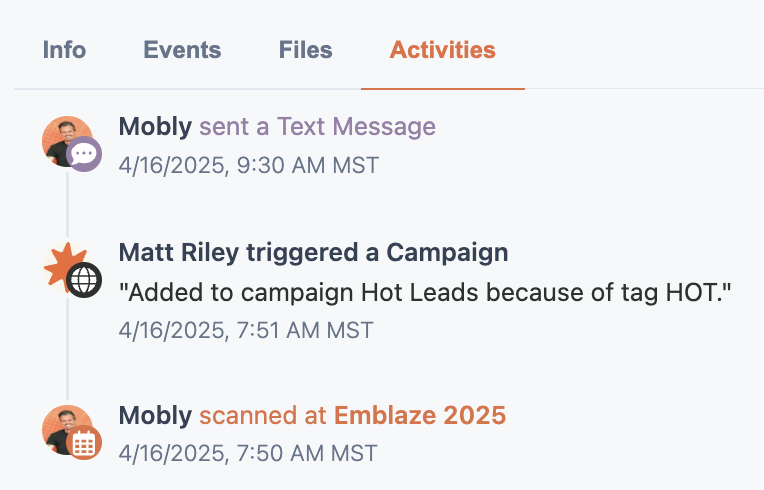
#### Sorting & Filtering
You can also use this information to form reports in the **Leads** tab. You can sort or filter by **Number of Scans** and **Last Scanned By** in the Leads table
1. Navigate to the **Leads** tab.
2. Add the columns **Number of Scans** and **Last Scanned By**.
3. Sort of filter as needed. For example, maybe I'd like to identify high-intent buyers. I can sort by **Number of Scans** (descending) to see the leads with the most interactions and therefore most likely interested in buying our products.
## Mobile App
#### View Lead Activity
1. Navigate to an event from the **Events** tab and select the lead’s name, or go to the **Leads** tab and search for their name.
Click on the **More Info** icon in the top right corner to see a timeline of interactions with that lead. Activities include:
* Scan details (when, where, and by whom)
* Engagement (calls, texts, LinkedIn connections)
* Label triggers
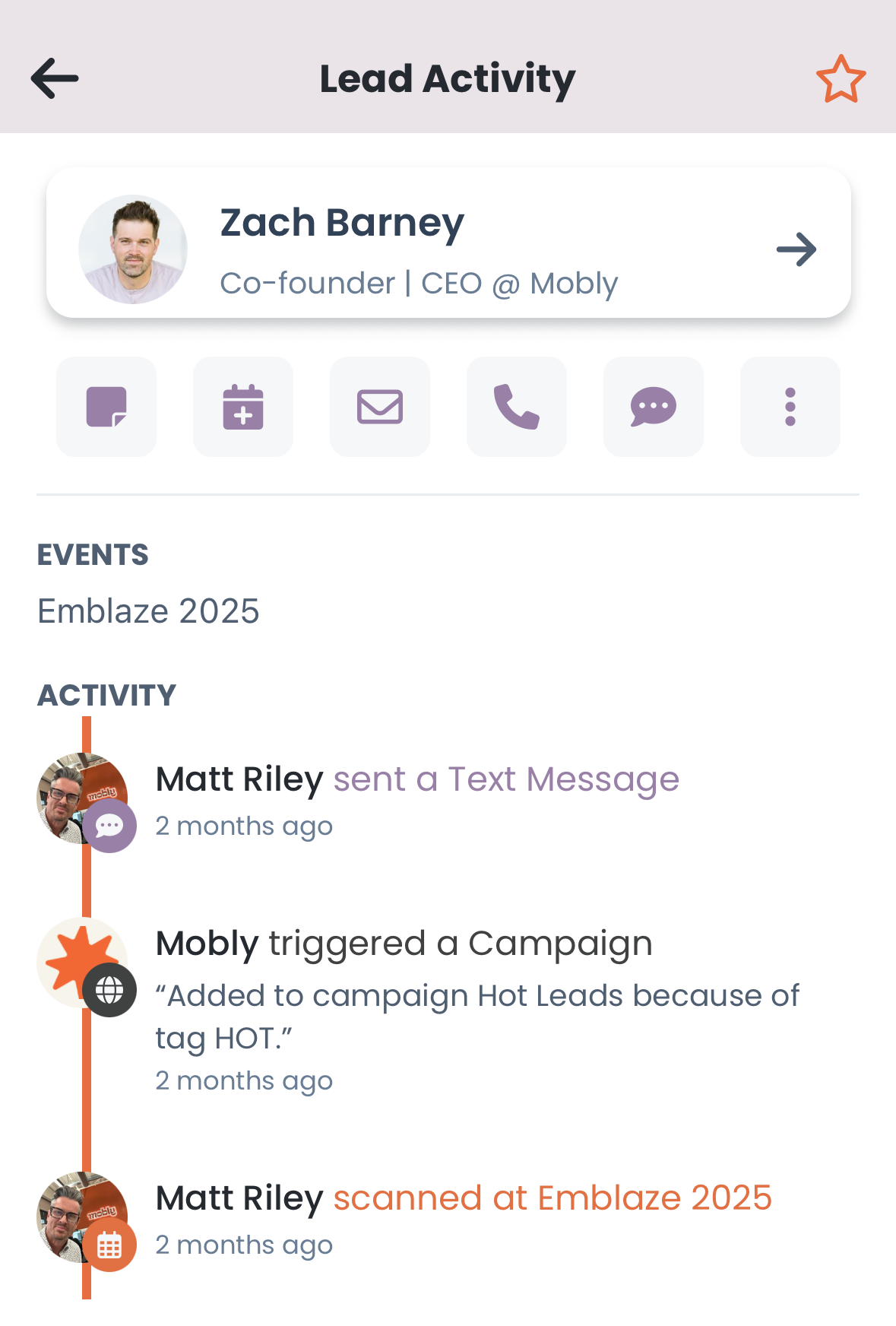
### For Mobly Admins only:
The following fields are calculated based on the scanned activity events and can be mapped to any field in your CRM:
* Number of Scans
* Last Scanned By
* All Scanned Events
* First Scanned By
* Last Scanned Event

# How to find leads that need more info
When scanning leads, it's best to add context—such as descriptions and qualifier values—right away to capture key details from your conversation. However, if your booth is busy and you're scanning a high volume of leads, it can be difficult to add all this information in the moment.
To help with this, the **new "Needs Info" filter** makes it easy to identify leads that still require additional details.
## **How It Works**
1. Navigate to the **"Leads"** tab.
2. Click the **"Needs Info"** pill button at the top of the screen.
3. Once selected, you'll see leads from the past **7 days** that **do not** have either a description OR at least one qualifier value.
4. Tap on a lead to open its lead details page. Add a description or at least one qualifier value.
Once a lead has **either** a description or at least one qualifier value, it will be removed from the **"Needs Info"** list.
* Leads will also be removed automatically **after 7 days** from the scan date, even if no details are added.
This feature ensures better follow-ups with complete information and that leads are correctly attributed in your CRM/MAP, improving your reachout flows.
# Tracking missing leads — where the gaps come from
You scanned 712 leads at the booth but only see 667 in your CRM. Where are the other 45? This article walks you through the diagnostic flow.
By far the most common cause: leads are still working their way through Mobly's pipeline (enrichment → sync → match). Most missing-lead reports resolve at one of the five checks below.
## First, get an accurate count
Before chasing gaps, confirm what Mobly thinks it captured vs. what's actually in your CRM. Filter both sides to the same scope:
* **Mobly side:** in the Hub lead list, filter by the event(s) and date range you're comparing
* **CRM side:** filter Contacts or Leads created in the same date range, with whatever Mobly-specific marker your team uses (a Mobly label, a Mobly qualifier, a "created via Mobly" field, etc.)
Don't compare org-wide CRM totals to event-only Mobly counts — that's a common false alarm.
Once you have confident counts on both sides, work through the five checks in order.
## 1. Check enrichment status
Mobly enriches captured leads after scan — adding email, company, phone, LinkedIn, and more. Leads still pending enrichment haven't been pushed to your CRM yet.
**Where to check:** in the Hub lead list (`/leads`), filter by **Enrichment Status**. Leads still being enriched show as not-yet-enriched.
**What to do:** wait. Most leads enrich within minutes. If a lead has been stuck "queued" for an hour or more, escalate to your CSM with the Lead ID.
## 2. Check Reconciliation
If a lead made it through enrichment but failed to sync to your CRM, it's in Reconciliation. Reconciliation is per-integration — you'll find it inside the integration's configuration page.
**Where to check:** **Integrations → \[your CRM] → Reconciliation → Failed** tab. The donut chart at the top shows what percentage of leads cleared vs. failed across the time you're viewing.
**What to do:** read the error category, follow the fix in the per-CRM troubleshooting article, then hit Retry. See [Reconciliation](/help-center/integrations/crm/reconciliation) for the full mechanics and the per-CRM troubleshooting articles for category-specific fixes.
## 3. Check the integration connection
If your integration was disconnected or disabled during capture, leads may not have hit Reconciliation either — they have nowhere to go.
**Where to check:** **Integrations → \[your CRM] → Connect** tab. The status indicator shows Connected, Disabled, or Disconnected.
**What to do:**
* **Disabled** — your sync is paused. Re-enable it; queued leads flush through.
* **Disconnected** — full disconnect; you'll need to re-authenticate. See [Connecting a CRM](/help-center/integrations/crm/connecting).
* **Connected** — should be syncing; move to the next check.
## 4. Check CRM-side dedup rules
Your CRM has its own dedup logic that runs on inbound records. A Mobly lead may have been pushed but matched against an existing CRM record and *updated* it rather than creating a new one. From Mobly's count, that's a captured lead. From the CRM's count (filtered to "created during the event"), it doesn't show up because it was an update, not a creation.
**Where to check:** pick a few specific Mobly leads you can't find as new CRM records. Look them up directly in the CRM by email or name — chances are they exist but were updated, not created.
**What to do:** if dedup is matching aggressively in a way you don't want, adjust your CRM's dedup rules. Mobly's matching logic (which feeds your CRM's dedup behavior) is documented in [How data flows from Mobly to your CRM](/help-center/integrations/crm/how-data-flows).
## 5. Check the capture path
CSV-uploaded leads follow a different path than scanned leads. They go through enrichment and sync, but they don't show up under "scans" in your reports. Make sure you're not comparing scans-only on one side against all leads on the other.
**Where to check:** in the Hub lead list, filter by **Origin** to see how many leads came from scans vs CSV upload vs other sources.
**What to do:** reconcile your numbers based on intent. If you only care about booth-scanned leads, exclude CSV uploads from both counts. See [How to upload a CSV for enrichment](/help-center/the-hub/working-with-leads/how-to-upload-csv-for-enrichment).
## Still missing leads after all five?
If you've worked through all five and the numbers still don't match, escalate to your CSM with:
* Mobly count + the scope (which events, which dates)
* CRM count + the same scope
* A few specific Lead IDs that you can find in Mobly but not in your CRM
The Mobly team can dig into the sync history for those specific leads and trace exactly where they went.
## Related articles
* [How to find leads that need more info](/help-center/the-hub/working-with-leads/how-to-find-leads-needing-info) — for leads that are present but missing data
* [Reconciliation](/help-center/integrations/crm/reconciliation) — how to read the per-integration sync error tab
* [How data flows from Mobly to your CRM](/help-center/integrations/crm/how-data-flows) — matching logic per CRM
* [How to upload a CSV for enrichment](/help-center/the-hub/working-with-leads/how-to-upload-csv-for-enrichment) — CSV vs scan path
# How to move leads to the right event
How to get leads added to the right event if they were scanned erroneously
Sometimes, reps scan leads without a pin on their app or accidentally add the to the wrong event,. To ensure proper attribution, make sure the leads are added to the correct event so the CRM reflects accurate data. Follow these steps to add leads to an event:
In the mobile app:
1. Locate the lead you want to move.
2. Click the three-dot menu next to their name.
3. Select:
• **Move to different event** – if the lead was added to the wrong event
• **Add to event** – if the lead isn’t currently linked to any event
4. Choose the correct event from the list.
5. Confirm the change. The lead will be removed from the current event and added to the new one.
In the Hub:
1. Go to the "**Events"** tab and select the event.
2. Click onto the "**Leads**" tab and then click **"Add Lead"** in the top right corner. Select "**Existing Lead**".
3. Start typing the name of the lead. Options for leads with that name will pop up.
4. Click the add icon next to the lead you want added to this event.
Once added, the lead will appear in the event’s table.
# How to upload a CSV for enrichment
Upload a CSV of leads to a Mobly event or activation — for pre-event registration lists, marketing lists you want enriched and synced, or bulk-loading historical records into a specific event. Uploaded leads flow into your CRM the same way captured leads do.
*This flow is for Mobly Admins with Hub access.*
## When to use CSV upload vs. other options
* **CSV upload (this article)** — you have a list of leads and want them attached to a specific event or activation, running through Mobly's normal enrichment + CRM sync path.
* **Host registration form** — you want leads to flow in automatically as people register for the event. See [How registrants flow into Mobly](/help-center/host/how-registrants-flow-into-mobly).
* **Off-Hub enrichment** — if you don't want the leads in your CRM but do want them enriched, send the file to your CSM instead. They'll run it through Mobly's enrichment queue and send back an enriched CSV.
## Uploading
1. Open the event or activation you want the leads to land on, and switch to the **Leads** tab.
2. Click **Add Lead** (top-right of the Leads table), then **Import from CSV**. A four-step uploader opens.
3. **Choose file.** Drop in your CSV. You don't have to match a specific format — the next step lets you tell Mobly what each column is. If you'd rather start from a known-good layout, click **Download template**; the template includes the standard lead columns plus a column for each qualifier published to this event.
4. **Match columns.** Mobly guesses which of your columns map to which Mobly fields and qualifiers, and you correct anything it got wrong. See [Matching your columns](#matching-your-columns) below.
5. **Check data.** Mobly flags rows missing required details or carrying qualifier values it couldn't match. Fix them inline, or drop the rows. See [Fixing flagged rows](#fixing-flagged-rows) below.
6. **Confirm upload.** Pick your enrichment mode and any additional options, then confirm.
{% hint style="info" %}
**Every row needs a first name, last name, and company name.** Email is not a substitute for company — a row missing any of those three won't import.
{% endhint %}
## Matching your columns
Step 2 shows a preview of your first five rows with a picker above each column. Set each one to the Mobly field or qualifier it belongs to, or leave it unmatched.
* **Mobly guesses first.** Columns whose headers resemble a known field or a qualifier name are matched automatically. Check them — a wrong guess is easier to miss than a blank one.
* **Fields your file has no values for are tucked behind a disclosure** so the list stays short.
* **Unmatched columns are listed under "Not imported."** Anything there is ignored, which is fine for columns you don't need.
You can't move past this step until first name, last name, and company name are all matched to something.
{% hint style="warning" %}
**A qualifier has to be published and on this event before you can import answers for it.** If one of your columns matches an org qualifier that isn't on this event, Mobly names it and tells you to publish it and add it to the event. Until you do, that column lands in "Not imported" and those values are dropped. See [Configuring qualifiers](/help-center/the-hub/working-with-leads/configuring-qualifiers).
{% endhint %}
Two problems will block the upload outright rather than letting you fix them row by row — more than 10 rows missing required details, or more than 50 rows with qualifier values that don't match. Both point back to a column match being wrong, so re-check step 2 before editing your file.
## Importing qualifier answers
Any qualifier published to the event can be filled in from your CSV — picklist, boolean, open text, numeric, and note-style all work. One column per qualifier, with the answer as the cell value.
Use the value exactly as it's configured in Mobly — for a picklist, that means the value's label as written. For a multi-select, put several values in the one cell separated by a semicolon, or by whatever separator that qualifier is set to. Give a single-select more than one value and the row gets flagged.
Anything Mobly can't match is flagged in step 3 rather than silently dropped.
Answers are applied after the leads are attached to the event, and they apply to **leads that already existed** as well as new ones — so a CSV is a reasonable way to backfill qualifier answers onto leads captured earlier.
{% hint style="info" %}
**A bad qualifier value never fails the import.** If an answer still can't be saved, Mobly imports the lead without it and reports how many values were skipped. You'll see "N of M qualifier values couldn't be saved" on the file afterward.
{% endhint %}
## Fixing flagged rows
Step 3 lists every row that needs attention, with the problem called out per field.
* **Missing required details** — fill them in inline, or drop the row.
* **Unmatched qualifier values** — you get a control shaped to the qualifier: a dropdown for single-select, a multi-picker for multi-select, a number box for numeric, a text box for open text. Each one shows the raw value from your file so you can see what it's replacing.
* **Skip this value** — leaves that one answer off that one lead and imports everything else about them. Reversible while you're still on the step.
## How should we enrich these leads?
The final step asks how Mobly should treat the data you're uploading. Three choices, same as [Host's registrant enrichment mode](/help-center/host/how-registrants-flow-into-mobly#enrichment-mode-for-registrants):
| Mode | What it does |
| ---------------------------------------------------------------- | -------------------------------------------------------------------------------------------------------------------------------------------------- |
| **Enrich, fill in missing fields only (keep my data)** (default) | Enrichment fills empty fields but never overwrites what you provided. Best when your data is authoritative but you want Mobly to fill in the gaps. |
| **Enrich, overwrite OK** | Enrichment may replace values you provided. Best when your list is old or sparse and you want Mobly's data to take precedence. |
| **Skip enrichment** | Import as-is. Mobly never runs enrichment on these leads. They still sync to your CRM. |
The button label at the bottom of the step reflects your choice — **Confirm and enrich N leads** for a Fill/Overwrite mode, or **Confirm upload of N leads** for Skip.
Leads uploaded under **Skip enrichment** are labeled **"Imported"** on the leads table and are excluded from every re-enrichment sweep. That state is durable until someone edits the lead's mode later.
## Additional options on the confirm step
Two more toggles sit alongside the enrichment mode on the final step:
* **Skip lead owner routing** — bypass any Pulse or org-level lead-routing rules that would normally assign these leads to a rep. Use when you already know who owns each lead and want to preserve that assignment (e.g., a marketing team pre-loading their own list).
* **Mark as registered** — if the event has Mobly Registration enabled, this marks each uploaded lead as **Registered** on arrival, so they're already accounted for in your Registration count and can move straight into check-in on the day.
## What happens next
Uploaded leads land in the event's Leads table right away. Enrichment (if you didn't Skip) runs in the background — most contacts finish within a few minutes; complex ones can take longer. Once enrichment settles, the leads sync to your CRM the same way any captured lead does.
## Troubleshooting
**Rows dropped during validation.** Every row needs a first name, last name, and company name. Email doesn't substitute for company. Fix or drop rows missing any of the three.
**A whole column of qualifier answers didn't import.** Either the column wasn't matched on step 2, or the qualifier isn't published and added to this event. Check the "Not imported" list on step 2 — Mobly names any qualifier it recognized but couldn't use.
**Leads landed but no enrichment happened.** Check the enrichment mode you picked. If it was Skip, that's expected — the leads show as "Imported" and stay that way. Change the mode on the lead if you want enrichment to run.
**Leads not showing up in the CRM.** Check the [Reconciliation](/help-center/integrations/crm/reconciliation) tab on your CRM integration. Any sync error would surface there. See also [How data flows from Mobly to your CRM](/help-center/integrations/crm/how-data-flows).
## Related articles
* [How registrants flow into Mobly (Host)](/help-center/host/how-registrants-flow-into-mobly) — same enrichment mode choice, applied to Host registrants
* [Mobly fields reference](/help-center/integrations/mobly-fields-reference) — every column the CSV template accepts and what it maps to
* [Configuring qualifiers](/help-center/the-hub/working-with-leads/configuring-qualifiers) — a qualifier must be published and on the event before you can import answers for it
* [How data flows from Mobly to your CRM](/help-center/integrations/crm/how-data-flows)
* [Reconciliation](/help-center/integrations/crm/reconciliation) — where CSV-upload sync errors surface
# How to export leads
Get your enriched leads from Mobly into a downloadable CSV
There are two main ways you can export your leads: from the app and from the Hub.
## **Mobile App:**
1. Tap on the event you'd like to export on the "Events" tab.
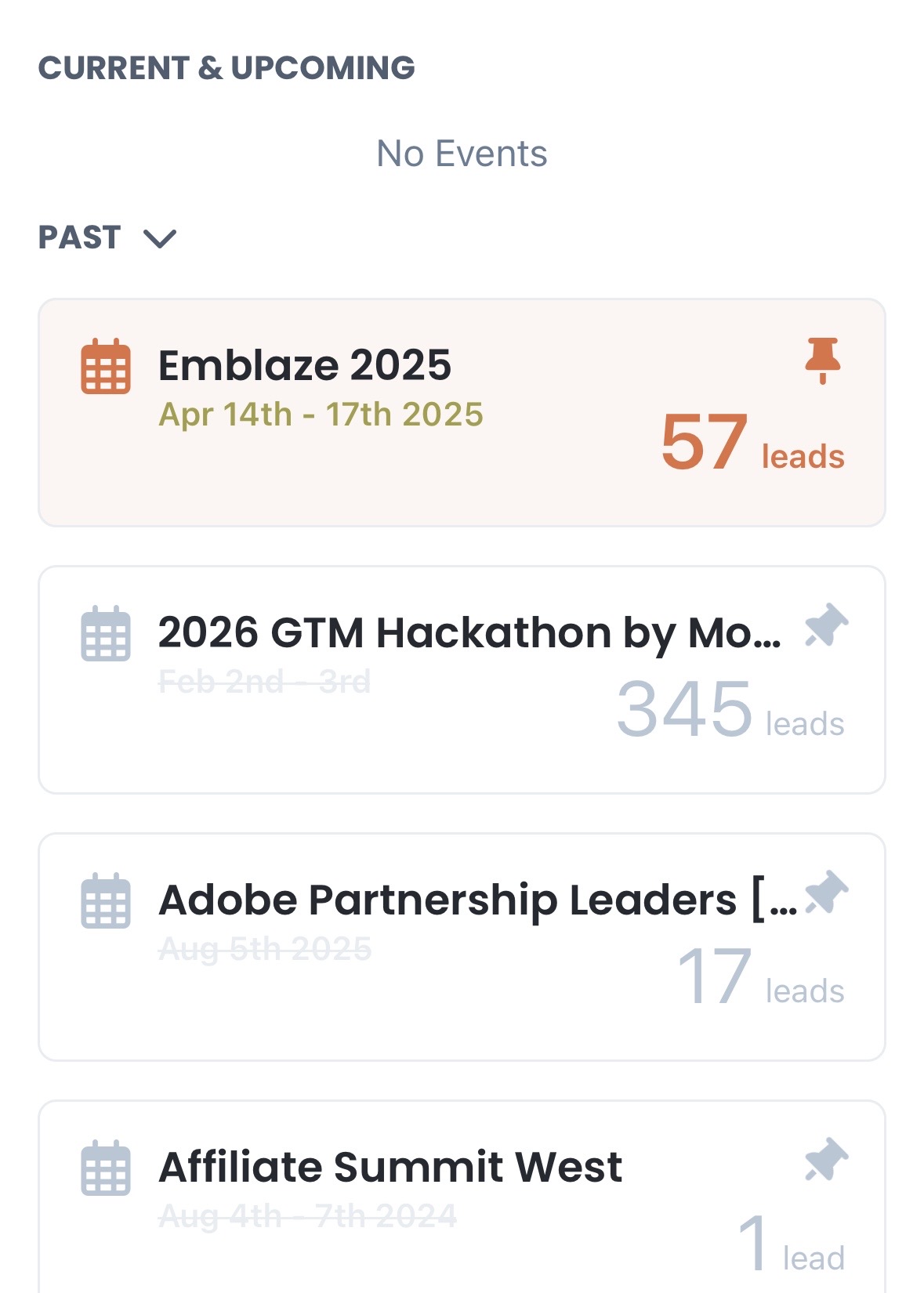
2. Tap on the three dots in the upper right hand corner and hoose "Export CSV" from the menu.
3. Choose whether you'd like to download the file right to your device or receive it through an email.
1. If you choose "Send to Email", you'll need to enter the email address where you want to send your CSV file. The email will come from with the event name as the attachment's title.
2. If you choose "Download file", it will save to your device's file store.
***
**Hub**
1. Choose the event you'd like to export from the "Events" tab.
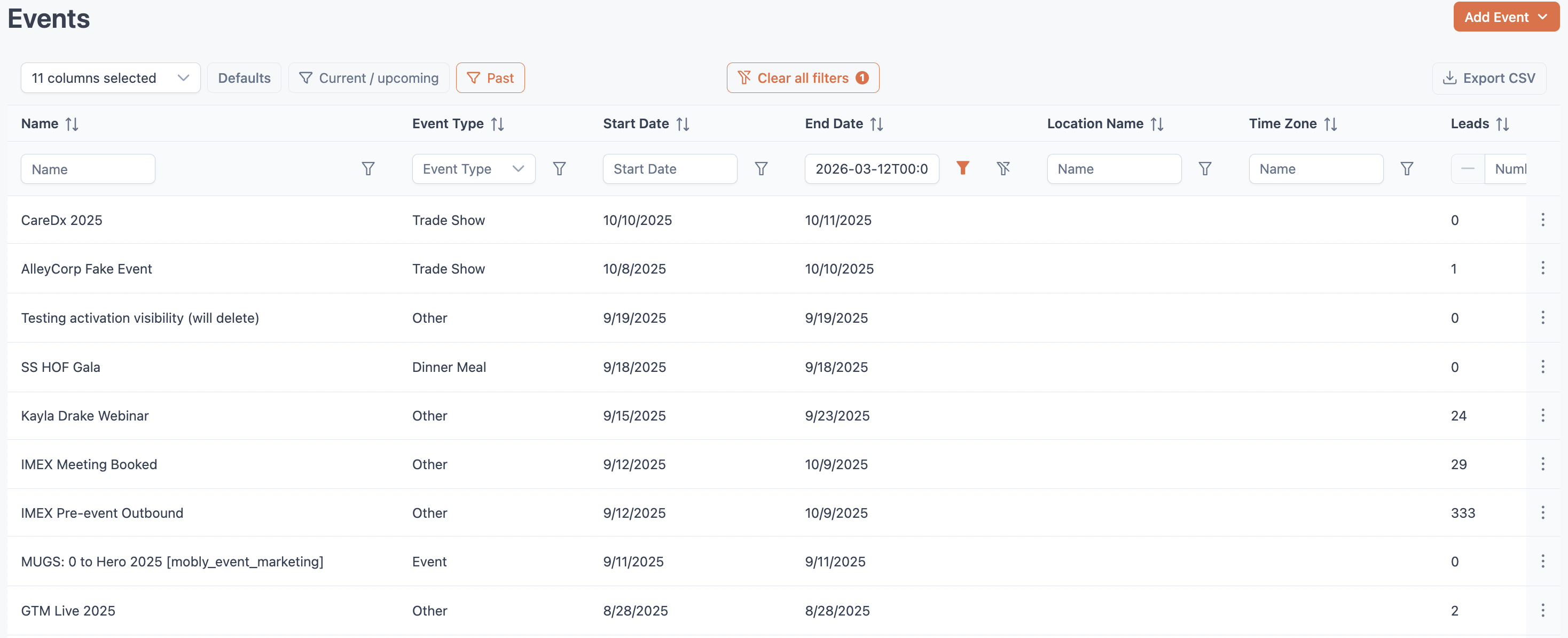
2. Click the "Export CSV" button in the top right corner of the leads table. You will be prompted to select additional columns that you want to add to your export. Find more information about sorting and filtering for your report here: [generate custom reports](/help-center/the-hub/dashboards-and-reports/how-to-generate-custom-reports).
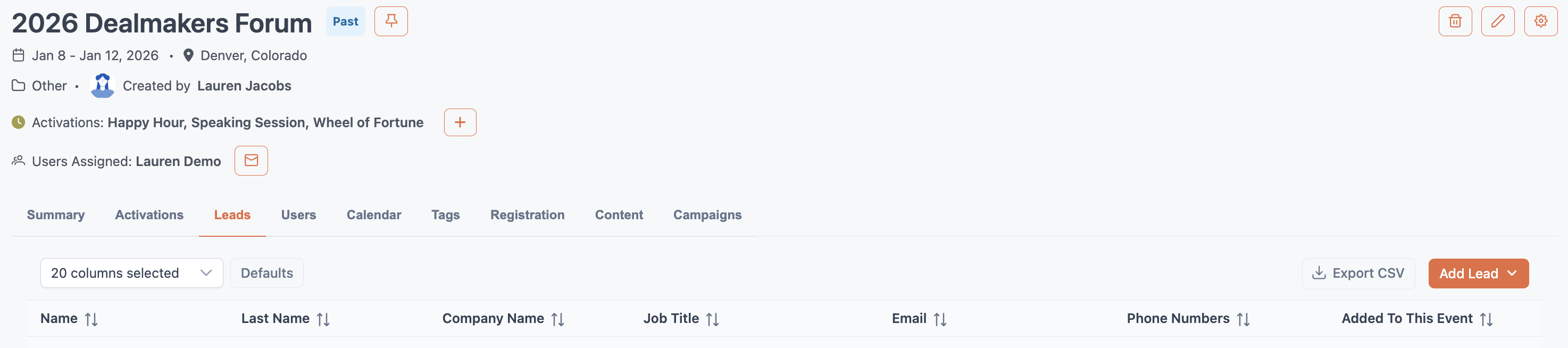
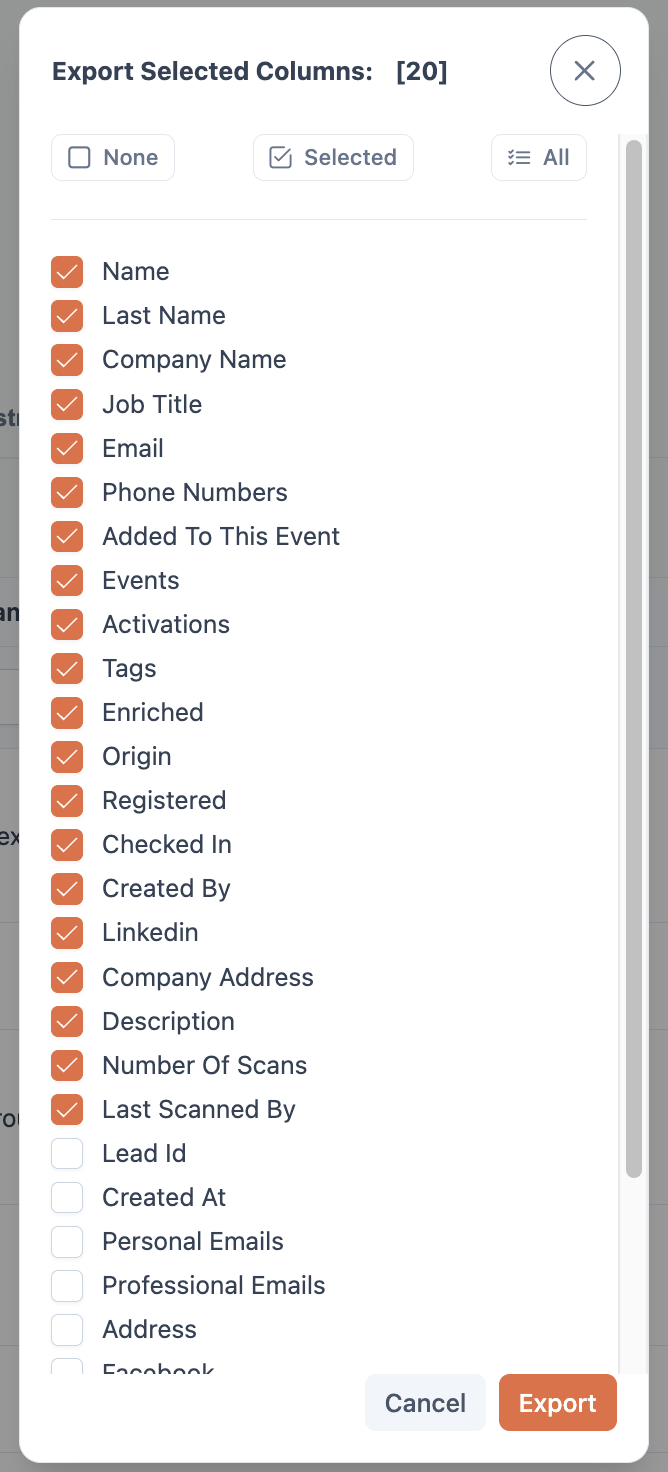
3. The CSV will save to your device's default download location.
# My Leads — the sales-rep view of the Hub
If you're a sales rep using Mobly to capture leads at events and follow up afterward, you'll most often work in **My Leads** — a simpler, more focused Hub experience built for individual rep workflow rather than org-wide lead management.
## Who My Leads is for
My Leads shows only the leads **you** captured (plus the ones you've favorited). It's designed for fast end-of-day cleanup, follow-up prioritization, and personal workflow — not for admin tasks like configuring qualifiers or running org-wide reports.
If you're an admin who works across many reps' captures, you'll spend more time in the broader **Leads** view ([Working with leads](/help-center/the-hub/working-with-leads)). If you're a rep, My Leads is your home base.
## How to find it
In the Mobly Hub left nav, the **My Leads** item is at the top. For sales-rep accounts (non-admin), it's the default landing page when you log in.
## The three tabs
My Leads opens to three curated tabs designed around what reps most often need to do:
### Leads Missing Qualifiers Or Description
Leads you captured but didn't fully qualify or describe yet. The tab label shows a count of how many leads need attention.
**Why it matters:** leads without qualifier values or descriptions don't carry context downstream — your CRM and any Pulse automation work better with the structured data attached. Reps catch up on this tab at the end of an event or first thing the next morning.
**What to do:** click any lead to open the lead detail. Add a description, at least one qualifier value, and save. Once a lead has either a description or a qualifier value, it leaves this list.
### Favorited Leads
Leads you've explicitly marked as priority — your hot prospects, decision-makers, the conversations you most want to follow up on.
**Why it matters:** events generate a lot of leads. Favoriting is how you separate signal from noise.
**What to do:** use this tab as your follow-up queue. Open each, review activity history, and log next steps (in Mobly, Pulse, or your CRM). Favorites are personal — they don't show up for other reps on your team.
### Your Recent Scans
The most recent leads you've captured, across all events. Useful at end-of-day or end-of-event for a quick sweep.
**What to do:** scan the list for anything you missed — leads you meant to qualify, conversations you should note, hot leads to favorite.
> **Heads up on the AI badge-fill:** When you scan a badge with a photo, an AI step reads the badge and fills any contact fields the scan left empty. **Existing values are never overwritten** — so if you typed a corrected email by hand, the AI won't replace it with whatever it read off the badge.
## What you can do in My Leads
Click any lead from any of the three tabs to open the **Lead Details drawer** on the right. From there:
* View the lead's full detail (Info, Activities, Events, Files tabs)
* Edit info (name, email, phone, company, job title, address, etc.)
* Apply qualifier values from your org's qualifiers
* Favorite or unfavorite (heart icon)
* See activity history (including Pulse sends and CRM sync events for that lead)
* Add notes / description
> **No save button needed.** Edits in the drawer save automatically when you click out of a field. If you see the field briefly highlight, that's the save landing.
## What you can't do in My Leads
For these you need admin access or a different Hub view:
* See other reps' captures — admin role required, use the broader **Leads** view
* Configure qualifiers — see [Configuring qualifiers](/help-center/the-hub/working-with-leads/configuring-qualifiers) (admin)
* Bulk export — use the org-wide **Leads** view
* See org-wide dashboards or reports — see [Dashboards and reports](/help-center/the-hub/dashboards-and-reports)
* Configure integrations, events, or sequences — admin features
## Related articles
* [How to update leads in the Hub](/help-center/the-hub/working-with-leads/how-to-update-leads-in-the-hub) — editing lead info (mechanics are the same in both views)
* [How to use qualifiers to manage leads](/help-center/the-hub/working-with-leads/how-to-use-qualifiers-to-manage-leads) — applying qualifier values
* [How to view activity history of a lead](/help-center/the-hub/working-with-leads/how-to-view-lead-activity-history)
* [The Mobly App](/help-center/the-mobly-app/the-mobly-app) — for capturing leads in the first place
# Managing events
Set up events in the Hub, prep your team, attach content, and review per-event ROI.
> Articles marked  have a video walkthrough embedded at the top.
## Articles
* [Reading your event's Summary](/help-center/the-hub/managing-events/reading-the-event-summary) — the event's home base
* [How to add an event](/help-center/the-hub/managing-events/how-to-add-an-event) 
* [How to bulk upload events](/help-center/the-hub/managing-events/how-to-bulk-upload-events)
* [How to prep for your upcoming event](/help-center/the-hub/managing-events/how-to-prep-for-an-event)
* [How to use event specific calendars](/help-center/the-hub/managing-events/how-to-use-event-specific-calendars) 
* [How to utilize event pinning](/help-center/the-hub/managing-events/how-to-utilize-event-pinning)
* [How to pin an event from the Hub](/help-center/the-hub/managing-events/how-to-pin-an-event-from-the-hub)
* [How to configure qualifiers by event](/help-center/the-hub/managing-events/how-to-configure-qualifiers-by-event)
* [How to assign users to an event](/help-center/the-hub/managing-events/how-to-assign-users-to-an-event) 
* [How to remove a user from an event](/help-center/the-hub/managing-events/how-to-remove-a-user-from-an-event)
* [Managing event content](/help-center/the-hub/managing-events/managing-event-content)
* [How to see my event's ROI](/help-center/the-hub/managing-events/how-to-see-event-roi)
***
Related:
* For sub-event tracking (sessions, booths, giveaways), see [Activations](/help-center/the-hub/activations)
* For check-in at the door (with or without Host registration), see [Host](/help-center/host/host)
* For event discovery (finding events to attend), see [Scout](/help-center/scout/scout)
* For lead management within an event, see [Working with leads](/help-center/the-hub/working-with-leads)
# Reading your event's Summary
The **Summary** tab is your event's home base. It's the first tab that opens when you land on an event, and it gives you a quick read on what's happening — how many leads have been captured, who checked in, which qualifiers are showing up most, and who on your team is contributing.
Think of it as a scoreboard plus a set of shortcuts to the deeper views.
***
## The scoreboard row
Three counts across the top:
* **Leads Captured** — every lead added to this event, whether by scan, manual entry, CSV upload, or API. This is the raw capture number.
* **Total Leads** — the same, plus registrants who flowed in from Host but haven't been captured face-to-face yet. If you're running a hosted event with pre-registration, Total Leads runs higher than Leads Captured until you start checking people in and scanning.
* **Check-Ins** — how many leads have been checked in at the event or an activation.
For the underlying capture flow, see [How to capture a lead](/help-center/the-mobly-app/capture-and-enrichment/how-to-capture-a-lead). For check-in specifically, see [How to check in leads](/help-center/host/how-to-check-in-leads).
***
## Leads by Qualifiers
Breaks down your captured leads by the qualifier values reps have applied. You pick which qualifier drives the chart from the **Lead Type** dropdown in the top-right of the card.
Use this to spot lead-mix patterns during the event — if 80% of your leads are marked "just browsing" and only 10% are "hot prospect," that's actionable information you'd rather know on Day 1 than in a post-event debrief.
* To change what "Lead Type" means for your org, see [Configuring qualifiers](/help-center/the-hub/working-with-leads/configuring-qualifiers).
* For applying qualifiers to leads during capture, see [How to use qualifiers to manage leads](/help-center/the-hub/working-with-leads/how-to-use-qualifiers-to-manage-leads).
***
## Top Lead Generators
Ranks your team by capture volume during this event. Useful for spotting who's on the floor, who's crushing it, and — during the event — who to check on if their numbers are low.
For richer per-rep analytics (engagement rates, follow-up speed, qualifier completion), open the **Insights** tab after the event. See [How to see my event's ROI](/help-center/the-hub/managing-events/how-to-see-event-roi).
***
## Event metadata (top-left)
Above the tabs, the event's basic info sits in one row: date range, location, category, activations, and assigned users. Use the pencil icon to edit any of it.
* [How to add an event](/help-center/the-hub/managing-events/how-to-add-an-event) — creating one from scratch
* [How to assign users to an event](/help-center/the-hub/managing-events/how-to-assign-users-to-an-event) — putting reps on the roster
* [Managing activations within an event](/help-center/the-hub/activations/managing-activations) — the ACT/booth/session structure
***
## When you'd use the Summary tab vs. other tabs
* **During the event** — Summary. Quick read on how it's going, who's on the floor.
* **Right after the event** — Insights (see [event ROI](/help-center/the-hub/managing-events/how-to-see-event-roi)). Full post-mortem with ROI, follow-up speed, activation performance.
* **Reviewing individual leads** — Leads tab, or [My Leads](/help-center/the-hub/working-with-leads/my-leads-sales-rep-view) as an individual rep.
* **Setting up before an event** — Planning, Users, Qualifiers, Content, Activations tabs. See [How to prep for your upcoming event](/help-center/the-hub/managing-events/how-to-prep-for-an-event).
# Reading the Post-Event tab
The **Post-Event** tab is a new view on the event detail page that focuses on what happened *after* the event — attribution, downstream lead behavior, and the answer to "did this event work?"
It's a companion to the existing event Summary, which is renamed to **Live Event** on orgs where the Post-Event tab is available. Live Event is the during-event scoreboard you already know; Post-Event is the after-the-event scorecard.
Mobly picks the view for you based on the event's dates — **Live Event** while the event is still running, switching to **Post-Event** once the end date has passed in the event's own timezone. You can toggle between them at any time from the Summary tab dropdown; your choice sticks for that visit.
{% hint style="warning" %}
**The Post-Event tab is in beta.** Available on select orgs today as part of the Accounts feature set, and the card set + metric definitions are still evolving based on customer feedback. If you don't see the tab, contact your CSM about enabling it — and if a metric feels off or you want a specific view added, that feedback loops through your CSM directly into the roadmap.
{% endhint %}
## When to look at it
After the event, once your leads are captured, enriched, and (ideally) synced to your CRM. Post-Event pulls together the signals that only exist once the event is over and the lead-to-outcome cycle has had time to move.
Typical rhythm:
* **Day 0 (event day):** Live Event tab — real-time scoreboard of who's captured, who's checked in, top qualifiers, top reps
* **Day 1–2 (post-event):** Post-Event tab starts filling in — enrichment finishes, syncs complete, activity attribution starts showing up
* **Weeks later:** Post-Event tab keeps updating as leads move downstream — attribution and lead-quality signals mature
## What you'll see
Post-Event surfaces the metrics that answer post-event questions:
* Where captured leads landed downstream (CRM, MA tool, Pulse enrollment)
* Which reps and which activations drove the highest-quality leads
* Aggregated performance signals — lead volume, enrichment coverage, sync results
The exact card set is iterating as Mobly gathers customer feedback on what's most useful in the post-event debrief. Expect the tab to evolve.
## Live Event vs Post-Event — how to think about it
Two tabs, two time horizons:
* **Live Event tab** — during the event. What's happening now, who's on the floor, what qualifier mix is coming through, who's leading the capture leaderboard. This is your at-the-booth or in-the-command-center view.
* **Post-Event tab** — after the event. Did the leads sync cleanly? What's the qualified-lead count once enrichment settled? Which activations produced the best outcomes downstream? This is your debrief-and-report view.
The two tabs share the same event context — they're different lenses on the same set of captured leads.
## What's on the tab
Working top to bottom, this is what shows up on Post-Event today. Card set is iterating, so treat these as the current cut — the shape holds up (attribution filter → outcomes → tables → qualifiers) even as individual metrics land or move.
### CRM source pill and "as of" timestamp
At the very top: which CRM the numbers come from, and when Mobly last pulled the underlying data. If you have more than one CRM connected (a primary and a secondary), you'll see a toggle to switch between them; otherwise it's just a label. The **Refresh** button forces a fresh pull from the CRM — useful right after a big sync completes and you want the tab to reflect it.
Everything below responds to whichever CRM is currently selected.
### Attribution filter
Three segments across the top, and every card below reflects your choice:
* **All** — every account touched by this event.
* **Sourced** — this event is the earliest origin Mobly can see for the account.
* **Influenced** — the account was already in motion before this event, so the event added a touchpoint rather than creating the relationship.
Each segment shows its own **account count** and **lead count**, and each is its own link — click the accounts number to open a filtered Accounts view, or the leads number to open a filtered Leads view.
#### How Mobly decides Sourced vs Influenced
An account lands in **Influenced** if any one of these is true:
* **A lead on the account touched an earlier event.** Someone from that company was captured at a Mobly event that ran before this one.
* **The account has a deal that predates the event.** An open or won deal created before the event started, a won deal closed before it started, or a renewal deal dated before it.
* **Someone set the account's origin manually.** See [Setting an account's origin](#setting-an-accounts-origin) below.
If none of those apply, the account is **Sourced**.
{% hint style="info" %}
**Mobly only knows what it can see.** The automatic classification is built from event history and CRM deal data — that's all Mobly has. If an account actually came from an outbound sequence, a referral, or a trade show you don't track in Mobly, there's no way for Mobly to know that on its own, and it'll read as Sourced. That's what the manual origin is for.
{% endhint %}
### Setting an account's origin
When Mobly calls an account **Sourced** but you know it came from somewhere else, you can say so. Open the account — from the Top Accounts table, the Accounts page, or the account's own detail view — and set its origin.
The prompt is **"Where did this account come from?"** with these options:
| Origin | When to pick it |
| --------------------- | ------------------------------------------------------- |
| **Outbound** | We reached out first — cold email, calls, or a sequence |
| **Inbound** | They came to us — demo request, content, or website |
| **Referral** | Introduced by a customer, investor, or contact |
| **Partner** | Sourced through a channel or reseller partner |
| **Paid media** | Ads, sponsorships, or paid placements |
| **Existing customer** | Already a customer before this event |
| **Another event** | A trade show or event that isn't recorded in Mobly |
| **Something else** | None of the above — add a note |
You can optionally add a **date** ("When?" — leave blank if you don't know) and a **note** for context, like *"cold sequence, Q1 2026"*. **Save origin** applies it; **Clear origin** removes it and hands the account back to automatic classification.
{% hint style="warning" %}
**Setting an origin moves the account from Sourced to Influenced.** That's the point — you're telling Mobly the relationship started somewhere other than this event, so the event gets influence credit rather than origination credit.
{% endhint %}
{% hint style="info" %}
**This never touches your CRM.** The origin you set lives in Mobly and only affects Mobly's reporting. Nothing is written to Salesforce, HubSpot, or any other connected system.
{% endhint %}
### Outcomes section
Two cards side by side.
**Deals** — deal pipeline attributed to the current attribution segment:
* **Open** — deals currently open on attributed accounts.
* **Won** — deals in a closed-won state.
* **Win Rate** — Won / Closed. Open deals are excluded. The info icon next to the label repeats this in-product.
Click the Deals card to open the drill-down modal, which breaks the pipeline out by timeline and shows trend history — useful for "how much of this event's pipeline has closed yet."
**Outcome strip** — three status tiles for the leads captured at this event:
* **Enriched** — how many of the scanned leads Mobly has finished enriching (X of Y leads).
* **CRM Synced** — how many landed in your CRM cleanly. Click to open the sync-health drill-down and see anything that failed reconciliation.
* **Sequences Started** — how many were enrolled into a Pulse sequence, as a percentage of scanned leads. Only shows if you're using Pulse; click to jump into the Sequences tab.
{% hint style="info" %}
**These are measured against scanned leads, not every lead on the event.** Leads that arrived by CSV import, registration upload, or API aren't in the denominator — the strip is a read on what your team captured on the floor, so imports don't dilute it.
{% endhint %}
### Top Accounts table
The accounts driving the most value for this event, ranked. Columns cover account name, industry, deal count, and pipeline value. Clicking a row opens the Account drill-down modal — linked companies, deals from your CRM, and the leads captured at this event for that account, all without leaving the Post-Event tab.
### Rep Attribution table
Per-rep breakdown for the event: how many accounts, leads, and deals each rep is attributed to, plus their last scan.
**Last scan** shows a relative time while it's recent, then switches to a plain date once it's more than 24 hours old. It's highlighted while the event is running to flag a rep who's gone quiet — that highlight stops once the event ends, since everyone's last scan is in the past by then.
Click a rep row to open the **Rep modal** — a fuller breakdown of that rep's contribution (leads captured, accounts touched, deals attributed), plus links into **Reconciliation** for the CRM and enrichment queues when something looks stuck.
{% hint style="info" %}
**Reconciliation links aren't rep-filtered.** They open the event's full reconciliation queue, not just that rep's leads. Mobly notes this in-product too.
{% endhint %}
### Qualifiers panel
At the bottom, one card per qualifier used at this event, summarizing how leads answered. For picklist qualifiers you'll see the value distribution; for numeric qualifiers you'll see aggregates. Click a qualifier to open the drill-down modal, which shows the underlying leads segmented by answer.
## When numbers don't line up with what you expect
A few common cases and where to look:
* **Post-Event numbers lower than Live Event numbers.** Live Event counts every captured lead. Post-Event counts leads that made it into your CRM and are linked to Accounts. If leads failed sync or aren't yet linked to Accounts, they won't show on Post-Event. Check the CRM Synced tile's drill-down.
* **No accounts showing.** The empty state prompts you to link this event's companies to Accounts. Head to the [Accounts](/help-center/the-hub/accounts/working-with-accounts) page and map them, then come back — the tab fills in from there.
* **Deals are lower than expected.** Attribution filter matters. Switch between Sourced / Influenced / All — a deal might be Influenced but not Sourced, so it only appears in the wider segments.
* **CRM data feels stale.** Look at the "as of" timestamp at the top. Click **Refresh** to force a fresh pull.
* **An account is marked Sourced that shouldn't be.** This is the most common attribution complaint, and it's usually not a bug. Mobly only has event history and CRM deal data to work from — if the relationship actually started with an outbound sequence, a referral, or a trade show you don't track in Mobly, Mobly has no way to know. Set the account's origin manually and it moves to Influenced. See [Setting an account's origin](#setting-an-accounts-origin).
* **A renewal is inflating the pipeline.** Renewal deals dated before the event no longer count the account as Sourced. If you're still seeing a renewal land oddly, flag it to your CSM with the account name.
## Related articles
* [Reading your event's Summary](/help-center/the-hub/managing-events/reading-the-event-summary) — the Live Event tab (renamed from Summary on orgs with Post-Event enabled)
* [How to see my event's ROI](/help-center/the-hub/managing-events/how-to-see-event-roi) — the Insights tab, for per-rep and per-activation ROI analysis
* [Working with Accounts](/help-center/the-hub/accounts/working-with-accounts) — the Accounts feature Post-Event is part of
# How to add an event
{% embed url="" %}
\* This article is only relevant to Mobly Admins (with access to the Hub) \*
## Steps
1. On the **Events** tab in the Hub, click **New Event** → choose **New Event** from the dropdown.
2. Add your **Event Name**.
3. Add the **Location**. A specific address (conference center, hotel, venue), or just the city — Mobly accepts either.
4. Add the **Dates**. Click once to set the start date, then click again to set the end date.
> **Heads up on timezones:** Event dates render in each event's own timezone — not the timezone of the person viewing them. If your team is distributed across time zones, the dates you see in the Hub are always the local-to-event dates. Useful to know when someone says "the event starts at 9 AM" — that's 9 AM at the event location.
5. Add any **Labels** that should be associated with this event. Labels route captured leads through specific flows in your CRM — see [How to use Mobly labels](/help-center/labels/how-to-use-mobly-labels).
6. Add **event-specific qualifiers** if you want extra qualifiers available only at this event (e.g., a session-specific one). Org-wide qualifiers apply automatically — only add per-event ones here if you need them. See [Configuring qualifiers](/help-center/the-hub/working-with-leads/configuring-qualifiers).
7. Add **Users** to the event. The users you select see the event in the mobile app and can capture leads into it. You can add more later from the event detail page.
## Why dates matter
Beyond display, the start and end dates also drive:
* **Mobile app event selection** — the app surfaces the event to assigned reps during its date window
* **Reporting** — event ROI, capture rates, and timeline reports use these dates as their boundaries
* **Activations** — sub-events inside the event default to the parent event's dates if you don't override them
If you're not sure of the exact dates yet, set your best guess — you can edit them anytime from the event detail page.
## Related articles
* [How to assign users to an event](/help-center/the-hub/managing-events/how-to-assign-users-to-an-event)
* [How to bulk upload events](/help-center/the-hub/managing-events/how-to-bulk-upload-events)
* [How to prep for your upcoming event](/help-center/the-hub/managing-events/how-to-prep-for-an-event)
* [Managing activations within an event](/help-center/the-hub/activations/managing-activations)
# How to bulk upload events
Create events in bulk by CSV upload
\*This article is only relevant to Mobly Admins (with access to the Hub)\*
1. On [hub.getmobly.com](https://hub.getmobly.com/), navigate to the "Events" tab.
2. Click the orange "Add Event" button in the top right corner. From the drop down menu, click "Import from CSV".
3. Click Download template file" to get a CSV template with the proper column names.
4. Open the Event\_Upload\_Template.csv file you downloaded. Paste your own data into the corresponding columns of the template file. *Each row must have a name, start date, and end date.*
1. If the event is a single day, enter the same date for the start and end date.
2. To add users to events, list their emails in the **User Emails** field, separated by a semicolon (;). Only enter emails of users that already exist in Mobly. If we don't recognize the email, that user cannot be added to the event.
3. In the **CampaignIds** field, enter the campaign ID, This will create a new campaign with this campaign ID. To add the event to multiple campaigns, separate the campaigns IDs by a semicolon (;).

5. Return to [hub.getmobly.com](https://hub.getmobly.com/) and upload the template file you just updated. You will be notified if there are errors with any rows.
6. Click "Save". Your CSV wil be uploaded to Mobly and the events will be created.
# How to prep for your upcoming event
Make sure you and your team are well-prepped to use Mobly for your event
Your dashboard on [hub.getmobly.com](https://hub.getmobly.com/) shows a **calendar** of your events, so you can see what's coming and jump straight into any of them to prep. Multi-day events run as bars across the days they cover, and activations appear within their parent event.
1. Upload the list of registrants for your event at [hub.getmobly.com](https://hub.getmobly.com/) so Mobly can pre-enrich the leads that will be attending your event. **If you're using Host registration for this event, you can skip this step** — registrants flow into Mobly automatically when they submit your Host form. See [How registrants flow from Host into Mobly](/help-center/host/how-registrants-flow-into-mobly).
2. Make sure that your whole field team has been assigned to the event so they can add and access leads from that event.
3. Make sure you have configured and mapped the correct qualifiers for your events so that you can correctly attribute your leads.
4. Login to the Mobly app before arriving at the event. You will need internet connection to login to our app, but sometimes event spaces don't have great service or wifi. So get logged in before you arrive!
5. Make sure to pin your event on the Mobly app by clicking the thumbtack icon on your event so that all your leads will automatically get tagged to the right event.
# How to use event specific calendars
{% embed url="" %}
\* This article is only relevant to Mobly Admins (with access to the Hub) \*
The best moment to book a demo at a conference is right when the lead is in front of you and excited. Event-specific calendar links give every rep assigned to an event the right scheduling option in the mobile app — your own calendar, an on-site demo room, a specific AE — without each rep having to manage that on their phone.
## Steps
1. In the Hub, go to the **Events** tab.
2. Click into the event you want to add a calendar to.
3. Open the **Calendars** tab on the event detail page.
4. Click **Add Calendar Link**.
5. Enter a **Name** (what reps see in the mobile app) and the **public-facing calendar URL** (Calendly, HubSpot Meetings, SavvyCal, etc.).
6. Save.
That's it. The link now appears as a booking option in the mobile app for every user assigned to this event.
## Common patterns
* **One link per event** — the simplest setup. All reps on the event use the same calendar (an on-site demo room, an AE's calendar, a generic team round-robin).
* **Multiple links per event** — add as many as you need. Useful when different rep roles need different calendars (SDRs → discovery call calendar; AEs → demo calendar).
* **Per-rep calendars on top** — reps still see their own personal calendar in the mobile app alongside the event-specific ones. Event links are additions, not replacements.
## Tips
* **Test the URL before the event.** Paste it into a browser and make sure it loads the right calendar — Mobly doesn't validate the link, so a typo'd URL silently fails when a rep tries to book.
* **Use descriptive names.** "VIP Demo Room" reads better than "Calendar 1" when a rep is scrolling on a busy show floor.
* **Reuse calendars across events** by adding the same link to multiple events. There's no shared calendar library yet, but copy-paste works.
## Related articles
* [How to book meetings](/help-center/the-mobly-app/engaging-with-leads/how-to-book-meetings) — the rep-side flow on the mobile app
* [How to assign users to an event](/help-center/the-hub/managing-events/how-to-assign-users-to-an-event) — only assigned users see the event's calendars in the app
* [How to add an event](/help-center/the-hub/managing-events/how-to-add-an-event)
# How to utilize event pinning
How to make sure your leads are properly attributed with pins
When you pin an event in the Mobly mobile app, all scans are automatically tagged to that event. You can still manually add leads to other events, but by default, every lead goes to your pinned event.
Once you've programmed dates into your events in the Hub, Mobly will automatically recognize the event happening today. If there is an event today, Mobly will prompt users to pin the current event.
You can be confident that your leads are being added to your event when the Add Lead icon in the bottom navigation bar is orange. If the icon is purple, it means no event is pinned — leads will be saved to My Leads in Mobly, but they won’t be added to any event.
# How to pin an event from the Hub
When your team is heading into an event, you often want to make sure every rep's Mobly app is set to the right event before they hit the floor. The Hub gives you a one-click bulk pin — pin the event once, and it's pinned for every user assigned to that event.
\* This article is only relevant to Mobly Admins (with access to the Hub) \*
## When to use it
* **At the start of an event day** — make sure every assigned rep is scanning into the right event without each one having to pin it themselves on their phone.
* **After re-assigning reps to a different event** — push the change to their app in one go.
* **When reps are new** — newer reps may not know to pin; doing it from the Hub removes the step from their onboarding.
## How to pin
1. In the Hub, go to **Events** and click into the event you want to pin.
2. Next to the event name at the top of the event detail page, click the **thumbtack** button.
3. A confirmation dialog opens: *"Are you sure you'd like to pin this event for all the users assigned to this event?"* Click **Yes, Pin**.
You'll see a toast confirming the event was pinned for users. Each assigned rep's mobile app will reflect the change on its next sync — no app restart needed.
## What it does
Pinning from the Hub pins the event for **every user currently assigned to that event** — not just you, and not just the rep you're looking at. It's a bulk action.
For each assigned rep, this is the same effect as them tapping the thumbtack on the event inside the Mobly app: their scans now default to this event until they switch.
## When you'd pin from the app instead
For individual reps adjusting their own pin during an event, see [How to utilize event pinning](/help-center/the-hub/managing-events/how-to-utilize-event-pinning) — the mobile-app version is faster for one-off, per-rep changes.
The Hub-side pin is best when you want a **uniform** outcome across the team; the mobile-app pin is best when an individual rep is just managing their own day.
## Related articles
* [How to utilize event pinning](/help-center/the-hub/managing-events/how-to-utilize-event-pinning) — mobile-app pin behavior
* [How to assign users to an event](/help-center/the-hub/managing-events/how-to-assign-users-to-an-event)
* [How to prep for your upcoming event](/help-center/the-hub/managing-events/how-to-prep-for-an-event)
# How to configure qualifiers by event
\* This article is only relevant to Mobly Admins (with access to the Hub) \*
Some qualifiers make sense at every event (Lead Type, Follow-up Decision). Others are event-specific — booth-specific raffle entries, conference-specific session interest, one-off campaigns. Mobly lets you mix and match: org-wide qualifiers run everywhere by default, and event-specific qualifiers turn on only for the events that need them.
For example:
* At a **large enterprise event**, you might prioritize qualifiers like company size, timeline, and pain points.
* At a **startup-focused event**, you might surface authority, demo readiness, and budget instead.
* At a **booth-specific giveaway**, you might add a one-off "Entered raffle?" qualifier for just that event.
Reps in the mobile app only see the qualifiers that apply to the event they're working — less clutter at the booth, cleaner data downstream.
## Step 1 — Scope the qualifier to specific events
For each qualifier you want to be event-specific, restrict its scope so it doesn't show up everywhere by default.
1. In the Hub, go to **Lead Settings → General → Qualifiers**.
2. Click the qualifier you want to scope. The details modal opens.
3. Switch to the **Settings** tab.
4. Under **Event Assignment**, pick the specific events you want this qualifier to appear at. Leaving Event Assignment empty means the qualifier runs at every event (**All Events**).
5. Save.
A qualifier with Event Assignment empty is your **Always Included** baseline — every event gets it automatically. A qualifier with specific events listed is event-specific — it only appears on the events you named.
## Step 2 — Add event-specific qualifiers to an event
1. In the Hub, open the event you want to configure.
2. Click into the **Qualifiers** tab on the event detail page.
3. You'll see your **Always Included** qualifiers checked by default — those run at every event.
4. Pick any **event-specific qualifiers** you want to add to this event from the available list.
5. Save.
The selected qualifiers now appear in the Mobly mobile app for any rep scanning leads at this event.
## When to use which scope
* **Always Included (visible at all events):** lead-classification questions every rep needs to answer at every event. Lead Type, Follow-up Decision, Approval Status.
* **Event-specific:** topical or campaign-driven questions that only matter for one event (or a small set). "Visited the demo booth?" at a single conference. "Entered the raffle?" at a specific giveaway. Session-interest picks at a multi-session summit.
> When the event ends, the event-specific qualifier values you collected stay on the lead records. You don't lose the data — the qualifier just stops appearing in the mobile app for new scans at unrelated events.
## Related articles
* [Configuring qualifiers](/help-center/the-hub/working-with-leads/configuring-qualifiers) — the main qualifier setup (org-wide)
* [Conditional qualifiers (follow-ups)](/help-center/the-hub/working-with-leads/conditional-qualifiers) — note that a follow-up shows unconditionally at events its trigger isn't assigned to
* [How to use qualifiers to manage leads](/help-center/the-hub/working-with-leads/how-to-use-qualifiers-to-manage-leads) — the rep-side application
* [How to add an event](/help-center/the-hub/managing-events/how-to-add-an-event)
# How to assign users to an event
{% embed url="" %}
\* This article is only relevant to Mobly Admins (with access to the Hub) \*
Assigning a user to an event gives them access to capture and scan leads for it from the Mobly mobile app. A user has to be in your org before you can assign them to an event — if they're not, add them under [How to add users](/help-center/account-and-team/how-to-add-users) first.
## Steps
1. In the Hub, go to the **Events** tab and click into the event.
2. Click the **edit icon** in the top right corner — a side drawer opens.
3. In the **Users** box, either type the user's name or pick them from the list. Repeat for as many users as you need to add.
4. Click **Save** before clicking out of the drawer.
The assigned users now see the event in their Mobly mobile app and can capture leads into it.
## Common gotchas
* **The user has to be in your org first.** Users you haven't added to the org won't appear in the Users picker. Add them under [How to add users](/help-center/account-and-team/how-to-add-users), then come back here.
* **Click Save.** Closing the drawer without saving discards your selections — there's no auto-save on this drawer today.
* **Users you assign here also show up in the event's Users tab** on the event detail page, where you can review who's assigned, add more, or remove people.
## Removing a user from an event
If you need to undo an assignment — wrong rep, role change, no longer attending — see [How to remove a user from an event](/help-center/the-hub/managing-events/how-to-remove-a-user-from-an-event). Removing a user from one event doesn't disable them or affect their access to other events.
## Related articles
* [How to add users](/help-center/account-and-team/how-to-add-users) — adding users to your org (required first)
* [How to remove a user from an event](/help-center/the-hub/managing-events/how-to-remove-a-user-from-an-event)
* [What happens when a user is disabled](/help-center/account-and-team/what-happens-when-a-user-is-disabled) — for the bigger "this person is leaving the org" case
* [How to add an event](/help-center/the-hub/managing-events/how-to-add-an-event)
# How to remove a user from an event
Sometimes a rep gets assigned to an event they shouldn't be on — wrong team, switched roles, no longer attending. You can unassign them from that specific event in the Hub without disabling their account or touching other events they're on.
\* This article is only relevant to Mobly Admins (with access to the Hub) \*
## Remove a user from an event
1. In the Hub, go to **Events** and click into the event.
2. Switch to the **Users** tab on the event detail page.
3. On the user's row, open the **⋮** action menu and click **Remove**.
4. Confirm in the dialog: *"This action will remove the user from the event, but the leads will remain available."* Click **Yes, Remove User**.
You'll see a toast confirming the user was removed. They lose access to that event in the mobile app immediately — no app restart needed.
## What happens to their leads
**Leads they captured at that event stay with the event.** Removing the user is a permission change, not a data delete — the captures they already made are preserved, attributed to them, and continue to sync to your CRM as normal.
## Adding them back
If you removed someone in error or they need access again, re-add them via the same event detail page — see [How to assign users to an event](/help-center/the-hub/managing-events/how-to-assign-users-to-an-event).
## Remove from one event vs. disable the user
These are different actions for different situations:
| | Remove from event | Disable user |
| ----------------- | ------------------------------------------------------------------ | ---------------------------------------------------------------- |
| **Scope** | One specific event | Org-wide |
| **Effect** | User loses access to that event only; stays active everywhere else | User can't log in; cleared from all future events |
| **Past captures** | Preserved | Preserved |
| **Reversible** | Yes — re-assign them | Yes — reactivate, then manually re-assign to events |
| **Use when** | One-off mistake, role shuffle, rep not attending this event | Person leaves the company or no longer needs Mobly access at all |
For the full disable flow, see [What happens when a user is disabled](/help-center/account-and-team/what-happens-when-a-user-is-disabled).
## Related articles
* [How to assign users to an event](/help-center/the-hub/managing-events/how-to-assign-users-to-an-event)
* [What happens when a user is disabled](/help-center/account-and-team/what-happens-when-a-user-is-disabled)
* [How to add users](/help-center/account-and-team/how-to-add-users)
# Managing event content
The Content library is where you upload and organize files — product sheets, case studies, one-pagers — that reps can share with leads on the show floor.
You manage content here in the Hub. Reps share it from the mobile app — see [How to share content from the app](/help-center/the-mobly-app/engaging-with-leads/how-to-share-content-from-the-app).
## Where to find Content
Two views, same library:
* **Content tab** in the left nav — your full, account-wide content library
* **Event Content** — the same content filtered to a specific event, accessible from within any event


## Upload files
1. Click **Upload File** in the upper-right of the Content tab.

2. Drag and drop your files into the window, or click **Add New** to pick them.

3. Upload as many files as you want. Each file must be under **1 GB**, but there's no total storage limit.
4. After upload, edit the file name and assign it to an event or activation.

5. Click **Save**.

## Organize and manage
* **Edit** the file name or event/activation assignment from the file tile.
* **Delete** or **download** files from the same tile.

* Switch between **grid view** and **list view** for browsing.

* Filter by event or activation to find files fast.

## Attaching content to an event
From inside an event, the Event Content view lets you upload files scoped to that event or one of its activations.

Click the upload button in the top right — a drawer opens for you to upload files.

After upload, pick which event or activation the file belongs to. It then appears under that event or activation.

Any rep assigned to the event sees the attached content in their mobile app when they go to send something.
## Related articles
* [How to share content from the app](/help-center/the-mobly-app/engaging-with-leads/how-to-share-content-from-the-app) — the rep-side flow
* [Managing activations within an event](/help-center/the-hub/activations/managing-activations) — attach content to specific activations
# How to see my event's ROI
## What is Insights?
Insights is Mobly's event ROI and post-mortem tool. It helps your team understand what actually happened at an event — who captured leads, how fast they followed up, which activations drove results, and whether the event was worth the investment.
Insights lives inside each event in Mobly, under the **Insights** tab. It's designed to be used in your post-event debrief — the meeting where you gather the event team and any stakeholders to review outcomes and decide what to do differently next time.
> **Note:** Insights works best after an event has finished. The analysis is based on lead capture data, engagements, and activations that happened at the event, so running it mid-event will give you an incomplete picture. The analysis is a "snapshot" of the data, so if you want updated data, you must run a new analysis.
***
## Before you can run analysis: Fill out the Planning tab
Before Insights can calculate your projected pipeline and ROI, you'll need to fill out the **Planning tab** for the event. This is where you tell Mobly your goals and assumptions going in.
**To set up the Planning tab:**
1. Open the event in Mobly
2. Click the **Planning** tab
3. Fill in your event parameters: **Budget**
* **Projected Cost** — Your estimated total cost before the event. Mobly uses this in planning calculations.
* **Event Cost** — Your actual total spend, including booth fees, travel, sponsorship, and staff costs. Mobly uses this for ROI calculations after the event.
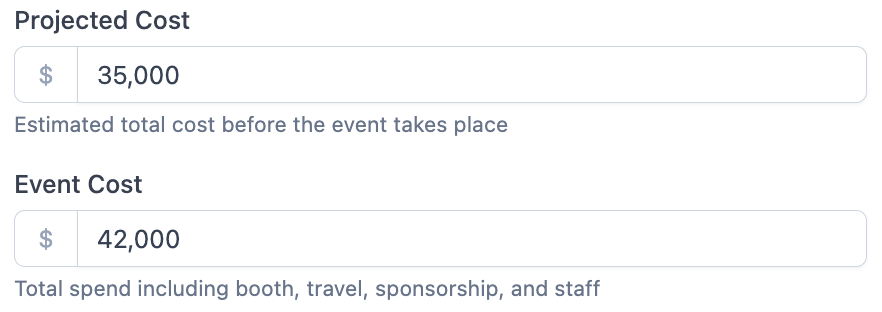
4. **Deal Economics**
* **Average Contract Value (ACV)** — Your average deal size. Mobly uses this to calculate how many SQLs and leads you'd need to hit your pipeline and revenue goals.

5. **ROI Targets**
* **Target Pipeline Multiple** — How much pipeline value you want to generate for every dollar spent. A 5x pipeline multiple means you're aiming to create $5 in pipeline for every $1 in event cost. Industry benchmark is typically 5x.
* **Target Won Revenue Multiple** — How much closed revenue you want to generate per dollar spent. A 2x multiple means $2 in closed revenue for every $1 spent. Industry benchmark is typically 2x.
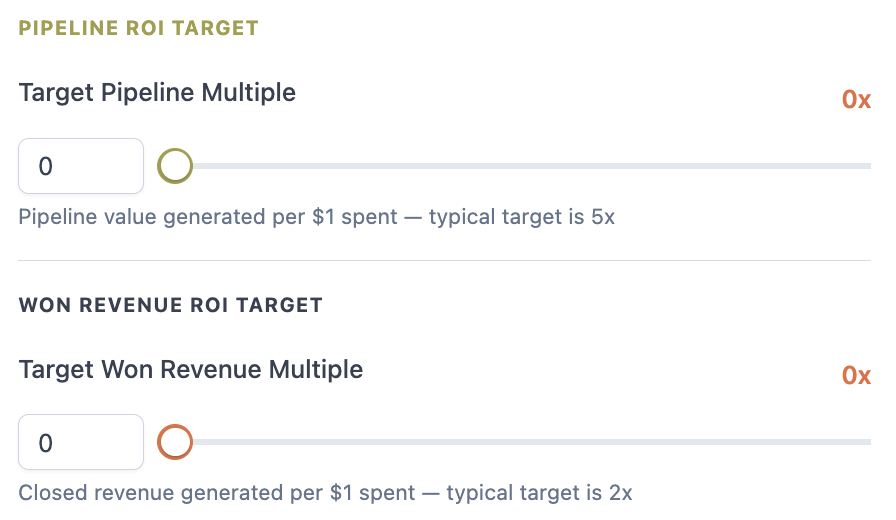
6. **Conversion Rates**
* **Lead → SQL Conversion Rate** — The percentage of leads you expect to become Sales Qualified Leads (SQLs). For example, if 1 in 4 leads typically qualifies, enter 25%. This is usually based on your historical data or team average.
* **SQL → Closed Won Rate** — The percentage of SQLs that you expect to close as won deals. For example, if you close 1 in 5 SQLs, enter 20%.
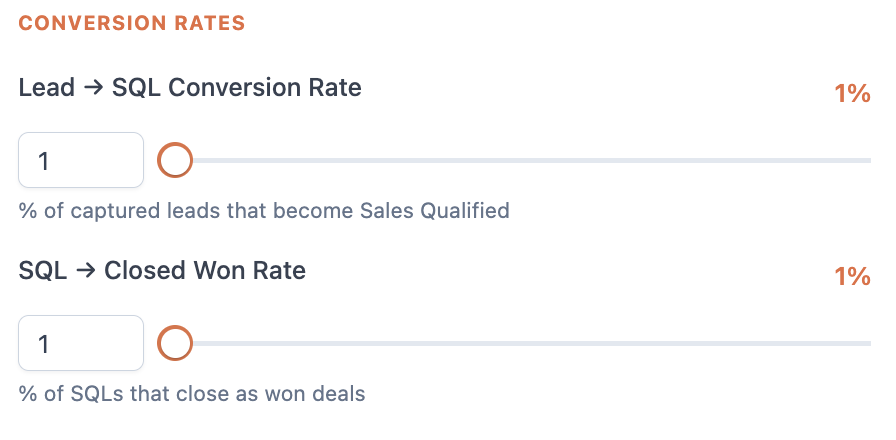
7. As you fill in the fields, the **Planning tab** will show you:
* How many leads you need to hit your pipeline ROI target
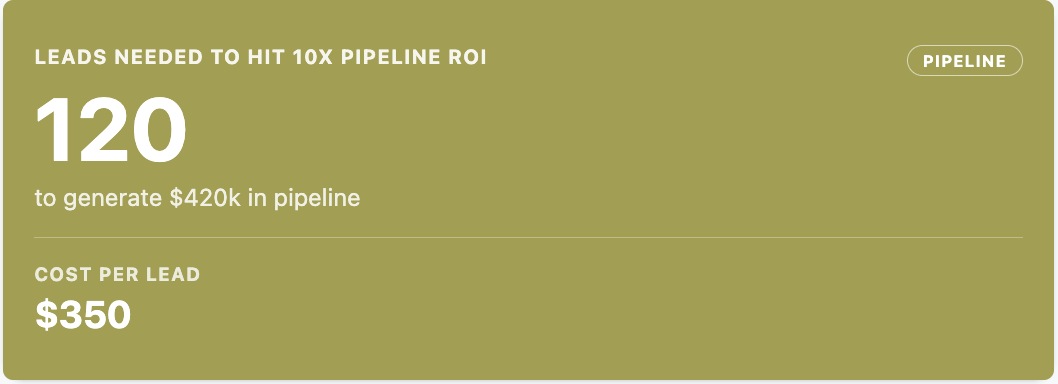
* How many leads you need to hit your won revenue ROI target
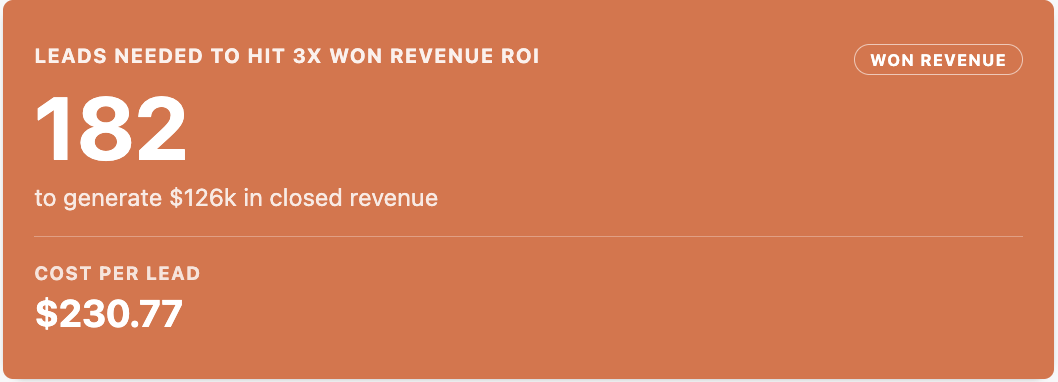
* Conservative, target, and stretch scenarios side by side
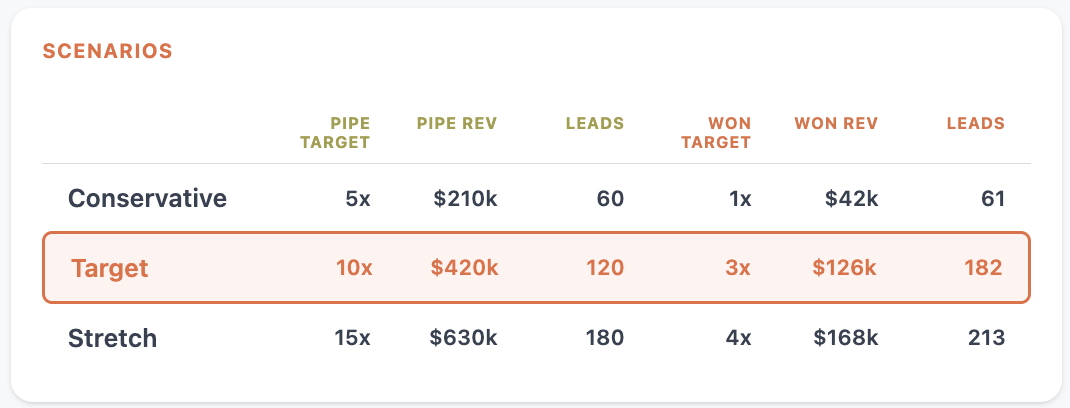
* Your projected cost per lead
8. After the event, update **Event Cost** with your actual spend to get accurate ROI calculations in Insights.
***
## What you'll see in Insights
Once your Planning tab is filled out and the event has leads, open the **Insights tab** to see your full post-event analysis.
### Projected outcomes
At the top of the page, Mobly shows three headline numbers based on your actual lead count and the conversion rates you entered in Planning:
* **Projected Pipeline** — Estimated pipeline value from this event. Calculated as: leads × SQL rate × ACV.
* **Projected Revenue** — Estimated closed revenue. Calculated as: leads × SQL rate × close rate × ACV.
* **Projected ROI** — Your projected revenue multiple (e.g., 3.2x). Calculated as: projected revenue ÷ event cost. Shows how you're tracking against your target multiple.
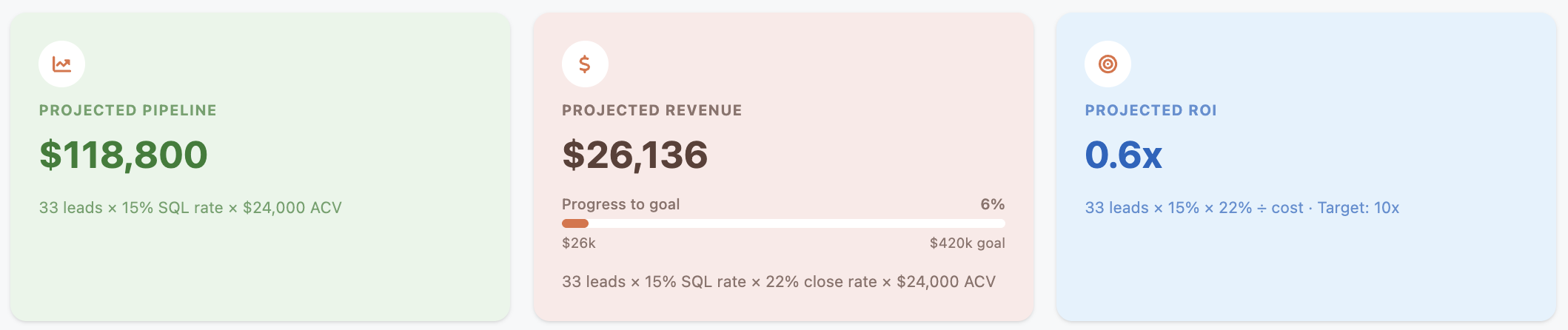
***
**Team Activity — Rep Performance**
Who was scanning leads and who was following up?
Shows each rep's total scans (leads captured) vs. total engagements (follow-up actions taken). A rep with high scans but low engagements captured a lot of leads but didn't follow through. A rep with lower scans but a high engagement rate is prioritizing quality.
* **Engagement Rate** = Engagements ÷ Scans × 100
* Reps are color-coded: 60%+ (on track), 40–60% (room to improve), below 40% (needs attention)
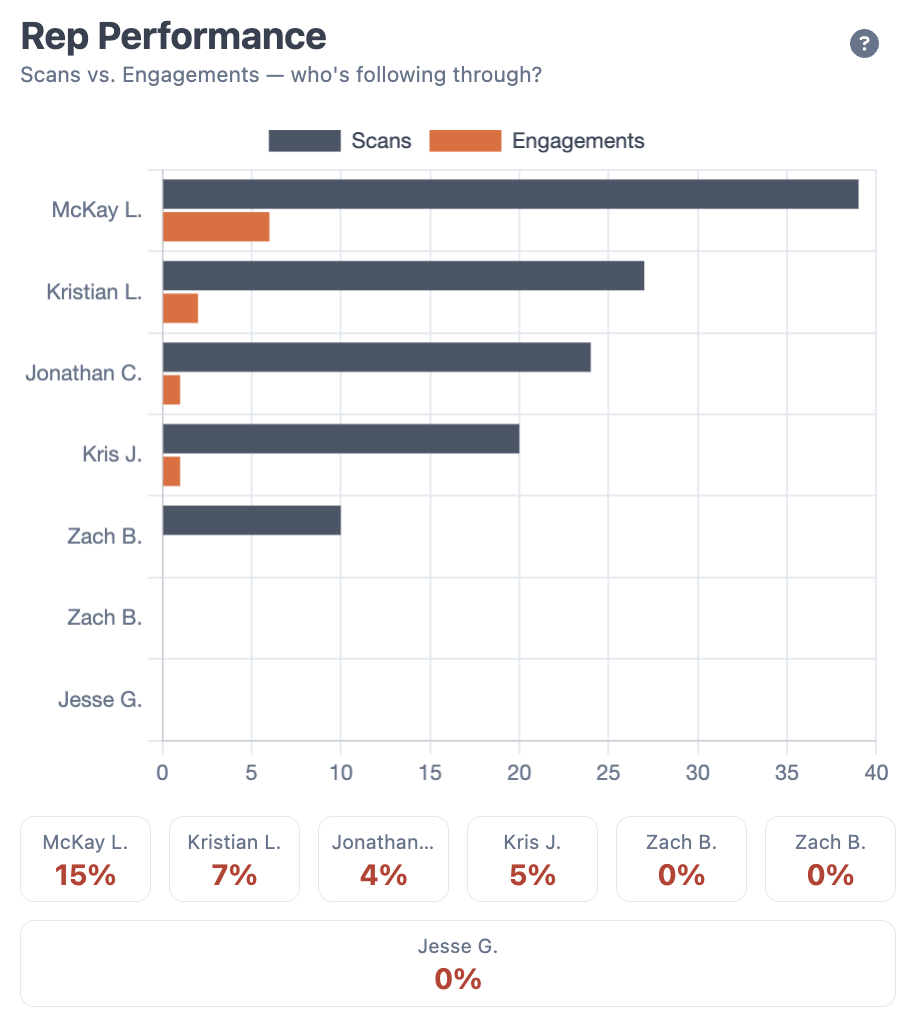
***
**Outreach Speed — Follow-Up Response Times**
How fast did your team act after capturing a lead?
Shows what percentage of leads received their first follow-up within each time window: under 30 minutes, 30 min–1 hour, 1–4 hours, 4–24 hours, 1–3 days, 3+ days, or never. Faster follow-up typically correlates with higher conversion rates.
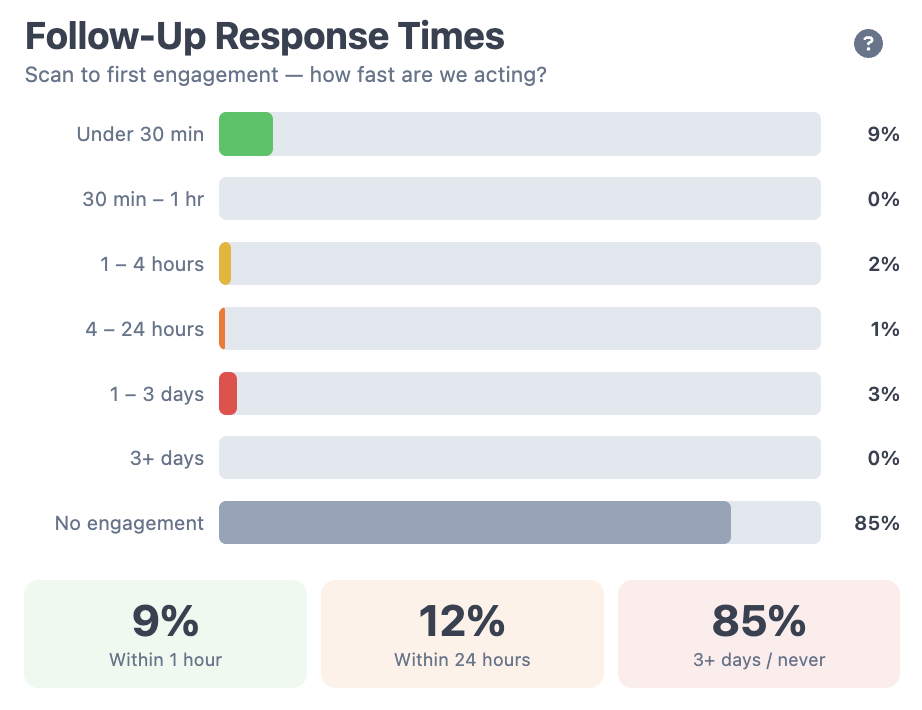
***
**Event Coverage — Scans by Day**
When was lead capture happening, and were enough people on the floor?
Shows total scans per day alongside scans per rep — so you can see whether a big day was because the event was busy or because your team was fully staffed. Use this to make better staffing decisions for future events.
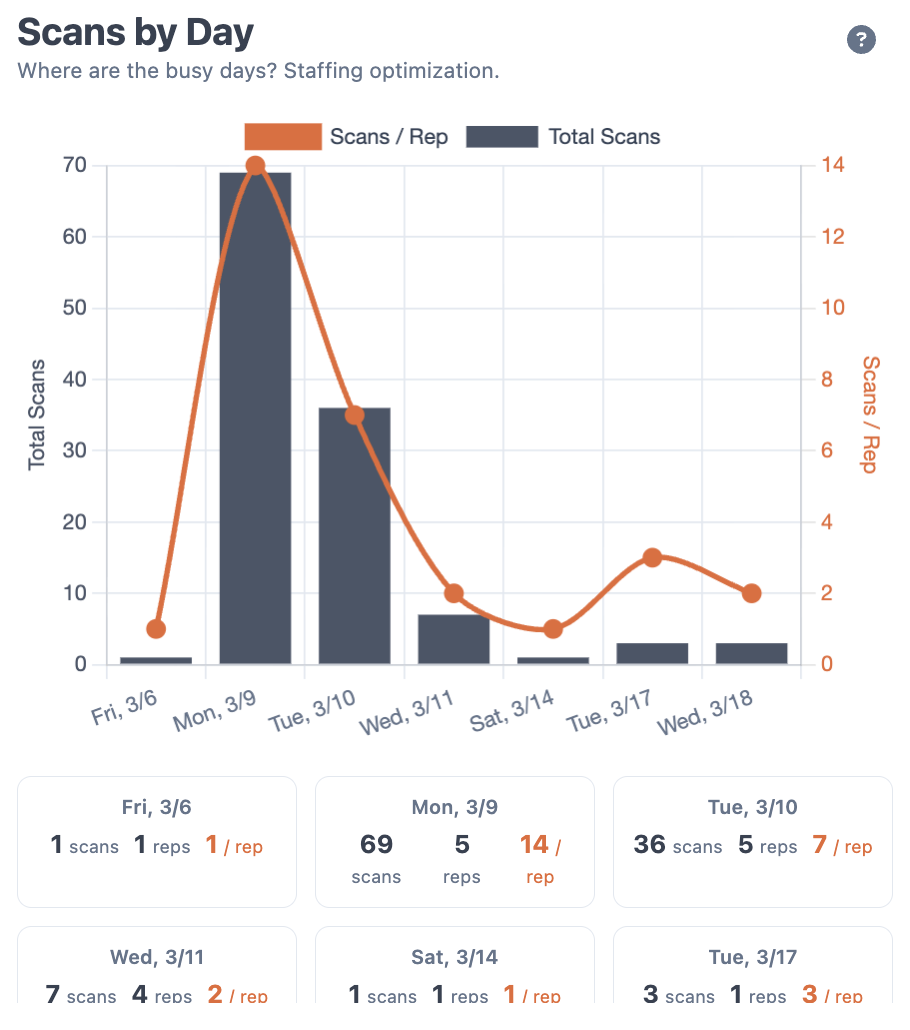
***
**Impact — Activation Performance**
Which activations drove the best results?
Shows registered, checked-in, engaged, and live capture counts for each activation (booth sessions, dinners, speaking slots, etc.). Mobly assigns each activation a verdict based on its performance:
* **Scale up** — High live capture rate, worth investing more in
* **Optimize** — Good volume but room to improve
* **Workhorse** — Best combination of volume and lead quality
* **Brand, not pipeline** — High traffic but low lead quality; good for awareness, not conversion
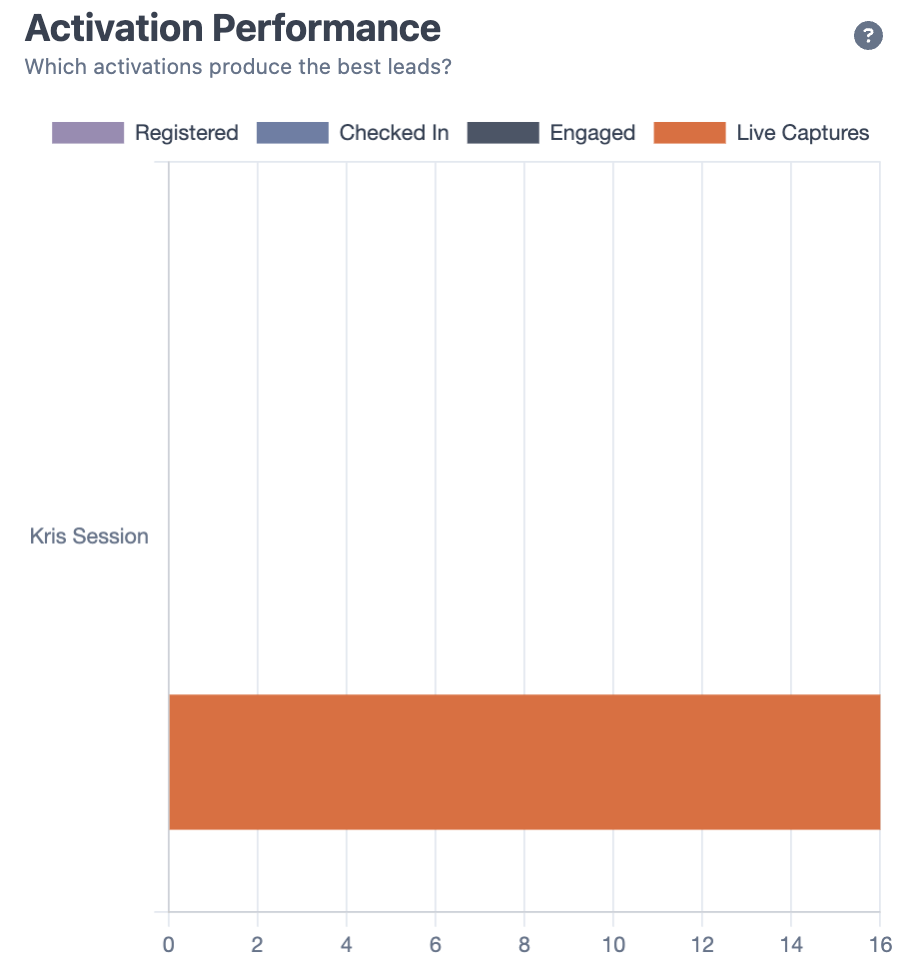
***
**Account Prioritization — Top 15 Accounts**
Which companies are most worth following up with right now?
Ranks the top accounts from the event by a weighted engagement score based on how many contacts were captured, how many follow-up actions were taken, and how many notes were logged. Use this to prioritize your post-event outreach and focus your team on the accounts most likely to convert.
Score is 0–100, normalized relative to your highest-scoring account.
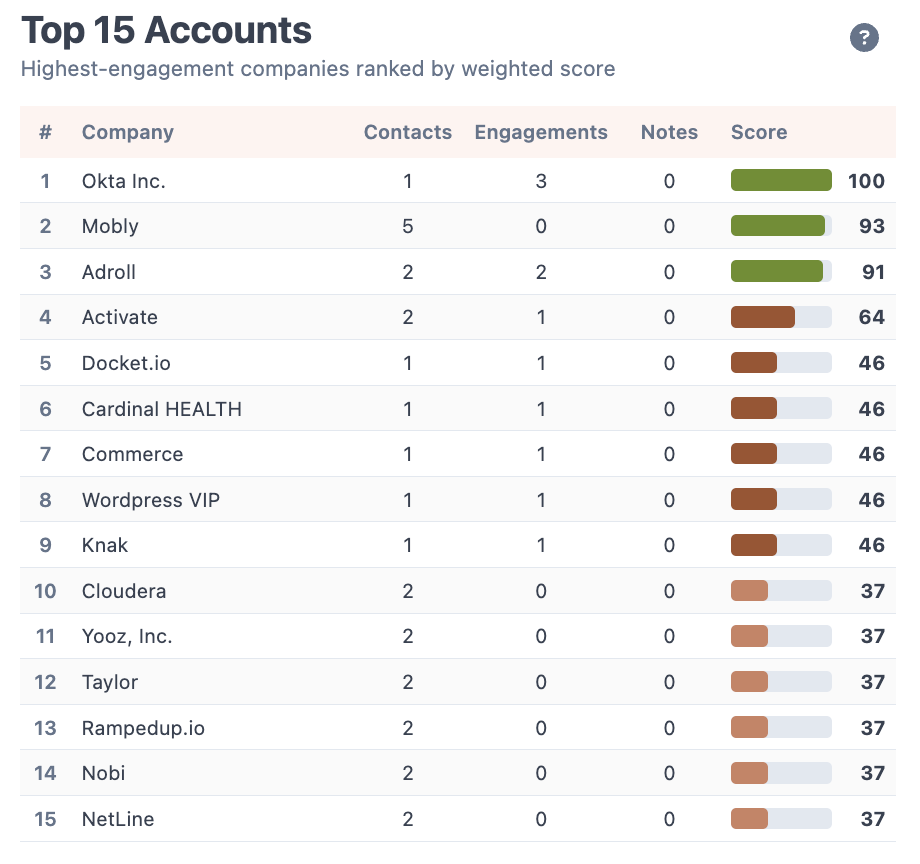
***
**Lead Context Quality — Qualifier Completion by Rep**
Are your reps actually qualifying the leads they capture?
Shows what percentage of required qualifiers each rep completed per lead. Low completion means reps are scanning badges but not gathering the context needed for quality follow-up — which hurts conversion downstream, not just data quality.
* Team average and best/worst rep are called out at the top
* Below 60% is flagged as a concern
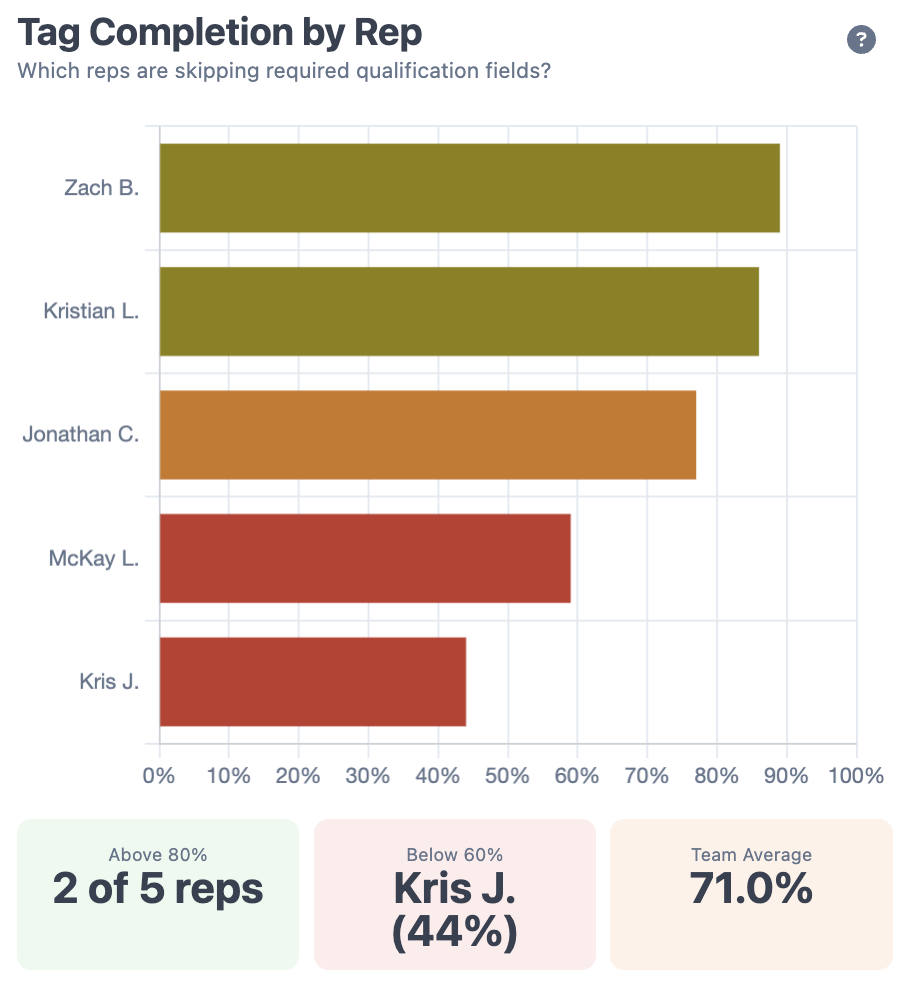
***
## Running a post-event debrief with Insights
Insights is designed to be pulled up in the room during your post-event debrief. Here's a suggested flow:
1. **Open Insights** for the event before the meeting and make sure your Planning tab has actual event cost filled in
2. **Start with AI Insights** — these are the three things most worth the team's attention
3. **Walk through the charts** — Team Activity and Outreach Speed are usually the most discussion-worthy
4. **Review Account Prioritization** — Use it to agree on which accounts to prioritize for follow-up
5. **Capture action items** — What changes to process, staffing, or activation strategy will you make next time?
***
## FAQ
**Do I have to fill out the Planning tab before the event?** You can fill it out anytime, but it's most useful if you set it up before the event so you have a goal to measure against. At minimum, update the Event Cost field after the event with your actual spend.
**Can I use Insights during the event?** You can, but the analysis will be incomplete. Insights is most valuable after the event wraps and all lead data has been synced. You must run a new analysis to get up to date data from the event.
**What counts as an "engagement"?** Follow-up actions like emails sent, calls logged, meetings booked, and other outreach activities tracked in Mobly. Initial scan events and internal admin imports don't count.
**What if I don't have activation data?** The Impact chart only appears if your event has activations set up in Mobly. If you don't see it, that's why.
# Activations
{% embed url="" %}
An **activation** is a sub-experience attached to an event — a session, breakout, booth, sponsored dinner, panel, giveaway, or anything else inside a larger event that has its own date, its own roster, and its own outcomes worth tracking separately. Activations let you measure capture results, register attendees, run giveaways, and route leads at the sub-event level, not just at the event level.
> **Activations is a paid add-on.** These articles apply if your org's plan includes Activations. Check with your Mobly account team if you're not sure.
## When to create an activation
Use activations when something inside your event needs to be tracked or run distinctly from the broader event registration:
* **Sessions** — a keynote, breakout, workshop, or panel where you care which attendees showed up
* **Booths and demos** — a sponsored experience inside a conference, with its own capacity and its own lead capture
* **Dinners, happy hours, VIP gatherings** — separately ticketed or invitation-only sub-events
* **Roundtables** — capacity-limited deep-dive discussions
* **Giveaways** — booth raffles or prize drawings with a self-serve entry form
* **Time-windowed quick-capture** — the mobile app surfaces activations during their start/end window so reps can capture into the right sub-event in one tap
If a sub-experience doesn't need its own roster, its own time window, or its own CRM routing, you can probably skip activations and use the parent event's roster.
## Articles
* [Managing activations within an event](/help-center/the-hub/activations/managing-activations) — creating and configuring activations, plus the admin workflows across the tabs (Summary, Leads, Users, Registration, Content, Label, Giveaway Setup)
* [How to run a giveaway](/help-center/the-hub/activations/how-to-run-a-giveaway) — end-to-end guide for the Giveaway activation type: publish a QR + shareable URL, take entries, unpublish when done
***
Related:
* For the parent event, see [Managing events](/help-center/the-hub/managing-events)
* For how activations surface in the mobile app during their time window, see [How to capture a lead](/help-center/the-mobly-app/capture-and-enrichment/how-to-capture-a-lead)
* For registration flows attached to an activation, see [Host](/help-center/host/host)
# Managing activations within an event
{% embed url="" %}
This article covers the Hub-side admin workflow for activations: creating them, configuring the detail-page tabs, and editing or deleting them.
For a broader intro to what activations are and when to use them, see the [Activations overview](/help-center/the-hub/activations).
## Creating an activation
1. In the Hub, open the event you want to add the activation to.
2. Click into the **Activations** tab on the event detail page.
3. Click **Add Activation**.
4. Configure:
* **Name** — what appears in the mobile app and reports
* **Type** — what kind of activation this is (Booth, Session, Networking Mixer, Meal, Onsite Office Visit, Giveaway, or Other). Reporting rolls up by type, and some types unlock type-specific tabs on the activation detail page.
* **Date and time** — the start/end window for the activation. **Important:** the mobile app's quick-capture feature is only active during this window, so set generously if you think the activation might start early or run long.
* **Location** — optional override; inherits from the parent event if blank
* **Capacity** — optional cap on registrations
* **Assigned users** — the reps running the activation
* **Label** — optional; attach a Mobly label to route activation-captured leads to a specific flow in your CRM
Save. The activation now appears in the parent event's Activations tab.
## The activation detail page
Click into any activation from the Activations tab to land on its detail page. Tabs across the top:
### Summary
The default landing tab. Capture funnel for the activation at a glance:
* **Leads Captured** — leads scanned during the activation window
* **Total Leads** — every lead associated with the activation, including pre-registrations
* **Check-ins** — leads marked as checked in
* **No Show** — registered leads who didn't check in
Use Summary as your morning-after recap: did the session land?
### Leads
The full table of leads in this activation, with the usual search / filter / sort. From here:
* **Add a lead** — open the New Lead drawer to create and attach in one step
* **Bulk import** — upload a CSV of attendees (see [Bulk-importing attendees](#bulk-importing-attendees) below)
* **Export** — download the current list as CSV
* **Per-row:** open the lead, remove from activation (keeps the lead on the parent event), or remove from event entirely (confirms first)
### Users
The reps running this activation. Add or remove assignees here. If the parent event already has users assigned, you can pull them into the activation without re-adding them from scratch.
### Registration (if your org uses Host or registration)
The activation's own registration flow — separate from the parent event's. Use when an activation needs its own landing page, RSVPs, capacity, or confirmations. If your org doesn't use registration features, this tab won't appear.
### Content (if your org uses the Content library)
Two collections of content pieces attached to this activation:
* **Always Included** — items that are part of every activation's content kit by default for your org
* **Activation-specific** — pieces you've attached to just this one activation
Attach or detach content here. If your org doesn't use Content, this tab won't appear.
### Label (if your org uses Labels)
Two lists:
* **Global** — labels associated with the parent event or other lists in your org
* **Activation-specific** — labels scoped to just this activation's roster
Click **Add Label** to create a new label already scoped to this activation. If your org doesn't use Labels, this tab won't appear.
### Giveaway Setup (if the activation is a Giveaway type)
Turns the activation into a **self-serve entry form** — QR code plus shareable URL for attendees to enter from their own phone. Useful for booth raffles, prize drawings, and low-friction lead capture where you'd rather have attendees enter themselves than have a rep scan each one.
See [How to run a giveaway](/help-center/the-hub/activations/how-to-run-a-giveaway) for the full walkthrough. If the activation isn't a Giveaway type, this tab won't appear.
## Editing an activation
Click the **pencil** icon at the top of the activation detail page. The edit drawer covers the activation's identity:
* Name, dates, location, capacity
* Assigned users
* Linked labels
Save / Discard buttons commit or revert.
> The edit drawer is for activation identity only. **Adding or removing attendees happens in the Leads tab** — via the New Lead drawer, bulk import, or per-row remove actions.
## Deleting an activation
Click the **trash** icon at the top of the activation detail page. A confirmation dialog appears. If the activation has linked labels, the dialog lists which labels will be archived alongside it — so you don't accidentally orphan a label you wanted to keep.
## Bulk-importing attendees
In the Leads tab, click **Add Lead → Bulk import**. The drawer steps through:
1. **Pick a CSV** or paste rows. Required columns: first name, last name, email at minimum (your org's lead-import policy may require more).
2. **Validate** — rows that fail land in a separate errors table so you can fix and retry.
3. **Map fields** — if your CSV column headers don't match Mobly's field names, map them here.
4. **Import** — creates new leads (or matches existing ones by email) and adds them to the activation's roster.
The drawer reports created / matched / failed counts when the import completes.
## How activations show up elsewhere
* **In the mobile app:** during the activation's date/time window, reps see a quick-capture option that automatically tags scans to this activation. No manual switching required.
* **On the parent event:** the parent event's Activations tab lists every activation with its status (Future / Active / Past) and capture counts at a glance.
* **In reporting:** activations show up in event ROI and dashboard breakdowns as their own roll-up under the parent event.
## Related articles
* [Activations overview](/help-center/the-hub/activations) — what activations are and when to use them
* [How to run a giveaway](/help-center/the-hub/activations/how-to-run-a-giveaway) — dedicated workflow for the Giveaway activation type
* [How to add an event](/help-center/the-hub/managing-events/how-to-add-an-event) — the parent event your activation lives under
* [How to assign users to an event](/help-center/the-hub/managing-events/how-to-assign-users-to-an-event)
* [How to use Mobly labels](/help-center/labels/how-to-use-mobly-labels) — for the label routing piece
* [How to check in leads](/help-center/host/how-to-check-in-leads)
# How to run a giveaway
Giveaways turn a Giveaway-type activation into a **self-serve entry form** attendees fill out from their own phone via QR code or shareable link. Great for booth raffles, prize drawings, or any capture flow where you'd rather have attendees enter themselves than have a rep scan each one.
## When to use a giveaway
Reach for a giveaway when:
* You're running a **booth raffle or prize drawing** and want a low-friction way for attendees to enter
* You want a **hands-free capture flow** — attendees enter themselves while your reps focus on conversations
* Your booth has **passers-by who wouldn't stop for a scan** but will drop their info for a chance to win
* You want a **shareable digital link** as well as a booth QR, so you can promote the giveaway anywhere you already reach attendees (event apps, social posts, your own email campaigns, digital signage)
If you just need a normal lead capture experience, use a standard scan flow via the mobile app — see [How to capture a lead](/help-center/the-mobly-app/capture-and-enrichment/how-to-capture-a-lead).
## What you'll need
* Access to the Hub with **admin permissions on the event** you're running the giveaway inside
* An **event** already created — see [How to add an event](/help-center/the-hub/managing-events/how-to-add-an-event)
* Something to display or share the QR / link (a printed sign at the booth, a slide, a social post)
## Set up the giveaway
### 1. Create a Giveaway-type activation
Every giveaway lives inside an activation. Create one if you don't have it yet:
1. In the Hub, open the event.
2. Click into the **Activations** tab, then **Add Activation**.
3. Set the **Type** to **Giveaway**.
4. Give it a **name**, set the **date and time** for when the giveaway is live, and fill in the usual activation fields.
5. Save.
For a walkthrough of every activation config field, see [Managing activations within an event](/help-center/the-hub/activations/managing-activations).
> The activation's date/time window matters for the mobile app's quick-capture behavior during your event — but it does not control when the entry form itself is live. Once you Publish (below), the form stays open until you Unpublish.
### 2. Open the Giveaway Setup tab
Click into your Giveaway-type activation. The tabs across the top now include **Giveaway Setup**.
The tab has three cards:
* **Giveaway Details** — where you name the giveaway
* **Entry Form** — a read-only preview of what attendees fill out
* **QR Code & Shareable Link** — where you publish and get the QR image + URL
### 3. Name the giveaway
In **Giveaway Details**, type a name and click **Save**. This is what attendees see on the entry form and the confirmation screen — pick something recognizable ("Enter to Win: Bose Headphones," "SalesLoft Booth Drawing," etc.).
You have to save a name before you can publish.
### 4. Publish
In **QR Code & Shareable Link**, click **Publish**. Two things appear:
* A **QR code image** — download to print for your booth
* A **shareable URL** — copy for digital sharing (social posts, follow-up emails, event chat)
Both point to the same public entry form.
### 5. Share it
Ways to get eyes on the QR or URL:
* **Print the QR** as a booth sign — download from the tab, print at whatever size fits your setup
* **Include the URL** in event follow-up emails or event-app posts
* **Display it on a booth monitor** — most booth screens can render the QR from a laptop
Attendees who hit the URL or scan the QR see the entry form:
* First name, last name
* Work email
* Phone number
* Company name
They fill it out, hit submit, and see a confirmation screen. Each submission creates a lead in Mobly, linked to this activation.
### 6. Unpublish when the giveaway ends
When your event or drawing window closes, come back to the Giveaway Setup tab and click **Unpublish**.
> **Important:** the giveaway stays live from the moment you Publish until you Unpublish. The activation's date/time window doesn't auto-close it. If you don't Unpublish, the form keeps accepting entries — potentially long after the drawing has happened.
## How giveaway leads look after capture
Each entry creates a lead scoped to your org and linked to this activation, which means:
* **Leads show up in the activation's Leads tab** — same as any lead captured on this activation
* **They count in the Summary funnel** on the activation detail page
* **They apply standard qualification, routing, and CRM sync** — no giveaway-specific overrides
You can qualify them, favorite them, filter them, and route them exactly like reps' scan-captured leads.
## Tips
* **Name the giveaway obviously.** Attendees see the name at the top of the entry form. "Enter to Win a Yeti Cooler" converts better than "Booth 314 Drawing."
* **Test the entry form before your event.** Open the URL in a browser, fill it out yourself. Confirms the QR and URL work and that the entry lands in Mobly.
* **Unpublish the day the event ends.** Set yourself a calendar reminder if the event runs multiple days.
* **Reuse the same activation across days.** For a single giveaway that spans a multi-day event, create one activation and keep it published for the run.
* **Print the QR at the right size.** Small booth counter cards need one size; a backdrop sign needs another. Download the image and scale in your print tool of choice.
## FAQ
**Do attendees need a Mobly account?** No. The entry form is public — no sign-in, no download.
**Do the leads sync to my CRM?** Yes, through your standard CRM integration and field mapping. See [Field mapping](/help-center/integrations/crm/field-mapping).
**What if an attendee enters the same email twice?** Mobly deduplicates leads by email at the org level, so multiple entries from the same person link back to the same lead record. The additional activation touches still get recorded.
**Can I edit which fields the entry form asks for?** Not yet — the form always asks for first name, last name, work email, phone, and company name.
**Can I run multiple giveaways at the same event?** Yes. Each Giveaway-type activation gets its own Giveaway Setup tab, its own QR, and its own URL.
## Related articles
* [Managing activations within an event](/help-center/the-hub/activations/managing-activations) — the parent article on activations
* [How to add an event](/help-center/the-hub/managing-events/how-to-add-an-event) — creating the event your giveaway lives inside
* [How to check in leads](/help-center/host/how-to-check-in-leads) — for related registrant check-in flows
# Dashboards and reports
Org-wide dashboard, custom reports, and exporting dashboard views from the Hub.
## Articles
* [Understanding the Dashboard](/help-center/the-hub/dashboards-and-reports/understanding-the-dashboard)
* [How to export my dashboard view](/help-center/the-hub/dashboards-and-reports/how-to-export-dashboard-view)
* [How to generate custom reports](/help-center/the-hub/dashboards-and-reports/how-to-generate-custom-reports)
***
Related:
* For per-event ROI analysis (Insights), see [Managing events → How to see my event's ROI](/help-center/the-hub/managing-events/how-to-see-event-roi)
* For lead-level analytics within a list, see [Working with leads](/help-center/the-hub/working-with-leads)
# Understanding the Dashboard
The **Dashboard** is your home page in the Hub — the first thing you see after signing in as an admin. It rolls up your organization's events, users, and leads into a single scrollable view with filters across the top.
\* This article is only relevant to Mobly Admins (with access to the Hub). Sales reps land on My Leads instead.
## What's on the page
Top to bottom:
* **Filters strip** — Date range, Events, Users
* **KPI cards** — high-level counts inside your active filter window (total events, leads captured, check-ins, etc.)
* **Trend charts** — leads-by-day, scans-by-event, user activity over time
* **Top-N tables** — top events by leads, top reps by capture count, top qualifiers by usage. Click any row to drill into that event, user, or qualifier
Everything below the filters honors all three filters. Change a filter and the whole page re-aggregates.
## The three filters
At the top of the page:
* **Date range** — preset windows (last 7 days, last 30, this quarter, etc.) or a custom range
* **Events** — multi-select. Scope the dashboard to just the events you care about
* **Users** — multi-select. Scope to specific team members
All three filters persist in the URL as query parameters, which means:
* **You can share a filtered view by copying the URL.** Someone else opening it sees the same view.
* **A refresh keeps your filters.** No accidental reset.
* **You can bookmark a specific cut** (e.g., "Q4 events, all users") and land back on it directly.
### Clearing filters
If at least one filter is active, a **Clear filters** button appears next to the filter row. One click resets all three back to defaults.
## Print and share
Next to the filter row is a **Download** button (printer icon). It enters a print-optimized layout:
* The page header and left nav are hidden
* Charts compress to fit on A4 paper (or paginate cleanly if the dashboard is longer)
* Colors are preserved on color printers
Use Print to PDF from your browser's print dialog to save a snapshot to share over email, drop in a deck, or hand to your CFO.
## When the dashboard feels wrong
Two common "this doesn't look right" moments:
* **Numbers look low.** Check the date filter first — it defaults to a window that might not include your most recent events. Clear filters and the whole-org view returns.
* **A specific rep or event isn't showing up.** Check the Events and Users filters. Multi-select filters quietly exclude anything not picked.
If the filters are clean and the numbers still look off, the underlying data may not have synced yet. See your [event's ROI](/help-center/the-hub/managing-events/how-to-see-event-roi) for the per-event source of truth and compare.
## Related articles
* [How to export my dashboard view](/help-center/the-hub/dashboards-and-reports/how-to-export-dashboard-view) — saving and sharing the dashboard data
* [How to generate custom reports](/help-center/the-hub/dashboards-and-reports/how-to-generate-custom-reports)
* [How to see my event's ROI](/help-center/the-hub/managing-events/how-to-see-event-roi) — per-event analytics deep-dive
# How to export my dashboard view
Capture your dashboard view in a PDF
\* This article is only relevant to Mobly Admins (with access to the Hub) \*
1. Navigate to the dashboard on [hub.getmobly.com](https://hub.getmobly.com/).
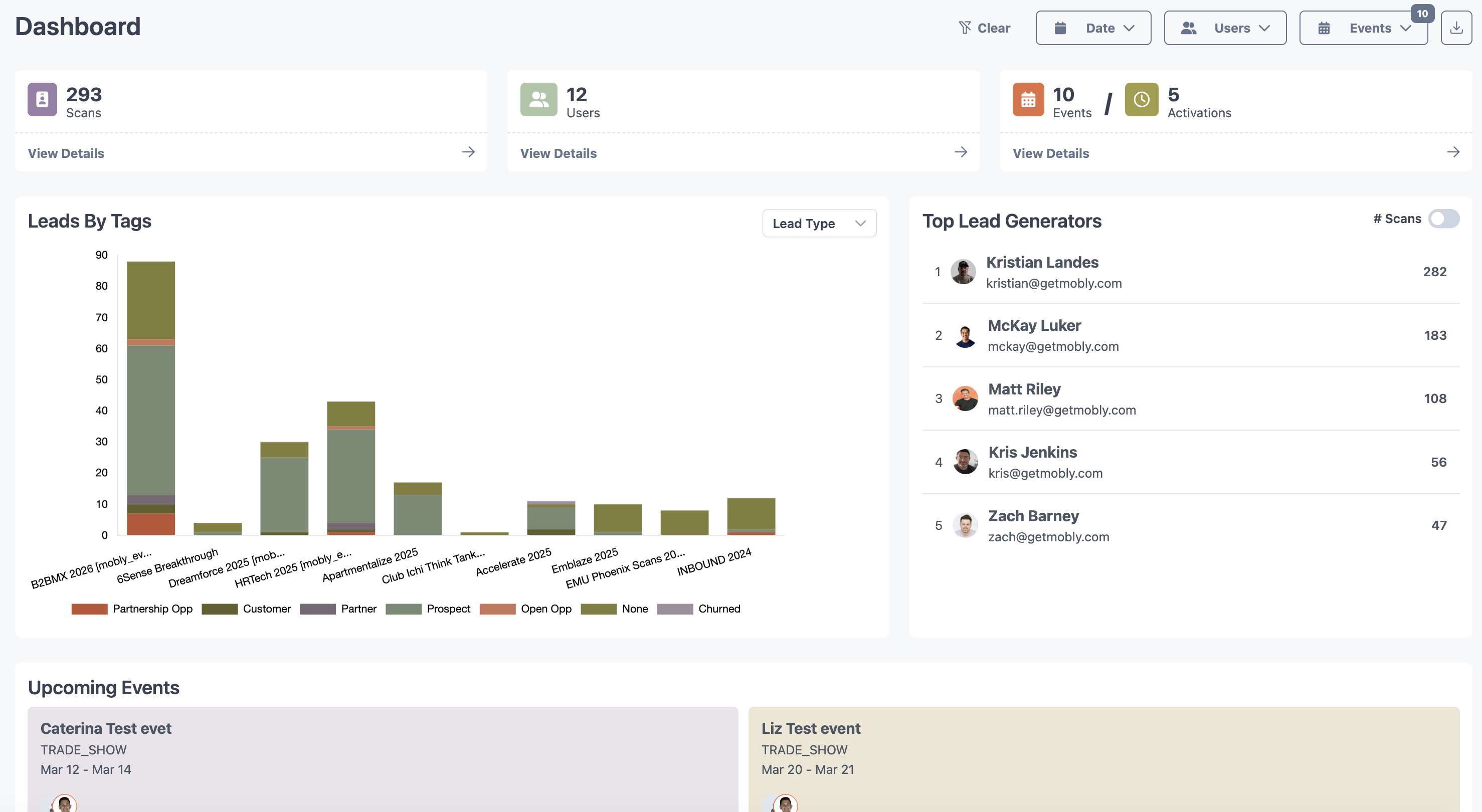
2. Add any filters for date, users, or events that you'd like.
3. Click the download button in the top right corner. This will bring you to a screen to "print" your dashboard view. You can print that to a printer if you'd like, but you most likely want to choose "Save as PDF" as the destination option. Once you click "Save" it will prompt you to choose where you'd like to save the PDF version of the dashboard view on your computer.
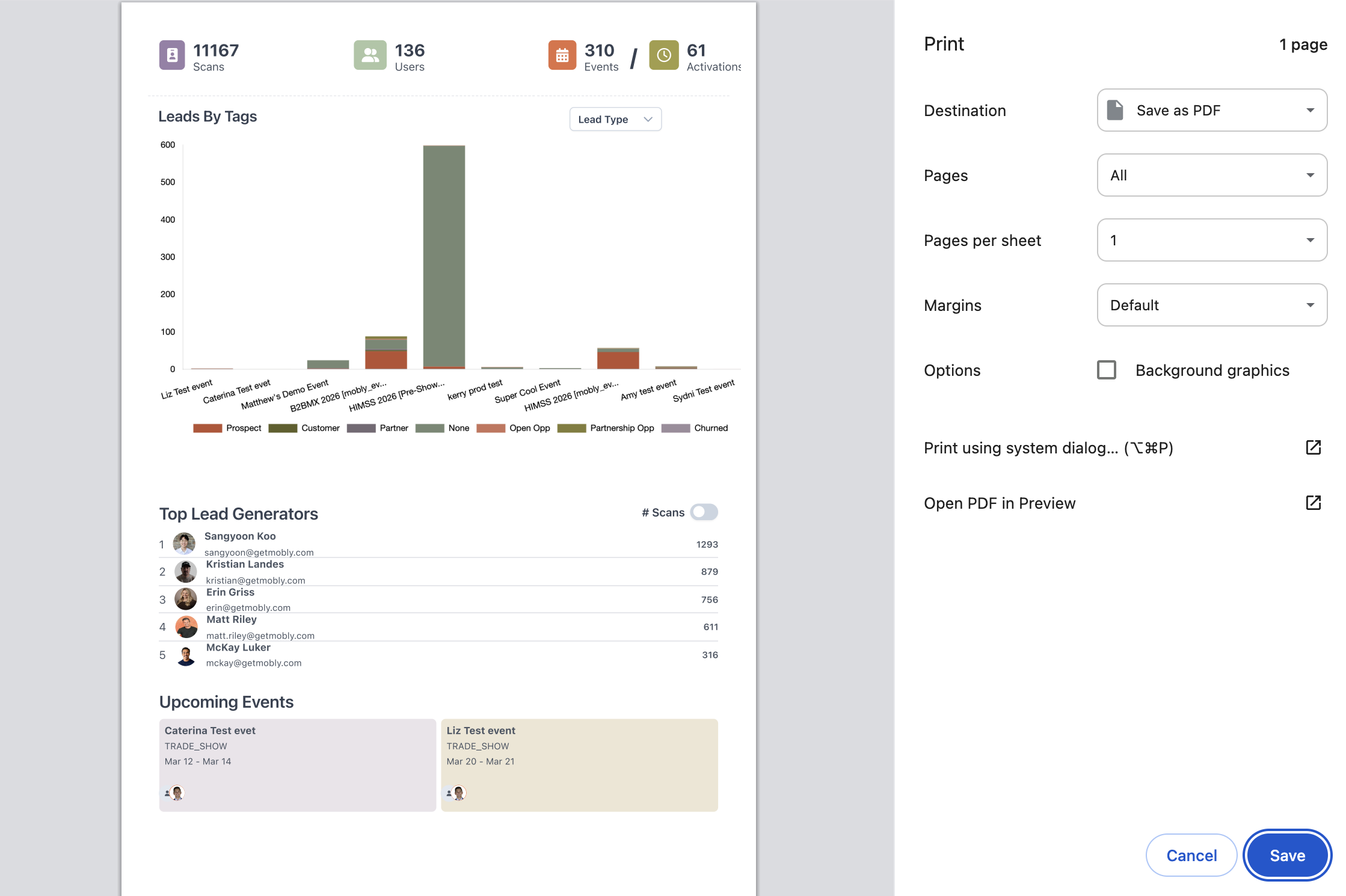
4. Once you've chosen a location and successfully downloaded, you can share that PDF with others or store for future use.
# How to generate custom reports
Use Mobly filters to generate custom reports.
> **A note on access:** Filtering and column customization on the Events and Leads tables are available to all Hub users. The Users table and **CSV export** are admin-only — non-admin users can build and view filtered tables, but won't see the **Export CSV** button or the Users tab.
1. On [hub.getmobly.com](https://hub.getmobly.com/), navigate to the the "Events", "Users", or "Leads" tab, depending on what data you're looking for. You can also navigate to a particular event and use the leads table within to build your report.
On each of these pages, you will find a table where you can do a lot of customization to build a report according to your needs/interests.
1. **Select or unselect columns:** Click on the dropdown labeled "x columns selected". By clicking the checkmarks next to each field, you get to decide which columns show on the table.
2. **Move columns:** Mobly provides a default order of columns, but perhaps certain fields are more important to you and you'd like to see them earlier in your table. To move the column, simply click and drag the column header to where you'd like it to sit.
3. **Change filters:** You can filter any column to find the specific information you need. For example, I can use filters to find all the leads created by Ryan DeForest, with the Super Hot qualifier value, that were created since April.
2. Click "Export CSV" in the top right corner of the table. You have th opportunity again to choose the columns that will be included in your export. Your customized list of data will export to a CSV for easy reporting.
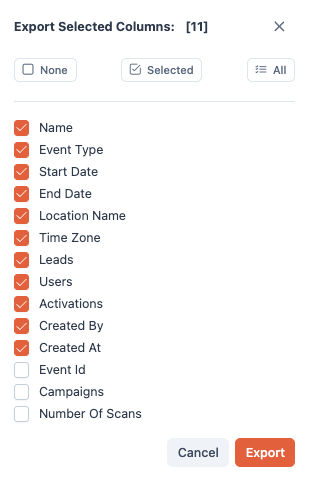
# Scout overview
Event discovery, ICP-matched recommendations, and the Event Advisor.
* [How to find new events to go to](/help-center/scout/how-to-find-new-events)
# How to find new events to go to
Scout is Mobly's event intelligence tool — it helps you discover industry events, find ones that fit your goals, and build your event calendar for the year. Instead of manually hunting through event websites and spreadsheets, Scout surfaces relevant events for your organization and lets you ask an AI advisor to find exactly what you're looking for.
***
## What Scout can do
* **Surface personalized event recommendations** — Scout analyzes your organization profile and ranks the most relevant events from a database of 25,000+ industry events, giving each a Market Fit score (Poor / Fair / Good / Excellent)
* **Answer natural language questions** — Ask Scout's AI Advisor things like "What cloud engineering conferences are in Boston next quarter?" or "Find enterprise SaaS events under $10k to sponsor"
* **Bookmark and add events to your calendar** — Save events to your shortlist and add them directly to your Mobly event calendar to start planning activations
* **Hide events that aren't a fit** — Tell Scout when something isn't relevant so your recommendations get better over time
* **Capture events from anywhere on the web** — Use the Scout Chrome extension to pull event details directly from any event website into Mobly
## The three tabs inside Scout
Scout's main page has three tabs — pick the one that matches how you want to look for events:
* **Recommended** — Scout's ranked list of events that match your Organization Profile. Best starting point if you don't have a specific search in mind. Each event shows a **Based on** strip explaining why Scout surfaced it (matched industries, target personas, key topics, etc.) so you can sanity-check the ranking.
* **All Events** — the full 25,000+ event database with filters (industry, date range, location, attendee count). Use when you have specific criteria and want to browse rather than ask.
* **Advisor** — chat with Scout's AI. Best for vague, open-ended, or multi-criteria searches ("Find B2B SaaS conferences in Q3 with strong CMO attendance").
Recommended is the default landing tab.
***
## How to use Scout
### Step 1: Set up your Organization Profile
Scout's recommendations are powered by your Organization Profile. The more complete it is, the better your results.
1. Go to **Settings → Organization Profile**
2. Fill in your profile details:
* **Target industries** — e.g., FinTech, Enterprise SaaS, Healthcare IT
* **Target job titles** — the personas you want to reach, e.g., CTO, VP Marketing
* **Key topics** — themes that matter to your team, e.g., AI/ML, Cloud, DevOps
* **Annual event budget**
* **Primary event goal** — Lead generation, Networking, Thought leadership, Brand awareness, etc.
* **Events to avoid** — any events you want Scout to filter out
* **Additional context** — anything else that should shape your recommendations

3. To save time, click **Let AI Fill This For Me** — Scout will research your company website and pre-fill the fields it can. Review the suggestions and adjust anything that doesn't look right. Note: budget and past event fields require manual entry.
4. Click **Save**
*If your recommendations feel off, your profile is the first place to check.*
***
### Step 2: Browse recommended events
1. Go to **Scout** in the left navigation
2. Open the **Recommended** tab. Mobly's Scout analyzes hundreds of conferences to find your best fits for the year — it may take a moment to load.
3. Browse the ranked list — each row shows the following fields:
1. Event name
2. Market Fit
3. Start date
4. End date
5. Number of attendees
6. Number of exhibitors
7. Attendee Personas
8. Keywords
9. Industries
10. City
11. State
12. Booth Cost
13. Attendee Cost
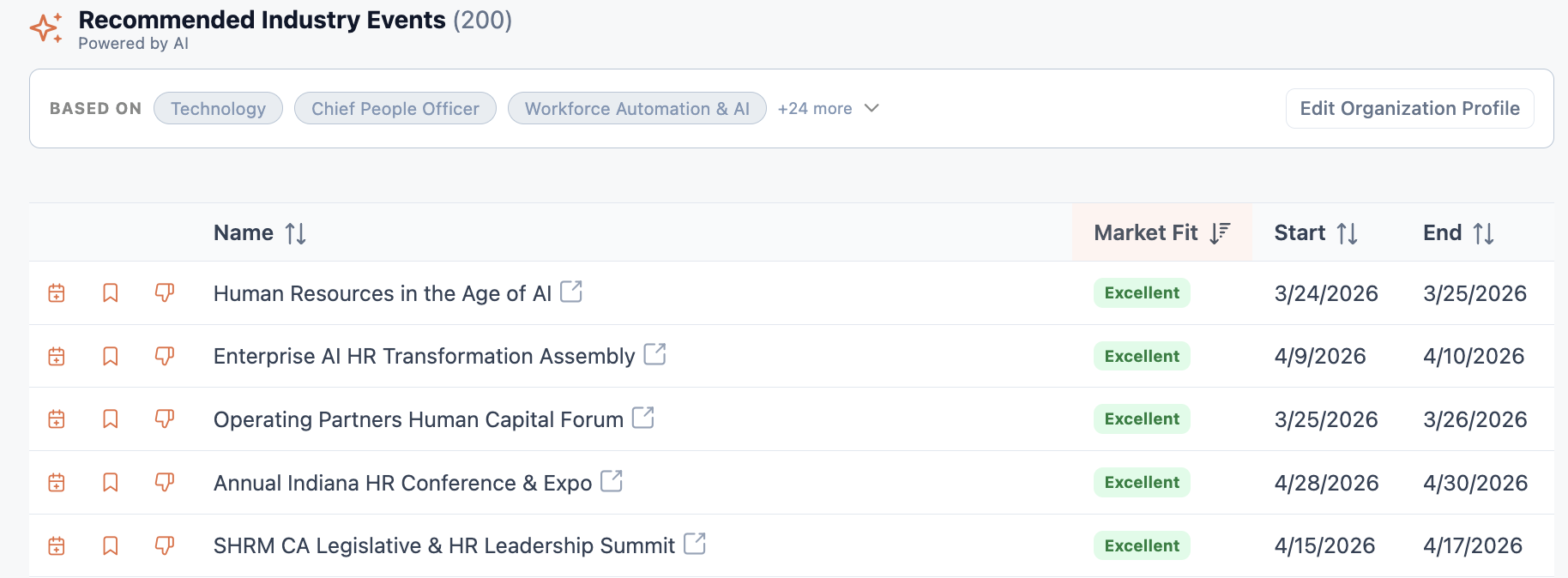
***
### Step 3: Bookmark events you're interested in
1. Click the **bookmark icon** on any event row to bookmark it
2. Bookmarked events are saved to your **Bookmarks** tab so you can review them later
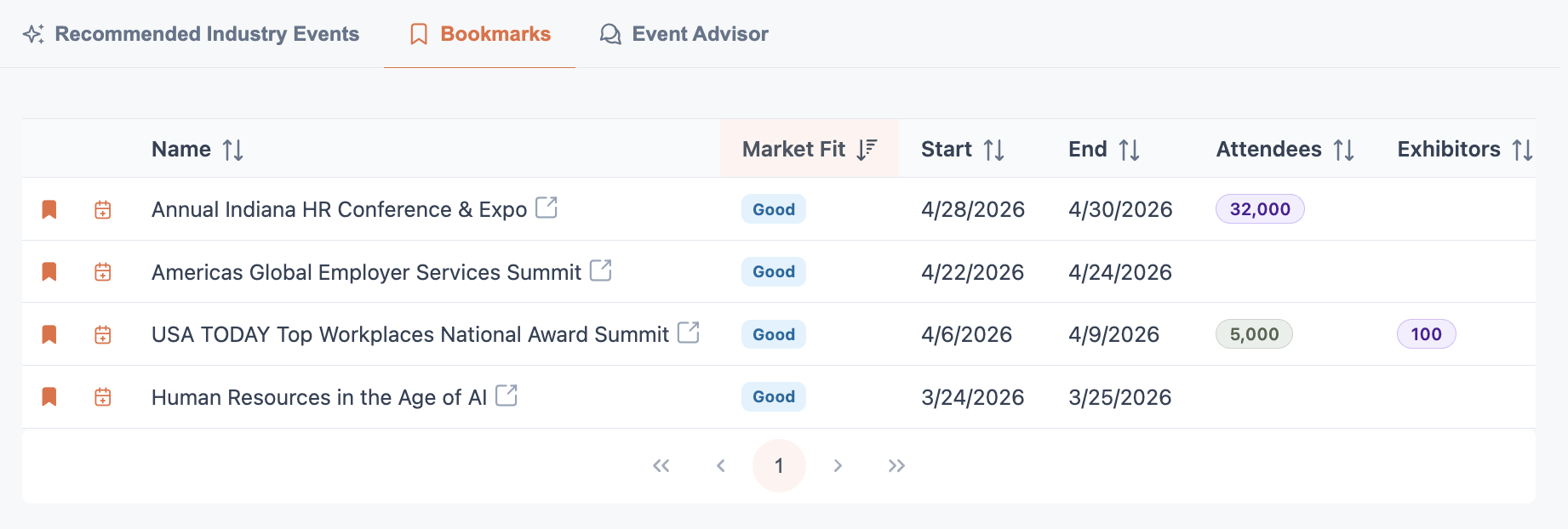
3. You can bookmark events from the Recommended tab or Advisor chat results
***
### Step 4: Add an event to your calendar
When you're ready to commit to an industry event that you found with Scout and add it to your events in Mobly:
1. Click the **calendar icon** on any event row
2. A drawer will open with the event details pre-filled
3. Review and edit the details
4. Click **Save** to add the event to My Events in Mobly
5. From there, you can plan activations, campaigns, and logistics
***
### Step 5: Hide events that aren't a fit
If an event isn't relevant to you:
1. Click the **thumbs down icon** on any event row
2. Optionally select a reason:
* Already attending this event
* Attended before with poor results
* Wrong audience
* Duplicate of another event in the list
* Data appears to be inaccurate
3. Click **Hide Event** — the event will be removed from your recommendations
*You can review and manage all hidden events in Settings → Organization Profile.*
***
### Step 6: Ask the AI Advisor
For more specific searches, use the Advisor tab to ask Scout directly:
1. Open the **Advisor** tab
2. Type your question in plain language, for example:
* *"Find B2B SaaS conferences in Q3 with strong CMO attendance"*
* *"What events are coming up in New York in the next 60 days?"*
* *"Show me events similar to ones we've done well at before"*
3. Scout searches the event database and responds with matching events in a sortable, filterable table
4. Ask follow-up questions to narrow results — e.g., *"Filter those to the West Coast only"* or *"Which of those have speaking opportunities?"*
5. Bookmark or add any results to your calendar directly from the Advisor
***
### Step 7: Capture events with the Chrome extension
Found an event on the web that isn't in Scout yet? Use the Mobly Scout Chrome extension to add it without leaving the page.
**To add a new event:**
1. Visit any event website
2. Click the **Scout extension icon** in your Chrome toolbar
3. Click **Analyze** to scrape the event website
4. Scout analyzes the page and extracts the event details automatically. If Mobly Scout already knows about the event, it will pull in the known details
5. Review the extracted information in the drawer that appears
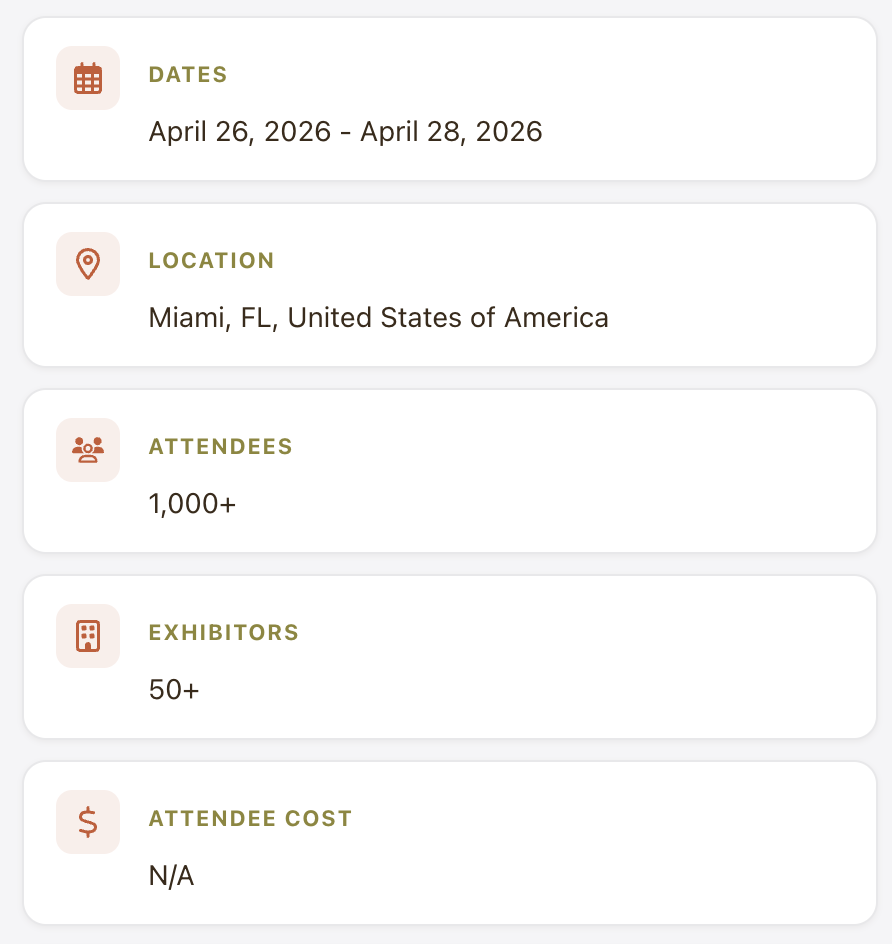
6. Click **Bookmark this event** to save this event for later

7. Click **Planning to attend this event?** to add this to your Mobly event calendar

*To install the extension: \[add install link/instructions]*
# Pulse overview
Pulse is Mobly's automated follow-up engine — build a sequence once, and emails go out to every matching lead on the schedule you choose. Triggered by a scan, a qualifier value, or a lead score. Pulse also includes a **lead routing** layer that decides who each new lead gets assigned to.
Pulse handles the **post-event email follow-up that used to live in a spreadsheet and a calendar reminder.** Once your sequence is set up, every lead you scan at the event walks away knowing they'll hear from you on a predictable cadence — without anyone on your team having to remember to send the email.
> **Pulse is a paid add-on.** If you don't see Pulse in your Hub left nav, contact your CSM to discuss enabling it.
## Start here
* [Understanding Sequences](/help-center/pulse/understanding-sequences) — concepts, building blocks, and how sequences relate to events
* [Setting Up a Pulse Sequence](/help-center/pulse/setting-up-a-pulse-sequence) — step-by-step build
* [Reading the Sequence Dashboard](/help-center/pulse/reading-the-sequence-dashboard) — what the metrics mean and what healthy looks like
* [Pausing, editing, or canceling a sequence](/help-center/pulse/how-to-pause-or-cancel-a-sequence) — including how to stop a runaway loop
* [Building lead routing flows](/help-center/pulse/building-routing-flows) — the if-then logic that decides who each new lead gets assigned to
***
For **manual, one-off engagement** with a lead (calling, texting, social outreach, sending a file right then), see the engagement actions in [The Mobly App](/help-center/the-mobly-app/engaging-with-leads/how-to-engage-leads-from-the-app). For **automated multi-step follow-up**, you're in the right place.
# Understanding Sequences
Pulse is Mobly's built-in follow-up engine. It lets you build automated email sequences that go out to leads at exactly the right time — triggered by a scan, a qualifier value, or a lead score — without any manual work after the event.
***
## What Pulse Does
Instead of manually emailing every lead after a show, you build a sequence once and Pulse handles the sends. A sequence is a series of messages with rules for when each one goes out: immediately after a scan, after a delay, or on a specific date.
Every lead who matches your trigger gets enrolled and moves through the steps automatically.
***
## The Three Building Blocks
### 1. Triggers — who gets enrolled
A trigger defines which leads enter a sequence. Three options:
* **Scanned** — any lead scanned at the linked event is enrolled immediately
* **Qualifier applied** — a lead is enrolled when a specific qualifier value is applied to them
* **Lead Score** — a lead is enrolled when they hit a score category (Hot, Nurture, Caution, Cold)
You can combine multiple triggers on one sequence. A lead only enrolls once per sequence even if they match multiple triggers.
### 2. Steps — what gets sent
Each step is an email and has:
* **Channel:** Email (the only fully-supported channel today)
* **Timing:** When to send it (see below)
* **Content:** Subject + body
* **Sender:** Who the email appears to come from — the lead's assigned owner, the account owner, or a specific person you set
### 3. Timing — when each step sends
Three timing modes per step:
* **Right away** — sends as soon as the previous step completes (or immediately for the first step)
* **After a delay** — waits a set amount of time: minutes, hours, or days
* **On a specific date** — sends on a date and time you choose, with an optional end date (after which the step is skipped)
***
## How Sequences and Events Connect
Sequences live at the **org level** — they're not created per-event. But each sequence is linked to one event when it's active. The event connection determines:
* Which leads can be enrolled (leads scanned at that event)
* Which sender "owner" is used when sending from the lead owner
You connect a sequence to an event from the event's **Sequences tab** in the hub.
***
## Deduplication
Mobly prevents a lead from receiving the same message twice. If a lead is already enrolled in a sequence and something triggers enrollment again, the duplicate enrollment is ignored. They continue through their existing enrollment without restarting.
***
## Pause and Resume
You can pause a sequence at any time. While paused:
* No new enrollments are processed
* Pending steps for already-enrolled leads are held — they don't send, and they don't skip
When you resume, pending steps pick up from where they left off.
***
## CRM Logging
When Pulse sends an email to a lead, that send is logged as an activity on the lead's contact record in your connected CRM — **for CRMs that support activity logging.** That's HubSpot, Salesforce, and Zoho today.
For Pipedrive, Marketo, and Pardot, the email goes out as expected, but the activity isn't pushed to the CRM as a separate record. Field-level updates (like last touch timestamp) still flow through normally.
See the [CRM comparison — activity logging](/help-center/integrations/crm/comparison#activity-logging) for the full matrix.
***
## Sending Address Verification
Pulse emails go out from a real person — typically the lead's owner — so recipients see follow-up from someone they recognize. Mobly's email infrastructure runs on MailerSend, and MailerSend requires explicit permission from each sender before sending on their behalf.
What that means in practice:
* The first time someone is configured as a Pulse sender, they get an email **from MailerSend** asking them to approve permission for emails to be sent on their behalf.
* Mobly triggers this verification automatically when the user is added to an event.
* After approval, Pulse emails go out from that user's address normally — recipients don't see MailerSend in the From line on the actual lead emails.
> **If emails aren't sending:** check whether the sender approved the MailerSend permission email. Until they do, sequences using that sender are blocked.
For the full setup walkthrough including the sender flow, see [Setting Up a Pulse Sequence](/help-center/pulse/setting-up-a-pulse-sequence#step-5-verifying-your-sender-address).
# Setting Up a Pulse Sequence
Pulse sequences let you automatically follow up with leads after an event — triggered by a scan, a qualifier value, or a lead score. This guide walks you through creating and activating a sequence.
***
## Before You Start
* **Pulse is a paid add-on.** If you don't see **Pulse** in the Hub left nav, contact your CSM to discuss enabling it for your org. (If you're already a Pulse beta user, the same Hub nav rules apply — just confirm the feature is turned on for your account.)
* You'll work in the Hub — Pulse isn't available from the mobile app.
* If you want to send emails, the sender's email address must be verified — see [Verifying your sender address](#step-5-verifying-your-sender-address) below.
* If you want to trigger on Lead Score, set up your scoring configuration first.
***
## Step 1: Create a New Sequence
1. In the Mobly Hub, go to **Pulse** in the left navigation
2. Click **New Sequence**
3. Give your sequence a name — something that makes it easy to identify later (e.g., "Post-Scan Intro — Q3 Events")
4. Click **Create**
This opens the sequence editor.
***
## Step 2: Set Your Trigger
The trigger defines who gets enrolled. Click **Add Trigger** and choose one:
Trigger
When it fires
**Scanned**
Any lead scanned at the linked event
**Qualifier applied**
When a specific qualifier value is applied to a lead
**Lead Score**
When a lead's score reaches a category (Hot, Nurture, Caution, Cold)
You can add multiple triggers. A lead only enrolls once per sequence regardless of how many triggers they match.
> **Tip:** "Scanned" is the most common trigger for event follow-up. Use Qualifier applied or Lead Score triggers to create more targeted sequences — for example, a separate nurture track that only goes to leads with the "Interested" qualifier value.
***
## Step 3: Build Your Steps
Each step is a message sent to the lead. Click **Add Step** to add your first one.
### Choose a channel
* **Email** — requires a subject, body, and sender configuration
### Set the timing
* **Right away** — sends immediately after the previous step (or at enrollment for step 1)
* **After a delay** — set a number of minutes, hours, or days to wait
* **On a specific date** — pick a date and time; optionally set an end date after which the step is skipped if the lead hasn't reached it yet
### Write the content
**For email steps:**
* **Subject** — the email subject line
**Body** — the email body. Use the rich text editor to format, add links, or insert merge fields (lead name, company, etc.)
**Sender** — choose who the email appears to come from:
* *Lead owner* — the rep the lead is assigned to in Mobly
* *Account owner* — the owner of the lead's associated company
* *Specific person* — a fixed name and email you enter
### Use AI to write or improve content
Click **AI Generate** to have Mobly draft email copy based on your event context. You can also open the **AI Assistant** chat to refine existing content — ask it to rewrite, shorten, adjust tone, or add a CTA.
> **Note:** AI-generated content is a starting point. Review it before saving — especially make sure it doesn't reference internal scoring categories (like "Hot lead") in customer-facing copy.
### Add more steps
Repeat for each follow-up in your sequence. A typical post-event sequence might look like:
1. **Step 1** — Email, right away — quick intro / thank you for stopping by
2. **Step 2** — Email, after 2 days — follow-up with a resource or demo link
3. **Step 3** — Email, after 5 days — short nudge if no reply
***
## Step 4: Connect to an Event
Sequences don't run on their own — they need to be linked to an event.
1. Go to the event in the hub
2. Open the **Sequences tab**
3. Find your sequence and activate it for this event
Once active, leads scanned at that event (or matching your other triggers) will start enrolling automatically.
***
## Step 5: Verifying your sender address
Pulse emails go out from a real person's email address — typically the lead's owner — so leads get follow-up from someone they actually recognize. To send from a real address, that person has to prove they own it. Here's what happens:
1. The first time someone is configured as a sender in Pulse, Mobly triggers a verification flow automatically (when the user is added to the event).
2. **They'll receive an email from MailerSend** — Mobly's email delivery provider — asking them to confirm permission to send on their behalf.
3. They click the link in that email to approve.
After approval, Pulse can send emails as that user. Until they approve, sequences using that sender are blocked.
> **Why MailerSend?** Mobly uses MailerSend as the email-sending infrastructure behind the scenes. We can't fully hide the brand name on the verification email because the customer is granting MailerSend permission to send on their behalf. After approval is granted, the actual emails to leads go out from the user's own address — recipients don't see MailerSend in the From line.
If a sender doesn't approve the verification email, the team-lead heads-up is: their sequences won't send until they do. Worth flagging this to your team during onboarding.
***
## Managing Active Sequences
### Pause, edit, or cancel
A live sequence can be paused, edited, or canceled at any time. See [Pausing, editing, or canceling a sequence](/help-center/pulse/how-to-pause-or-cancel-a-sequence) for the full mechanics — especially if you need to stop a sequence that's already sending.
### Clone a sequence
Use the clone option to duplicate a sequence for a new event. Update the name and any event-specific content before activating.
### View performance
The Pulse dashboard shows:
* **Total Emails Sent**
* **Open Rate**
* **Click Rate**
* **Reply Rate**
* **Spam Complaints**
* **Activity over time** — email volume vs. bounces by month
* **Funnel Conversion** — how many leads moved from sent → opened → clicked → replied
***
## Troubleshooting
**Leads aren't enrolling**
* Confirm the sequence is linked to the event and the trigger is set correctly
* Check that the sequence is not paused
**Emails aren't sending**
* Check that the sender has completed MailerSend verification
* Confirm the sequence is active (not paused)
**A lead received a duplicate email**
* This shouldn't happen — Mobly deduplicates enrollments. If it did, contact support.
**Email shows the wrong sender name**
* Check the "Sender" setting on the step — confirm it's set to Lead Owner, Account Owner, or the specific person you intended
# Reading the Sequence Dashboard
The Sequence Dashboard is where you check whether your Pulse sequences are actually working — how many emails went out, how many landed, and how leads engaged with them. This article walks through what each metric means and what "healthy" looks like.
Find it under **Pulse › Sequence Dashboard**.
***
## The filter — All Sequences vs. a specific sequence
The dropdown in the top-right (defaults to **All Sequences**) controls the scope of every metric on the page.
* **All Sequences** — aggregates every sequence in your org, active and paused
* **A specific sequence** — narrows every card, chart, and funnel below to just that sequence
Use All Sequences when you want a big-picture health check. Switch to a single sequence when you're investigating a specific one or comparing sequences side-by-side (open two tabs).
***
## Top-line metrics
Six cards across the top summarize send volume and engagement.
### Total Emails Sent
The raw count of emails Pulse has sent in the selected scope. Includes every step across every enrolled lead.
Note this counts **sends**, not **unique leads**. A three-step sequence with 100 leads produces up to 300 sends.
### Bounced
Emails that failed to deliver — the recipient's mail server rejected them.
**What causes a bounce**: bad or mistyped email addresses, full inboxes, corporate mail servers blocking unknown senders, retired addresses. Most bounces in practice are typos and out-of-date data.
**Healthy range**: under 2% of Total Emails Sent. Above 5% is a real problem — a high bounce rate hurts your sender reputation, which hurts open rates on the good emails.
**If bounced is high**: check the source of your leads. Bad OCR, incomplete manual entry, and old CSV uploads are the usual culprits.
### Spam Complaints
The number of recipients who marked a Pulse email as spam in their inbox.
**Healthy value**: zero, or near zero. Spam complaints are the single strongest negative signal you can send to email providers, and even a small rate can start affecting deliverability.
**If you see complaints**: pause the sequence and review the content. Are you sending to leads who actually opted in? Is the subject line misleading? Are you sending too frequently?
### Open Rate
Percentage of successfully-delivered emails that were opened.
**Healthy range**: 20-40% for B2B follow-up is normal. Above 40% is great. Under 15% suggests weak subject lines, low relevance, or a stale list.
**Important caveat**: open tracking works by loading a pixel image, and many mail clients (Apple Mail in particular) now pre-load images by default. This inflates Open Rate for iPhone-heavy audiences — treat it as directional, not exact.
### Click Rate
Percentage of successfully-delivered emails where the recipient clicked at least one link.
**Healthy range**: 2-8% for cold follow-up, higher for warm event follow-up (5-15%). Click Rate is a much more honest signal than Open Rate because it requires deliberate action.
**If clicks are low but opens are high**: the subject line is doing its job but the body isn't. Look at the call-to-action.
### Reply Rate
Percentage of successfully-delivered emails that got a reply back to the sender.
**Healthy range**: for post-event follow-up sent from a real person (which is Pulse's default), 3-10% is typical. Below 1% suggests the emails feel automated or don't ask a question worth answering.
**If replies are low but clicks are strong**: the offer is compelling but the ask isn't clear. Add a direct question or specific next step.
***
## Activity Overview — Email volume vs. Bounced over time
The line chart in the middle of the page plots two series over time:
* **Emails Sent** (purple) — how many emails went out that day
* **Bounced** (orange) — how many bounced that day
**What to look for**:
* **Volume trend** — is the sequence keeping cadence? Empty spikes mean a big batch shipped (say, a batch of leads captured at an event). Steady low volume means drip mode.
* **Bounce line tracking the send line** — if the bounce line moves in step with the send line, you have a systemic data-quality issue (bad emails coming in with every batch). If bounces stay flat while sends spike, your data is healthy — the bounces are just a few outliers.
* **A sudden bounce spike** with no matching send spike is worth investigating — probably a specific bad list got uploaded.
***
## Funnel Conversion — where leads drop off
The horizontal bar chart on the right shows the funnel from **Sent → Opened → Clicked → Replied**.
Each bar's length is the count at that stage. The drop-offs between stages tell you where your sequence is working and where it isn't:
* **Big drop from Sent to Opened**: subject-line problem. Rewrite for relevance.
* **Big drop from Opened to Clicked**: body / call-to-action problem. Make the ask clearer or the value more concrete.
* **Big drop from Clicked to Replied**: they engaged but didn't respond. Is the reply path obvious? Are you asking a question?
The Funnel Conversion view respects the filter — narrow to one sequence to see its specific drop-off pattern.
***
## What "healthy" looks like — quick reference
| Metric | Healthy | Watch | Action needed |
| --------------- | -------- | ------ | ------------- |
| Bounced | Under 2% | 2-5% | Above 5% |
| Spam Complaints | 0 | 1-2 | 3+ |
| Open Rate | 25-40% | 15-25% | Under 15% |
| Click Rate | 3-10% | 1-3% | Under 1% |
| Reply Rate | 3-10% | 1-3% | Under 1% |
These ranges are general benchmarks. Your specific benchmarks depend on your industry, list quality, and the type of event. What matters most is the **trend** — are your numbers improving over time as you tune subject lines and content?
***
## When something looks wrong
**Nothing has sent (Total Emails Sent is 0 but the sequence is active)**
* Check whether the sender has approved the [MailerSend permission email](/help-center/pulse/understanding-sequences#sending-address-verification). Until they do, sends are blocked.
* Check that the sequence is linked to an event with scanned leads (or that a matching trigger has fired).
**Bounce rate is high**
* Look at where your leads are coming from. Bad OCR? CSV upload with stale data? Manual typos?
* Consider adding a lead-cleanup step before enrolling into Pulse.
**Spam Complaints > 0**
* Pause the sequence.
* Review the content — misleading subject line, too-frequent sends, or wrong audience are the usual causes.
* Consider reducing send frequency and improving personalization before resuming.
**Everything looks fine but sequences aren't driving replies**
* Check the funnel — where's the drop-off? That's what to fix.
* Consider whether the email actually asks for a response, or just delivers information.
***
## Related articles
* [Understanding Sequences](/help-center/pulse/understanding-sequences) — what Pulse is and how sequences work
* [Setting Up a Pulse Sequence](/help-center/pulse/setting-up-a-pulse-sequence) — how to build one
* [Pausing, editing, or canceling a sequence](/help-center/pulse/how-to-pause-or-cancel-a-sequence) — including how to stop a runaway
# Pausing, editing, or canceling a sequence
You sent a sequence and something's off — wrong template, wrong list, wrong cadence. Or worse, you're watching a lead get the same email three times in a row. Here's how to take control.
## Quick reference
| What you want to do | What to do |
| -------------------------------------------------- | ---------------------------------------------------------------- |
| Stop the whole sequence from sending anything more | **Pause** the sequence (toggle it from Active to Paused) |
| Stop sending to one specific lead | **Cancel** that lead's enrollment from the sequence details page |
| Tweak the template or timing for future sends | Edit the sequence (pause first, edit, resume) |
| Permanently remove the sequence | **Delete** the sequence |
| Re-send to leads who were canceled or completed | Use **Re-enroll** from the sequence details page |
## Pause a sequence
Pausing is the safest "stop everything" button. Pause when you're not sure exactly what's wrong but you want sends to halt while you investigate.
1. Go to **Pulse → Sequences** in the Hub.
2. Find your sequence in the list. Click the Active/Paused toggle to flip it to Paused.
When a sequence is paused:
* **No new leads enroll**, even if they match the trigger.
* **Already-enrolled leads stop progressing.** Their pending steps are held — not sent, not skipped, not lost.
* **Already-sent emails stay sent.** Pausing can't recall something that's already gone out.
When you resume, pending steps pick up from where they left off. If a step's scheduled date passed during the pause, the step skips forward to the next valid time (or honors its end-date setting, if one is configured).
> **If you need to stop sends right now and aren't sure what else is happening:** pause first, diagnose second. You can always resume.
## Cancel one lead's enrollment
If only one lead (or a small group) is affected — wrong person enrolled, lead asked to be removed, etc. — cancel that enrollment without pausing the whole sequence.
1. Open the sequence in **Pulse → Sequences**.
2. Go to the **Enrollments** view.
3. Find the lead. Use the row action to **Cancel** their enrollment.
The enrollment status flips to CANCELLED. No more sends go to that lead from this sequence. The lead can be re-enrolled later if needed.
## Edit a live sequence
You can edit a sequence while it's active, but it's safer to pause first if the change is non-trivial.
**Safe edits without pausing:**
* Renaming the sequence
* Editing copy on a step that hasn't been scheduled yet (no leads at that step)
**Edits that benefit from pausing first:**
* Changing the timing on a step
* Reordering or deleting steps
* Adding new steps
* Changing the trigger
When you change a step's content, **only sends that haven't been queued yet pick up the new content.** Anything already sent stays sent. Anything that was already scheduled to send within the next few minutes may have been queued with the old content — pause first if you need certainty.
After editing, resume the sequence.
## Delete a sequence
Deleting removes the sequence permanently. Anything that hasn't sent yet won't send. Existing enrollment records remain for audit but no further activity happens against the sequence.
> **Prefer pausing to deleting** unless you're certain you won't want to resume. Pausing keeps your edit history and lets you reactivate the same sequence later. Deletion is irreversible.
## Emergency: a sequence is sending too many emails
If you're seeing a lead receive the same email multiple times, or sends going out faster than configured:
1. **Pause the sequence immediately** — first action, before investigating.
2. Open the **Enrollments** view to see who got what. Cancel the worst-affected enrollments.
3. Check the **Triggers** — multiple overlapping triggers shouldn't cause duplicate sends (Mobly deduplicates enrollments), but a misconfigured Qualifier-applied trigger could be re-enrolling leads each time a qualifier value is reapplied.
4. Contact your CSM with the sequence name, the affected lead(s), and what you observed. Mobly's team can audit the send history server-side and confirm what actually went out.
## Re-enroll leads
You may want to send a sequence to leads who already completed it, were canceled, or were marked ineligible — for example, after editing the sequence content.
1. From the sequence details page, use the **Re-enroll** action.
2. Optionally scope it to a specific list of leads, or re-enroll everyone who isn't currently active.
Re-enrolled leads start the sequence from step 1.
## Related articles
* [Understanding Sequences](/help-center/pulse/understanding-sequences)
* [Setting Up a Pulse Sequence](/help-center/pulse/setting-up-a-pulse-sequence)
# Building lead routing flows
The **Routing tab** in Pulse is where you build the if-then logic that decides who each new lead gets assigned to. Set it up once, and every lead arriving from then on flows through the same decisions automatically — no more "who follows up with this one?" Slack threads.
\* This article is only relevant to Mobly Admins (with access to the Hub). Lead routing is available on plans that include it — if you don't see the Routing tab, contact your CSM.
## How a routing flow works
A flow is a visual canvas — drag-and-drop nodes connected by arrows. A new lead enters at the **Start** node, walks through whatever **Decision** branches you've configured, and ends with an **Assignment** node (or chain of nodes) that tells Mobly who owns the lead.
Four kinds of nodes:
* **Start** — every flow has exactly one. New leads enter here.
* **Decision** — tests one or more attributes (qualifier value, score band, company industry, current owner, etc.) and branches accordingly. Each branch has its own criteria. A **default branch** catches anything no other branch matches, so leads never get stuck mid-flow.
* **Assignment** — assigns the lead to a specific **user** (one person) or to a **user group** (round-robin or load-balanced within the group). Each assignment node has a mode picker for user vs. group.
* **Action** — non-assignment side effects: apply a qualifier, fire a webhook, etc. Useful for tagging routing outcomes for reporting.
A flow can be simple ("everyone goes to Sarah") or complex (industry × score band × territory × specialist, with five different decision layers). Build to your actual sales motion, not to what looks impressive.
## Finding it
In the Hub, go to **Pulse → Routing**. If you don't have the Routing tab, your org doesn't currently use lead routing.
## Building a flow
Click any node to select it; the configuration opens in the **side panel** on the right.
### Setting up a Decision node
The most common node type. Click the node, then in the side panel:
1. **Add a branch.** Each branch represents a possible path out of this decision (e.g., "if industry is FinTech, go this way").
2. **Define the branch's criteria.** Criteria are built from criterion rows like *"qualifier value = Hot"* or *"company industry = Healthcare."* Combine multiple criterion rows with **AND** or **OR**.
3. **Connect the branch to the next node** — usually an Assignment, another Decision, or an Action.
4. **Make sure the default branch is wired up.** This catches any lead that didn't match any other branch. Without it, leads could route to nowhere.
### Setting up an Assignment node
Click the node, then choose:
* **Mode** — user or group
* **Target** — pick the specific user, or pick the user group (load balancing within the group is handled automatically)
If you want a fallback (e.g., "assign to Sarah; if she's out of office, group SDRs"), chain two Assignment nodes connected via an Action node that checks Sarah's status.
## The Draft / Activate lifecycle
This is the safety net that lets you build confidently without breaking live routing.
* **Edits create a Draft.** Every change you make to the canvas saves into a draft version automatically. The currently-active version keeps routing leads while you're editing.
* **The draft has no effect on routing until you Activate.** Click **Activate** when the draft is ready. Mobly switches the active version atomically — there's no half-state where some leads route via old logic and some via new.
* **Discard Draft** throws away in-progress edits and reverts to the active version. Useful when you're exploring and decide the new flow isn't actually better.
> **Test before activating.** There's no preview mode that routes test leads against a draft, but you can scan the criteria of each Decision branch carefully and verify the Assignment targets are who you actually want before hitting Activate.
## Version history
Click the **Version History** drawer to see every previously-activated flow. You can:
* **Preview** an older version (read-only)
* **Restore** an older version — restoring makes it a new draft that you can then activate. The current active version moves into history.
This is the rollback path. If your new flow turns out to misroute leads, restore the prior version and activate it.
## Scope and timing
* **Org-wide.** A single active flow at a time, applied to all new leads in the org.
* **Forward-only.** When you activate a new flow, only **leads captured from that moment forward** route through it. **Existing leads are not re-routed.** If you want to reassign existing leads, do it manually (or via the Hub's leads bulk-action tools).
## A workflow that actually lands
1. **Start with what you have.** If "everyone goes to one SDR" is your current process, that's the first flow: Start → Assignment (user: Sarah). Activate. You're already routing.
2. **Add one Decision layer.** Maybe by company size: "enterprise" → AE assignment, "everyone else" → SDR assignment.
3. **Build out from there.** Add territory, industry, score band, etc. *one layer at a time.* Activate after each addition and watch for a few days before adding the next.
4. **Use the default branch deliberately.** A well-named default branch ("Catchall — round-robin all SDRs") is healthy. A missing or poorly-named default branch is a routing bug waiting to happen.
5. **Review quarterly.** Reps leave, territories shift, scoring tightens. Routing flows should track.
## Related articles
* [Setting Up a Pulse Sequence](/help-center/pulse/setting-up-a-pulse-sequence) — the other half of Pulse: automated send flows
* [Understanding Sequences](/help-center/pulse/understanding-sequences)
* [Configuring lead scoring](/help-center/the-hub/working-with-leads/configuring-lead-scoring) — score bands routing decisions can check against
* [Configuring qualifiers](/help-center/the-hub/working-with-leads/configuring-qualifiers) — qualifier values routing decisions can branch on
# Host overview
Host is Mobly's registration and event-page builder. When you're running a hosted event with formal registration — invitations, ticketed RSVPs, customized event pages — Host is where you build and send those.
For lead capture at the event itself, you'll still use [The Mobly App](/help-center/the-mobly-app/the-mobly-app) to scan badges. Host handles the pre-event side (registration, communication) and ties back to your Mobly event so guests, leads, and reporting stay connected.
> **Guests in Host = Leads in Mobly.** You don't manage a separate guest list inside Host — that's replaced by Mobly's leads. See [The Mobly App](/help-center/the-mobly-app/the-mobly-app) for capture and [The Hub](/help-center/the-hub/the-hub) for lead management.
## Start here
* [Getting started with Host](/help-center/host/getting-started-with-host) — launch Host for a specific event; what Host handles vs. what Mobly handles
* [Connecting to Host](/help-center/host/connecting-to-host) — one-time SSO setup
## Inside Host
* [Using the AI prompt builder](/help-center/host/using-the-ai-prompt-builder) — describe your event in plain language; the AI builds the registration page, ticket types, and emails
* [Preparing the event page](/help-center/host/preparing-the-event-page) — the public registration page guests fill out
* [Renaming form field labels](/help-center/host/renaming-form-field-labels) — advanced Custom CSS workaround for relabeling standard input fields
* [Creating email templates](/help-center/host/creating-email-templates) — design invitations, confirmations, tickets, reminders
* [Sending emails](/help-center/host/sending-emails) — bulk-send, targeted-send, or resend to a single guest
* [Selling tickets](/help-center/host/selling-tickets) — paid ticket types, Stripe integration, VAT, promo codes, refunds
* [How registrants flow from Host into Mobly](/help-center/host/how-registrants-flow-into-mobly) — what happens when someone fills out your registration form
* [Security and payments in Host](/help-center/host/security-and-payments) — for IT/security reviewers; where payment data lives, what Mobly does and doesn't see
## Check-in at the event
* [How to Upload Registrants to an Event](/help-center/host/how-to-upload-registrants-to-an-event) — CSV prep step, for events without Host registration
* [How to check in leads](/help-center/host/how-to-check-in-leads) — the check-in workflow at the event (same flow whether you used Host or CSV to load your attendees)
# Getting started with Host
Host is Mobly's registration and pre-event communication layer. When you're running an event that needs formal registration — invitations, RSVPs, branded registration pages, automated email confirmations — Host is where you build and send those.
This article covers the launch flow: how to open Host from a Mobly event and what happens when you do. For the one-time SSO setup, see [Connecting to Host](/help-center/host/connecting-to-host).
## When to use Host (vs. the classic registration option)
Each Mobly event has two registration paths under its **Registration** tab. Pick the one that fits the event:
| Use... | When... |
| ------------------------------------- | ---------------------------------------------------------------------------------------------------------------------------------------------------------------------------------------------------------------------------------------------------------------------------------- |
| **Classic registration (CSV upload)** | You already have your attendee list (sales, customer success, or marketing built it). You just want those records loaded into Mobly so the team can check them in at the door. No public registration page, no invitations going out. |
| **Host** | You're running formal registration. People discover the event, click an invitation, fill out a registration page, get a confirmation email with a ticket. Host handles the registration page + email automation; Mobly handles the leads + scanning + reporting once they show up. |
Most internal-only events use Classic. Most marketing-led events with a public RSVP flow use Host.
## Opening Host for an event
1. In the Hub, open the event you want to set up registration for.
2. Go to the **Registration** tab.
3. Choose **Host** as the registration method.
Once you click Host, Mobly **auto-ingests the event details** in the background — name, dates, location, languages — and creates a Host workspace pre-populated with those values. You don't have to re-enter event basics.
4. A prompt appears asking what additional information you want collected from registrants beyond the basics (first name, last name, email). Add any custom fields your event needs — accommodation preferences, dietary restrictions, workshop choices, plus-one details, consents.
5. From there, you land in the Host interface and can build out your registration page, email templates, and form details. The event is now wired up.
## What Mobly handles vs. what Host handles
| Concern | Owned by |
| --------------------------------------------------- | ----------------------------------------------------------- |
| Event basics (name, dates, location) | **Mobly** — you set them in the Hub, Host pulls them in |
| Registrant data fields, custom form questions | **Host** — configured per event |
| Public registration page (the page guests fill out) | **Host** |
| Invitation, confirmation, ticket, reminder emails | **Host** |
| The actual guest list / leads | **Mobly** — registrants become leads in Mobly automatically |
| At-event check-in, badge scanning, on-site capture | **Mobly App** at the event |
| Post-event reporting and ROI | **Mobly Hub** |
The mental model: Host runs the pre-event funnel (invite → register → confirm). Mobly runs the at-event and post-event flow (capture → enrich → engage → report).
> **Guests in Host = Leads in Mobly.** You don't need a separate guest list — Mobly handles it. See [The Mobly App](/help-center/the-mobly-app/the-mobly-app) for capture and [The Hub](/help-center/the-hub/the-hub) for lead management.
## What to set up next
Once you've opened Host for an event, the typical next steps:
* [**Use the AI prompt builder**](/help-center/host/using-the-ai-prompt-builder) — describe the event in plain language and Host builds the registration page, ticket types, and email templates in one shot. This is the fastest path from zero to a usable starting point
* [**Prepare the event page**](/help-center/host/preparing-the-event-page) — refine the registration page guests see when they click your invitation
* [**Create email templates**](/help-center/host/creating-email-templates) — refine the invitations, confirmations, tickets, and reminders the AI scaffolded
## Related articles
* [Connecting to Host](/help-center/host/connecting-to-host) — one-time SSO setup
* [Preparing the event page](/help-center/host/preparing-the-event-page)
* [Creating email templates](/help-center/host/creating-email-templates)
# Connecting to Host
**Host** is Mobly's event registration and pre-event communication layer. Once enabled for your organization, Host appears in your Mobly sidebar — each user connects their Host account once, then jumps into Host from Mobly in one click, no separate login.
## Connecting your account
1. In Mobly, click **Host** in the left sidebar.
2. On the Host page, click **Connect your accounts**.
3. Host opens in a new browser tab, already signed in via single sign-on.
4. Return to the Mobly Host page — you'll now see yourself listed under **Connected Users**, and the button will change to **Visit Host**.
## Revisiting Host
Once you're connected, the Host page shows **Welcome Back** and a **Visit Host** button. Click it any time to open Host in a new tab — sign-on is handled behind the scenes.
## What to do inside Host
For how to build, send, and manage your work inside Host, see the Host articles:
* [Using the AI prompt builder](/help-center/host/using-the-ai-prompt-builder)
* [Preparing the event page](/help-center/host/preparing-the-event-page)
* [Creating email templates](/help-center/host/creating-email-templates)
* [Sending emails](/help-center/host/sending-emails)
* [Selling tickets](/help-center/host/selling-tickets)
# Using the AI prompt builder
Host's event creation flow is AI-first. You describe what you want — the event, the ticket types, what registrants should be asked, what emails to send — and the AI builds the registration page, ticket setup, and email templates in one shot. From there you refine via more prompts, or click into any section to edit by hand.
This article covers how the prompt builder works, what it can build, and when to refine vs. edit manually.
## The basic flow
1. **Describe your event in plain language.** Type a description into the prompt box. Tell it what the event is, what tickets you need, what info to collect from registrants, and what emails should go out.
2. **The AI generates.** Takes about 60–130 seconds. The output is a registration page (with sections you can scroll through), ticket types, and a starter set of email templates.
3. **Refine via more prompts, or edit any section directly.** Want to bump the capacity from 40 to 60? Type that and the AI updates it. Want to tweak a heading? Click in and edit by hand.
The first generation rarely produces the final version. Plan to iterate.
## What a prompt can include
The AI picks up natural-language descriptions of:
* **Event basics** — name, dates, location, audience
* **Ticket types** — paid or free, prices, capacity limits, visibility (public vs. invite-link-only)
* **Promo codes** — code text and discount amount (including 100% discounts for complimentary tickets)
* **Registration form fields** — custom questions beyond the standard name/email
* **Email automation** — confirmation, reminders, what each should say
* **Visual style** — color palette, tone (professional, casual, elevated)
* **Agenda sections** — multi-section agendas including topics, times, speakers, and locations
A working example — the kind of prompt that produces a usable starting point:
> I'm setting up registration for our annual HR summit on March 9–10, 2027. General Admission at $895; promo code COMP27 that fully discounts the ticket for sponsors. Beyond name and email, also collect job title, company, dietary restrictions, and a privacy-policy consent. Email automation: confirmation with ticket attached, one-week-out reminder, day-before reminder. Visual style: professional, navy and white.
You can stop here, run the prompt, and iterate. Or pack more in — the more specific you are upfront, the less back-and-forth.
## Multi-activation events: one prompt per piece
For events with breakouts, roundtables, dinners, or other sub-activations, the cleanest pattern is **one Host event per activation**, plus one for the main event itself.
For a two-day summit with a few breakouts, a panel, and a VIP dinner, that's:
* One main event (the summit registration)
* One Host event per breakout (each free, capacity-limited)
* One Host event for the panel
* One Host event for the VIP dinner (its own paid event)
Each gets its own prompt. The Mobly Hub side stitches them together as activations under the parent event — see [Managing activations within an event](/help-center/the-hub/activations/managing-activations) for how that side works.
## Refining vs. editing manually
Use **more prompts** when the change is structural or you want the AI to do the work:
* *"Add an agenda with three sections — opening keynote, breakout discussions, networking."*
* *"Increase the dinner capacity to 60."*
* *"Add a question asking which workshops they want to attend."*
Use **manual editing** when the change is small and you know exactly what you want — tweaking a single word, swapping a placeholder image, reordering sections via the up/down arrows on each section.
You can mix freely: prompt to scaffold, then manually polish.
## About credits
The AI builder runs on a credit model. **Prompts consume credits; manual editing is free.** That means:
* Use prompts for the heavy lifting (initial generation, structural changes)
* Use manual editing for small adjustments and polish
There's no expiration on a trial — you can take as long as you want — but credit usage is capped. If you run out before your event is ready, contact your CSM.
## Tips for good prompts
* **Lead with the event.** *"I'm setting up registration for \[event name] on \[dates]."* Gives the AI a frame.
* **Be specific about money.** *"$895 / General Admission"* beats *"standard ticket pricing."* The AI doesn't infer pricing.
* **Name your audiences.** If you have multiple segments getting different emails, say so up front — *"Audience segments: members, partners, sponsors — each gets a different confirmation email."*
* **Describe visual style in adjectives.** *"Polished and professional"* or *"warm and casual"* lands. Color palettes work too (*"navy and white"* or *"warm accent — gold or copper"*).
* **Iterate.** First prompt sets the scaffold; subsequent prompts refine. Don't try to cram every detail into one prompt.
## Related articles
* [Getting started with Host](/help-center/host/getting-started-with-host) — launching Host for a Mobly event
* [Preparing the event page](/help-center/host/preparing-the-event-page) — what the registrant sees
* [Creating email templates](/help-center/host/creating-email-templates) — designing the emails the prompt builder generates
* [Selling tickets](/help-center/host/selling-tickets) — paid ticket setup
# Preparing the event page
The event page is the **public registration page** every guest sees when they click your invitation. It's where they read about the event and fill out the registration form. It's the single most-touched piece of customer-facing content for any Host event — get this right and registrations flow smoothly.
Host gives you a gallery of pre-made templates so you don't start from a blank page. You can also customize sections per language or per guest group, build multiple page variants for A/B-style experiments, and lock a single one in as the active page guests land on.
You access event page templates inside the Host interface from the left menu: **Templates → Event page**. (To open Host for an event, see [Getting started with Host](/help-center/host/getting-started-with-host).)
## Automatically generated template
When Mobly hands an event off to Host, Host auto-creates a basic template that includes your logo, the event name, and a registration form with First Name, Last Name, and Email fields. You can ship the event with that default if you want — but most teams customize it.
## Create a new template
> **First — make sure you're on the Templates list, not inside the form builder.** When you open Host, the default view is often the form builder for your current template — that view doesn't have a "New template" button. If you don't see one, click **← Back** at the top left to get to the Templates list, then continue.
A "template" here is the **event page template** — the full layout of your registration page (hero, sections, visual style). The registration form lives inside that template as one section. If you came here from the form builder, you were editing one section of the template, not the whole page.
1. From the Templates list, click **New template** in the upper right.
2. A gallery opens, categorized (Internal events, public events, etc.).
3. The template adapts to your workspace's font, logo, and primary color automatically.
4. Click any template to preview it.
5. Click **Create** — the template saves and you're transferred to the Builder.
## Working with a template
### Section menu
Hover over any section in the Builder to see its action menu:
| Action | What it does |
| --------------- | ----------------------------------------------- |
| **Add section** | Open the section gallery to add a new one below |
| **Content** | Edit text, images, links inside this section |
| **Customize** | Visually modify the section's appearance |
| **↑↓** | Move the section up or down |
| **Trash** | Delete the section |
### Add a section
Hover over any section → click **Add section** → pick from the section gallery. Clicking a section adds it to the page.
### Edit content
Click **Content** to edit text, images, or links inside the section.
> If your event has multiple language versions, you'll see a language switcher when you open the Content panel.
### Customize section appearance
Click **Customize** to change the section's design. Host offers six base variants:
| Variant | Description |
| ------------ | -------------------------------------------------------- |
| Light | White background, black text |
| Light grey | Light grey background, black text |
| Dark | Black background, white text |
| Dark grey | Dark grey background, white text |
| Accent | Your workspace's primary color as background, white text |
| Light accent | Lighter shade of primary color as background, black text |
### Hide elements inside a section
In **Customize → Display**, you can hide individual elements (e.g., the section image but keep the headline).
### Show a section only to specific guests
In **Display → Customize → Display**, click **Visible to only some guests** to limit a section's visibility.
> Use this when you have multiple guest groups with different needs. Example: Group A sees an Accommodation section; Group B doesn't (they're local); Group B sees an Afterparty section. Same registration page, two different experiences.
Sections with visibility restrictions show an orange border in the Builder so you can spot them at a glance.
## Active vs. inactive templates
You can build multiple page templates for the same event, but only **one can be active at a time.** The active page is what guests land on when they click your invitation.
* In **Templates → Event page**, hover over any template, click the **⋮** icon → **Set as active**.
> ⚠️ Only one page is active at a time. Switching the active page updates the link guests have already received — they'll see the new page on their next click.
## Template settings
Click **Settings** in the upper right of the Builder to access the template's metadata:
| Field | Function |
| --------------------------- | --------------------------------------------------------------------------------- |
| **Active page** | If you set this template as active, guests will land here from invitations |
| **Event name** | Displayed in browser tabs, RSVP-decline pages, and calendar files |
| **Template name** | Internal label — for finding it later |
| **Add to template gallery** | Save this template to your gallery so future events can reuse it |
| **Company font** | Override the workspace font for this template only |
| **Primary color** | Override the primary color for this template (visible in newly-added sections) |
| **Default appearance** | Set the default appearance for newly-added sections |
| **Registration links** | Public registration link to share (only appears if the template is set as active) |
## Registration form
The registration form lives inside the page's Content area. Hover over the form to manage it.
### Field management
Every form starts with three fields: First Name, Last Name, Email. Click **Add** to create custom fields.
When you add a field, configure:
| Field | Description |
| -------------------------------- | ------------------------------------------------------------ |
| **Title** | The field's label that guests see |
| **Field type — Text field** | Free-form text input |
| **Field type — Single choice** | Pick one option from a list |
| **Field type — Multiple choice** | Pick several options from a list |
| **Description** | Helper text shown under the field |
| **Required field** | If on, guests must fill it in to submit |
| **Options** | The values guests can pick (only for Single/Multiple choice) |
| **Field visibility** | See below |
> For Multiple choice fields, you can also set a **Maximum checked options per guest.** Setting it to 2 means a guest can't pick more than two options.
### Field visibility
Three modes:
* **Visible** — always shown to all guests
* **Hidden** — never shown to guests
* **Condition** — shown only when a condition is met
**Example 1:** Show the Accommodation field only to Group A guests. On the Accommodation field, set the condition to `Guest group → Group A`.
**Example 2:** Show the Roommate field only if the guest checked Yes on Accommodation. On the Roommate field, set the condition to `Accommodation → Yes`.
### Capacity limits per option
If you want to cap how many guests can pick a particular option:
1. Add a Single choice or Multiple choice field (e.g., "Workshop Selection").
2. Fill in the workshop names as options.
3. Click any option to set a **capacity limit** for that option.
> When the limit is reached, the option becomes inactive in the form (greyed out — guests can't select it).
## Email sent after registration
Once a guest confirms their attendance, Host can auto-send a confirmation email. Pick which template fires from the event page Settings — typically the registration-confirmation template you built in [Creating email templates](/help-center/host/creating-email-templates).
## Consents
To add a required consent (terms acceptance, data-processing notice, etc.), open the **Consents** section → **Add** → fill in the content. You can attach a file (e.g., your privacy policy PDF).
> Each guest's record shows whether they gave consent. All created consents are mandatory for registration — guests can't submit the form without agreeing.
## Registration limits
You can cap registrations numerically or by date:
* **No limit** — registration stays open
* **Number limit** — once the count is reached, registration auto-closes (companions count toward the total)
* **Date limit** — set a cutoff date; registration closes automatically when it passes
> When registration closes (whether by count or date), the form is replaced by a "registration closed" status. The rest of the page stays visible.
## Plus-ones settings
Plus-ones are companions associated with a specific registered guest — they don't register separately. This is for your team's headcount planning, not for collecting individual data per plus-one.
Three options for plus-ones:
* **No plus-ones** — no guest can add companions during registration.
* **Plus-ones enabled** — set a numerical limit per guest (applies to all invited guests).
* **Conditional plus-ones** — different limits for different guest groups (e.g., Group A gets 1 plus-one, Group B gets 2). Requires a guest-group field on the registration form.
> For the conditional option, you need a guest-group field with single-choice options (Group A, B, C, etc.). You then assign each guest to a group via the guest list or during an Excel import. Guests not in any group get no plus-ones.
## Roommates
If your event includes accommodation, the **Roommates** feature lets guests pick who they'll share a room with during registration. Host handles the pairing automatically — the second guest doesn't have to confirm anything; they're linked when their roommate selects them.
To configure, hover over the form on your event page and open the **Roommates** settings.
### Three modes
| Mode | What it does |
| ------------- | -------------------------------------------------------------------------------------------------------------------------------------------- |
| **None** | Feature is off. Guests don't see a roommate field. |
| **Enabled** | All registering guests can pick roommates. Room capacity is fixed — you set the number of guests per room (anywhere from 2 to 50). |
| **Condition** | Room capacity varies based on another field's value — useful when accommodation type drives it (a double room fits 2, a triple fits 3, etc.) |
### Setting up Enabled mode
Pick **Enabled**, then set **Guests per room** (2–50). On the registration form, each guest sees that many roommate fields to fill in.
### Setting up Condition mode
Use Condition when room capacity depends on a choice the guest makes earlier in the form — typically an "accommodation type" field with options like Single, Double, Triple.
1. Click **Add** in the Condition setup
2. Pick the **field** (e.g., Accommodation type) and the **option** (e.g., Double) it should match, then set **guests per room** for that combination
3. Repeat for each accommodation option
Guests selecting "Single" won't see roommate fields; those selecting "Triple" will see two roommate fields, and so on.
### Who shows up in the selection list
By default, the roommate picker shows every guest who hasn't already been paired and hasn't declined. If you want to limit who can be picked (e.g., guests can only pair within their own group), toggle **List only certain guests in selection** and pick the qualifying field(s).
### The guest-side experience
When a registering guest reaches the Roommates section, they see one or more roommate fields. They search by name and pick the person they want to share a room with. The moment they pick:
* The selected guest is paired with them automatically
* The other guest doesn't have to confirm or do anything; the link is bidirectional
* Both guests show up on each other's roommate list
### Managing pairs from your side
You can see roommate pairings in the **guest list** and on each **guest's detail page**. To disconnect a pair (room change, late drop-out, etc.), open the guest detail and remove the roommate link — the other guest's record updates the same way.
> Roommate pairings live on the Host side. They don't currently surface as a relationship on the Mobly lead record, so this is a Host-only view today.
## Related articles
* [Getting started with Host](/help-center/host/getting-started-with-host)
* [Creating email templates](/help-center/host/creating-email-templates)
* [Connecting to Host](/help-center/host/connecting-to-host)
# Renaming form field labels
Sometimes you need to rename a field on a Host registration form beyond what the form editor allows — for example, changing **Email** to **Business Email** to prompt guests to use their work address.
Host's form editor doesn't offer direct label editing for the standard fields today, but you can rename any field label using **Custom CSS** in the form's advanced settings.
{% hint style="warning" %}
**Advanced workaround, not a designed feature.** Host may add native label editing later, at which point this CSS approach becomes unnecessary and might conflict. If you use this today, plan to spot-check any renamed labels after Host updates.
{% endhint %}
## When to use this
* Rename a standard field for clarity — Email → Business Email, Company → Employer, First Name → Given Name
* Adjust label wording to match an event's tone or your brand voice
* Tweak wording per-event without changing the underlying form field
## Steps
1. Open the form you want to change.
2. Click the **settings** icon in the top right of the form editor.
3. Expand **Advanced**.
4. Paste your CSS snippet into the **Custom CSS** field.
5. Save, then open the form's public preview to confirm the new label rendered.
## Snippet
Copy this and swap in the field selector (both places) and the new label:
```css
[data-prop="properties.email"] .el-form-item__label span.truncate {
font-size: 0;
}
[data-prop="properties.email"] .el-form-item__label span.truncate:after {
content: "Business Email";
font-size: 14px;
font-weight: inherit;
line-height: 1.4;
}
```
Change **`properties.email`** to the field you want to rename, and change **`"Business Email"`** to your new label text.
## Common field selectors
The Email field uses `data-prop="properties.email"`. Other standard fields follow the same `properties.` pattern:
* `properties.firstName` — First Name
* `properties.lastName` — Last Name
* `properties.companyName` — Company
* `properties.phone` — Phone
If a selector doesn't seem to work, open your form's public preview, right-click the field's label, choose **Inspect**, and look for the parent element with the actual `data-prop="properties.SOMETHING"` value. Use that value in the snippet.
## What to know
* **Per form.** The Custom CSS field is form-specific. If you have multiple registration forms (like a WAVE form and a WAVE + CAB form), paste the snippet into each one.
* **Input labels only.** This snippet renames standard input field labels (Email, Name, Company, etc.). Other UI text — buttons, dropdown options, help text — needs different selectors.
* **Element Plus classes.** The CSS targets Host's underlying UI library. If Host updates that library, the class names could change and the snippet would need updating.
* **Accessibility trade-off.** Screen readers handle CSS `::after` content inconsistently. Most sighted users see the new label cleanly; assistive-tech users may still hear the original. If accessibility for your registration form matters, weigh this before shipping.
## Related articles
* [Preparing the event page](/help-center/host/preparing-the-event-page) — the form editor basics and standard customization options
* [Creating email templates](/help-center/host/creating-email-templates)
# Creating email templates
A Host event typically involves several emails to each registrant at predictable points: an **invitation** to register, a **confirmation** after they RSVP, a **ticket** with their QR code, a **reminder** before the event, **updates** if details change, and a **follow-up** after the event. Email templates are how Host organizes those reusable emails — build the design and metadata once, send to all registrants or a subset.
A template carries everything Host needs to send: the visual layout, the subject line, the sender name, and any attachments (PDF tickets, calendar files, etc.). Some templates **auto-send based on a trigger** — a registrant confirms, Host auto-sends the confirmation email. Others you **trigger manually** when you're ready — an invitation blast, a day-before reminder.
Templates can be saved to your gallery so future events can start from them instead of rebuilding from scratch.
You access email templates inside the Host interface from the left menu: **Templates → Emails**. (To open Host for an event, see [Getting started with Host](/help-center/host/host).)
## Create a new template
1. Click **New template** in the upper right corner.
2. A gallery opens, divided into categories (e.g., Invitation, Ticket, …).
3. Click any template to preview it. Each template adapts automatically to your workspace's font, logo, and primary color.
4. Click **Create** — the template saves and you're transferred to the Builder.
> Pre-create all the templates an event will need (invitation, ticket, reminder, thank-you note, etc.) before you start sending. Easier to set up all at once than mid-flight.
## Working with a template
### Section menu
Hover over any section in the Builder to see its action menu:
| Action | What it does |
| --------------- | -------------------------------------------- |
| **Add section** | Opens the menu to add a new section below |
| **Content** | Edit text, images, links inside this section |
| **Customize** | Visually modify the section's appearance |
| **↑↓** | Move the section up or down |
| **Trash** | Delete the section |
### Add a section
Hover over any section → click **Add section** → pick from the section gallery. Clicking a section adds it to the template.
> Before adding, you can change the section's color from the menu in the upper right. You can adjust it again after adding too.
### Edit section content
Click **Content** to edit text, images, or links inside the section.
> If your event is set up in multiple language versions, you'll see a language switcher when you open the Content panel.
### Customize section appearance
Click **Customize** to change a section's design. The Builder offers six base variants:
| Variant | Description |
| ------------ | -------------------------------------------------------- |
| Light | White background, black text |
| Light grey | Light grey background, black text |
| Dark | Black background, white text |
| Dark grey | Dark grey background, white text |
| Accent | Your workspace's primary color as background, white text |
| Light accent | Lighter shade of primary color as background, black text |
### Hide section elements
In **Customize → Display**, you can hide individual elements inside a section (e.g., the image but keep the headline).
### Show a section only to specific guests
In **Display → Customize → Display**, click **Visible to only some guests** to limit the section's visibility.
> You can also restrict visibility based on registration field values. Example: during registration, a guest can choose "I want to arrange accommodation" with options Yes / No. In the registration-confirmation email, you can set the accommodation-details section to be visible only to guests who chose Yes.
Sections with visibility restrictions have an orange border in the Builder so you can spot them at a glance.
## Template settings (subject, sender, attachments)
Click **Settings** in the upper right to open the template's metadata panel. Editable fields:
| Field | What it controls |
| --------------------------- | ----------------------------------------------------------------------------------- |
| **Subject** | Displayed to each guest as the email's subject line |
| **Sender** | The "From" name guests see |
| **Reply to** | Where replies route to (auto-filled with the guest's own email by default) |
| **PDF ticket** | Attach a PDF with the guest's QR code and basic event details |
| **Calendar file** | Attach an ICS file with the event's date and time |
| **Attach** | Any file up to 5MB you want to include |
| **Template name** | Internal label — helps you find the template later |
| **Add to template gallery** | Save this template to your gallery so future events can reuse it |
| **Corporate font** | Override the workspace font for this template only |
| **Primary color** | Override the primary color for this template only (visible in newly-added sections) |
| **Default appearance** | Change the default appearance for newly-added sections |
## Related articles
* [Host overview](/help-center/host/host)
* [Connecting to Host](/help-center/host/connecting-to-host)
# Sending emails
Sending is the runtime counterpart to building email templates. You build the design and metadata once in [Email templates](/help-center/host/creating-email-templates), then this is where you actually push them — to your full guest list, a filtered segment, or a single person.
Common patterns:
* **Initial invitation blast** — your invitation template goes out to everyone who hasn't been invited yet
* **Reminder to a subset** — your reminder template goes only to guests who confirmed but haven't downloaded their ticket
* **Resend to a specific guest** — they lost their confirmation, send them another copy
* **Update notice** — venue changed, blast everyone with a notice
You access email sending from the left menu: **Mailing**.
## Bulk mailing — send to many guests at once
This is the primary send surface. It works for everything from "send to everyone" to "send to a single specific person" via the Custom condition filter.
1. Go to **Mailing** in the left menu.
2. Click **New mailing** in the upper right corner.
3. Choose the template you want to send. A summary appears.
4. In the right pane, select your recipients. You have two options:
* **Pre-defined options** — quick filters like "all confirmed guests," "all guests who haven't responded," etc.
* **Custom condition** — precise targeting. Examples: "all confirmed guests in Group A," "all guests where their email is X," "everyone who registered after a specific date."
5. (Optional) Click **Edit** to adjust the subject, sender's name, or reply-to email for this send only — without changing the underlying template.
6. Click send.
> The **Custom condition** option is what turns this into a flexible resend tool. To resend to a single registrant, set a condition that matches just them (e.g., `Email → equals → name@company.com`) — works the same as sending to a thousand.
## Sending to a single guest from their record
If your Host setup includes a **Guests** tab in the left menu, you can send directly from a guest's record:
1. Go to **Guests** in the left menu.
2. Click the specific guest you want to email.
3. Click the **Send email** button.
4. Pick the template, then **Send**.
> Some Mobly Host orgs don't expose the Guests tab (the guest list is replaced by Mobly's leads — see the [Host overview](/help-center/host/host)). If you don't see a Guests tab in your Host left menu, use the Bulk mailing path with a Custom condition matching just that one guest — same result.
## What gets sent vs. what's stored
The send action uses the template's current state at the moment of send:
* **Template content and design** — whatever's in the Builder right now goes out
* **Subject / sender / reply-to** — pulled from template settings, optionally overridden per-send
* **Attachments** (PDF ticket with QR, ICS calendar file, custom files) — included if configured on the template
* **Visibility conditions on sections** — applied per-recipient, so the same template can render different content to different guests
Once a send goes out, the recipient's record in Host shows that email in their history. If you're using Mobly's CRM-side sync, the engagement also flows there (see the [CRM comparison](/help-center/integrations/crm/comparison#activity-logging)).
## Related articles
* [Creating email templates](/help-center/host/creating-email-templates) — designing the templates you'll send
* [Preparing the event page](/help-center/host/preparing-the-event-page) — the registration page guests land on from your invitation
* [Getting started with Host](/help-center/host/getting-started-with-host) — launching Host for an event
# Selling tickets
When your event needs paid tickets — early-bird pricing, VIP tiers, multi-ticket purchases — Host's built-in **Stripe integration** handles payments end-to-end. You connect your Stripe account once, set ticket types and prices per event, and Host runs the checkout inside the registration page. Refunds, invoicing, and payouts all happen Stripe-side.
Common patterns:
* Paid general admission
* Tiered tickets (VIP / standard / student)
* Reserved tickets for sponsors and partners (free but capacity-limited)
* Promo codes for early-bird discounts
## Fees
**Host doesn't charge any additional processing fees.** You only pay Stripe's standard transaction fees based on card type and currency. Fees are automatically deducted from what the customer pays — you don't pay them out of pocket.
| Card | Fee |
| --------------------------------------- | ------------- |
| EU standard cards | 1.5% + €0.25 |
| EU premium cards | 1.9% + €0.25 |
| US cards | 2.9% + 30¢ |
| UK cards | 2.5% + €0.25 |
| Other international cards | 3.25% + €0.25 |
| Currency conversion (added to base fee) | +2% |
## Setting up your Stripe account
You need a Stripe account connected to Host before you can sell tickets. It's a one-time setup that takes a few minutes.
1. In Host, click your profile icon in the top right corner and go to **Connections**.
2. Under Stripe, click **Connect**.
3. You'll be redirected to Stripe's onboarding page — select **Create a new account** (or sign in if you already have one).
4. Stripe walks you through providing business details, representative information, your bank account, and any other required data.
Once Stripe verifies your details, your account is linked automatically and you can start accepting ticket payments. Stripe deposits to the bank account you provide on a schedule you set in their dashboard.
## Recommended settings in Stripe
These are configured on Stripe's side (not in Host) but make a real difference for clean invoicing. Worth setting up before you start selling.
### VAT / Tax ID for invoicing
1. In Stripe, go to **Settings → Billing → Invoices**.
2. Scroll to **Invoice tax information**.
3. Click **+ Add tax ID**, enter your VAT number, and mark it as **Default** using the three-dot menu.
### Invoice numbering
1. In Stripe: **Settings → Billing → Invoices**.
2. Under **Invoice numbering**, set a prefix (e.g., `EVT-2026-0001`).
3. Stripe continues the numbering from there automatically.
### Customizing invoice templates
1. In Stripe: **Settings → Billing → Invoice Templates**.
2. Click **Create Template**.
3. Add a name and any custom text in the **Memo** or **Footer** section — appears at the bottom of each invoice.
### Adding a logo & color to invoices
1. In Stripe: **Settings → Business → Branding**.
2. Upload your logo and primary brand color. Personalizes invoices guests receive.
## Setting VAT for each event
VAT rates are set per event in Host (different events may run in different countries with different rates). The rate you set is automatically applied to all paid tickets for that event.
In Host: open your event → **Settings** (left menu) → **Payments → VAT Settings**.
Common rates as a reference:
* Czech Republic: 21%
* Slovakia: 20%
* Germany: 19%
Check the rate that applies to your event's location if you're VAT-registered.
## Creating ticket types
Build as many ticket types as you need — paid or free, public or restricted, capped or unlimited. Each ticket type has its own configuration.
1. Open your event in Host.
2. In the left menu, click **Settings**.
3. Go to **Payments → Paid Tickets**.
4. Click **Add**.
For each ticket, configure:
| Field | What it does |
| ------------------ | --------------------------------------------------------------------------- |
| **Name** | Appears on the registration page |
| **Description** | Optional info shown under the ticket name |
| **Price** | Set in your event's currency — can be free or paid |
| **Capacity limit** | Automatically disables the ticket once sold out |
| **Visibility** | Restrict the ticket to select guests (e.g., only those with an invite link) |
This setup is what lets you sell different tiers — VIPs, partners, general attendees — and keep control over what each audience can buy.
### Allowing multi-ticket purchase
Want guests to buy more than one ticket in a single transaction? Enable **Allow multiple tickets per buyer** on the ticket type.
When enabled, the buyer enters just their email at step 2 of registration. After payment, they get a separate registration link for each attendee — so each ticket-holder fills out their own info (name, dietary restrictions, etc.).
## Promo codes
Promo codes let you offer discounted tickets to specific guests (early-bird windows, partner discounts, comp tickets, etc.).
1. Open your event in Host → **Settings** in the left menu → **Payments → Promo Codes**.
2. Click **Add** and enter a name (for your internal reference).
3. Set the **usage limit** and **discount amount** in the same currency as your event.
4. Save. Share the code with guests via email or your invitation.
## Refunds
Refunds happen directly through Stripe (not through Host's interface).
1. Log in to your Stripe account.
2. In the left menu, go to **Transactions**.
3. Search for the payment using the guest's email.
4. Hover over the row and click the arrow icon → **Refund payment**.
The refund is processed within 5–10 business days, and the guest automatically receives a credit memo.
> **Stripe's processing fees are non-refundable.** When you refund a payment, you get back the ticket price minus what Stripe already charged in fees. Worth factoring this into your refund policy if you offer money-back guarantees.
## Related articles
* [Getting started with Host](/help-center/host/getting-started-with-host) — launch Host for an event
* [Preparing the event page](/help-center/host/preparing-the-event-page) — where guests buy tickets
* [Creating email templates](/help-center/host/creating-email-templates) — the confirmation email that goes out post-purchase
* [Sending emails](/help-center/host/sending-emails) — invitation blasts to drive ticket sales
* [Security and payments in Host](/help-center/host/security-and-payments) — for IT/security reviewers
# How registrants flow from Host into Mobly
When someone fills out your Host registration form, they automatically appear as a **lead in Mobly** — no upload, no manual sync, no extra step. This is the core integration: your registration page and your lead database stay in lockstep without you doing anything.
## What triggers the sync
The moment a guest submits the registration form on your Host event page, Mobly:
1. Creates a lead in your Mobly org (or updates an existing one — see [Deduplication](#deduplication) below)
2. Adds that lead to the matching Mobly event with **Registered** status
3. Logs a registration activity on the lead's timeline
The handoff happens in seconds. By the time the guest sees the "Thanks for registering!" confirmation page, the lead is already in Mobly.
## What fields come across
From the standard Host registration form:
* **First name**
* **Last name**
* **Email**
* **Company name** (if your form collects it)
Custom fields you add to the form (job title, dietary restrictions, etc.) are captured in Host but not currently mapped onto the Mobly lead. Most teams handle this by viewing custom-field data in Host's registration export, then enriching the Mobly lead manually for VIPs.
## Where the lead lands
Open the corresponding event in the Hub and go to the **Leads** tab:
* The new registrant appears in the lead table
* Status column shows **Registered**
* Source on the lead's activity timeline shows the registration event
If you're using the Mobly mobile app at the event, the same registrant appears under that event in the app — ready for check-in (see [How to check in leads](/help-center/host/how-to-check-in-leads)).
## Deduplication
If a registrant's email matches an existing lead in your org, Mobly **updates** the existing lead rather than creating a duplicate:
* The lead's persona (first name, last name, email) is refreshed from the registration form
* The lead is associated with this event if it wasn't already
* The activity log gets a new registration entry, but the lead history is preserved
This matters for repeat attendees and for the common pattern of pre-registered VIPs who later fill out the public form. No duplicates, no manual merging.
## The "no email" edge case
If a registrant submits the form **without an email address** (rare, but possible if your form makes email optional), Mobly silently skips creating the lead. There's no error shown in the Hub. The registration is recorded on the Host side, but won't appear in Mobly until an email is added.
Two takeaways:
* **Keep email as required** on your Host registration form unless you have a specific reason not to. Optional email = registrants that vanish from Mobly's view.
* If you're missing registrants and don't know why, check the Host registration list for entries without an email — that's usually the cause.
## Enrichment mode for registrants
When you turn on **Mobly Registration** as the registration method for an event, Mobly asks how it should treat the data your registrants submit. Three choices, matching the modal you see when uploading a CSV of leads:
| Mode | What it does |
| --------------------------------------- | ------------------------------------------------------------------------------------------------ |
| **Skip enrichment** (default) | Import registrants as-is. Mobly never runs enrichment against them. They still sync to your CRM. |
| **Enrich, fill in missing fields only** | Enrichment only fills empty fields — the values a registrant provided are never overwritten. |
| **Enrich, overwrite OK** | Enrichment may replace values a registrant provided with enriched data. |
**Default is Skip.** The safe assumption is that when someone types their own information into a form, that's the authoritative version — Mobly doesn't touch it. Change to a Fill or Overwrite mode when you want Mobly's enrichment layer to expand or refresh the registrant's profile (e.g., pulling in job title, LinkedIn URL, company size from the enrichment waterfall).
### Where to set it
* **On setup:** the enrichment mode modal opens automatically when you choose **Mobly Registration** as the event's registration method.
* **Later:** in the Registration tab menu, click **Switch enrichment method** (next to **Switch registration method**) to reopen the modal and change the mode.
### What Skip looks like
Registrants imported under Skip mode show up as **"Imported"** on the leads table and are excluded from every re-enrichment sweep. That state is durable — a lead stays Imported until someone changes the mode.
### Changing the mode later — retroactive re-enrichment
If you **loosen** the mode later (Skip → Fill in missing, or Skip → Overwrite OK), Mobly kicks off a background sweep that re-evaluates the event's existing registrants and enqueues enrichment for the eligible ones — you don't have to touch each Imported lead by hand. Leads still on Skip because of another event they're linked to stay skipped (the most-protective mode wins across events); already-enriched leads and leads currently being enriched are left alone.
Tightening the mode (Overwrite OK → Fill in missing, or either → Skip) doesn't retroactively undo prior enrichment — it only changes what happens on the next registration or resync.
## What doesn't sync (yet)
A few things stay on the Host side and don't currently flow into Mobly:
* **Custom form fields** beyond name, email, and company (see above)
* **Email-template engagement data** — opens, clicks, bounces from invitations Host sent. Visible in Host's analytics, not in the Mobly lead.
* **Plus-ones** as separate Mobly leads — currently the primary registrant's record is what syncs; plus-ones live in the Host guest record. Capture them in the mobile app on-site if you want them as Mobly leads.
These may extend over time. Talk to your CSM if any of them are blockers for your workflow.
## Troubleshooting
**"Registrants aren't showing up in Mobly."**
Most common causes, in rough order of likelihood:
1. **Registrant submitted without an email.** Check the Host registration list for entries with blank email fields.
2. **Host event isn't connected to a Mobly event.** Verify the connection by opening the event in the Hub — the Registration tab should show "Host" as the active method.
3. **Feature not enabled for your org.** If your team is on a plan that doesn't include Host registration, the sync doesn't run. Contact your CSM to confirm.
4. **Brief delay during high registration volume.** Most syncs complete in seconds; spikes can push it to a minute or two. If leads are still missing after \~5 minutes, contact support.
## Related articles
* [Getting started with Host](/help-center/host/getting-started-with-host)
* [Connecting to Host](/help-center/host/connecting-to-host)
* [How to upload a CSV of leads](/help-center/the-hub/working-with-leads/how-to-upload-csv-for-enrichment) — CSV upload uses the same three enrichment modes on its confirm step
* [Preparing the event page](/help-center/host/preparing-the-event-page) — the form registrants fill out
* [How to check in leads](/help-center/host/how-to-check-in-leads) — what happens at the event when registrants arrive
# How to Upload Registrants to an Event
If your event doesn't use Host for registration, you can upload your attendee list to Mobly as a CSV before the event. The list becomes leads attached to the event, ready for check-in when guests arrive.
> **Using Host for registration?** Skip this — registrants flow into Mobly automatically. See [How registrants flow from Host into Mobly](/help-center/host/how-registrants-flow-into-mobly).
## What you need
* **Check-in enabled for your org.** You'll see a **Registration** tab on each of your events when this is on. If you don't see it, contact your CSM.
* **A registration list** — your registrants exported from whatever tool collected them (your CRM, Eventbrite, a Google Form, etc.)
## Upload the CSV
{% embed url="" %}
1. In the Hub, open the event you're prepping.
2. On the **Registration** tab, click the **+** button to open the CSV drawer.
3. **Download the Mobly CSV template** from the drawer.
4. Convert your registrant data into the template. Required fields: **First Name, Last Name, Company Name**. Strongly recommended: **email** — makes merging back into your CRM painless.
5. Upload your filled-in CSV.
6. If any rows are missing required fields, Mobly surfaces them — you can fill in the gaps inline or remove the rows from the upload.
7. Confirm the lead count and complete the upload.
The registrants now appear in Mobly as leads attached to the event.
> **Adding more later.** For last-minute sign-ups or walk-ins you want on the list, upload another CSV with the new leads. Same template, same drawer.
## Next: check them in at the event
Once your list is uploaded, staff can check guests in from the mobile app as they arrive. See [How to check in leads](/help-center/host/how-to-check-in-leads).
## Related articles
* [How to check in leads](/help-center/host/how-to-check-in-leads) — the check-in workflow itself
* [How registrants flow from Host into Mobly](/help-center/host/how-registrants-flow-into-mobly) — the alternative path (auto-sync from Host, no upload needed)
* [How to prep for your upcoming event](/help-center/the-hub/managing-events/how-to-prep-for-an-event)
# How to check in leads
{% embed url="" %}
Check-in swipes a registered guest to **Attended** status via the Mobly mobile app. The workflow is the same whether your registrants came in through Host or a CSV attendee list you uploaded — the only difference is upstream, in how the leads landed on the event.
## What you need
* **Leads already attached to the event.** Two ways to get them there:
* **Host registration** — registrants sync in automatically when they fill out your event's form. See [How registrants flow from Host into Mobly](/help-center/host/how-registrants-flow-into-mobly).
* **CSV upload** — for events that don't use Host, upload your registrants before the event. See [How to Upload Registrants to an Event](/help-center/host/how-to-upload-registrants-to-an-event).
* **The Mobly mobile app** installed on your event staff's phones — [iOS](https://apps.apple.com/us/app/mobly/id6446095722) or [Android](https://play.google.com/store/apps/details?id=com.mobly.app\&hl=en\&gl=US\&pli=1)
* **Check-in enabled for your org.** You'll see a **Registration** tab on each event when this is on. If you don't see it, contact your CSM.
## At the event — checking guests in
1. Each event-staff member opens the **Mobly mobile app** and selects the event (the event banner at the top of every screen shows which event you're working in).
2. Tap into the event's **Leads** tab.
3. When a guest arrives, find their name in the list (search is fastest for big rosters).
4. **Swipe right** on their row to check them in.
That's it. The lead's status updates to **Checked In** in Mobly.
## Fixing an accidental check-in
**Swipe left** on the lead's row to reverse it. The lead goes back to **Registered** status.
## Walk-ins (guests not on the registration list)
For guests who show up who weren't pre-registered:
* **If they have a badge** — scan them like a normal lead capture
* **If they don't have a badge** — enter their name manually from the capture screen
They land as a new lead in the event with **Scanned** status (different from Registered — useful for separating pre-registered vs. walk-up traffic in your reports later).
For events with heavy walk-in traffic, the Registered vs. Scanned status distinction in the lead table is your friend for post-event reporting.
## Notes for Host-registered events
If your event uses Host, a couple of extras to know:
* **Two-way sync.** When you check someone in on the Mobly side, Host's registration data updates too — the guest count in Host's analytics matches what you're seeing on the floor. Same for undo (swipe left reverts on both sides).
* **The no-email edge case.** If a Mobly lead lacks an email address, Mobly won't push that lead's check-in back to Host. No error is shown — the lead is checked in on the Mobly side, just not reflected in Host. Rarely matters since Host registrants almost always have an email; can come up for walk-ins or manually-added leads.
* **Real-time reporting.** While the event runs, the Hub's event detail page shows live check-in counts and Host's registration dashboard shows registered vs. attended — both surfaces stay in sync automatically. If Marketing watches Host's funnel and on-site staff use Mobly to check people in, both teams see the same numbers without doing anything special.
## Related articles
* [How to Upload Registrants to an Event](/help-center/host/how-to-upload-registrants-to-an-event) — CSV prep step for events without Host
* [How registrants flow from Host into Mobly](/help-center/host/how-registrants-flow-into-mobly) — how Host-registered leads land on the event
* [How to capture a lead](/help-center/the-mobly-app/capture-and-enrichment/how-to-capture-a-lead) — for walk-ins
* [How to prep for your upcoming event](/help-center/the-hub/managing-events/how-to-prep-for-an-event)
# Security and payments in Host
Answers to the questions IT and security reviewers most often ask about Host's paid-ticketing capability — how payment data is handled, where credentials live, what's encrypted, and what Mobly does and doesn't store.
## Short version
**Mobly does not process payments or store any card data.** When you sell tickets through Host, the buyer's browser communicates directly with Stripe via embedded Stripe Elements. Your own Stripe account is connected via Stripe Connect; all payment credentials live in that Stripe account. Mobly's role is the registration page and the lead/check-in record — nothing else touches payment data.
## Does Mobly process payments or store any card data?
No. Mobly's database has zero payment-related columns — no card details, no transaction IDs, no payment status fields. All payment processing is handled by Stripe. Host's role is to render the registration page; the card form on that page is a Stripe-controlled iframe (Stripe Elements), and the card data goes directly from the buyer's browser to Stripe without crossing Mobly's servers.
## How is the Stripe integration set up?
Embedded Stripe Elements on Host's registration page. The card form is rendered by Stripe inside the page; card details never enter Mobly's domain.
The integration model is Stripe Connect: each customer connects their own Stripe account to Host. You remain the merchant of record for tickets sold through your Host pages, and your Stripe account holds the funds.
## How does Host confirm that a payment was successful?
Server-side, via signed Stripe webhooks. After Stripe processes a payment, it sends a webhook with an HMAC signature. Host verifies the signature using Stripe's standard scheme and confirms the PaymentIntent status before marking the registration as paid. Host does not rely on the buyer's browser response to confirm payment.
## What authentication mechanisms are used with Stripe?
Per-workspace Stripe Connect. Each customer's Host setup authenticates to a customer-controlled Stripe account; the API keys and tokens for that connection live server-side, scoped to the connected account.
## Where and how are Stripe keys and secrets stored?
* **Stripe secret keys** — server-side environment only. Never sent to the browser or mobile app, never bundled into front-end code.
* **Stripe publishable keys** — client-side only. (By Stripe's design, publishable keys are safe to expose; they can't be used to charge cards or pull data.)
* **Stripe Connect tokens** — server-side, scoped per connected Stripe account.
No Stripe credentials are present in front-end web bundles or in the mobile app.
## Can transaction-level activity be correlated to leads and CRM records?
Today, correlation between (Stripe transaction → Host registration → Mobly lead → your CRM record) is via lead identity (typically email). Each Mobly lead links 1:1 to its Host registration; identity carries forward into your CRM via the standard field-mapping flow.
Direct ID-to-ID lineage — embedding the Stripe PaymentIntent ID on the Mobly lead and making it available for CRM sync — is on the roadmap. If your audit or reconciliation workflows need this, ask your CSM to prioritize it for your org.
## What payment data does Mobly have access to or store?
**None of the following are stored by Mobly:**
* Card numbers, CVCs, or expiration dates (never enter Mobly's systems)
* Stripe PaymentIntent or charge IDs (not in the registration sync today)
* Payment status (paid / failed / refunded)
* Charge amounts or currency
Mobly stores what it needs for lead management: name, email, contact info, the registration link, and check-in status. Payment-side metadata (PaymentIntent and invoice IDs, payment status) is retained inside Stripe; nothing more lands in Mobly today.
## Is all network traffic encrypted?
Yes. All channels enforce HTTPS / TLS 1.2+:
* Buyer browser → Stripe (via embedded Elements): HTTPS / TLS 1.2+
* Stripe → Host webhooks: HTTPS / TLS 1.2+, additionally HMAC-verified using Stripe's signature scheme
* Mobile app → Mobly API: HTTPS / TLS 1.2+
* Hub web app → Mobly API: HTTPS / TLS 1.2+
**There is no Mobly → Stripe channel.** Mobly never communicates with Stripe directly — all Stripe interaction is between the buyer's browser, Host, and Stripe itself.
All Stripe-side traffic uses official Stripe SDKs, not custom HTTP clients.
## Where to ask deeper questions
For Stripe-internals questions that fall outside Mobly's surface area — PCI scope details, retention windows, dispute and refund mechanics, Stripe Connect onboarding requirements — Stripe's own documentation is the source of truth, since those mechanics live entirely in Stripe.
For Mobly-specific security questions not covered here, contact your CSM.
## Related articles
* [Selling tickets](/help-center/host/selling-tickets) — paid ticket types, Stripe setup, VAT, promo codes, refunds
* [Connecting to Host](/help-center/host/connecting-to-host) — one-time setup
* [Getting started with Host](/help-center/host/getting-started-with-host) — what Host handles vs. what Mobly handles
# Labels overview
Labels connect your Mobly events and leads to campaigns, lists, and programs in your CRM — a reusable bridge you configure once and apply across many events.
* [How to use Mobly labels](/help-center/labels/how-to-use-mobly-labels)
# How to use Mobly labels
Mobly labels give you a reusable way to route leads captured at your events into the right CRM campaigns — without redoing CRM setup for every event. Attach a label to an event (or several events), give it a CRM Campaign ID and some criteria, and any lead that matches gets tagged with that label and pushed to the right CRM campaign.
Labels can also serve as triggers for Pulse sequences. If you want a specific follow-up sequence to run whenever a label fires, see [Understanding Sequences](/help-center/pulse/understanding-sequences).
## Setup
To start using labels in Mobly, contact your CSM to get the feature enabled for your organization.
Once enabled:
1. Navigate to the **Labels** tab in the Hub. Click **New Label** in the top right corner.
2. Give the label a name and add the CRM Campaign ID from your CRM / MA tool (e.g., the Salesforce Campaign ID). Then define the criteria that make a lead qualify:
* The date range when the label should be active
* The qualifier values that should trigger it
* The events it should run at
3. Save. Any lead who meets the criteria gets the label logged to their **Activities** feed (visible on the lead's **Activities** tab in either the mobile app or the Hub) and is sent to your CRM tagged with the CRM Campaign ID.
With the CRM Campaign ID on the lead in your CRM, you can build downstream flows in the CRM to trigger whatever follow-up you need — enrollment in a specific campaign, assignment to an owner, entry into a nurture, etc.
## Managing labels on an event
You can also view and manage labels from inside an event. Open an event's **Labels** tab (or equivalent) to see which labels are active for that event, add new ones, or edit existing ones.
Each label shows how many leads it triggered on and why they triggered — helpful for spot-checking that criteria are working as intended.
## Archiving or deleting
Use the Actions menu on any label row to archive (hide from the app without deleting) or delete. Archive is usually the safer choice — you keep the historical values on leads that were already tagged.
## Related articles
* [How to add an event](/help-center/the-hub/managing-events/how-to-add-an-event) — attach labels when you create an event
* [Managing activations within an event](/help-center/the-hub/activations/managing-activations) — labels also apply per-activation
* [Understanding Sequences](/help-center/pulse/understanding-sequences) — using a label as the trigger for an automated follow-up sequence
* [CRM campaign sync](/help-center/integrations/crm/campaign-mapping) — the CRM-side campaign sync (a different feature from Labels)
# Notifications overview
Slack alerts and in-product notifications.
* [Creating notification rules](/help-center/notifications/creating-notification-rules) — native Mobly rule builder for Lead Captured, Sync Error, and Event Summary notifications
* [How to set up Mobly Slack Notifications](/help-center/notifications/mobly-slack-notifications) — alternative path firing Slack messages from your CRM's workflow engine
# Creating notification rules
Mobly's **notification rules** let you fire a Slack message or email when something happens in the Hub — a lead is captured, a CRM sync hits errors, an event is wrapping up. You configure each rule once; Mobly listens and sends.
\* This article is only relevant to Mobly Admins (with access to the Hub) \*
## When to use a notification rule
* **"Tell me when a lead is captured"** — for sales floors that want every booth scan to ping a Slack channel in real time
* **"Tell me when sync breaks"** — catch CRM sync failures the moment they show up in Reconciliation, not when a rep notices missing leads three days later
* **"Send me a daily recap during the event"** — leaderboard, capture counts, activation results delivered at end of each event day
* **"Send the wrap-up the day after the event"** — automatic post-event summary so you don't have to ask for it
## The rule list
In the Hub, click **Notifications** in the left navigation. The page lists every rule your org has created. Each card shows:
* **Name** + a one-line summary of its trigger
* **Delivery channel** — Slack icon if delivered via Slack, Mobly Email icon if delivered through Mobly's built-in mailer
* **Active / Paused toggle** — flip the rule's state without opening it
* **Edit** — opens the rule builder pre-loaded
* **Delete** — removes the rule after confirmation
Click **+ Create Notification** above the list to add a new one.
## Creating a rule
The rule builder is one page with three sections.
### 1. Name
A free-text label. Pick something the team will recognize on the list — *"Booth team — every scan"*, *"HubSpot sync errors — daily digest"*, *"Pre-event reminders to assigned reps"*.
### 2. Delivery method
Where the notification goes:
* **Mobly Email (Built-in)** — sends through Mobly's mailer to a list of email addresses you enter inline. Useful for ad-hoc recipients (a customer's CSM, a finance person) who don't need to be added to Slack.
* **Slack** (if your org has Slack connected) — picks a Slack channel or specific users via autocomplete. Connect Slack via the Integrations page first if it isn't already.
### 3. Trigger
Pick which event the rule listens for. Three options:
#### Lead Captured
Fires when a lead is captured — scanned, manually added, or photo-uploaded. Configure:
* **Scope** — which events the rule applies to (leave empty for all events)
* **Filter** — narrow by lead source or specific qualifier values (e.g., only fire for leads tagged "Hot")
* **Notify mode** — every lead, or unique leads only (avoids re-firing if the same lead is scanned twice)
* **Message template** — what the notification text says, with merge variables like `{{first_name}}`, `{{event_name}}`, `{{rep_name}}` to personalize each ping
Best for **live event channels** — your booth team gets every Hot lead in real time.
#### Sync Error
Fires when leads fail to sync to your CRM. Only available when a CRM integration (HubSpot, Salesforce, Pipedrive, or Zoho) is connected.
Configure how often the rule digests errors:
* Every hour
* Twice a day
* Once a day
* Once a week (Mondays)
Best for **RevOps Slack channels** — they catch sync issues without having to babysit Reconciliation.
#### Event Summary
A roll-up around the event lifecycle. Pick which sections to include in the email/message:
* Team Members Attending
* Activation Schedule
* Event Logistics
* My Assignments
* Leaderboard
* Activation Results
* Sync Status
* Qualifier Breakdown
And the timing:
* **Pre-event reminders** — week-before, day-before
* **Live cadence during the event** — daily during the event window
* **"Day after event" wrap-up** — one consolidated recap after the event ends
Best for **stakeholders who want the recap without asking** — executives, sponsors, partners who care about results but won't log in to look.
### Scoping to specific events
For **Lead Captured** and **Event Summary** triggers, an **Apply to events** multi-select lets you narrow the rule to specific events. Leave it empty and the rule applies to every event in your org. Use this when you have one rule that's only relevant during a specific conference or product launch.
## Pause vs. delete
A rule sits in one of two states:
* **Active** — listens to triggers and fires
* **Paused** — rule still exists but ignores triggers until reactivated
Use **Pause** when you're between events and don't want noise, or when you're rebuilding a rule and don't want it firing wrong messages. Use **Delete** when the rule is genuinely obsolete — deletion is irreversible.
## Tips for clean rules
* **Name rules with the audience in mind.** "Booth team — every scan" tells you who reads it. "Lead notification" doesn't.
* **Use unique-leads mode for noisy channels.** If your booth team has 5 reps scanning hot leads, every-lead mode floods the channel. Unique mode pings once per lead.
* **Scope event-specific rules to specific events.** Don't leave the events field empty for "ConfX 2027 leaderboard" — it'll fire for every event you ever run.
* **Use the Slack channel option, not specific users**, unless there's a very specific reason. Channels survive role changes; specific-user rules break when someone leaves the company.
## Related articles
* [How to set up Mobly Slack Notifications](/help-center/notifications/mobly-slack-notifications) — alternative path that fires Slack messages from your CRM's workflow engine (older pattern; native rules above are the recommended approach)
---
[Next Page](https://help.getmobly.com/llms-full.txt/1)