
Salesforce + Mobly Integration Guide
Learn how to connect your Salesforce account to Mobly. This guide helps you streamline your sales and marketing workflows by integrating lead and contact data.
More information on how data flow from Mobly -> Salesforce: How data flows from Mobly to the CRM
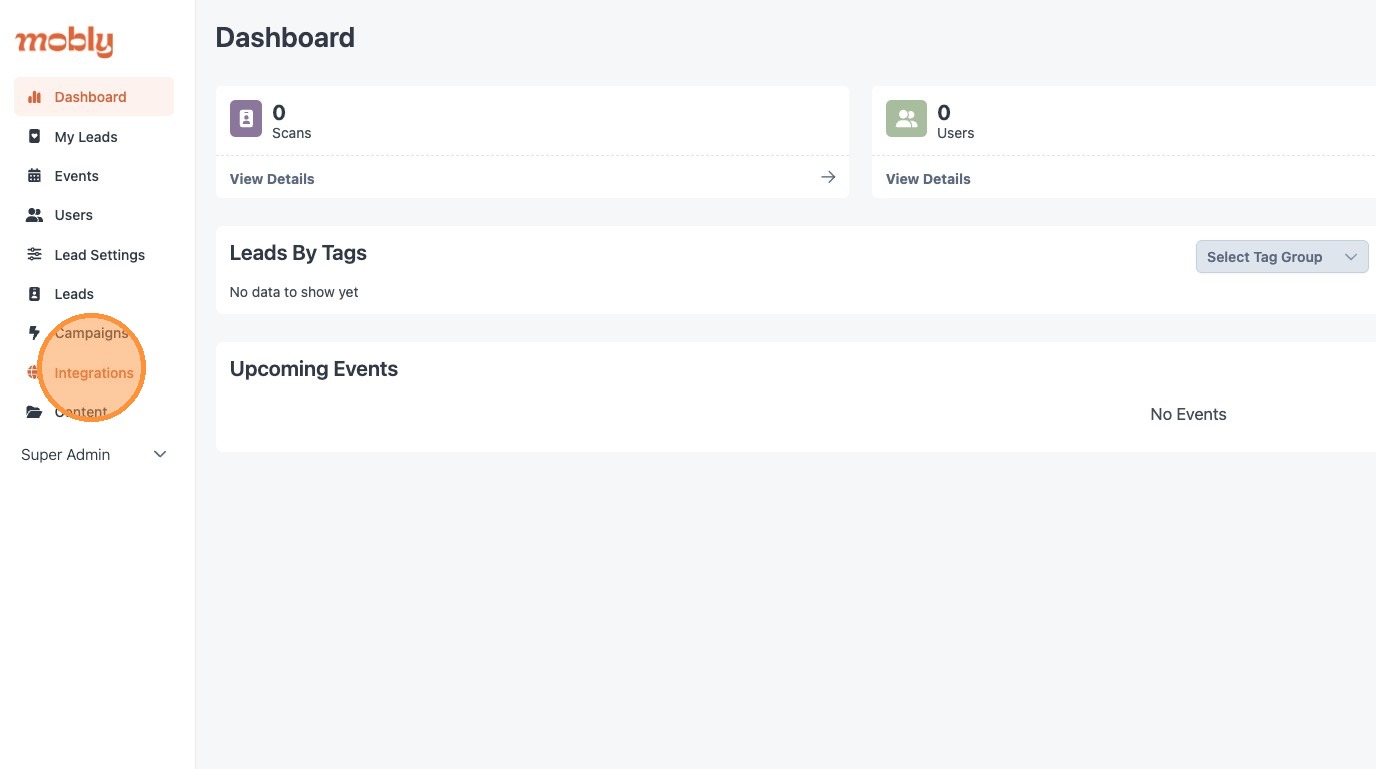
1. Click "Integrations"
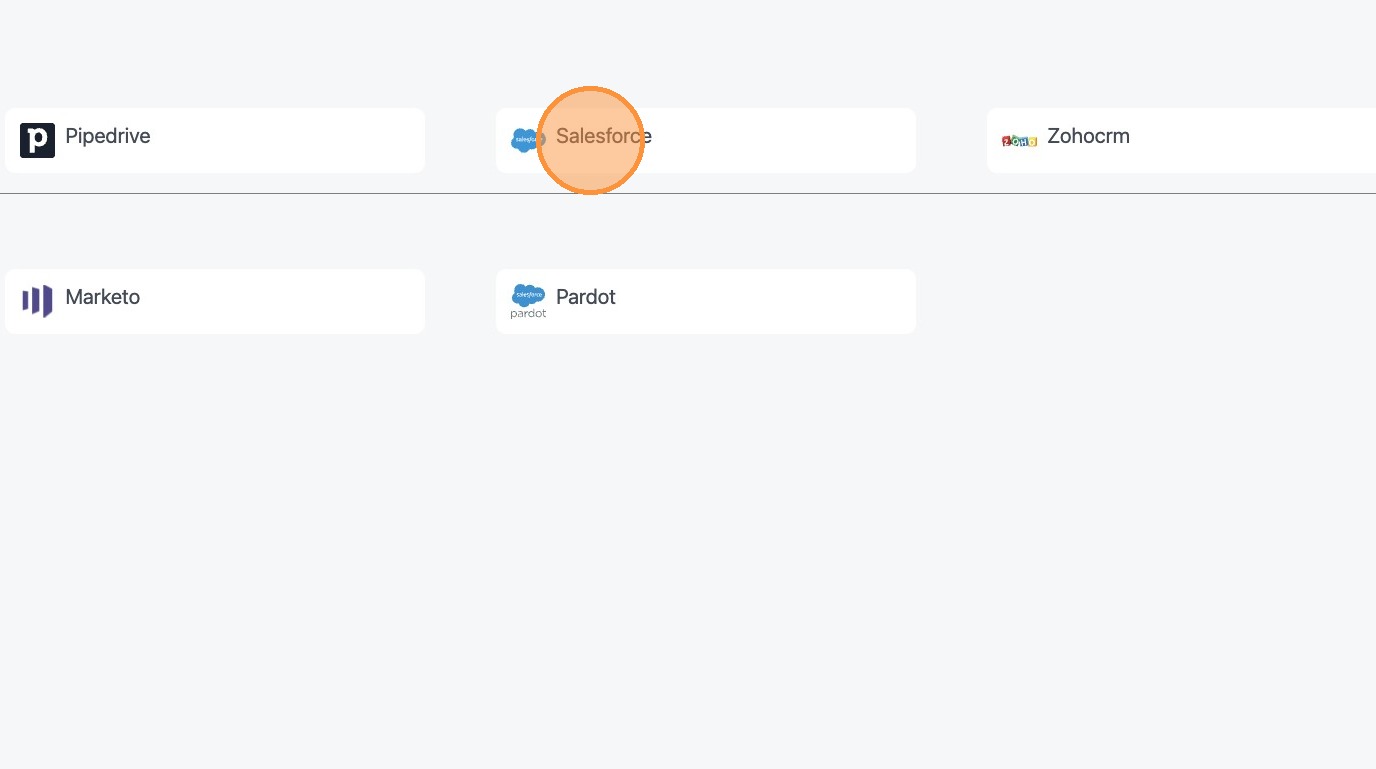
2. Choose "Salesforce"
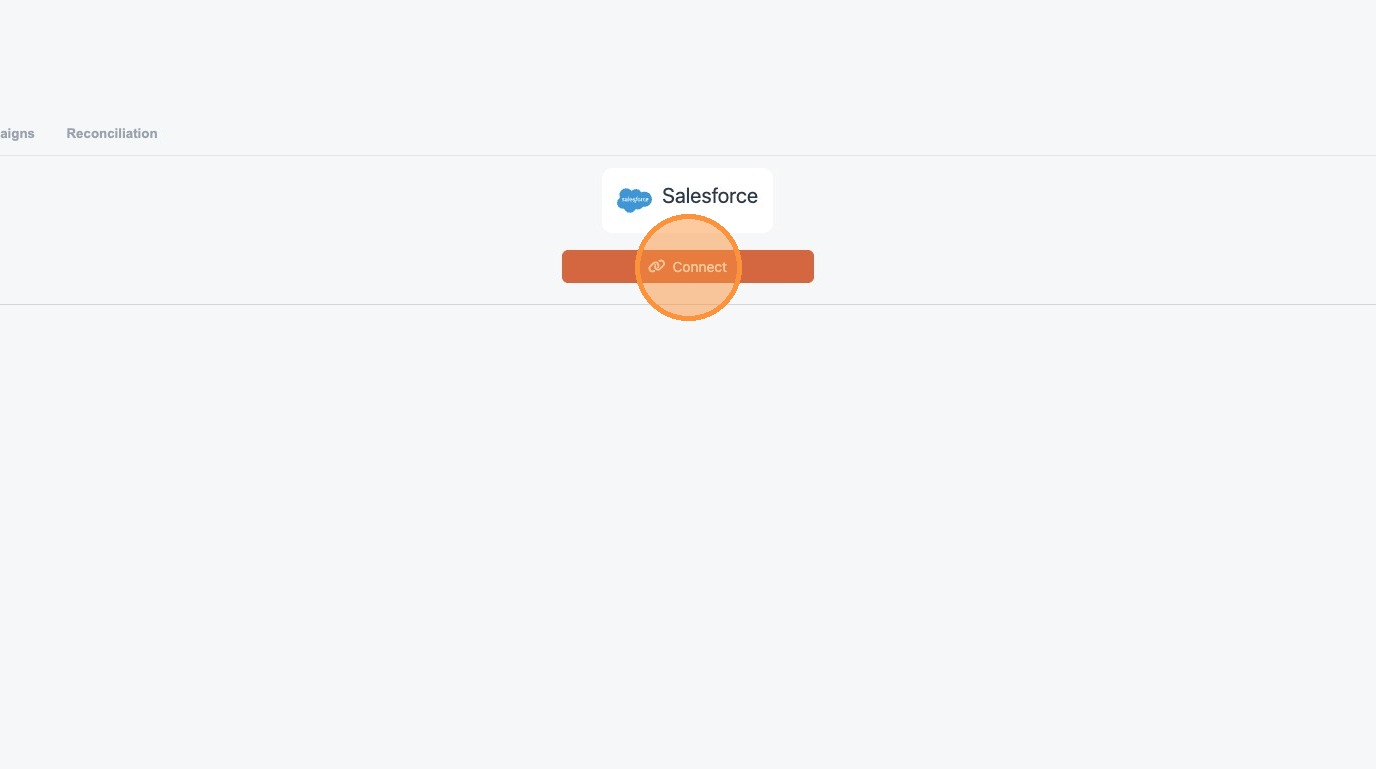
3. Click "Connect"
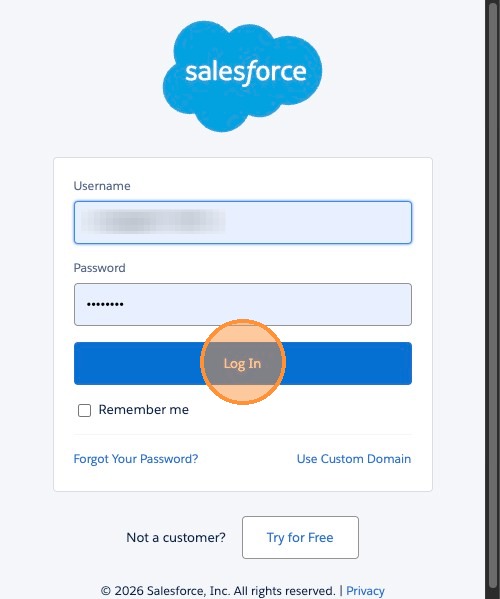
4. Enter the user credentials and log in
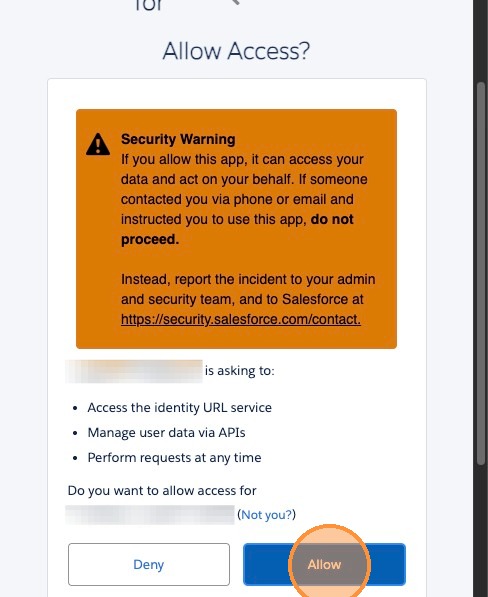
5. Click "Allow" to grant access to create and update records
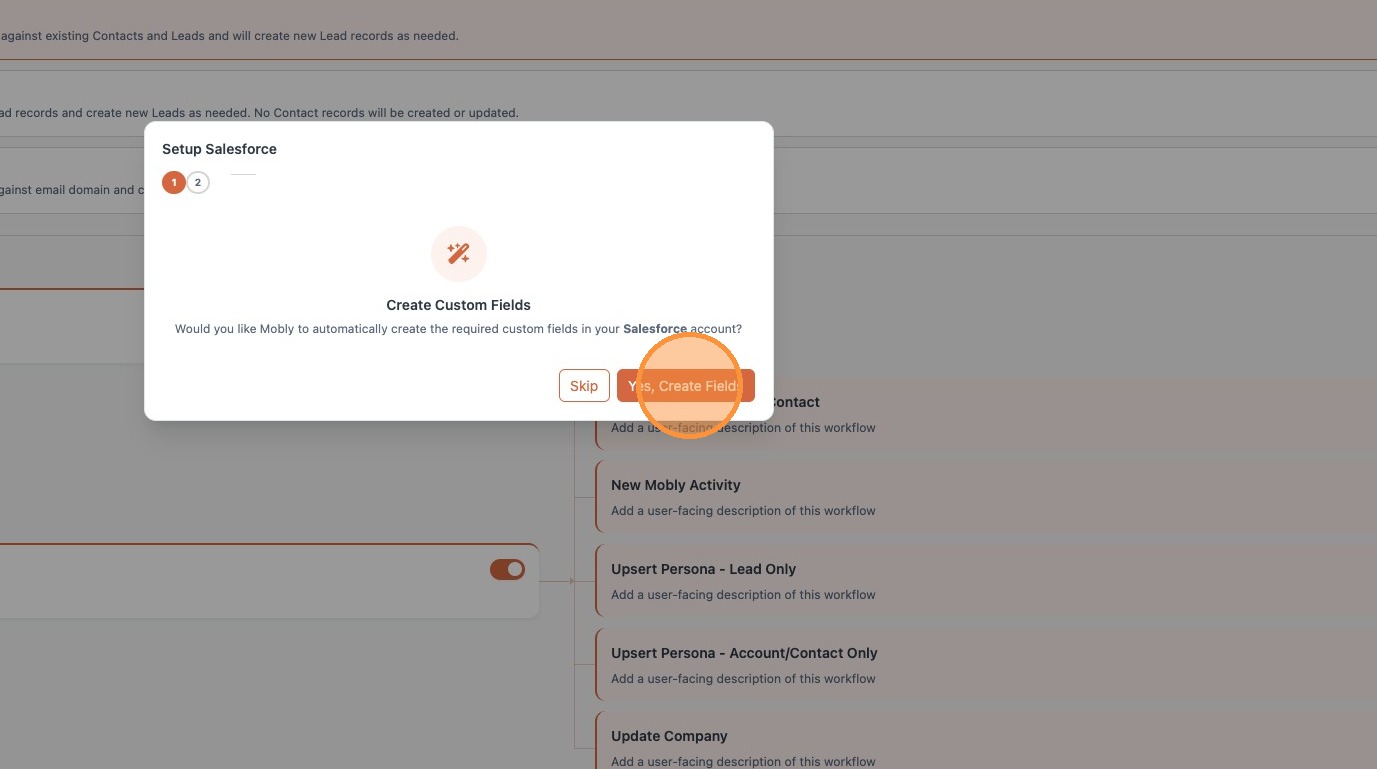
6. Mobly can deploy all the custom fields you'll need for leads and contacts. If you've already created the fields you'd like to sync, you can choose to skip this section.
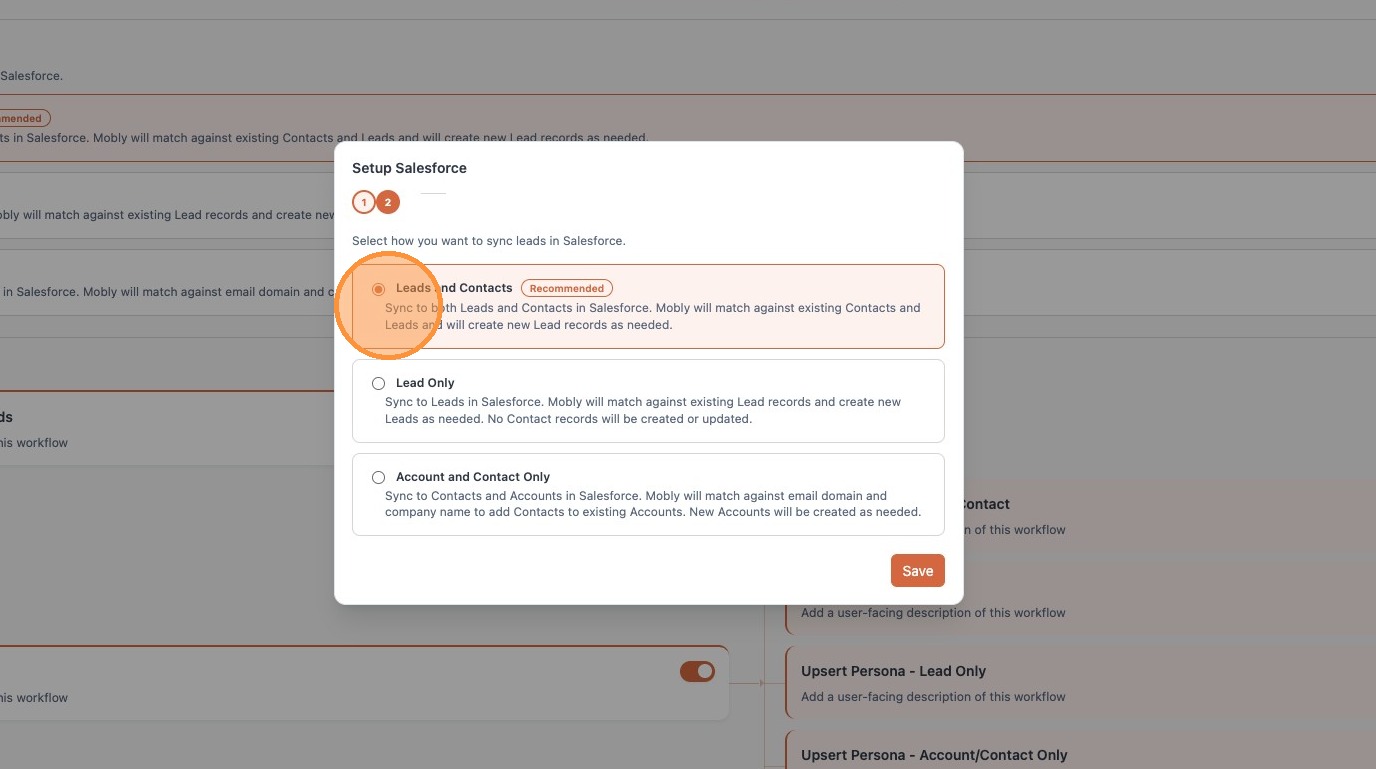
7. Mobly offers 3 sync methods. The standard method is leads and contacts, but you can also sync to leads only, or skipping leads and working only with accounts/contacts.
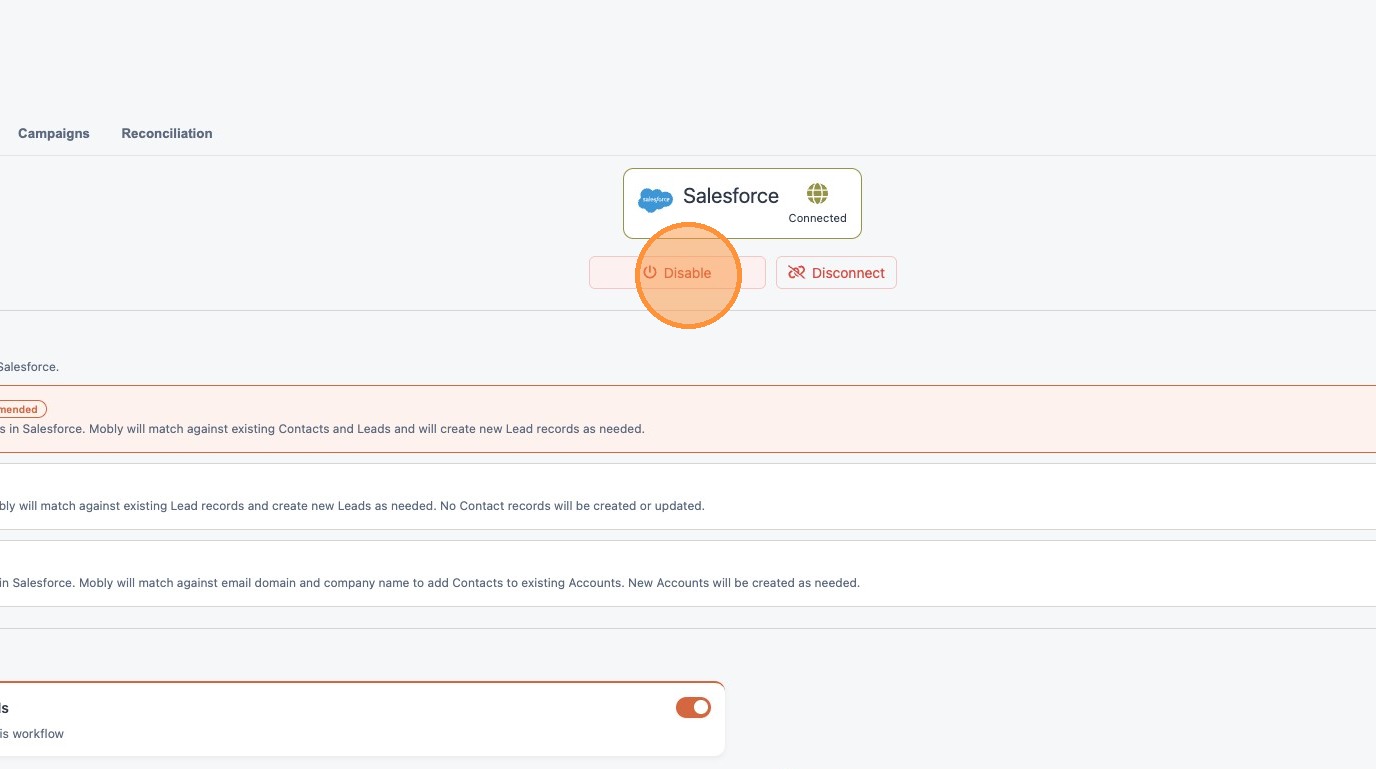
8. If you ever need to pause the sync, but don't want to disconnect entirely, you can always disable the sync here.
9. All fields indicate the field type to match with on the CRM side
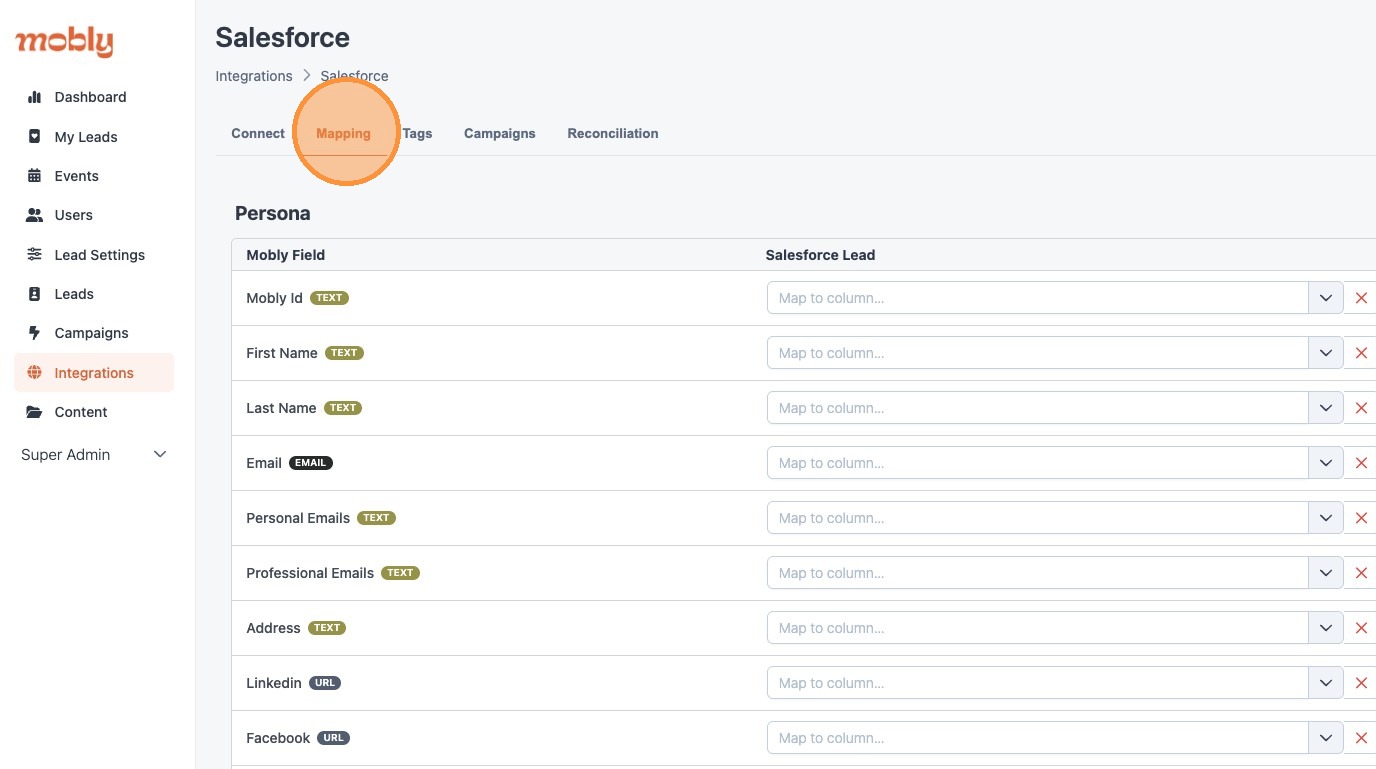
10. "Persona" fields relate to the Lead and/or Contact
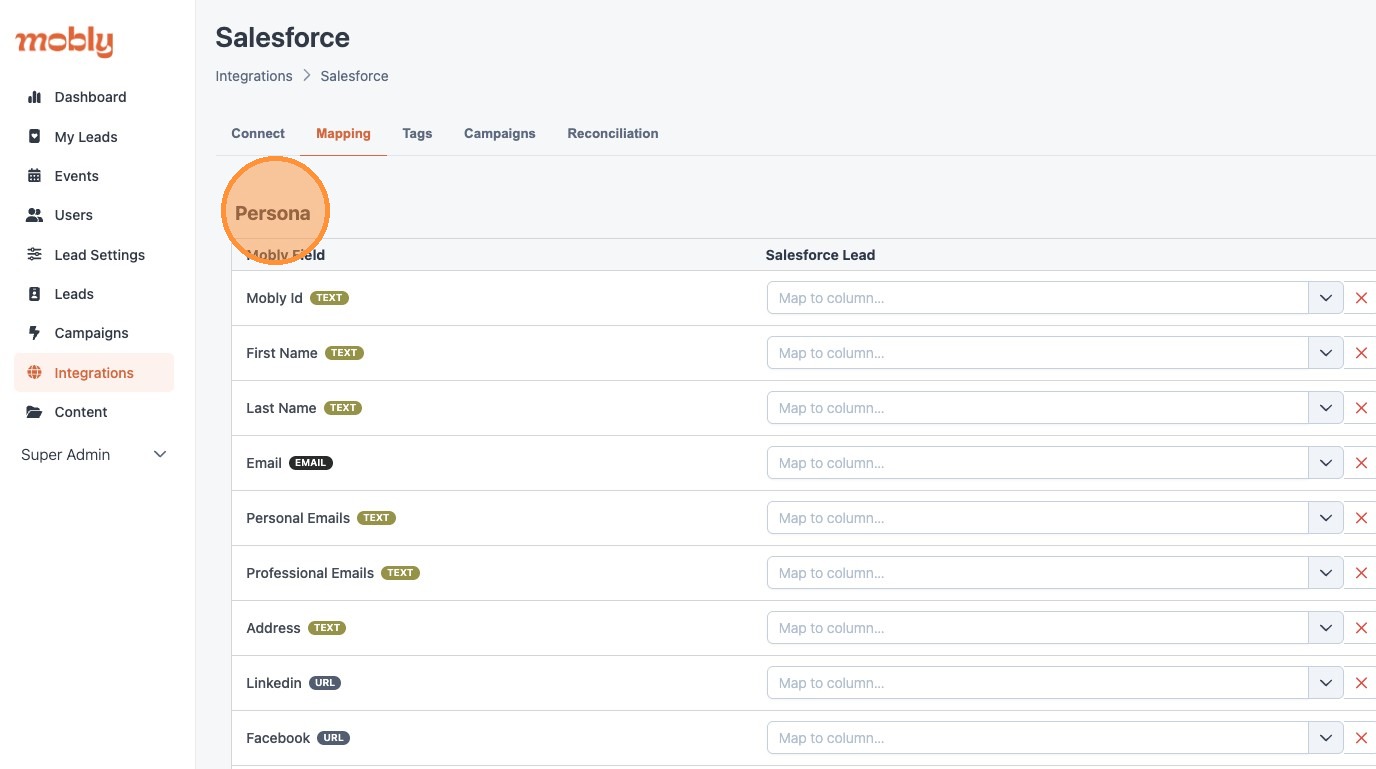
11. "Company" fields are for information about the company, and can sync to Accounts, Leads, and/or Contacts
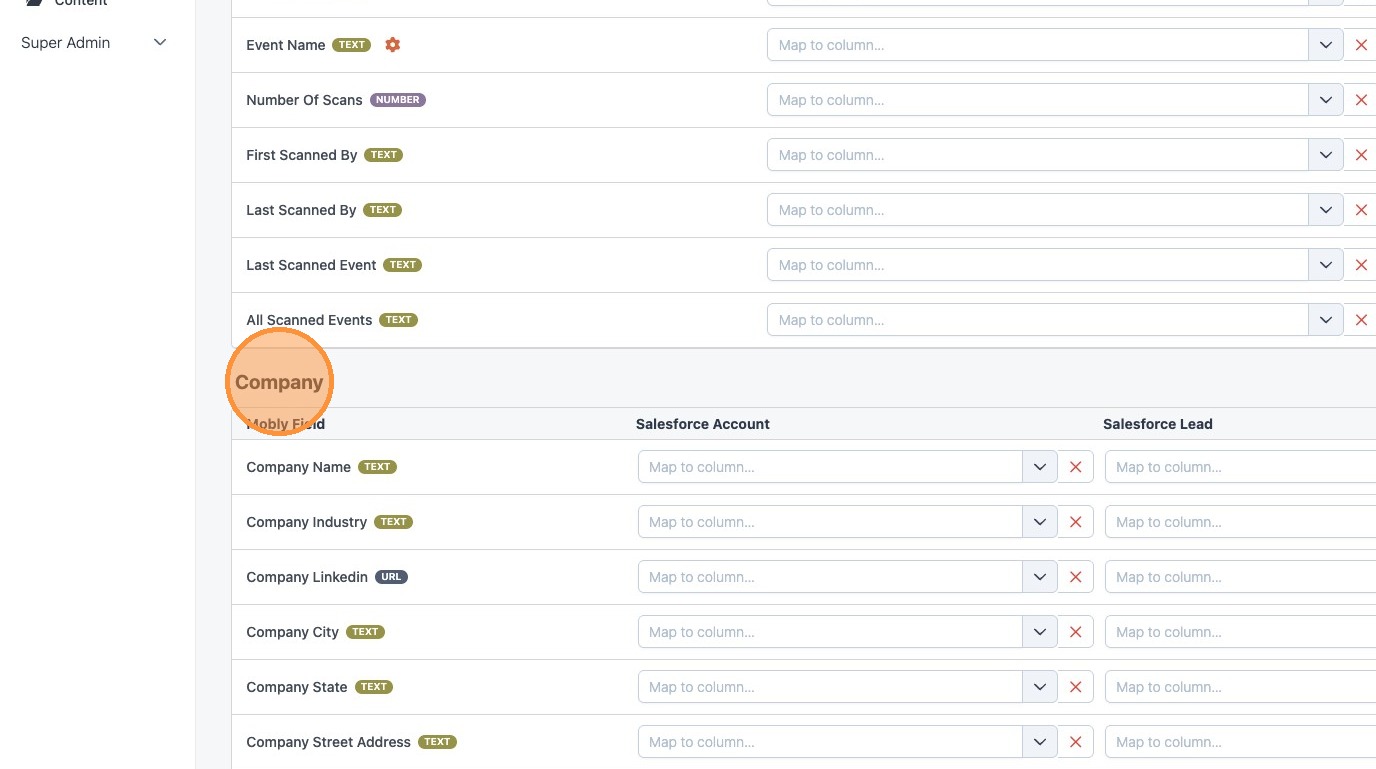
Field Mapping
Fields can be mapped directly within Mobly, and to aid in the planning phase of the project, you can make a copy of this spreadsheet and add in your own CRM fields and tag preferences.
Reminder: Mobly can create these fields automatically unless you would like to repurpose existing fields.
Basic Lead Info
- First Name
- Last Name
- Personal Email
- Personal Address
- X (Twitter)
- Profile Picture
- Job Title
- Phone Number
- If using the standard fields, you can choose to map this to either Business Phone or Mobile Phone. Business Phone is the "Phone" field on the Contact.
- Other Phone Numbers
- If you wish to have additional phone numbers that enrichment finds, we recommend making a new field such as "mobly_other_phone_numbers". This will come in as a semicolon separated list.
Company Info
- Company Name
- Company Industry
- Company LinkedIn
- Company Street Address
- Due to Salesforce's strong policy about street address format, we recommend mapping this to a new field without restrictions called something such as "mobly_company_address".
- Company City
- Company State
- Company Zip Code
- Company Country
Mobly Specific Info
| Mobly Name | Description | Recommended CRM Name | Recommended Field Type |
| Description | Open text field to track notes or other required information about the lead from the event | mobly_description | Text Area (Long) |
| Number of Scans | Total number of scans for the lead across all events | mobly_number_scans | Number |
| First Scanned By | Email of first scanner | mobly_first_scanned_by | Text |
| Last Scanned By | Email of last scanner | mobly_last_scanned_by | Text |
| Last Scanned Event | The name of the last scanned event, excludes uploads and manual entries | mobly_last_scanned_event | Text |
| All Scanned Events | Concatenated list of all Mobly events they've been scanned at | mobly_all_events | Text Area (Long) |
| Most Recent Mobly Campaign | Campaign ID of the most recent Mobly Campaign | mobly_most_recent_campaign | Text |
| All Mobly Campaigns | Concatenated string of Mobly Campaign IDs | mobly_all_campaigns | Text Area (Long) |
Tags
Tags in Mobly help with segmentation, qualification, and automation inside Salesforce.
- Examples of Tag Categories:
- Score (Hot, Medium, Cold)
- Product Interest
- Marketing Campaign
- Segments (Buyer, Decision Maker, Influencer, End-User)
- Next Steps (Set Meeting, Follow-up)
- Send Contract (Yes, No)
Each tag group should have its own field in Salesforce. We can sync to text, picklist, or checkbox values. However, we suggest using text fields to allow for multi-select tags and future-proofing for any changes you make to Mobly tags.